
1. Introduction
This manual provides detailed instructions for the setup, operation, and maintenance of your WAVLINK Universal Laptop Docking Station. Please read this manual thoroughly before using the device to ensure proper functionality and to avoid any issues.
2. Package Contents
Verify that all items are present in the package:
- 1 x WAVLINK USB-C Dual 4K Universal Dock Station
- 1 x 100W Power Adapter
- 1 x USB Type-C to C Cable
- 1 x USB 3.0 A to C Cable
- 1 x Instruction Manual

Image: Contents of the WAVLINK Universal Docking Station package, showing the main unit, power adapter, various cables, and documentation.
3. Product Overview
The WAVLINK Universal Laptop Docking Station provides extensive connectivity for your laptop, expanding its capabilities with multiple display outputs, USB ports, Ethernet, and audio connections.
3.1 Front Panel
- USB 3.0 Ports (x4): For connecting USB peripherals.
- LED Indicator: Indicates power status.
- Audio Out Port: For headphones or speakers.
- Mic In Port: For microphones.
3.2 Rear Panel
- DC 20V Power Input: Connects to the included power adapter.
- On/Off Switch: Controls power to the docking station.
- Gigabit Ethernet Port (LAN): For wired network connection.
- Display 1 (HDMI / DisplayPort): Video output for the first monitor.
- Display 2 (HDMI / DisplayPort): Video output for the second monitor.
- USB 3.0 Ports (x2): Additional USB ports for peripherals.
- USB-C Host Port (USB-C In): Connects to your laptop for data and power delivery.
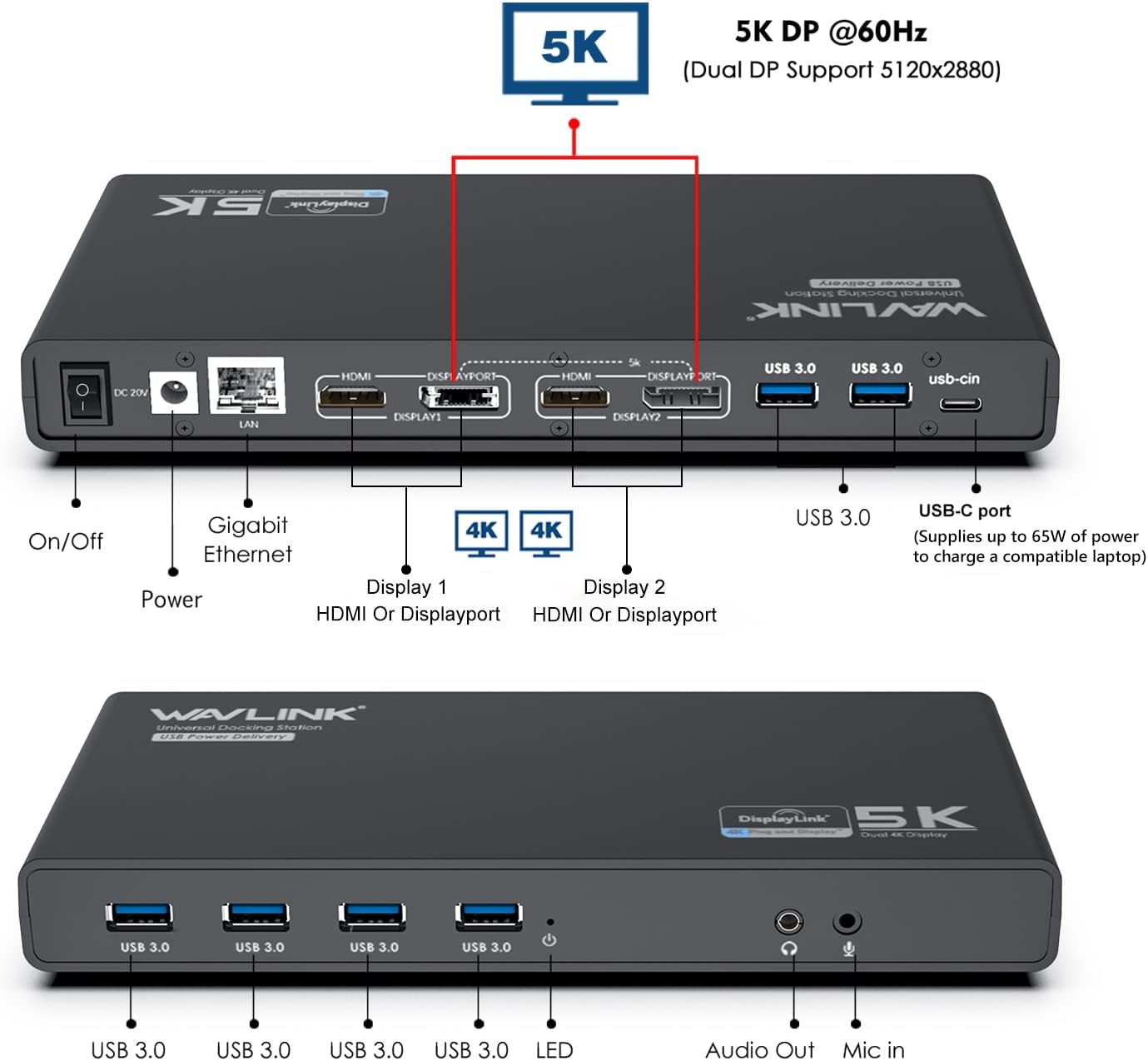
Image: Detailed diagram showing the front and rear ports of the WAVLINK Universal Docking Station, including USB 3.0, audio, mic, power, Ethernet, HDMI, DisplayPort, and USB-C host connection.
4. Setup Instructions
4.1 Driver Installation
Important: The WAVLINK Universal Docking Station requires the DisplayLink driver to function correctly. Please install the latest driver before connecting the docking station to your computer.
- Visit the official DisplayLink website: www.displaylink.com/downloads
- Download the appropriate driver for your operating system (Windows, macOS, Chrome OS, Android, Ubuntu).
- Follow the on-screen instructions to complete the driver installation. Restart your computer if prompted.

Image: Visual representation of the docking station's universal compatibility with various operating systems (Mac OS, Windows, Chrome OS, Ubuntu, Harmony OS, Android) and a reminder to download the DisplayLink driver.
4.2 Power Connection
- Connect the included 100W power adapter to the DC 20V input port on the rear of the docking station.
- Plug the power adapter into a wall outlet.
- Ensure the On/Off switch on the rear panel is in the 'On' position. The LED indicator on the front panel should illuminate.

Image: The docking station connected to a power outlet via its 100W adapter, and to a laptop, illustrating its power delivery capability (up to 65W for the laptop).
4.3 Host Laptop Connection
Connect the docking station to your laptop using either the USB Type-C to C cable or the USB 3.0 A to C cable, depending on your laptop's available ports.
- For USB-C Laptops: Use the USB Type-C to C cable to connect the docking station's USB-C Host Port to your laptop's USB-C port.
- For USB-A Laptops: Use the USB 3.0 A to C cable to connect the docking station's USB-C Host Port to your laptop's USB-A port.

Image: The docking station demonstrating compatibility with both USB-C and USB-A laptops, showing the respective cable connections.
4.4 Monitor Connection
The docking station supports dual 4K displays or a single 5K display.
- Dual 4K Displays: Connect two monitors to the Display 1 and Display 2 ports using either HDMI or DisplayPort cables. The maximum resolution supported is 4K@60Hz (4096 x 2160).
- Single 5K Display: Connect one 5K-enabled monitor to either Display 1 or Display 2 using a DisplayPort cable. The maximum resolution supported is 5K@60Hz (5120 x 2880).

Image: A laptop connected to the docking station, which extends the display to two external monitors, demonstrating dual 4K output.

Image: A laptop connected to the docking station, which extends the display to a single 5K monitor, illustrating 5K@60Hz output.
4.5 Peripheral Connections
- USB Devices: Connect your USB peripherals (keyboard, mouse, external drives, etc.) to the available USB 3.0 ports on the front and rear panels.
- Ethernet: For a stable wired network connection, connect an Ethernet cable from your router/modem to the Gigabit Ethernet port on the rear panel.
- Audio: Connect headphones or speakers to the Audio Out port. Connect a microphone to the Mic In port.
5. Operating Instructions
5.1 Display Modes
After connecting your monitors, you can configure display modes through your operating system settings:
- Extend Mode: Each connected monitor displays a different desktop, allowing for increased workspace.
- Mirror Mode: All connected monitors display the same content as your primary display.
Refer to your operating system's display settings for detailed configuration steps.

Image: A visual comparison of Mirror Mode, where all screens show identical content, and Extend Mode, where screens display different content to expand the desktop.
5.2 Power Delivery
The docking station provides up to 65W of power delivery to your connected laptop via the USB-C host connection. Ensure your laptop supports USB-C Power Delivery for this feature to function.
6. Maintenance
- Keep the docking station in a dry, well-ventilated area.
- Avoid exposing the device to extreme temperatures or direct sunlight.
- Clean the device with a soft, dry cloth. Do not use liquid cleaners or solvents.
- Ensure cables are connected securely to prevent accidental disconnections.
7. Troubleshooting
If you encounter issues, please refer to the following troubleshooting steps:
- No Display Output:
- Ensure the DisplayLink driver is installed correctly and updated to the latest version.
- Verify that the docking station is powered on and the LED indicator is lit.
- Check all cable connections (host to dock, dock to monitors).
- Test monitors individually to confirm they are functional.
- Restart your laptop and the docking station.
- Laptop Not Charging:
- Confirm your laptop's USB-C port supports Power Delivery.
- Ensure the 100W power adapter is securely connected to the docking station and a power outlet.
- Verify the USB-C host cable is properly connected.
- USB Devices Not Recognized:
- Ensure the docking station is connected to your laptop and powered on.
- Try connecting the USB device to a different port on the docking station.
- Test the USB device by connecting it directly to your laptop.
- Network Connection Issues:
- Check the Ethernet cable connection between the docking station and your router/modem.
- Verify your network settings on your laptop.
- Ensure the DisplayLink driver is installed, as it includes network drivers.
- Poor Video Quality or Mouse Lag:
- Ensure the DisplayLink driver is installed and up-to-date.
- Check your display resolution settings in your operating system.
- Some older systems or specific configurations might experience performance limitations.
8. Specifications
| Feature | Specification |
|---|---|
| Product Dimensions | 8 x 3 x 1 inches |
| Item Weight | 10 ounces |
| Brand | WAVLINK |
| Hardware Interface | USB |
| Special Feature | Fast Charging (65W Power Delivery) |
| Display Outputs | 2x HDMI, 2x DisplayPort (Supports Dual 4K@60Hz or Single 5K@60Hz) |
| USB Ports | 6x USB 3.0 (up to 5Gbps), 1x USB-C Host Port |
| Ethernet | Gigabit Ethernet (RJ45) |
| Audio | Audio Out, Mic In (3.5mm jacks) |
| Power Adapter | 100W |
| Compatible Devices | Apple M1/M2 and Intel Macs (macOS 10.14+), Microsoft Surface line, HP Spectre x360 series, Dell XPS 13 & 15 / Latitude, Lenovo Thinkpad T series, Yoga series, Microsoft Surface Book 2 / Go / Laptop 3 / Pro 7, Huawei Macbook Mate10+, Google Slate (2019), Chromebook C340-15, Razer Blade 2017, Pixel book go 2019/2020. |
| Operating System Compatibility | Windows 11/10/8.1/8/7/XP, macOS 10.14 or later, Chrome OS, Android, Ubuntu. |
9. Warranty and Support
WAVLINK provides a 2-year worry-free warranty for this product. For technical support or customer service, please contact WAVLINK directly. Contact information can typically be found on the official WAVLINK website or through the retailer where the product was purchased.
For the latest drivers and support resources, please visit: www.wavlink.com