
1. Introduction
Thank you for choosing the CPVAN BC01 Pro Outdoor Solar Security Camera. This manual provides essential information for the proper installation, operation, and maintenance of your device. Please read this manual thoroughly before use and retain it for future reference.
Safety Information:
- Ensure the camera is installed in a location where it is protected from direct impact.
- Do not attempt to disassemble or modify the camera. This may void the warranty and cause damage.
- Use only the specified power source and charging methods.
- Keep the camera and its components out of reach of children.
2. Product Overview
The CPVAN BC01 Pro is a wireless outdoor security camera designed for continuous surveillance with solar power. It features 1080P HD video, color night vision, PIR motion detection, and two-way audio communication.
Key Features:
- Solar Powered: Integrated 5000mAh rechargeable battery with solar panel for continuous charging.
- 1080P HD Video: Delivers clear 1920x1080 resolution images and videos.
- Color Night Vision: Equipped with 8 IR LEDs and a powerful spotlight for full-color night vision.
- PIR Motion Detection: Advanced algorithms reduce false alarms and support AI identification of people, vehicles, and packages.
- Two-Way Audio: Communicate with visitors or deter intruders via the built-in microphone and speaker.
- IP66 Weatherproof: Designed to withstand dust and water splashes, operating in temperatures from -20°C to 50°C (-4°F to 122°F).
- 100% Wireless: Flexible installation with a 360° adjustable wall mount.
Package Contents:
Verify that all items are present in your package:
- CPVAN BC01 Pro Camera
- Solar Panel (1.6W)
- Wall Mount Bracket (360° adjustable)
- Mounting Screws and Wall Plugs
- USB Charging Cable (3 meters)
- User Manual
- SIM Ejector Tool (for SD card slot access)

Image: Package contents of the CPVAN BC01 Pro camera system.
3. Installation
3.1 Initial Charging
Before first use, fully charge the camera's internal battery using the provided USB cable and a 5V/2A power adapter (not included). This ensures the camera has sufficient power to operate during initial setup and periods of low sunlight.
3.2 App Installation
Download the VicoHome APP from your smartphone's app store (iOS App Store or Google Play Store). Register an account and log in.
3.3 Camera Pairing
- Open the VicoHome APP and tap the "+" icon to add a new device.
- Follow the on-screen instructions to select your camera model.
- Power on the camera. The camera will enter pairing mode (indicated by a flashing LED).
- Connect your smartphone to a 2.4GHz Wi-Fi network. The camera does not support 5GHz Wi-Fi.
- Scan the QR code displayed on your phone screen with the camera lens. Hold the phone approximately 15-20 cm (6-8 inches) from the camera until you hear a confirmation sound.
- Once connected, name your camera and complete the setup process.
3.4 Mounting the Camera and Solar Panel
Choose a mounting location that provides a clear view of the area you wish to monitor and receives ample direct sunlight for the solar panel. The camera and solar panel are IP66 weatherproof, suitable for outdoor use.

Image: CPVAN BC01 Pro camera with solar panel for extended standby time.
- Mark Drilling Points: Use the mounting bracket as a template to mark the screw holes on the wall.
- Drill Holes: Drill holes at the marked positions and insert the wall plugs.
- Attach Brackets: Securely fasten the camera and solar panel mounting brackets to the wall using the provided screws.
- Adjust Angle: Adjust the camera and solar panel to the desired angles. The solar panel should be positioned to receive maximum direct sunlight throughout the day. The 3-meter cable allows for flexible placement of the solar panel away from the camera if needed.
- Connect Solar Panel: Connect the solar panel cable to the charging port on the camera.

Image: The camera and solar panel are IP66 waterproof, suitable for all weather conditions.
4. Operating Instructions
4.1 Live View and Recording
Open the VicoHome APP and select your camera to access the live view. From here, you can manually record video, take screenshots, and monitor your property in real-time.
4.2 Motion Detection and Alerts
The camera uses PIR (Passive Infrared) motion detection to identify movement. When motion is detected, the camera will automatically record a video clip and send an alert notification to your smartphone.
- Adjust Sensitivity: In the app settings, you can adjust the motion detection sensitivity to minimize false alarms.
- AI Recognition: The camera supports intelligent AI recognition (subscription may be required) to differentiate between people, vehicles, and packages, providing more precise alerts.
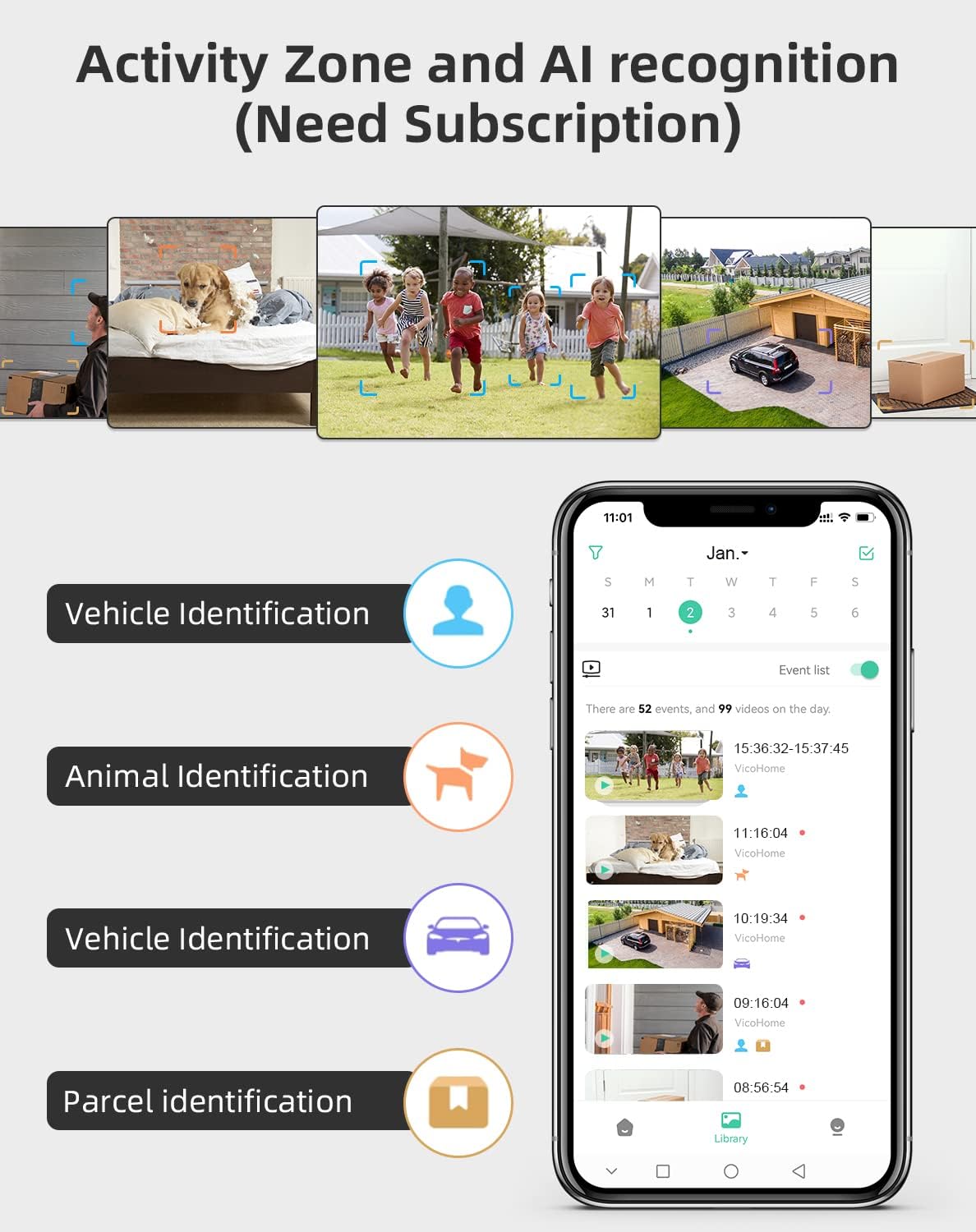
Image: Activity Zone and AI recognition features available through the VicoHome app (subscription may be required).

Image: Real-time alerts with built-in spotlight for clearer night visibility.
4.3 Two-Way Audio
Utilize the two-way audio feature to communicate through the camera. Tap the microphone icon in the live view interface to speak, and listen through the camera's speaker.

Image: Two-way talk feature allowing real-time communication.
4.4 Night Vision Modes
The camera offers two night vision modes:
- Infrared Mode: Automatically activates in low light, providing clear black and white video.
- Color Night Vision: The powerful built-in spotlight can be activated to provide full-color video at night.

Image: Comparison of White Light Mode (color night vision) and Infrared Mode.
4.5 Activity Zones
Define specific areas within the camera's field of view where you want to receive motion alerts. This helps focus surveillance on critical areas and further reduces unwanted notifications.
4.6 Storage Options
The camera supports two storage methods for recorded video clips:
- Cloud Storage: Access recorded events via the VicoHome cloud service (subscription may be required).
- Local Storage: Insert a microSD card (up to 128GB, not included) into the camera's slot for local recording.

Image: Cloud storage and local SD card storage options.
5. Maintenance
5.1 Cleaning
- Regularly clean the camera lens with a soft, dry cloth to ensure clear image quality.
- Wipe the solar panel periodically to remove dust, dirt, or debris that may obstruct sunlight and reduce charging efficiency.
5.2 Battery Care
- Ensure the solar panel receives adequate sunlight to maintain battery charge.
- If the camera is installed in a location with limited sunlight, occasional manual charging via USB may be necessary.
- Avoid exposing the camera to extreme temperatures outside its operating range (-20°C to 50°C).
6. Troubleshooting
If you encounter issues with your CPVAN BC01 Pro camera, refer to the following common problems and solutions:
- Camera not connecting to Wi-Fi: Ensure your Wi-Fi network is 2.4GHz. Check Wi-Fi signal strength at the camera's location. Restart your router and the camera.
- No motion alerts: Check motion detection settings in the app. Ensure sensitivity is appropriate. Verify that activity zones are correctly configured.
- Poor image quality: Clean the camera lens. Ensure there are no obstructions in the field of view. Check network stability for live streaming.
- Battery not charging: Ensure the solar panel is clean and receiving direct sunlight. Check the connection between the solar panel and the camera.
- Two-way audio not working: Check microphone and speaker permissions for the VicoHome app on your phone. Ensure volume settings are correct.
For further assistance, you can use the feedback function within the VicoHome APP:

Image: Sending feedback via the VicoHome app for technical support.
7. Specifications
| Feature | Specification |
|---|---|
| Model Number | BC01 |
| Brand | CPVAN |
| Connectivity Technology | Wireless (Wi-Fi 2.4GHz) |
| Power Source | Solar Powered and Battery Powered |
| Battery | 1 Lithium-ion (included), 5000mAh |
| Solar Panel Wattage | 1.6 Watts |
| Voltage | 5 Volts |
| Video Recording Resolution | 1080p (1920x1080) |
| Viewing Angle | 120 Degrees |
| Night Vision Range | 10 Meters |
| Night Vision Type | Infrared and Color Night (with spotlight) |
| Special Feature | PIR Motion Detector, Two-Way Audio, AI Recognition |
| International Protection Rating | IP66 |
| Operating Temperature | -20°C to 50°C (-4°F to 122°F) |
| Mounting Type | Wall Mount |
| Control Method | Application (VicoHome APP) |
| Recommended Use | Outdoor Security Surveillance |
| Zoom Type | Optical Zoom |
8. Warranty and Support
CPVAN products are designed for reliability and performance. For warranty information, please refer to the warranty card included in your product packaging or contact CPVAN customer support directly.
If you require technical assistance or have questions not covered in this manual, please contact our support team through the VicoHome APP's feedback section or visit the official CPVAN website for contact details.