
1. Introduction
This manual provides essential instructions for the safe and efficient use of your C idea CM822 Smart 8-inch Kids Tablet. Please read this manual thoroughly before operating the device to ensure proper functionality and to prevent damage. Keep this manual for future reference.
2. Safety Information
Before using your tablet, please observe the following safety guidelines:
- Always charge the tablet battery before initial use.
- Use only the provided UK charger and Type-C cable for charging. Do not use other chargers.
- Avoid exposing the tablet to extreme temperatures, direct sunlight, or humid environments.
- Do not attempt to disassemble or repair the tablet yourself. Refer to qualified service personnel.
- Keep the tablet away from water and other liquids.
- Ensure children use the tablet under adult supervision.
3. Package Contents
Verify that all items are present in the package:
- Android Tablet (C idea CM822) x 1
- UK Charger x 1
- Type-C Cable x 1
- Screen Protector x 1
- Book Cover x 1
- OTG Adapter x 1
- Kids Watch x 1
- Touch Pen x 1
- TWS Bluetooth Headset x 1
- Colour Marker x 6
- Random Cartoon Stickers x 1
- Sand Painting Kit x 1
- Key Ring x 1
- Finger Buckle x 1
- User Manual x 1
4. Product Overview
The C idea CM822 is an 8-inch Android tablet designed for kids' learning and entertainment. It features Wi-Fi and 5G LTE connectivity, a responsive touch screen, and dual cameras.

Figure 4.1: Front and back view of the C idea CM822 tablet. The tablet features a sleek design with multiple camera lenses on the rear.

Figure 4.2: Rear panel of the C idea CM822 tablet, showing the camera module and branding details.

Figure 4.3: Front screen view of the C idea CM822 tablet, displaying the user interface and side buttons.
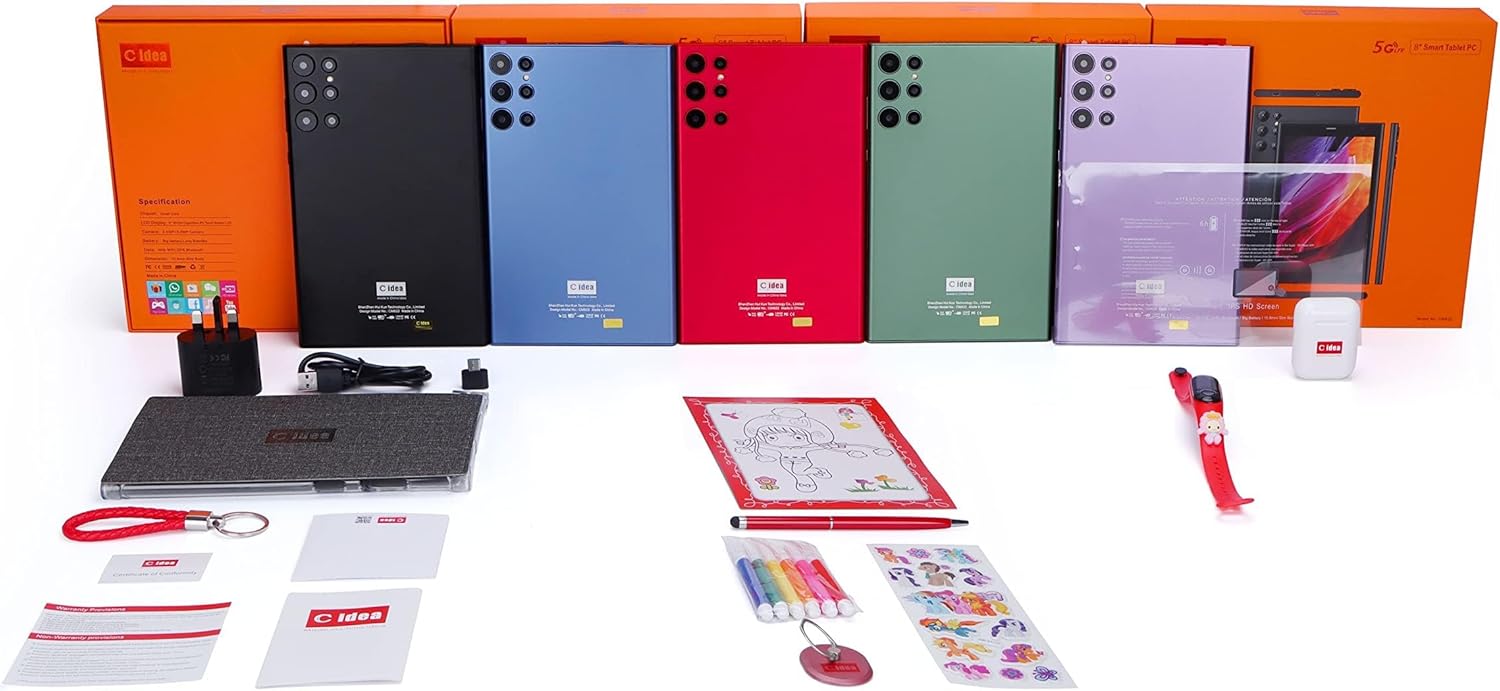
Figure 4.4: Overview of the C idea CM822 tablet and its included accessories, such as charger, cables, and various kids' items.
5. Setup
5.1 Initial Charging
Before first use, connect the provided Type-C cable to the tablet's charging port and the UK charger to a power outlet. Allow the tablet to charge fully. The battery indicator on the screen will show charging status.
5.2 Powering On/Off
- To Power On: Press and hold the Power button (located on the side) until the screen lights up.
- To Power Off: Press and hold the Power button, then select "Power off" from the options on the screen.
- To Restart: Press and hold the Power button, then select "Restart" from the options on the screen.
5.3 Inserting SIM Card and TF Card
The tablet supports a Micro Single-SIM card for 5G LTE connectivity and a TF (MicroSD) card for expandable memory up to 64GB.
- Locate the SIM/TF card slot on the side of the tablet.
- Carefully open the slot cover.
- Insert the Micro SIM card with the gold contacts facing down, ensuring it is correctly oriented.
- Insert the TF card into its designated slot.
- Close the slot cover securely.
5.4 Connecting to Wi-Fi
- From the home screen, swipe down from the top to open the Quick Settings panel.
- Tap and hold the Wi-Fi icon to go to Wi-Fi settings.
- Toggle Wi-Fi ON.
- Select your desired Wi-Fi network from the list.
- Enter the network password if prompted, then tap "Connect".
6. Operating Instructions
6.1 Basic Navigation
- Touch Screen: Tap to select, swipe to scroll, pinch to zoom.
- Home Screen: The main screen where you can access apps and widgets.
- Navigation Bar: Typically at the bottom of the screen, includes Back, Home, and Recent Apps buttons.
- Notifications Panel: Swipe down from the top of the screen to view notifications and quick settings.
6.2 Applications
- Pre-installed Apps: The tablet comes with 46 pre-installed applications. These are accessible from the app drawer or home screen.
- Installing New Apps: You can download and install additional applications from the Google Play Store. Ensure you have a stable internet connection and a Google account.
6.3 Camera Usage
The tablet is equipped with a 2MP front camera and a 5MP rear camera.
- Open the "Camera" application.
- Tap the screen to focus.
- Tap the shutter button to take a photo or start/stop video recording.
- Use the camera switch icon to toggle between front and rear cameras.
6.4 Face Unlock
The tablet supports Face Unlock for convenient security.
- Go to "Settings" > "Security" > "Face Unlock".
- Follow the on-screen instructions to register your face.
- Once registered, you can unlock the tablet by looking at the front camera.
7. Maintenance
- Cleaning: Use a soft, lint-free cloth to clean the screen and body of the tablet. Avoid using harsh chemicals or abrasive materials.
- Battery Care: To prolong battery life, avoid fully discharging the battery frequently. Charge the tablet when the battery level is low.
- Software Updates: Periodically check for system updates in "Settings" > "System" > "System update" to ensure optimal performance and security.
- Storage Management: Regularly clear unnecessary files and uninstall unused apps to free up storage space and maintain performance.
8. Troubleshooting
| Problem | Possible Solution |
|---|---|
| Tablet does not power on. | Ensure the battery is charged. Connect the charger and wait a few minutes before attempting to power on again. |
| Wi-Fi connection issues. | Check if Wi-Fi is enabled in settings. Restart your Wi-Fi router. Forget the network and reconnect. |
| Slow performance. | Close unused applications. Clear cache. Check for available storage space and free up if necessary. Restart the tablet. |
| Apps crashing. | Clear the app's cache and data in "Settings" > "Apps". Reinstall the app. Ensure the tablet's software is up to date. |
| Battery drains quickly. | Reduce screen brightness. Close background apps. Disable Wi-Fi/Bluetooth when not in use. Check battery usage in settings to identify power-hungry apps. |
If the problem persists, please refer to the warranty and support section for further assistance.
9. Specifications
| Feature | Detail |
|---|---|
| Brand | C idea |
| Model | CM822 |
| Display | 8" WVGA Capacitive IPS Touch Screen LCD |
| Resolution | 1024x600 pixels (WVGA), supports 1920x1080 video playback |
| Operating System | Android 12.0 (non-updated version) |
| Network | 5G-LTE |
| Processor | Quad-Core (MediaTek, 2 GHz) |
| Internal Storage | 256GB (Actual usable space may be less) |
| RAM | 6GB (Effective speed may vary) |
| Expandable Memory | Up to 64GB via TF card |
| SIM Type | Micro Single-SIM |
| Battery Capacity | 5000mAh (Approx. 3-4 hours play time, 3.84 hours average battery life) |
| Cameras | Front: 2MP, Rear: 5MP (Kids version) |
| Flash Light | Yes |
| Connectivity | Wi-Fi (802.11g), Bluetooth |
| Face Unlock | Yes |
| Charging Method | Type-C (Power Input: 5V/2A) |
| Audio Jack | 3.5mm |
| Dimensions (LxWxH) | 206.2 x 129 x 9.2 mm |
| Weight | 880 g |
10. Warranty and Support
10.1 Warranty Service
The C idea CM822 tablet comes with a 6-month warranty. This warranty service is limited to products purchased directly from the SmartLife-Elec store only. Please retain your proof of purchase for warranty claims.
10.2 Customer Support
For technical assistance, troubleshooting beyond this manual, or warranty inquiries, please contact the retailer or the SmartLife-Elec store where the product was purchased. Provide your model number (CM822) and purchase details when seeking support.