
sainlogic WS0310
Sainlogic WiFi Weather Station User Manual
Model: WS0310
1. Introduction
Thank you for choosing the Sainlogic WiFi Weather Station. This device provides comprehensive indoor and outdoor weather data, including temperature, humidity, wind speed, wind direction, rain, UV index, and sunlight. With its large 10.2-inch color display and WiFi connectivity, you can easily monitor current conditions and connect to online weather networks like Weather Underground and WeatherCloud.

Image 1.1: Sainlogic WiFi Weather Station components, including the main display, outdoor 7-in-1 sensor, and a smartphone showing the companion app.
2. Package Contents
- Sainlogic 10.2-inch Color Display Console
- 7-in-1 Outdoor Sensor Array (Rain funnel, Solar panel, Transmission module, Wind vane, Anemometer, UV & Light Sensor, Thermo-hygrometer)
- Mounting Pole and Hardware
- Power Adapter for Display Console
- User Manual (this document)
3. Setup
3.1 Outdoor Sensor Installation
The 7-in-1 outdoor sensor measures various weather parameters. For optimal performance, install it in an open area, away from obstructions that could block wind or rain, and where the solar panel can receive direct sunlight.
- Battery Installation: The sensor array requires 3 AAA batteries (not included) for backup power. Locate the battery compartment on the sensor unit, insert the batteries, and secure the cover.
- Mounting: Use the provided mounting pole and hardware to secure the sensor. Ensure it is level using the integrated bubble level. Common mounting options include mounting on a pole (top or side) or a flat surface.

Image 3.1: Detailed view of the 7-in-1 outdoor sensor, highlighting its components such as the rain funnel, solar panel, wind vane, and anemometer.

Image 3.2: Illustrations demonstrating different mounting configurations for the outdoor sensor, including top and side pole mounts.
3.2 Indoor Display Console Setup
Place the display console in a convenient location indoors, away from direct sunlight or heat sources that could affect temperature readings.
- Power On: Connect the power adapter to the display console and plug it into a wall outlet. The display will power on and begin searching for the outdoor sensor.
- Sensor Connection: The display console will automatically attempt to connect to the outdoor sensor. Once connected, outdoor data will appear on the screen. The wireless connection can reach up to 300 feet (100 meters) in open air, but obstacles like walls and metal can reduce this range.

Image 3.3: The indoor display console and outdoor sensor, illustrating the wireless connection range between the two units.
3.3 WiFi and App Connection
Connect your weather station to your home WiFi network to access online features, including Weather Underground, WeatherCloud, and the Sainlogic app.
- Enable WiFi: Follow the instructions in the display console's menu to enable WiFi and connect to your 2.4GHz router. The WiFi icon on the display will flash during connection.
- Download App: Download and install the "sainlogic" app from your device's app store (Android or iPhone).
- Register and Connect: Create an account in the app or on the Weather Underground/WeatherCloud website. Follow the app's instructions to add your weather station using its Station ID and Key. This allows you to view real-time and historical data on your smartphone or computer.

Image 3.4: The Sainlogic app and Weather Underground interface displayed on a smartphone, tablet, and desktop, demonstrating easy data synchronization via WiFi.

Image 3.5: A visual guide to connecting the weather station to a 2.4GHz router, uploading data to online services, and accessing it via the Sainlogic app.
4. Operation
4.1 Understanding the Display
The 10.2-inch color display provides a clear and organized view of all weather data. Key information areas are separated for easy readability from various angles.
- Outdoor Data: Displays outdoor temperature (°C/°F), humidity, wind speed (mph/km/h), wind direction, gust speed, and average wind speed.
- Rainfall: Shows daily, weekly, or monthly rainfall accumulation.
- UV Index & Sunlight: Provides current UV index and sunlight intensity (W/m²).
- Pressure: Displays barometric pressure.
- Indoor Data: Shows indoor temperature (°C/°F) and humidity.
- Time & Date: Current time and date.
- Weather Forecast: Icons indicating predicted weather conditions (sunny, partly cloudy, cloudy, rainy).
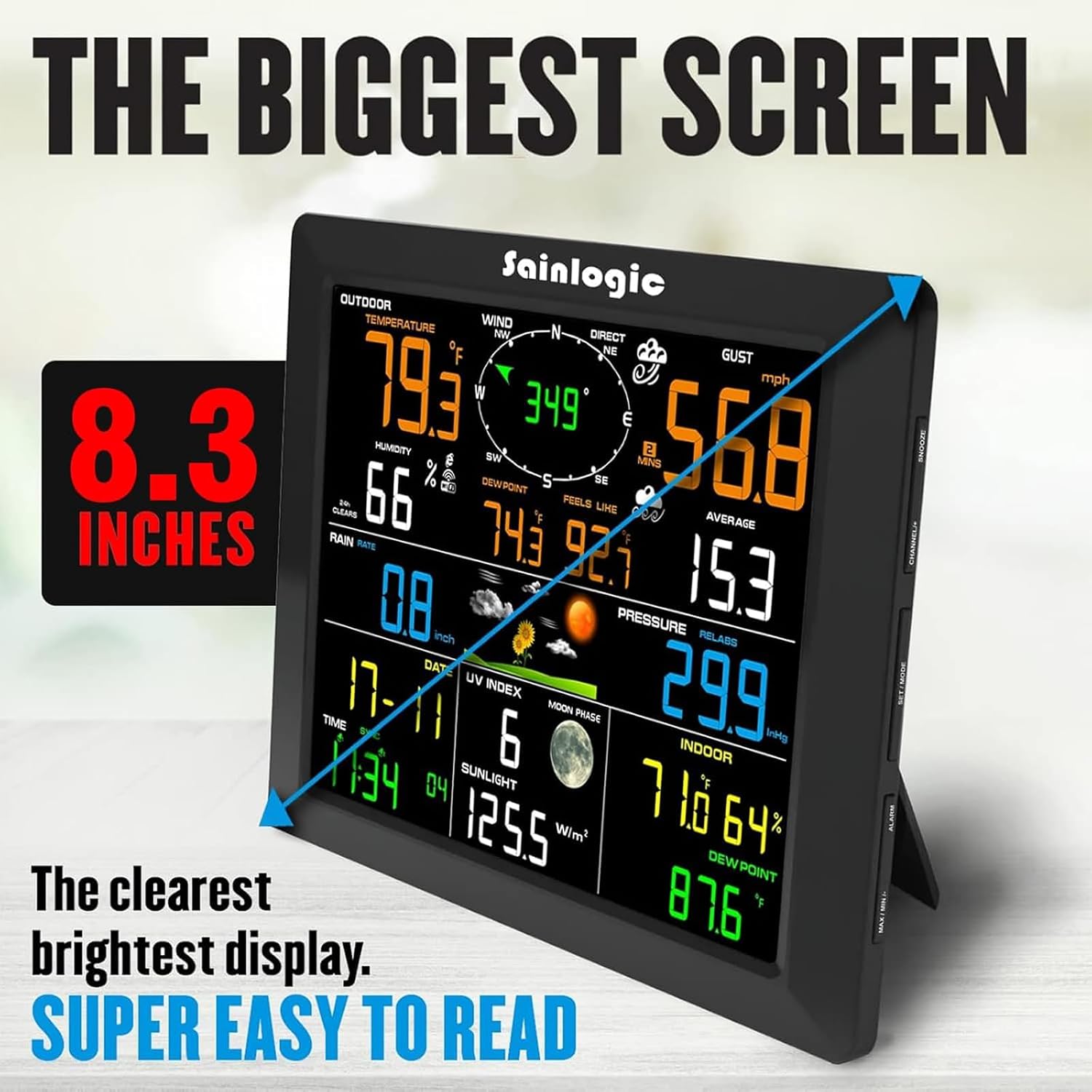
Image 4.1: The 8.3-inch display console, showcasing its clear and bright interface with various weather parameters.

Image 4.2: The display console demonstrating its weather forecasting feature with four different illustrative icons for various conditions: Sunny, Partly Cloudy, Cloudy, and Rainy.
4.2 Using the Sainlogic App
The Sainlogic app allows you to monitor your weather station's data remotely, view historical trends, and receive alerts.
- Real-time Data: View current outdoor and indoor conditions, wind, rain, and more.
- Historical Data: Access graphs and charts of past weather data for analysis.
- Alerts: Set custom alerts for specific weather conditions (e.g., high wind, low temperature).

Image 4.3: A screenshot of the Sainlogic mobile application, showing a dashboard with current and historical weather data.
5. Maintenance
Regular maintenance ensures the accuracy and longevity of your weather station.
- Outdoor Sensor Cleaning: Periodically check the rain funnel for debris (leaves, insects) and clean it to ensure accurate rainfall measurements. Wipe down the solar panel to maintain charging efficiency.
- Battery Replacement: The outdoor sensor's AAA batteries should be replaced annually or when the low battery indicator appears on the display console.
- Display Console Care: Clean the display with a soft, dry cloth. Avoid using abrasive cleaners.
6. Troubleshooting
- No Outdoor Data on Display:
Ensure the outdoor sensor batteries are correctly installed and fresh. Verify the sensor is within range of the display console (max 300 ft, less with obstructions). Try relocating either unit to improve signal. Reset both units by removing power/batteries for a few minutes, then power on the sensor first, then the display.
- WiFi Connectivity Issues:
Ensure your router is 2.4GHz compatible. Check WiFi password. Move the display closer to the router. Restart your router and the display console. If connecting to Weather Underground/WeatherCloud, ensure your station ID and key are entered correctly.
- Inaccurate Rain Readings:
Check the rain funnel for any blockages (leaves, dirt, spiderwebs). Ensure the sensor is level. Strong winds can sometimes cause false readings due to vibration; ensure the mounting is stable.
- Inaccurate Sunlight Index:
The sensor has a known limitation where sunlight index readings may be inaccurate above 1200-1300 W/m². This is a hardware limitation and not user-correctable.
- Temperature/Humidity Discrepancies:
Ensure the outdoor sensor is not in direct sunlight (except for its solar panel) or near heat sources. For indoor readings, ensure the display is not near vents, windows, or appliances that generate heat/cold.
7. Specifications
| Feature | Specification |
|---|---|
| Brand | sainlogic |
| Model Number | WS0310 |
| Display Type | LCD Color Display |
| Display Dimensions | 0.6"D x 8.3"W x 6.2"H |
| Power Source (Outdoor Sensor) | Solar Powered with 3 AAA batteries (not included) backup |
| Power Source (Display Console) | AC Adapter |
| Connectivity Technology | Wi-Fi (2.4GHz) |
| Wireless Range | Up to 300 feet (100 meters) line of sight |
| Temperature Accuracy | ±1 °C |
| Item Weight | 5.04 pounds |
| Color | Space Black |
8. Warranty & Support
For warranty information or technical support, please refer to the product packaging or contact Sainlogic customer service through their official website or the retailer where the product was purchased. Keep your purchase receipt as proof of purchase.
Ask a question about this manual
Ask about setup, troubleshooting, compatibility, parts, safety, or missing instructions. Manuals+ will review the question and use this page’s manual context to help answer it.