
1. Introduction
This manual provides detailed instructions for the INIU 16FT/5M USB 3.0 Link Cable (Model DI-401). This cable is designed to connect your VR headset to a PC, enabling high-speed data transfer for PC VR gaming while simultaneously providing power to your headset for extended play sessions. Please read this manual thoroughly before use to ensure optimal performance and safety.
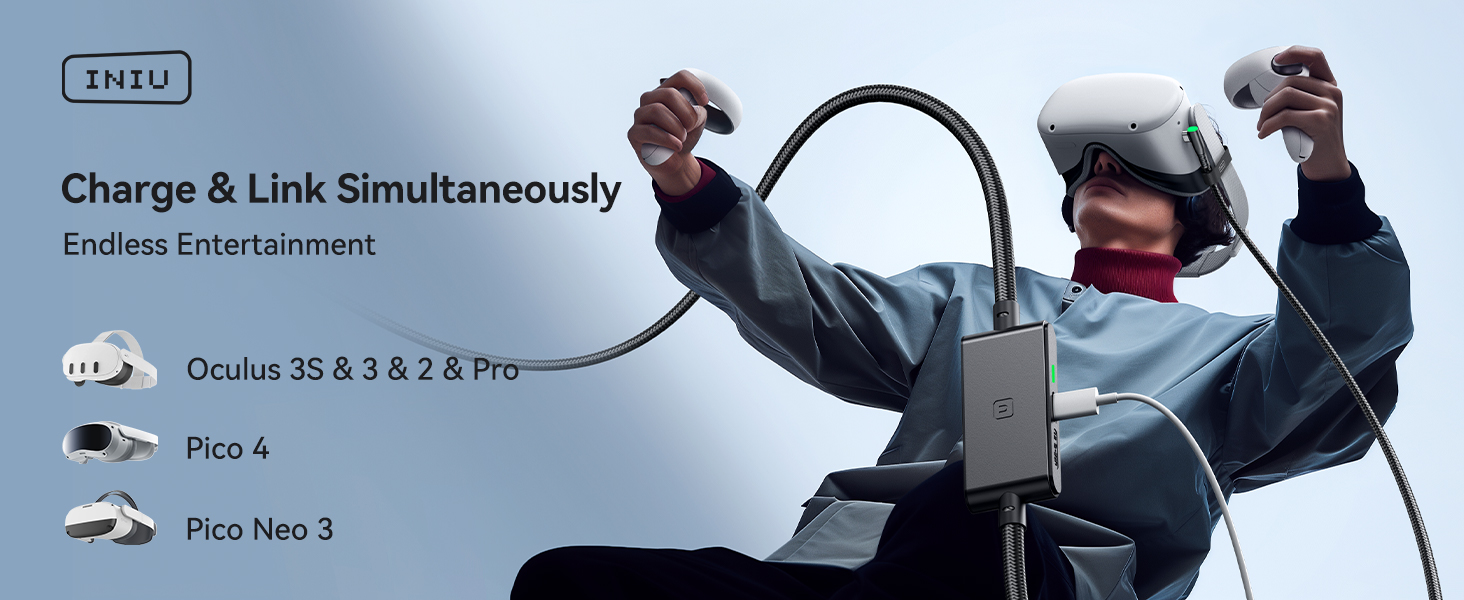
Image: INIU Link Cable enabling simultaneous charging and data transfer for VR gaming.
2. What's in the Box
Verify that all items are present in your package:
- INIU 16ft/5m USB 3.0 Link Cable (1 unit)
- Quick Start Guide (1 unit)
- User Manual (1 unit)

Image: The INIU 16ft USB 3.0 Link Cable, coiled and secured.
3. Key Features
- Simultaneous Charge & Link: Features a separate USB-C charging port for rapid 3A power delivery, ensuring uninterrupted gameplay while connected to your PC. Use with a PD/QC fast adapter for optimal charging speed.
- SmartProtect2.0 Chip: Built-in chip balances electricity and data sync, controlling current for a safe battery range of approximately 78% to ensure safe and sufficient power use.
- Extended Length & Durability: The 16ft/5m length provides a wider range of motion. The anti-wear FLYWEAVE coat and flexible joint, tested for over 45,000 bends, enhance durability.
- Optimized Connectivity: A 90° USB-C connector securely hooks to VR glasses, and a sticky buckle helps secure the connection, enhancing stability during active use.

Image: Details of the cable's 90-degree USB-C connector, flexible joint, and securing buckle.
4. Compatibility
The INIU Link Cable is compatible with a wide range of VR devices and PC VR platforms:
- Meta Quest 3S
- Meta Quest 3
- Oculus Quest 2
- Oculus Quest 1
- Oculus Quest Pro
- Pico 4
- Pico 4 Pro
- Pico 4 Enterprise
- PC VR Steam VR

Image: The INIU Link Cable demonstrating compatibility with various VR headsets.
5. Setup Instructions
Follow these steps to set up your INIU Link Cable:
- Connect to PC: Plug the USB-A end of the INIU Link Cable into a USB 3.0 port on your PC. Ensure it is a blue-colored USB 3.0 port for optimal data transfer speeds.
- Connect to VR Headset: Plug the 90° USB-C end of the INIU Link Cable into the USB-C port on your VR headset.
- Connect Power Adapter: Connect a PD/QC fast adapter (not included) to the separate USB-C charging port located on the cable's central hub. Use a USB-C to USB-C cable for this connection. This provides power to your headset during use.
- Secure the Cable: Use the included sticky buckle or strap to secure the cable to your VR headset's strap, reducing strain on the port and improving comfort during movement.
- Software Setup: Ensure you have the necessary VR software installed on your PC (e.g., Meta Quest Link software, SteamVR). Follow the software's instructions to establish a link connection.

Image: Setup diagram showing the cable connected for charging and linking.

Image: Important notes on using the correct charging cable and securing the headset.
6. Operating Instructions
Once the cable is set up, you can begin your VR experience:
- Power On Headset: Turn on your VR headset.
- Initiate Link: Within your VR headset's interface, navigate to the Link or PC connection option and select it to establish a connection with your PC.
- Start PC VR Content: Launch your desired VR game or application from your PC's VR platform (e.g., SteamVR, Oculus PC app).
- Monitor Charging: The LED indicator on the cable's hub will show the charging status. A green light typically indicates active charging.
- Enjoy Extended Play: The cable will provide continuous power to your headset, allowing for longer, uninterrupted VR gaming sessions.
Video: A review demonstrating the INIU VR Charge & Link Cable's functionality and connection to a VR headset.
Video: A review showcasing the INIU VR Cable Charger and its features.
7. Maintenance
To ensure the longevity and optimal performance of your INIU Link Cable, follow these maintenance guidelines:
- Storage: When not in use, coil the cable loosely and secure it with the provided cable ties. Avoid tight coiling or sharp bends.
- Cleaning: Wipe the cable and connectors with a soft, dry cloth. Do not use liquid cleaners or abrasive materials.
- Handling: Always grasp the connector housing when plugging or unplugging the cable. Avoid pulling directly on the cable itself.
- Environmental Conditions: Store the cable in a cool, dry place away from direct sunlight, extreme temperatures, and moisture.
8. Troubleshooting
If you encounter issues with your INIU Link Cable, refer to the following common solutions:
8.1. No Link Connection to PC
- Verify USB 3.0 Port: Ensure the USB-A connector is plugged into a blue-colored USB 3.0 port on your PC. Older USB 2.0 ports may not provide sufficient data transfer speed.
- Check Cable Orientation: Some users report success by rotating the USB-C connector at the headset end 180 degrees if the connection is unstable.
- Software Updates: Ensure your VR headset firmware and PC VR software (e.g., Oculus PC app, SteamVR) are up to date.
- Restart Devices: Restart both your PC and VR headset.
8.2. Headset Not Charging or Charging Slowly
- Use PD/QC Fast Adapter: Ensure you are using a Power Delivery (PD) or Quick Charge (QC) compatible fast adapter connected to the cable's separate USB-C charging port. Standard chargers may not provide enough power.
- Check All Connections: Verify that all cable connections (PC, headset, power adapter) are secure.
- Monitor LED Indicator: The green LED on the cable's hub should be lit when charging. If not, recheck power connections.
8.3. Frequent Disconnections During Gameplay
- Secure Cable: Ensure the 90° USB-C connector is firmly seated in the headset and secured with the included strap/buckle to prevent accidental disconnections.
- PC System Requirements: Verify your PC meets the minimum system requirements for PC VR, especially GPU compatibility. Refer to your VR platform's guidelines.
- USB Port Stability: Try a different USB 3.0 port on your PC, or ensure other high-bandwidth USB devices are not overloading the USB controller.
Video: A demonstration of the INIU USB-C cable, highlighting its features and potential uses.
Video: A review detailing a key feature of the INIU cable.
9. Specifications
| Feature | Detail |
|---|---|
| Brand | INIU |
| Model Name | DI-401 |
| Connector Type | USB Type C, USB Type A |
| Cable Type | USB |
| Length | 16ft / 5m |
| Special Features | 16ft Long Cable, Data Transfer, Fast Charging, High Speed |
| Compatible Devices | Meta Quest 3s, Quest 3, Oculus Quest 2, Quest 1, Quest Pro; Pico 4, Pico 4 Pro, Pico 4 Enterprise; PC VR Steam VR |
| Data Transfer Rate | 2.5 Gigabits Per Second |
| AC Adapter Current | 3.1 Amps |
| Wattage | 18 watts |
| Maximum Voltage | 9 Volts (DC) |
| Outer Material | Plastic (FLYWEAVE coat) |
| Item Weight | 8.8 ounces (0.25 Kilograms) |
10. Warranty and Support
INIU provides industry-leading support for its products:
- 3-Year iNiu Care: Your INIU Link Cable is covered by a 3-year warranty. For any quality issues within this period, INIU offers a replacement.
- Technical Support: Comprehensive technical support is available to assist you with any questions or issues you may encounter.
For warranty claims or technical assistance, please refer to the contact information provided in your Quick Start Guide or visit the official INIU website.

Image: INIU's 3-Year Product Care commitment.


