
1. Introduction
This manual provides essential information for the proper setup, operation, and maintenance of your TECLAST P25T Android 12 Tablet. Please read this guide thoroughly to ensure optimal performance and longevity of your device. The TECLAST P25T is a 10.1-inch tablet featuring an Android 12 operating system, a quad-core processor, and Wi-Fi 6 connectivity.

Image 1.1: The TECLAST P25T Tablet displaying its key specifications.
2. Device Overview
Familiarize yourself with the physical components of your TECLAST P25T tablet.

Image 2.1: Physical layout and port identification of the TECLAST P25T Tablet.
- Front Camera: Located on the top bezel when held horizontally, used for video calls and selfies.
- Rear Camera/LED Flash: Located on the back panel, used for photography and video recording. The LED flash assists in low-light conditions.
- Power Button: Used to turn the tablet on/off or put it to sleep/wake it up.
- Volume Buttons: Adjust the audio output level.
- Reset Pinhole: A small hole for a hard reset in case of system unresponsiveness. Use a thin pin to press.
- Headphone Jack: 3.5mm port for connecting wired headphones.
- Speakers: Dual speakers provide audio output.
- Micro SD Slot: For expanding storage with a Micro SD card (up to 1TB).
- Type-C Port: Used for charging the tablet and connecting to a computer for data transfer.
3. Setup
3.1 Initial Charging
Before first use, fully charge your TECLAST P25T tablet. Connect the provided USB Type-C cable to the tablet's Type-C port and the other end to a compatible power adapter. The charging indicator will typically show the charging status on the screen.
3.2 Powering On/Off
- To Power On: Press and hold the Power Button until the TECLAST logo appears on the screen.
- To Power Off: Press and hold the Power Button until a power-off menu appears. Select "Power off" and confirm.
- To Sleep/Wake: Briefly press the Power Button to put the tablet into sleep mode or wake it up.
3.3 Initial Setup Wizard
Upon first power-on, the Android 12 setup wizard will guide you through essential configurations:
- Language Selection: Choose your preferred language.
- Wi-Fi Connection: Connect to an available Wi-Fi network. This is crucial for downloading apps and system updates.
- Google Account: Sign in with your Google account or create a new one. This is necessary for accessing the Google Play Store and other Google services.
- Date & Time: Set the correct date and time, or allow the network to set it automatically.
- Security: Set up a screen lock (PIN, pattern, or password) for device security.
3.4 Inserting a Micro SD Card
The TECLAST P25T supports Micro SD cards up to 1TB for expanded storage.
- Locate the Micro SD card slot on the side of the tablet (refer to Image 2.1).
- Carefully insert the Micro SD card into the slot until it clicks into place.
- The tablet will detect the new storage. You may be prompted to format the card for optimal use with the device.
4. Operating the Tablet
4.1 Android 12 Operating System
Your TECLAST P25T runs on Android 12, offering an intuitive user interface, enhanced privacy controls, and access to millions of applications via the Google Play Store.
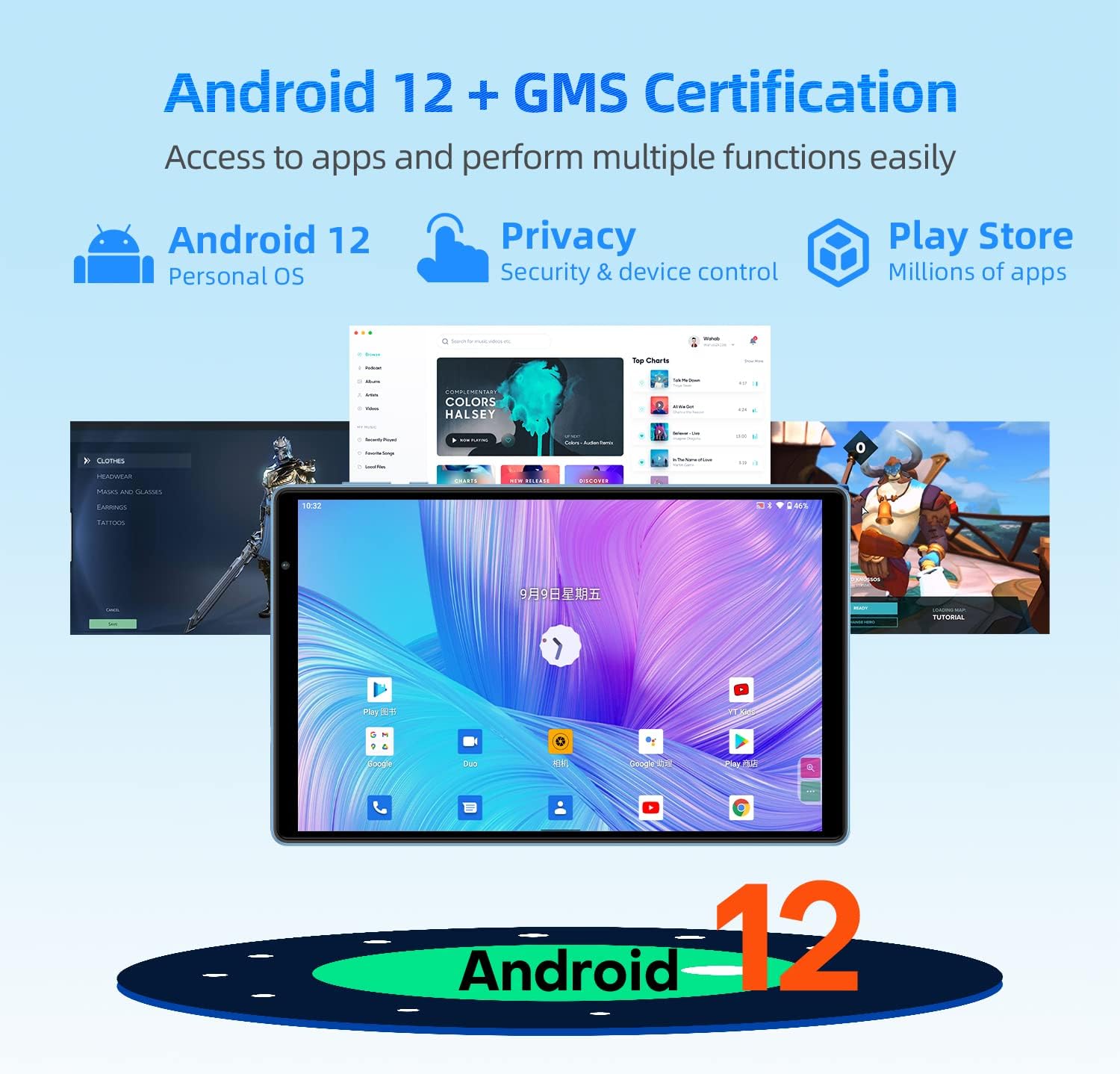
Image 4.1: Android 12 interface and key features on the TECLAST P25T.
- Navigation: Use gestures or the traditional navigation bar (back, home, recent apps) to move through the system.
- Notifications: Swipe down from the top of the screen to access notifications and quick settings.
- App Drawer: Swipe up from the home screen to view all installed applications.
4.2 Display and Visuals
The tablet features a 10.1-inch IPS HD display with a resolution of 1280x800 pixels, providing clear visuals and wide viewing angles. The T-Colour optimization enhances color reproduction.
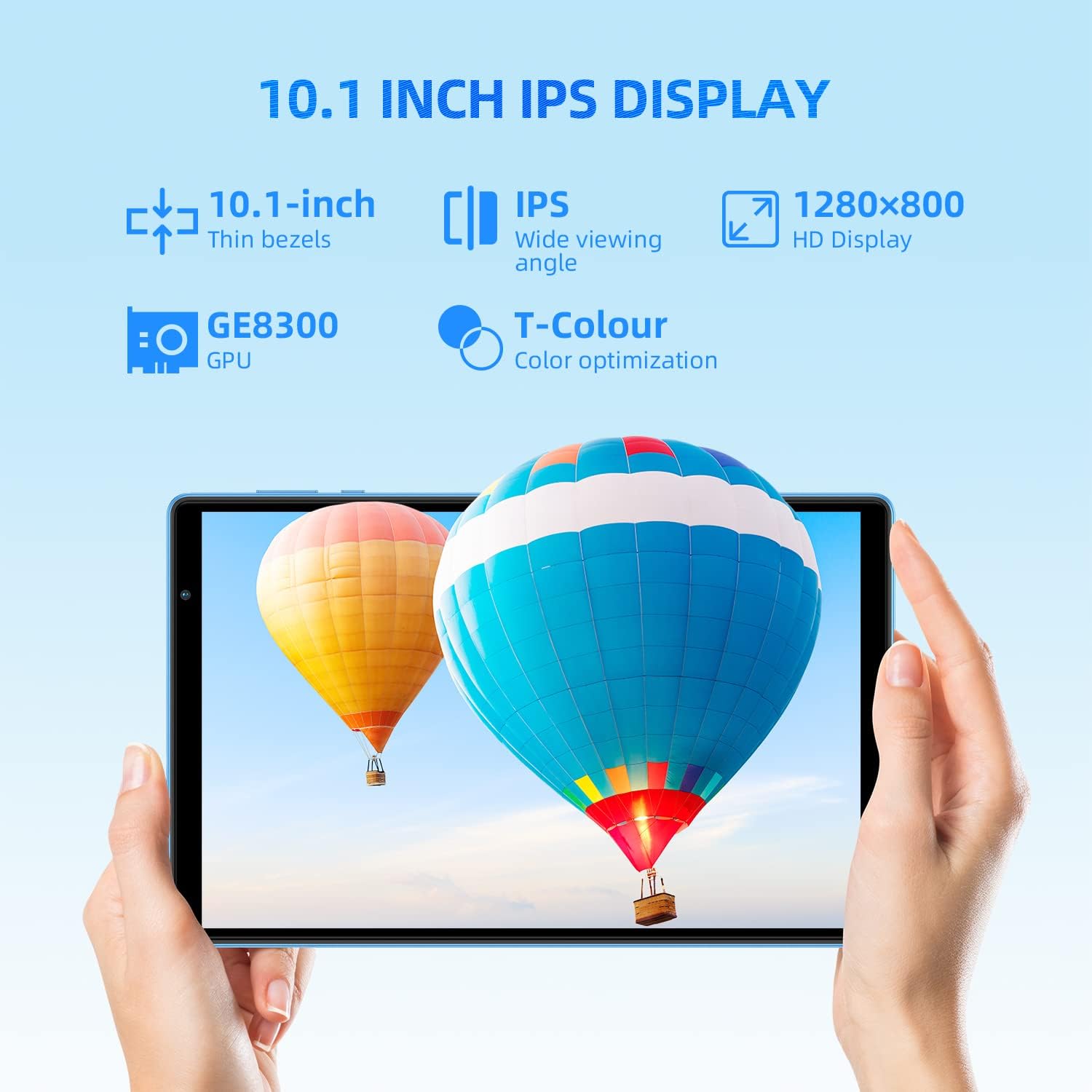
Image 4.2: The 10.1-inch IPS HD display of the TECLAST P25T.
4.3 Connectivity
The TECLAST P25T supports high-speed wireless connectivity.

Image 4.3: Wi-Fi 6 and Bluetooth 5.0 connectivity features.
- Wi-Fi 6 (802.11ax): Provides faster speeds, greater capacity, and lower latency compared to previous Wi-Fi standards. Connect to a Wi-Fi 6 compatible router for optimal performance.
- Bluetooth 5.0: For connecting wireless headphones, speakers, keyboards, and other Bluetooth-enabled accessories.
- Note: This tablet does not support cellular connectivity (SIM card).
4.4 Cameras
The tablet is equipped with a 2MP front camera for video calls and a 5MP rear autofocus camera with an LED flashlight for photography.

Image 4.4: Camera features and battery capacity.
4.5 Storage and Performance
The TECLAST P25T is designed for efficient multitasking and storage.

Image 4.5: Storage and processor details of the TECLAST P25T.
- RAM: 8GB (4GB physical + 4GB virtual) for smooth application operation.
- Internal Storage: 64GB ROM for applications and media.
- Expandable Storage: Supports Micro SD cards up to 1TB.
- Processor: Quad-core 1.8GHz Allwinner A133P processor with PowerVR GE8300 GPU for graphics processing.
5. Maintenance
5.1 Battery Care
The tablet is equipped with a 5000mAh battery, providing approximately 8 hours of video playback. To maximize battery life:
- Avoid extreme temperatures.
- Do not let the battery completely drain frequently.
- Use the original charger or a certified compatible charger.
- Adjust screen brightness to a comfortable level.
- Close unused applications running in the background.
5.2 Cleaning the Device
- Use a soft, lint-free cloth to clean the screen and body.
- For stubborn smudges, slightly dampen the cloth with water or a screen cleaner.
- Avoid using harsh chemicals or abrasive materials.
5.3 Software Updates
Periodically check for system updates in the tablet's settings. Software updates can improve performance, add new features, and enhance security. Ensure your tablet is connected to Wi-Fi and has sufficient battery charge before initiating an update.
5.4 Storage Optimization
Regularly manage your tablet's storage to maintain performance:
- Uninstall unused applications.
- Clear cache data for apps.
- Transfer large files (photos, videos) to your Micro SD card or cloud storage.
6. Troubleshooting
This section addresses common issues you might encounter with your TECLAST P25T tablet.
6.1 Tablet is Unresponsive or Frozen
- Press and hold the Power Button for about 10-15 seconds to force a restart.
- If a restart does not work, locate the Reset Pinhole (refer to Image 2.1) and gently press it with a thin pin (e.g., a paperclip) until the tablet restarts.
6.2 Wi-Fi Connectivity Issues
- Ensure Wi-Fi is enabled in the tablet's settings.
- Restart your Wi-Fi router and the tablet.
- Forget the network in tablet settings and reconnect.
- Ensure you are within range of the Wi-Fi signal.
6.3 Slow Performance
- Close unused applications running in the background.
- Clear app cache and temporary files.
- Ensure sufficient free storage space (at least 10-15% of total storage).
- Restart the tablet periodically.
6.4 Battery Drains Quickly
- Reduce screen brightness.
- Disable Wi-Fi, Bluetooth, and GPS when not in use.
- Identify and close power-intensive applications.
- Check for system updates, as they often include battery optimizations.
7. Specifications
Detailed technical specifications for the TECLAST P25T Tablet.
| Feature | Specification |
|---|---|
| Brand | TECLAST |
| Model Number | TX-EU-P25T |
| Operating System | Android 12 |
| Processor Brand | Allwinner |
| Processor Speed | 1.8 GHz (Quad-Core) |
| GPU | PowerVR GE8300 |
| Screen Size | 10.1 Inches |
| Screen Resolution | 1280 x 800 Pixels (HD IPS) |
| RAM Installed Size | 4 GB (8GB with virtual RAM) |
| Memory Storage Capacity | 64 GB |
| Expandable Storage | Up to 1 TB via Micro SD |
| Wireless Technology | 802.11ax (Wi-Fi 6) |
| Bluetooth | Bluetooth 5.0 |
| Interface | USB Type-C, 3.5mm Headphone Jack |
| Battery Life | Approx. 8 hours (video playback) |
| Battery Type | Lithium-polymer |
| Product Weight | 543 Grams |
| Dimensions | 27.9 x 18.5 x 5.1 cm (Package) |
8. Warranty and Support
For warranty information and technical support, please refer to the documentation included with your purchase or visit the official TECLAST website. Keep your proof of purchase for warranty claims.


