
1. Product Overview
The Fortdows Car Stereo Radio is a 9-inch IPS touchscreen unit designed as an upgrade for Mazda 3 models from 2010 to 2013. It features an Android 12 operating system with a quad-core processor, 2GB RAM, and 32GB ROM, providing a responsive user experience. Key functionalities include Wireless CarPlay, Android Auto, GPS navigation, Wi-Fi, Bluetooth 5.0, FM radio, and support for a backup camera.
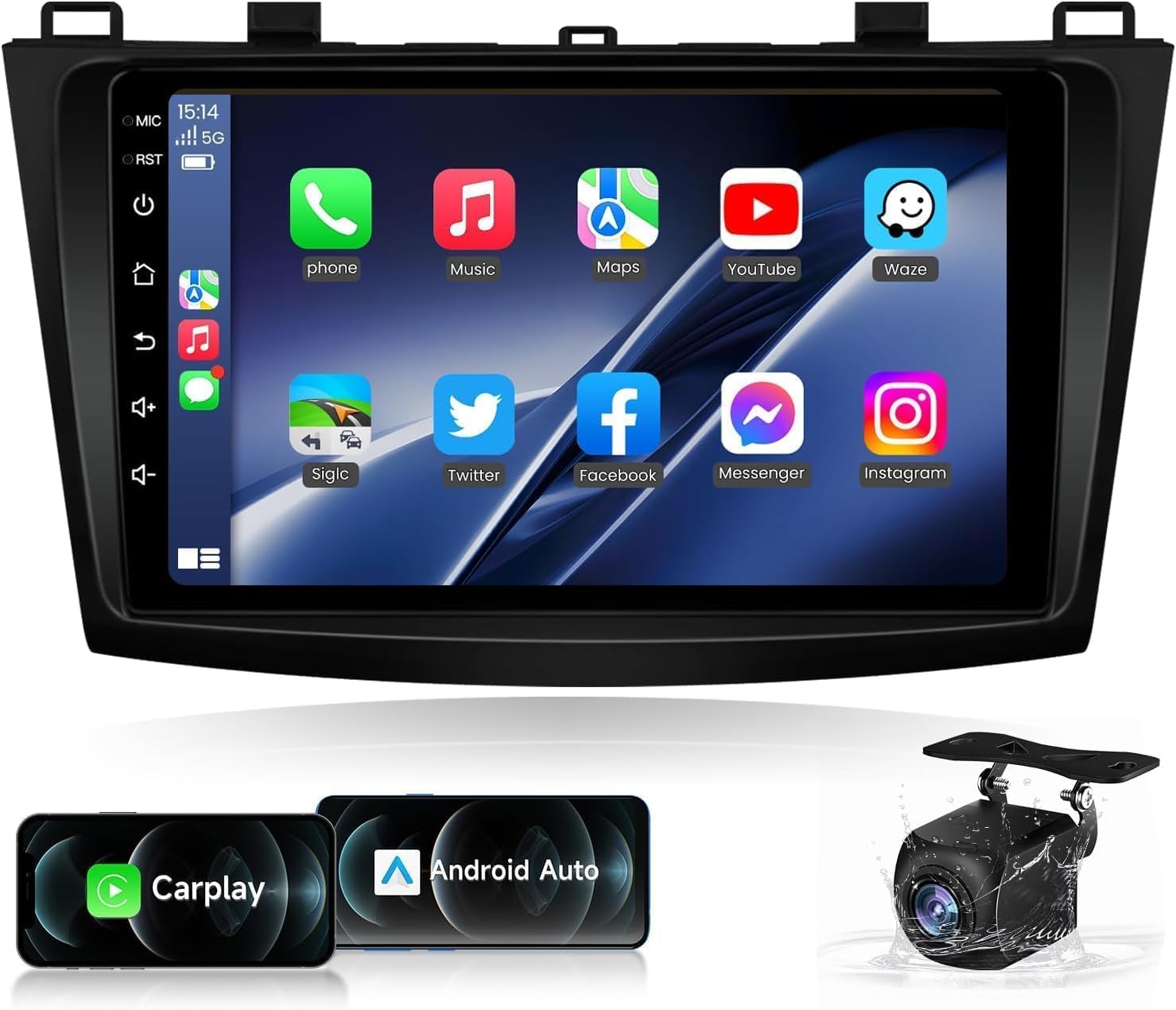
Figure 1: Fortdows 9-inch Car Stereo Radio with included backup camera and CarPlay/Android Auto icons.
This unit is compatible with original steering wheel controls, JBL amplifier, reversing camera, radar parking sensors, and displays air conditioning and TPMS information. It comes with a plug-and-play cable for simplified installation.

Figure 2: The Fortdows car stereo seamlessly integrated into a Mazda 3 dashboard, showcasing its large display.
2. Setup and Installation
2.1 Unboxing and Components
Before beginning installation, ensure all components are present:
- Fortdows 9-inch Head Unit
- Power Cable (Plug-and-Play)
- RCA Cable Set
- Microphone
- 6-Pin USB Cable
- 4-Pin USB Cable
- GPS Antenna
- Backup Camera
- CANBUS Decoder
- Camera Extension Cables
- Crowbar (for trim removal)

Figure 3: Overview of the Fortdows car stereo unit dimensions and a visual list of included accessories such as cables, GPS module, and backup camera.
2.2 Wiring and Connections
The unit is designed for plug-and-play installation. Connect the main power cable harness to the vehicle's existing wiring. Connect the RCA cables, microphone, USB cables, GPS antenna, and backup camera as indicated in the diagram below and the installation video.
Video 1: A detailed demonstration of connecting the various cables and components to the Fortdows car stereo unit, including the power cable, RCA cables, USB cables, GPS antenna, and CANBUS decoder.
Important: Ensure the CANBUS decoder is correctly connected to enable original vehicle features like steering wheel controls and amplifier integration. The blue wire on the main harness is typically for the amplifier trigger. The purple/white wire is for the reverse signal for the backup camera.
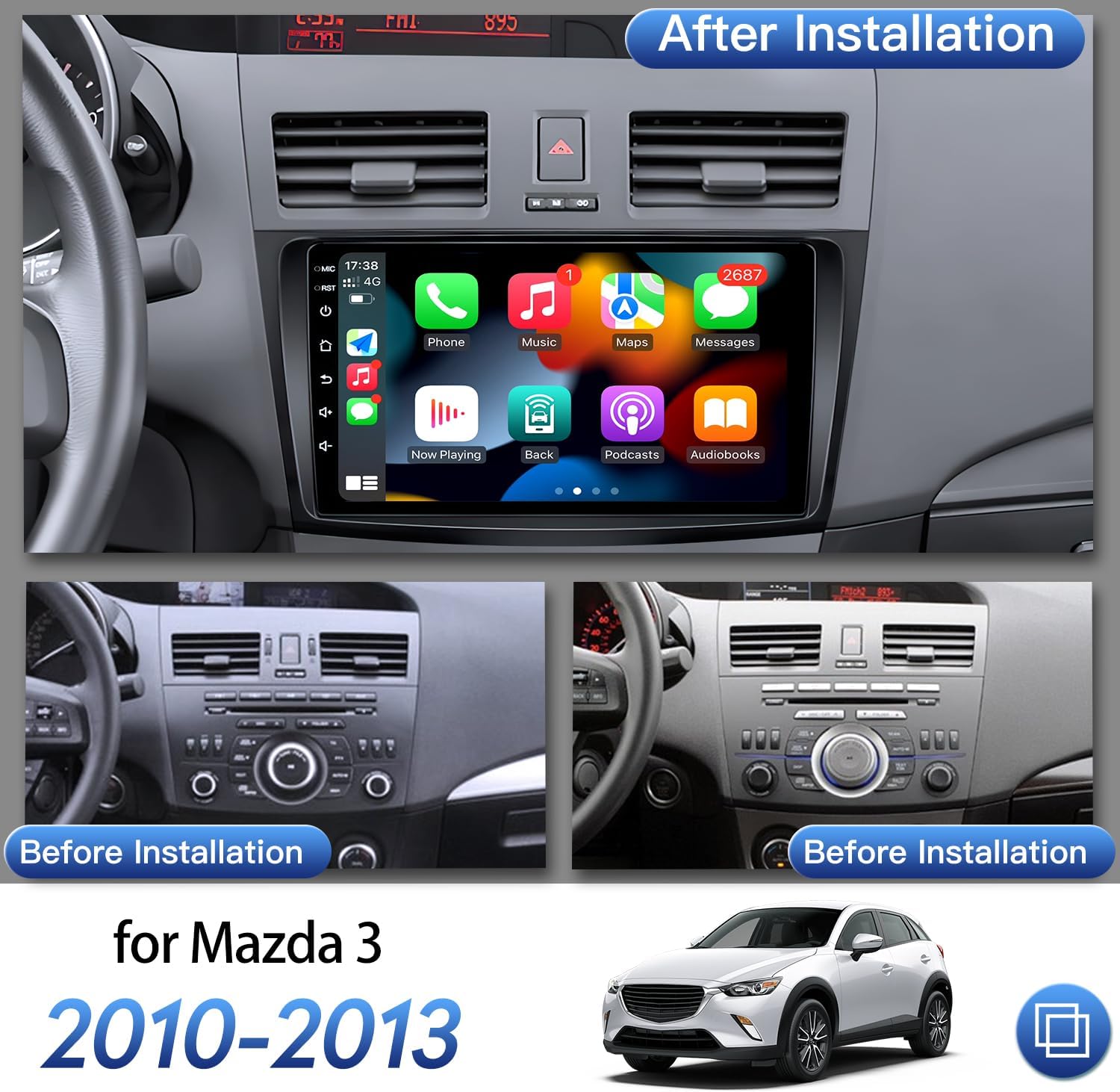
Figure 4: Comparison showing the original Mazda 3 dashboard and the dashboard after the Fortdows car stereo has been installed, highlighting the integrated appearance.
2.3 Initial Power-Up
After all connections are secure, power on the vehicle. The unit should boot up automatically. Follow any on-screen prompts for initial setup.
3. Operating Instructions
3.1 Basic Navigation
The unit features a responsive 9-inch IPS capacitive touchscreen. Navigate through applications and settings by tapping and swiping. The side buttons provide quick access to common functions like power, reset, home, back, and volume controls.
3.2 Wireless Connectivity (Wi-Fi & Hotspot)
To connect to Wi-Fi or a mobile hotspot:
- Access the settings menu.
- Select 'Wi-Fi' and turn it on.
- Choose your desired network and enter the password if prompted.

Figure 5: The car stereo displaying the Wi-Fi settings interface, showing available networks and the option to connect to a mobile hotspot.
3.3 Bluetooth Connection
To pair your phone via Bluetooth 5.0 for hands-free calls and music streaming:
- Go to the 'Bluetooth' application on the head unit.
- Ensure Bluetooth is enabled on your phone and the head unit.
- Search for available devices on your phone and select the head unit (e.g., "BCB-Android845").
- Confirm the pairing code (default PIN is 0000).

Figure 6: The car stereo displaying Bluetooth connectivity for hands-free calls and music, alongside the FM radio interface.
3.4 Wireless CarPlay & Android Auto
This unit supports both Wireless Apple CarPlay and Android Auto for seamless smartphone integration.
- Ensure your phone's Wi-Fi and Bluetooth are enabled.
- Open the 'ZLINK5' app on the head unit.
- Follow the on-screen instructions to connect your device. This typically involves pairing via Bluetooth first, then confirming the CarPlay/Android Auto connection.
Video 2: A demonstration of the Fortdows car stereo's Wireless CarPlay functionality, showing navigation, music playback, and phone calls through the integrated system.
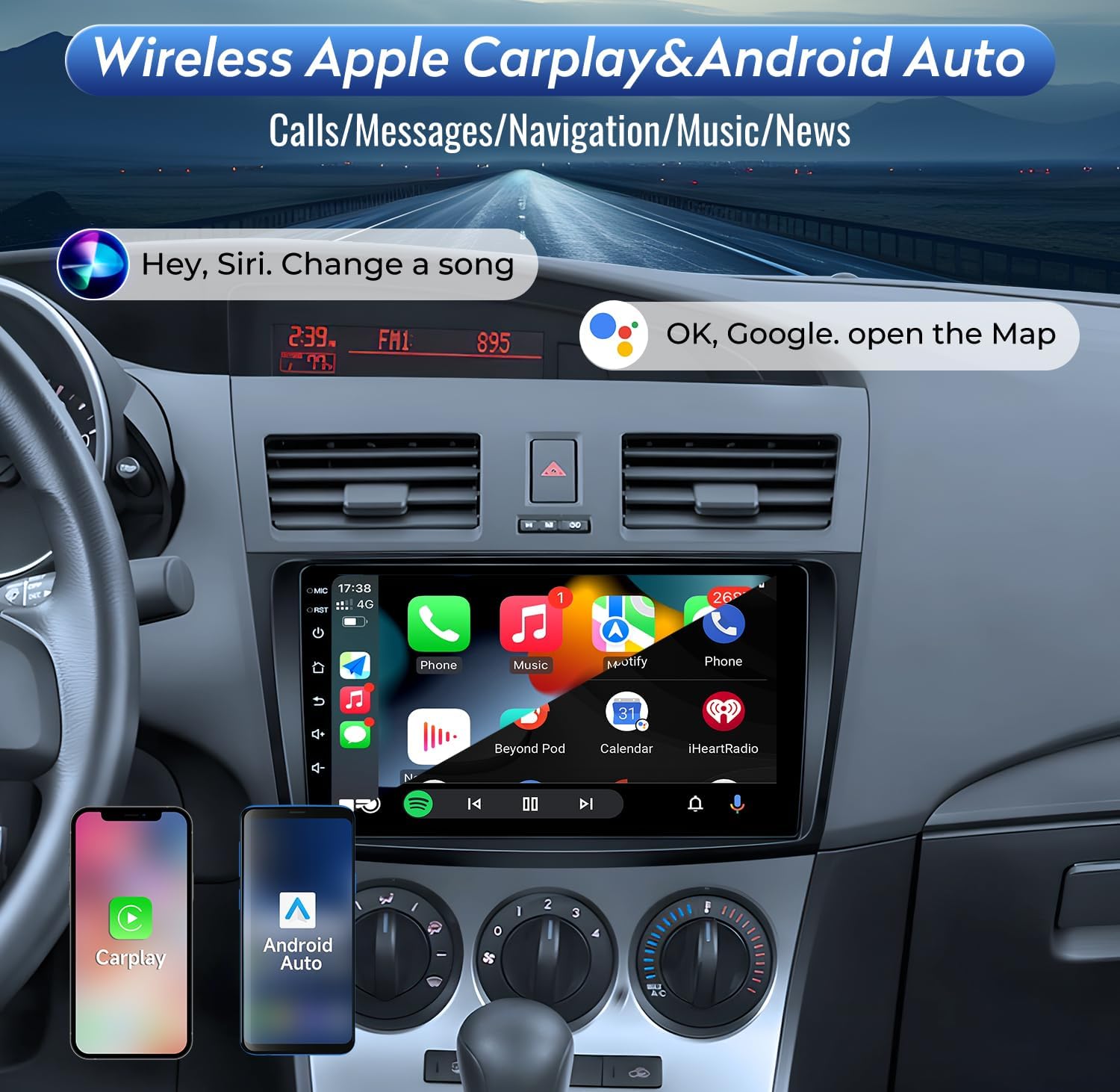
Figure 7: The car stereo displaying the Wireless Apple CarPlay interface, showing access to phone features like music, navigation, and messages.
3.5 GPS Navigation
The unit supports both online and offline navigation. Connect to Wi-Fi to download maps or use online mapping services like Google Maps.

Figure 8: The car stereo displaying GPS navigation with a map of North America, showing both online and offline application support.
3.6 FM Radio
Access the 'Radio' application to tune into FM stations. You can manually scan or use the preset buttons to save your favorite frequencies.

Figure 9: The car stereo displaying the FM radio interface with frequency selection and station presets.
3.7 Sound Settings (DSP & EQ)
The unit includes a built-in DSP processing chip for enhanced audio. Access the 'EQ' application to adjust sound settings, including equalization, sound field, and subwoofer levels.

Figure 10: The car stereo displaying the Professional DSP settings, allowing users to adjust sound field and equalization for optimal audio experience.
3.8 System Updates (OTA)
The unit supports Online Over-The-Air (OTA) system upgrades. To check for updates:
- Connect the radio to Wi-Fi.
- Navigate to 'Settings' > 'System Update'.
- Tap 'Check for Updates'.
- If a new version is available, tap 'Download Update'. The system will automatically unzip and reboot to complete the upgrade.
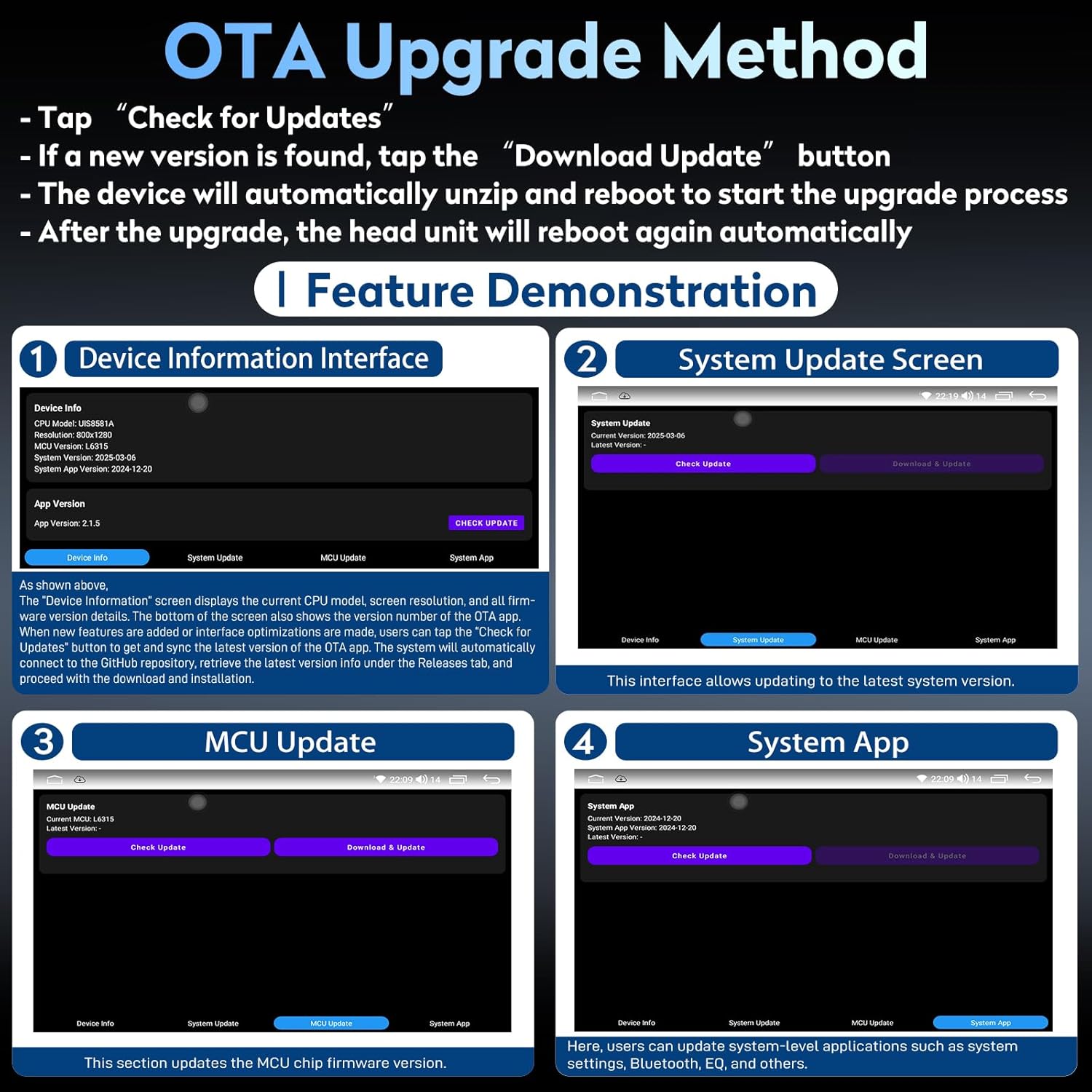
Figure 11: The car stereo displaying the OTA Upgrade Method interface, showing options for checking and downloading system updates.
4. Maintenance
4.1 Cleaning
To clean the touchscreen, use a soft, lint-free cloth. For stubborn smudges, lightly dampen the cloth with water or a screen-safe cleaner. Avoid abrasive materials or harsh chemicals.
4.2 Software Updates
Regularly check for and install OTA system updates to ensure optimal performance, security, and access to new features. Refer to Section 3.8 for the update process.
5. Troubleshooting
This section addresses common issues you might encounter with your Fortdows car stereo.
| Issue | Possible Cause | Solution |
|---|---|---|
| Unit does not power on | Incorrect wiring, blown fuse, power supply issue. | Check all power connections. Verify vehicle fuses. Consult a professional installer if necessary. |
| No sound or poor audio quality | Incorrect speaker wiring, DSP/EQ settings, amplifier issue. | Verify speaker connections. Adjust DSP/EQ settings. Ensure external amplifier (if applicable) is powered and connected correctly. |
| Wireless CarPlay/Android Auto not connecting | Bluetooth/Wi-Fi issues, app settings. | Ensure phone's Bluetooth and Wi-Fi are on. Clear previous Bluetooth connections. Update 'Carlink 2.0' and 'Canbus-Service' apps. Restart the radio. |
| Backup camera not displaying | Incorrect wiring, camera fault, reverse signal issue. | Check camera power and video signal connections. Ensure the reverse signal wire (purple/white) is correctly connected to the vehicle's reverse light circuit. |
| Steering wheel controls not working | CANBUS decoder not connected or configured. | Verify CANBUS decoder connection. Access 'SW Learning' in settings to configure controls if not automatically detected. |
| Unit randomly powers on/off | Loose power connection, internal fault. | Check power harness connections. If the issue persists, contact customer support. |
6. Specifications
| Feature | Specification |
|---|---|
| Display Size | 9 Inches |
| Display Resolution | 1280 x 800 IPS |
| Operating System | Android 12 |
| Processor | Quad-Core |
| RAM | 2GB |
| ROM | 32GB |
| Connectivity | Bluetooth 5.0, Wi-Fi (5G supported), USB |
| Special Features | Wireless CarPlay & Android Auto, Built-in DSP, GPS Navigation, OTA System Upgrade, Supports Bose System |
| Audio Output Mode | Stereo (4*48W Amplifier) |
| Item Weight | 3.52 pounds |
| Package Dimensions | 12.87 x 8.86 x 5.2 inches |
7. Warranty and Support
Fortdows provides the following support for this product:
- 1-Year Warranty: Covers manufacturing defects for one year from the date of purchase.
- 7-Day Return Policy: Eligible for returns within 7 days of receipt.
- Return on Defects: Products with confirmed defects are eligible for return or replacement.
Customer Support
For technical assistance, warranty claims, or any product-related inquiries, please contact:
- Email: fortdows.cam@gmail.com
- Website: www.fancygod.com

Figure 12: Icons representing 1-Year Warranty, 7-Day Return Policy, and Return on Defects.

Figure 13: Contact details for customer support, including email and website.


