
AULA F3032
AULA Mechanical Keyboard User Manual
Model: F3032
Introduction
This manual provides comprehensive instructions for the AULA Mechanical Keyboard (Model F3032). Designed for both gaming and office use, this compact 87-key keyboard features RGB backlighting, responsive brown switches, and a durable wired connection. Please read this manual thoroughly to ensure proper use and maintenance of your keyboard.

Figure 1: AULA Mechanical Keyboard (White, Brown Switch)
Package Contents
- AULA Mechanical Keyboard (Model F3032)
- USB-C Cable
- 21 additional yellow keycaps for customization
Setup
Connecting the Keyboard
- Locate the USB-C port on the keyboard.
- Connect one end of the provided USB-C cable to the keyboard.
- Connect the other end of the USB-C cable to an available USB port on your computer.
- The keyboard is plug-and-play and should be recognized automatically by your operating system.

Figure 2: Detachable USB-C cable for stable connection.
System Compatibility
The AULA Mechanical Keyboard is compatible with a wide range of operating systems, ensuring broad usability:
- Windows 7 / 8 / 10 / XP / VISTA / 95 / 98 / 2000 / ME
- Mac OS
- Xbox (limited functionality, primarily for typing)

Figure 3: Keyboard connected to a PC, demonstrating wide compatibility.
Operating Instructions
RGB Backlight Control
The keyboard features vibrant RGB backlighting with multiple effects. Use the Function (Fn) key in combination with other keys to control the lighting:
- Fn + INS (Insert): Cycle through 20 different backlight lighting effects.
- Fn + HOME: Cycle through light effects 5-8.
- Fn + PGUP (Page Up): Cycle through light effects 9-12.
- Fn + DEL (Delete): Cycle through light effects 13-16.
- Fn + PGDN (Page Down): Cycle through light effects 17-20.
- Fn + ↑ (Up Arrow): Increase backlight brightness (5 levels).
- Fn + ↓ (Down Arrow): Decrease backlight brightness (5 levels).
- Fn + ← (Left Arrow): Decrease lighting effect speed.
- Fn + → (Right Arrow): Increase lighting effect speed.

Figure 4: Overview of RGB lighting effects and controls.
Side Light Effects
The keyboard features 11 streamer side light effects that enhance the gaming atmosphere. These can be adjusted for brightness and speed:
- Fn + ALT-R: Cycle through side light brightness.
- Fn + Menu (Application Key): Switch the side light effect on both sides.

Figure 5: Demonstrating the unique 11 side light effects.
Keycap Customization
The keyboard comes with 21 extra keycaps, allowing you to customize the keycap layout style. The light-transmitting ABS keycaps ensure clear and uniform backlighting.
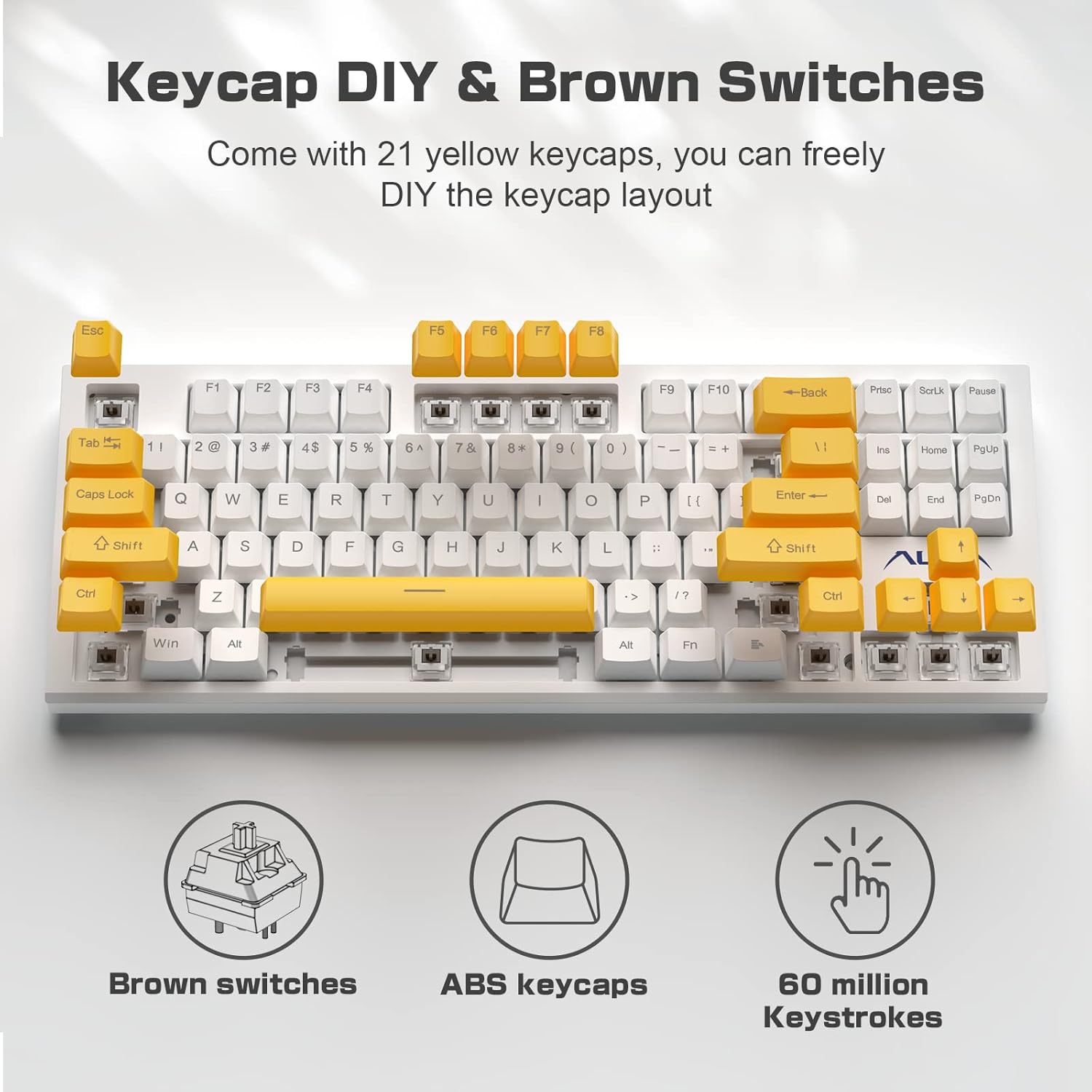
Figure 6: Keycap DIY feature with additional yellow keycaps.
Function Key Shortcuts
| Combination | Function |
|---|---|
| Fn + F1 | Computer |
| Fn + F2 | Search |
| Fn + F3 | Calculator |
| Fn + F4 | CD |
| Fn + F5 | Previous Track |
| Fn + F6 | Next Track |
| Fn + F7 | Play/Pause |
| Fn + F8 | Stop |
| Fn + F9 | Mute |
| Fn + F10 | Volume- |
| Fn + F11 | Volume+ |
| Fn + F12 | Lock/Unlock Full Keyboard |
| Fn + WIN + APP | Speed+ |
| Fn + ESC | Restore Default |
| Fn + CTRL-R | Side Light Speed Cycle |
These shortcuts allow for quick access to multimedia controls and system functions.
Typing Experience: Brown Switches
The AULA Mechanical Keyboard is equipped with responsive brown switches. These switches provide a tactile bump without the loud click of blue switches, offering a balanced typing experience suitable for both gaming and extended typing sessions. The tactile feedback enhances accuracy and response time.

Figure 7: Detail of the brown mechanical switches.
Ergonomic Design
The keyboard features double kickstand feet, allowing you to adjust the typing angle for improved comfort and reduced wrist strain during prolonged use.

Figure 8: Keyboard with kickstand feet extended for ergonomic typing.
Official Product Video
Video 1: "87 Keys Mechanical Keyboard" by AULA DIRECT. This video demonstrates the keyboard's features, including its compact design, detachable cable, and customizable keycaps.
Maintenance
To ensure the longevity and optimal performance of your AULA Mechanical Keyboard, follow these maintenance guidelines:
- Cleaning: Regularly clean the keyboard with a soft, dry cloth. For deeper cleaning, use compressed air to remove dust and debris from between the keycaps. You may carefully remove keycaps for thorough cleaning, but ensure to reattach them correctly.
- Avoid Liquids: Do not expose the keyboard to liquids. Spills can cause permanent damage to the internal components.
- Storage: When not in use, store the keyboard in a cool, dry place away from direct sunlight and extreme temperatures.
- Cable Care: Handle the USB-C cable gently. Avoid bending or twisting it excessively, as this can damage the cable or the port.
Troubleshooting
If you encounter issues with your AULA Mechanical Keyboard, refer to the following common troubleshooting steps:
| Problem | Solution |
|---|---|
| Keyboard not responding |
|
| Backlight not working or incorrect |
|
| Keys are not registering or double-typing |
|
| Side lights not working or incorrect |
|
Specifications
| Feature | Detail |
|---|---|
| Model Number | F3032 |
| Brand | AULA |
| Number of Keys | 87 |
| Switch Type | Brown Mechanical Switches |
| Keycap Material | ABS (Light-transmitting) |
| Backlight | RGB (20 effects, 5 brightness levels, adjustable speed) |
| Side Lights | 11 Streamer Effects (3 brightness levels, adjustable speed) |
| Connectivity | Wired USB-C (Detachable) |
| Lifespan | Up to 60 million keystrokes |
| Product Dimensions | 14.45 x 5.35 x 1.41 inches (36.7 x 13.6 x 3.6 cm) |
| Item Weight | 1.8 pounds (0.82 kg) |
| Compatible Devices | PC (Windows 7/8/10/XP/VISTA/95/98/2000/ME), Mac OS, Xbox |
Warranty and Support
AULA products are manufactured to high-quality standards. For warranty information, technical support, or customer service inquiries, please refer to the contact details provided on the product packaging or visit the official AULA website. Keep your purchase receipt as proof of purchase for warranty claims.
Related documentsF3032


Ask a question about this manual
Ask about setup, troubleshooting, compatibility, parts, safety, or missing instructions. Manuals+ will review the question and use this page’s manual context to help answer it.