
1. Introduction
This manual provides detailed instructions for the OBO HANDS RFID WiFi CopyKey X5, a versatile device designed for copying, reading, writing, and programming various RFID and NFC cards and keyfobs. Please read this manual thoroughly before operating the device to ensure proper usage and optimal performance.

Figure 1: OBO HANDS RFID WiFi CopyKey X5 and accessories.
2. Product Overview
2.1 Key Features
- Mobile APP Support: Manage and operate the device via a dedicated mobile application.
- WiFi Decoding: Utilizes WiFi for advanced decoding capabilities.
- Double Decryption Area: Enhanced security and decryption functions.
- Cloud Private Card Data & Super Decryption: Access and manage card data securely through cloud services.
- OneKey Analysis and Modification: Simplified processes for card analysis and data modification.
- Dual Frequency Detection: Supports detection across multiple frequencies.
- Rolling Code Prevention: Designed to prevent unauthorized rolling code replication.
- Analog Multi-Frequency Card Support: Compatible with various analog multi-frequency cards.
- Non-Standard Card Support: Extends compatibility beyond standard card types.
- Mobile NFC Simulation: Allows mobile devices to simulate NFC cards.

Figure 2: Key features displayed on the device screen.
2.2 Supported Frequencies
The OBO HANDS RFID WiFi CopyKey X5 supports reading and writing across a wide range of frequencies, including:
- 125KHz
- 175KHz
- 250KHz
- 300KHz
- 375KHz
- 500KHz
- 625KHz
- 750KHz
- 875KHz
- 1000KHz
- 13.56 MHz

Figure 3: Supported frequencies and card parameter display.
2.3 Package Contents
- OBO HANDS RFID WiFi CopyKey X5 Device
- 5 x T5577 Keyfobs (for 125KHz key cards, water resistant, with key rings)
- 5 x UID Cards (for 13.56MHz key cards, water resistant, with key rings)
- USB Cable
- USB-C OTG Adapter

Figure 4: Included T5577 Keyfobs and UID Cards.
3. Setup
3.1 Initial Power On
- Ensure the device is fully charged or connected to a power source using the provided USB cable.
- Press and hold the power button (usually marked with a power symbol) until the screen illuminates.
- The device will boot up and display the main menu interface.
3.2 Mobile App Connection (Optional)
To utilize advanced features and mobile NFC simulation, connect the device to your smartphone via the dedicated mobile application.
- Download the "CopyKEY X5" app from your smartphone's app store.
- Connect the OBO HANDS RFID WiFi CopyKey X5 to your smartphone using the USB cable and the USB-C OTG adapter.
- Launch the "CopyKEY X5" app. The app should automatically detect the device.
- Follow any on-screen prompts within the app to complete the connection.
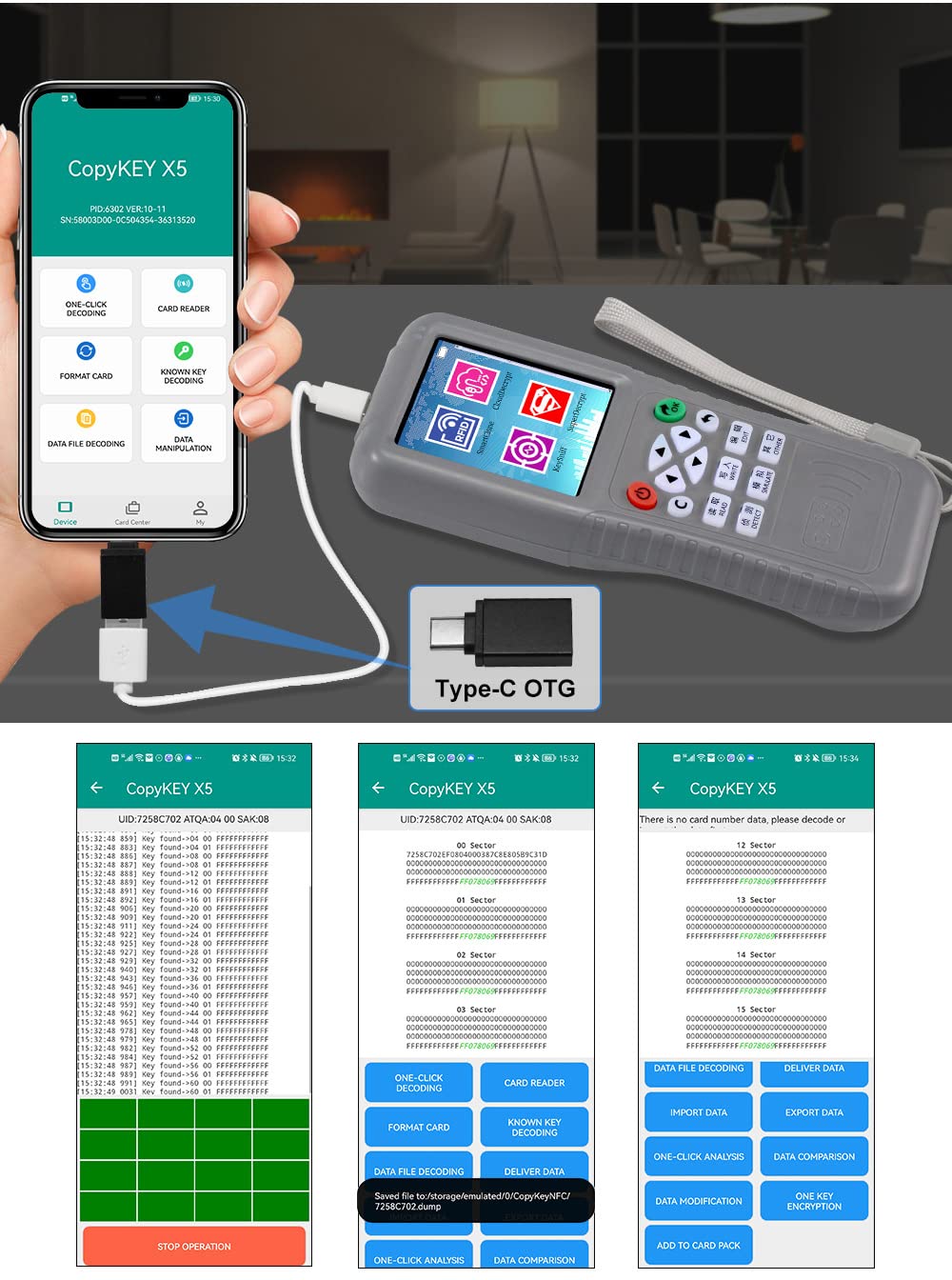
Figure 5: Mobile app integration via Type-C OTG.
4. Operating Instructions
The device features a user-friendly menu interface. Navigate using the directional buttons and confirm selections with the "OK" button.
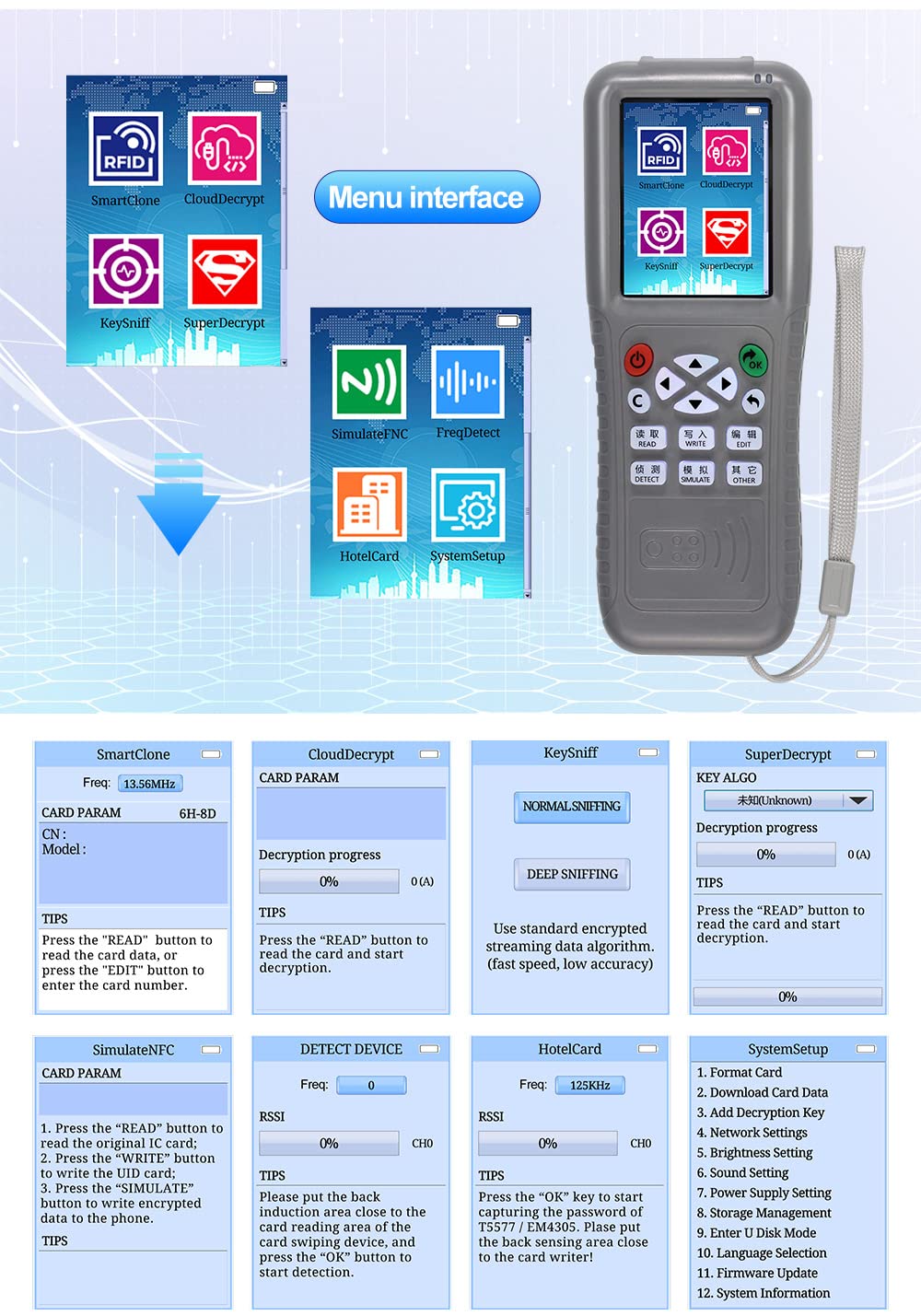
Figure 6: Device Menu Interface.
4.1 Reading a Card
- From the main menu, select the appropriate function (e.g., "SmartClone" for standard cloning, "CloudDecrypt" for encrypted cards).
- Place the card or keyfob you wish to read on the device's sensing area.
- Press the "READ" button. The device will attempt to read the card data.
- Once read, the card parameters will be displayed on the screen.
4.2 Writing to a Card/Keyfob
- After successfully reading a source card, or if you have data to write, select the "WRITE" function.
- Place the target blank card (e.g., T5577 keyfob for 125KHz, UID card for 13.56MHz) on the device's sensing area.
- Press the "WRITE" button. The device will transfer the data to the target card.
- A confirmation message will appear upon successful writing.
4.3 NFC Emulation (Mobile Phone)
This function allows your NFC-enabled mobile phone to simulate an encrypted IC card.
- Ensure your mobile phone has NFC functionality and is connected to the device via OTG.
- On the device, select "SimulateNFC".
- Press the "READ" button to read the original IC card you wish to simulate.
- Press the "WRITE" button to write the UID card data.
- Press the "SIMULATE" button to write the encrypted data to your mobile phone. Your phone can now act as the simulated card.

Figure 7: Independent NFC Emulation Function.
4.4 Advanced Functions (via Mobile App)
The "CopyKEY X5" mobile app provides additional functionalities:
- Data File Decoding: Decrypt and view complex card data structures.
- Export/Import Data: Save card data to your phone or load existing data files.
- One-Click Analysis: Quickly analyze card properties and security.
- Data Comparison: Compare data between different cards or saved files.
- One-Key Encryption: Simplify the encryption process for compatible cards.
- Add to Card Pack: Organize and manage multiple card profiles.
5. Maintenance
- Cleaning: Use a soft, dry cloth to clean the device. Avoid abrasive cleaners or solvents.
- Storage: Store the device in a cool, dry place away from direct sunlight and extreme temperatures.
- Battery Care: For optimal battery life, avoid fully discharging the device frequently. Charge regularly.
- Software Updates: Periodically check for firmware updates through the mobile app or manufacturer's website to ensure the device has the latest features and security enhancements.
6. Troubleshooting
| Problem | Possible Cause | Solution |
|---|---|---|
| Device does not power on. | Low battery or power issue. | Charge the device using the provided USB cable. Ensure the power adapter is working. |
| Cannot read card data. | Card not placed correctly, unsupported frequency, or encrypted card. | Ensure the card is firmly on the sensing area. Verify the card's frequency is supported. For encrypted cards, use decryption functions like "CloudDecrypt" or "KeySniff". |
| Cannot write to card/keyfob. | Target card is not compatible or write-protected. | Use a compatible blank T5577 keyfob (for 125KHz) or UID card (for 13.56MHz). Ensure the card is not write-protected. |
| Mobile app connection fails. | Incorrect OTG connection, app not updated, or phone compatibility issue. | Ensure the USB-C OTG adapter and cable are correctly connected. Update the "CopyKEY X5" app to the latest version. Check phone's OTG and NFC compatibility. |
| Decryption issues. | Complex encryption or network connectivity issues for cloud decryption. | Ensure a stable WiFi connection for cloud-based decryption. Try different decryption methods available on the device or app. |
7. Specifications
- Model Number: X5
- Brand: OBO HANDS
- Product Dimensions: 18.1 x 7 x 3.1 cm
- Weight: 340 g
- Supported Frequencies: 125KHz, 175KHz, 250KHz, 300KHz, 375KHz, 500KHz, 625KHz, 750KHz, 875KHz, 1000KHz, 13.56 MHz
- Connectivity: WiFi, USB (via OTG for mobile app)
8. Support and Contact Information
For further assistance or inquiries, please contact OBO HANDS support:
- WhatsApp Support: +86 177 2255 8183
- For general information about OBO HANDS products, visit the official brand page on Amazon: OBO HANDS Amazon Store
Our team is dedicated to providing support and ensuring your satisfaction with OBO HANDS products.