
SABLUTE LD-135
SABLUTE Large Print Backlit Keyboard User Manual
Model: LD-135 | Brand: SABLUTE
1. Introduction
This user manual provides comprehensive instructions for the setup, operation, maintenance, and troubleshooting of your new SABLUTE Large Print Backlit Keyboard. Designed for enhanced visibility and comfort, this wired USB keyboard is ideal for a wide range of users, including seniors, students, office workers, and individuals with visual impairments.
2. Package Contents
Please verify that all items are present in your package:
- SABLUTE Large Print Backlit Keyboard (with integrated USB cable)
3. Setup
The SABLUTE Large Print Backlit Keyboard is designed for simple plug-and-play functionality. No additional drivers or software are required for basic operation.
3.1 Connecting the Keyboard
- Locate an available USB-A port on your computer (PC, Laptop, Windows, macOS, Vista, Chrome OS).
- Insert the USB-A connector of the keyboard's integrated cable into the USB port.
- The keyboard will automatically be recognized by your operating system, and the backlight will illuminate.

Figure 3.1: The SABLUTE Large Print Backlit Keyboard with its integrated USB cable, ready for connection.
4. Operating Instructions
4.1 Large Print Keys
The keyboard features oversized letters, which are 4 times larger than standard keyboard fonts. This design significantly improves readability and reduces typing errors, especially for users with visual challenges or those who prefer larger characters.

Figure 4.1: Comparison illustrating the 4X larger print on the keyboard keys for improved visibility.
4.2 Backlight Control
The keyboard offers 7 different backlight colors and 4 lighting modes with 8 levels of brightness. This allows for comfortable typing in various lighting conditions, including low-light environments.
- Turn On/Off Backlight: Press Fn + PrtSc (Print Screen) to toggle the backlight on or off.
- Change Backlight Color (Monochrome Mode): Press Fn + M2 (Function key + F2) repeatedly to cycle through 7 unique backlight colors (White, Green, Red, Purple, Yellow, Cyan, Blue).
- Adjust Brightness: Press Fn + ↑ (Up Arrow) to increase brightness and Fn + ↓ (Down Arrow) to decrease brightness (8 levels).
- Change Backlight Modes:
- M1 (Monochrome Breathing Mode): Press Fn + M1 (Function key + F1). The selected color will fade in and out.
- M2 (Monochrome Mode): Press Fn + M2 (Function key + F2). The keyboard will always light up in the chosen color.
- M3 (7-Color Strobe Mode): Press Fn + M3 (Function key + F3). The keyboard will change its color with seven colors in turn upon key press.
- M4 (7-Color Breathing Mode): Press Fn + M4 (Function key + F4). The keyboard will turn off and light up in seven colors in turn.
- Adjust Breathing/Strobe Speed: Press Fn + ← (Left Arrow) to decrease speed and Fn + → (Right Arrow) to increase speed (6 levels).

Figure 4.2: The keyboard showcasing its 7-color backlight options and different lighting modes.
Video 4.1: Demonstration of the SABLUTE Large Print Wired Keyboard's 7 backlight colors and various modes, including brightness adjustments.
Video 4.2: Overview of the Wired Large Print Backlit Computer Keyboard, highlighting its features and ease of use.
4.3 Ergonomic Design
The keyboard features foldable stands on the back, allowing you to adjust the typing angle for a more comfortable and ergonomic experience. This helps maintain a natural wrist position, reducing strain and fatigue during extended use.

Figure 4.3: The keyboard with its foldable legs extended, providing an optimal 7-degree typing angle for comfort.
4.4 Quiet Operation and Responsiveness
The keyboard is designed with quiet switches, ensuring a low-noise typing experience. As a wired keyboard, it provides a very fast response speed with no input delay, contributing to a smoother and more efficient typing experience.
4.5 Compatibility
The keyboard is compatible with a wide range of operating systems and devices:
- Windows (all versions)
- PCs
- Laptops
- Vista
- macOS (Note: Multimedia keys may not be fully compatible with macOS systems)
- Chrome OS
5. Specifications
| Feature | Description |
|---|---|
| Model Number | LD-135 |
| Dimensions | 17.4 x 5.1 x 1.3 inches |
| Weight | 1.32 pounds |
| Connectivity | Wired USB-A (5.2ft cable) |
| Key Type | Large Print, Quiet Switches |
| Backlight Colors | 7 (RGB) |
| Backlight Modes | 4 (Monochrome Breathing, Monochrome, 7-Color Strobe, 7-Color Breathing) |
| Brightness Levels | 8 |
| Speed Levels (Breathing/Strobe) | 6 |
| Number of Keys | 106 |
| Special Features | Spill Proof, Foldable Stand, Hotkeys and Media Keys |
| Country of Origin | China |
6. Troubleshooting
| Problem | Solution |
|---|---|
| Keyboard not responding / No backlight |
|
| Backlight settings reset after restart/shutdown |
|
| Keys feel stiff or stuck |
|
| Multimedia keys not working on macOS |
|
7. Maintenance
To ensure the longevity and optimal performance of your keyboard, follow these maintenance guidelines:
- Cleaning: Use a soft, lint-free cloth slightly dampened with water or a mild cleaning solution to wipe down the keycaps and keyboard surface. Avoid excessive moisture.
- Dust Removal: Use compressed air to remove dust and debris from between the keys.
- Spill Protection: While the keyboard is designed to be spill-proof, it is recommended to avoid direct liquid exposure. In case of a spill, immediately unplug the keyboard and allow it to dry completely before reconnecting.
- Storage: Store the keyboard in a cool, dry place away from direct sunlight and extreme temperatures when not in use for extended periods.
8. Warranty and Support
SABLUTE is committed to providing high-quality products and excellent customer service. Your keyboard is covered by the following:
- 90 Days Replacement: For any manufacturing defects within 90 days of purchase.
- 360 Days Manufacturer Warranty: Covers defects in materials and workmanship for 360 days from the date of purchase.
- Brand Care: Dedicated support to ensure your satisfaction.
Customer Support:
For any inquiries or support needs, please contact us:
- Phone: 1-213-296-1273 (US)
- Hours: Monday - Friday, 9:00 AM - 1:00 PM PST and 2:00 PM - 6:00 PM PST
- Response Time: We aim to reply within 24 hours.
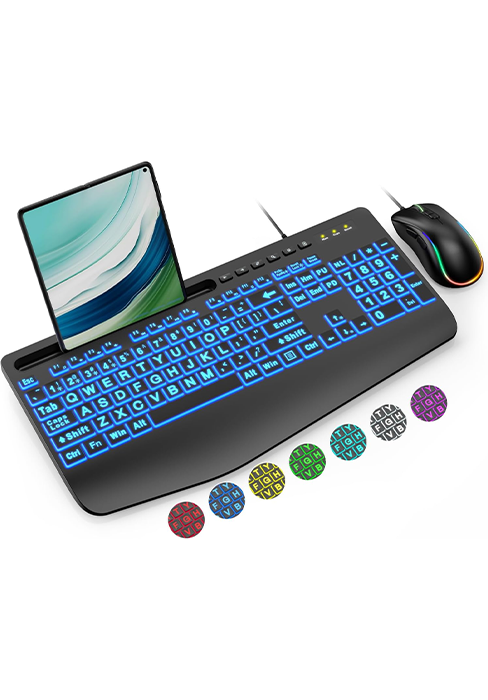
Figure 8.1: SABLUTE customer support details for assistance.
Ask a question about this manual
Ask about setup, troubleshooting, compatibility, parts, safety, or missing instructions. Manuals+ will review the question and use this page’s manual context to help answer it.