1. Introduction
Welcome to the user manual for your ZONKO K113B 10-inch Android Tablet. This guide provides essential information on setting up, operating, maintaining, and troubleshooting your device. Please read this manual thoroughly to ensure optimal performance and longevity of your tablet.
1.1 Package Contents
Upon opening your ZONKO K113B tablet package, please verify that all items listed below are present:
- ZONKO K113B 10-inch Android Tablet
- USB-C Charging Cable
- Power Adapter
- User Manual (this document)

Image 1.1: Front and rear view of the ZONKO K113B 10-inch Android Tablet. The tablet features a large display on the front and a camera module on the rear.
2. Product Overview
Familiarize yourself with the physical components and controls of your ZONKO K113B tablet.
2.1 Device Layout

Image 2.1: Diagram illustrating the various ports and buttons on the ZONKO K113B tablet. Labels include USB-C port, 3.5mm headphone jack, 5MP front camera, Power button, Volume +/-, Reset button, 13MP rear camera, Flash, Home button, and Dual speakers.
The following list details the functions of the labeled components:
- USB-C Port: Used for charging the tablet and connecting to a computer for data transfer.
- 3.5mm Headphone Jack: For connecting wired headphones or external audio devices.
- 5MP Front Camera: Used for video calls and selfies.
- Power Button: Press and hold to power on/off or restart the device. Press briefly to turn the screen on/off or put the device to sleep.
- Volume Buttons (+/-): Adjust the audio volume.
- Reset Button: A small pinhole button for force restarting the device if it becomes unresponsive.
- 13MP Rear Camera: For taking photos and recording videos.
- Flash: Provides illumination for the rear camera in low-light conditions.
- Home Button: Returns to the home screen.
- Dual Speakers: Provide audio output.
3. Setup
3.1 Initial Charging
Before first use, fully charge your tablet. Connect the USB-C cable to the tablet's USB-C port and the power adapter, then plug the adapter into a wall outlet. The battery indicator on the screen will show charging status.
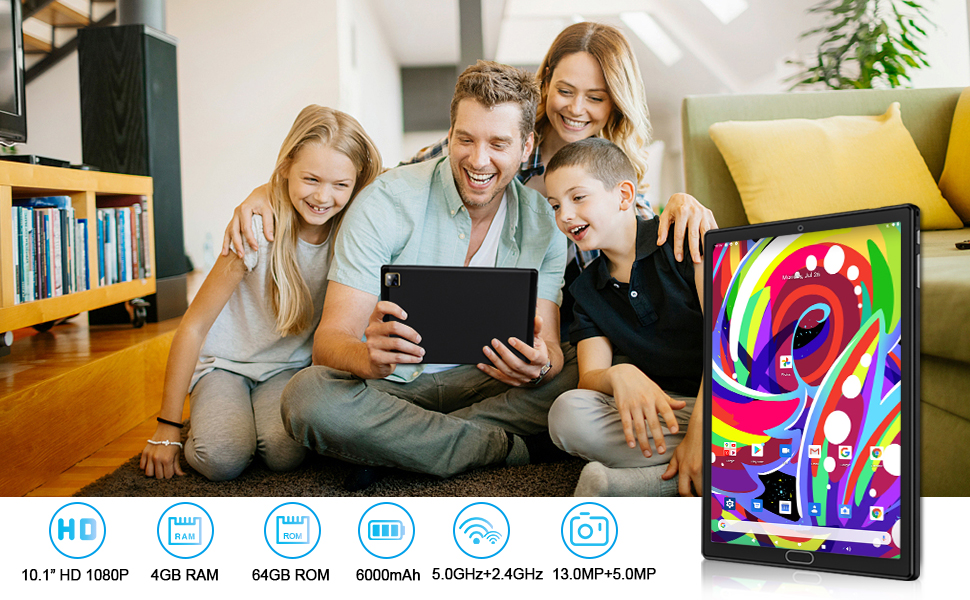
Image 3.1: The ZONKO K113B tablet being charged via its USB-C port, displaying a battery level of 85% and indicating fast charging.
3.2 Powering On/Off
- To Power On: Press and hold the Power button until the ZONKO logo appears on the screen.
- To Power Off: Press and hold the Power button until a power menu appears. Select "Power off" and confirm.
- To Restart: From the power menu, select "Restart."
- Sleep/Wake: Briefly press the Power button to turn the screen off/on without powering down the device.
3.3 Initial Android Setup
The first time you power on your tablet, you will be guided through the Android 11 setup process. This includes selecting your language, connecting to a Wi-Fi network, and signing in with your Google account. A Google account is required to download apps from the Google Play Store.
3.4 Connecting to Wi-Fi
To connect to a Wi-Fi network:
- Go to Settings > Network & internet > Wi-Fi.
- Toggle Wi-Fi On.
- Select your desired network from the list.
- Enter the password if prompted and tap Connect.
The ZONKO K113B supports both 2.4GHz and 5GHz Wi-Fi bands for faster and more stable connections.
3.5 Inserting a Micro SD Card
To expand the tablet's storage, you can insert a Micro SD card (up to 128GB, not included).
- Locate the Micro SD card slot cover on the side of the tablet.
- Gently open the cover.
- Insert the Micro SD card into the slot with the gold contacts facing down until it clicks into place.
- Close the cover securely.
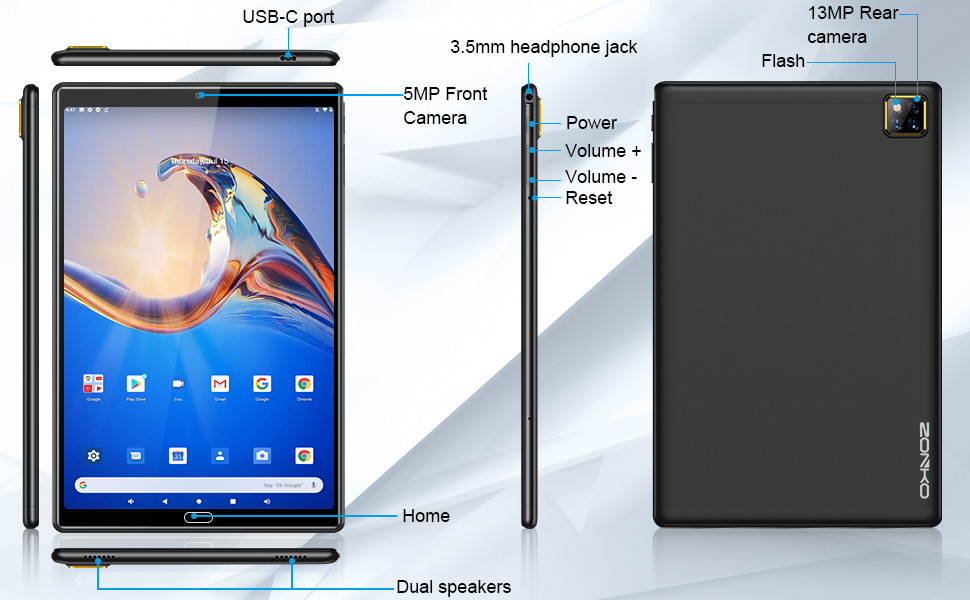
Image 3.2: Illustration demonstrating the process of inserting a Micro SD card into the ZONKO K113B tablet by opening a designated slot cover.
4. Operating Your Tablet
4.1 Basic Navigation
Your tablet uses a touch-sensitive screen for interaction:
- Tap: Touch the screen once to select an item or open an application.
- Touch & Hold: Press and hold an item to access additional options or move it.
- Swipe: Drag your finger across the screen to scroll through lists or switch between home screens.
- Pinch: Use two fingers to zoom in or out on photos and web pages.
4.2 Installing Applications
Your tablet comes with the Google Play Store pre-installed. To download and install new applications:
- Ensure you are connected to Wi-Fi.
- Open the Play Store app.
- Search for the desired app.
- Tap Install and follow the on-screen prompts.
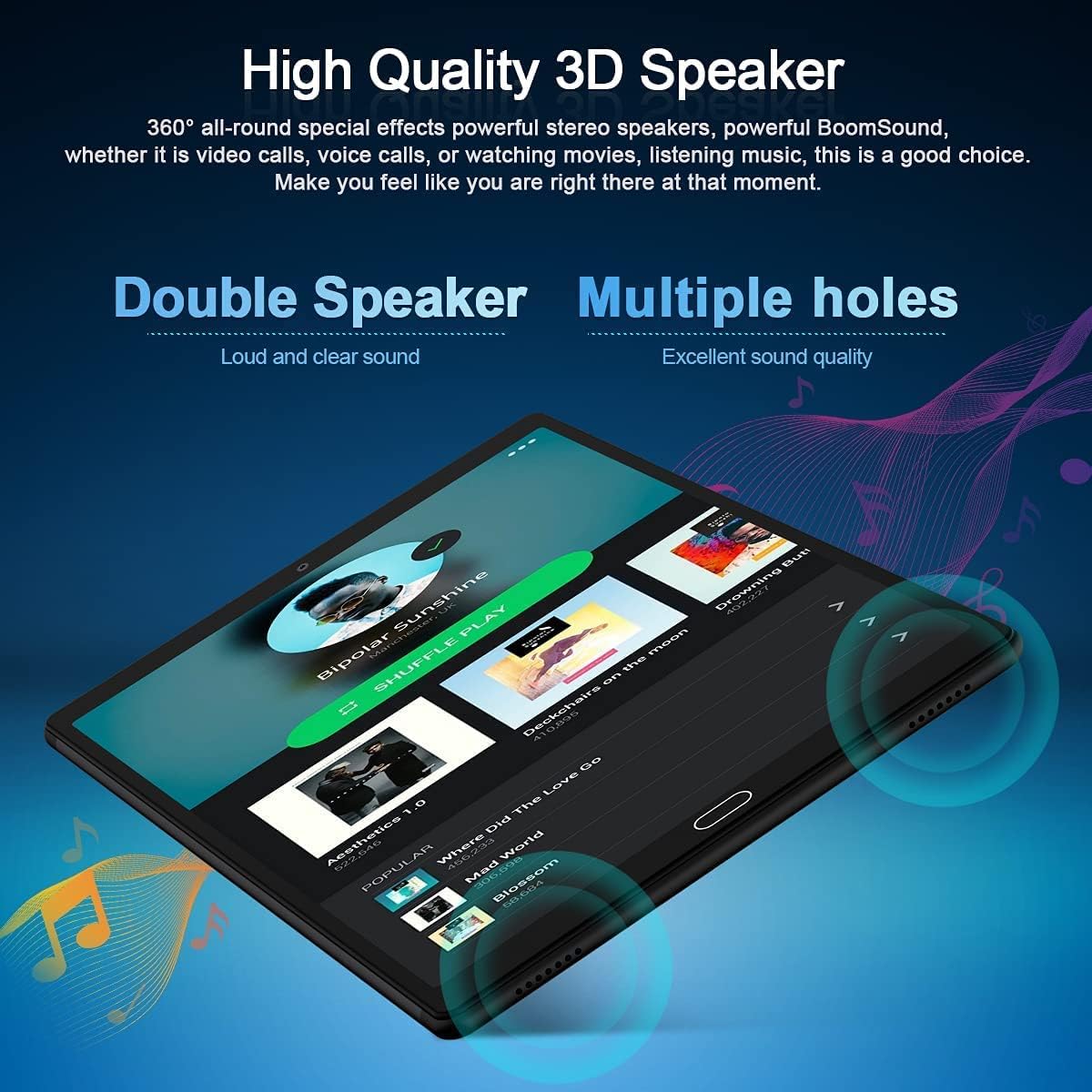
Image 4.1: The ZONKO K113B tablet screen showing the Android 11 operating system interface with icons for popular applications like Netflix, YouTube, and Spotify.
4.3 Bluetooth Connectivity
The tablet supports Bluetooth 5.0 for connecting wireless accessories like headphones, speakers, or keyboards.
- Go to Settings > Connected devices > Bluetooth.
- Toggle Bluetooth On.
- Make sure your Bluetooth accessory is in pairing mode.
- Select the accessory from the list of available devices to pair.

Image 4.2: A person using the ZONKO K113B tablet while wearing Bluetooth headphones, indicating wireless audio connectivity.
4.4 Using the Camera
Your tablet is equipped with a 13MP rear camera and a 5MP front camera.
- Open the Camera app.
- Tap the shutter button to take a photo.
- Tap the video icon to record a video.
- Use the switch icon to toggle between the front and rear cameras.
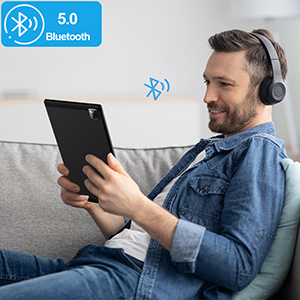
Image 4.3: A child engaged in a video call on the ZONKO K113B tablet, showcasing its front camera functionality for communication.
4.5 Gaming and Entertainment
The ZONKO K113B tablet, with its Quad-core processor and 4GB RAM, is suitable for various entertainment activities, including gaming and media consumption.

Image 4.4: A child playing a colorful puzzle game on the ZONKO K113B tablet, demonstrating its use for interactive entertainment.
5. Maintenance
5.1 Battery Care
- Avoid fully discharging the battery frequently.
- Do not expose the tablet to extreme temperatures.
- Use only the provided charger or a certified compatible charger.
5.2 Storage Management
Regularly manage your tablet's 64GB internal storage to maintain performance. Delete unnecessary files, uninstall unused apps, and move large media files to an external Micro SD card if installed.
5.3 Software Updates
Keep your tablet's operating system and applications updated for security and performance improvements. You can check for system updates in Settings > System > System update.
5.4 Cleaning the Device
Use a soft, lint-free cloth to clean the screen and body of the tablet. Avoid using harsh chemicals or abrasive materials.
6. Troubleshooting
This section addresses common issues you might encounter with your ZONKO K113B tablet.
6.1 Device Not Powering On
- Ensure the battery is charged. Connect the charger and wait a few minutes before attempting to power on.
- Press and hold the Power button for at least 10-15 seconds to force a restart.
6.2 Wi-Fi Connectivity Issues
- Check if Wi-Fi is enabled in Settings.
- Restart your Wi-Fi router.
- Forget the network in tablet settings and reconnect.
- Ensure you are within range of the Wi-Fi signal.
6.3 Applications Crashing or Freezing
- Close and reopen the application.
- Clear the app's cache and data in Settings > Apps > [App Name] > Storage & cache.
- Uninstall and reinstall the application.
- Ensure your tablet's software is up to date.
6.4 Slow Performance
- Close unused applications running in the background.
- Free up storage space by deleting unnecessary files.
- Restart the tablet.
6.5 Factory Reset (Last Resort)
If issues persist, a factory reset can resolve many software-related problems. Warning: This will erase all data on your tablet. Back up important data before proceeding.
- Go to Settings > System > Reset options.
- Select Erase all data (factory reset).
- Confirm your choice and follow the on-screen instructions.
7. Specifications
Detailed technical specifications for the ZONKO K113B 10-inch Android Tablet:
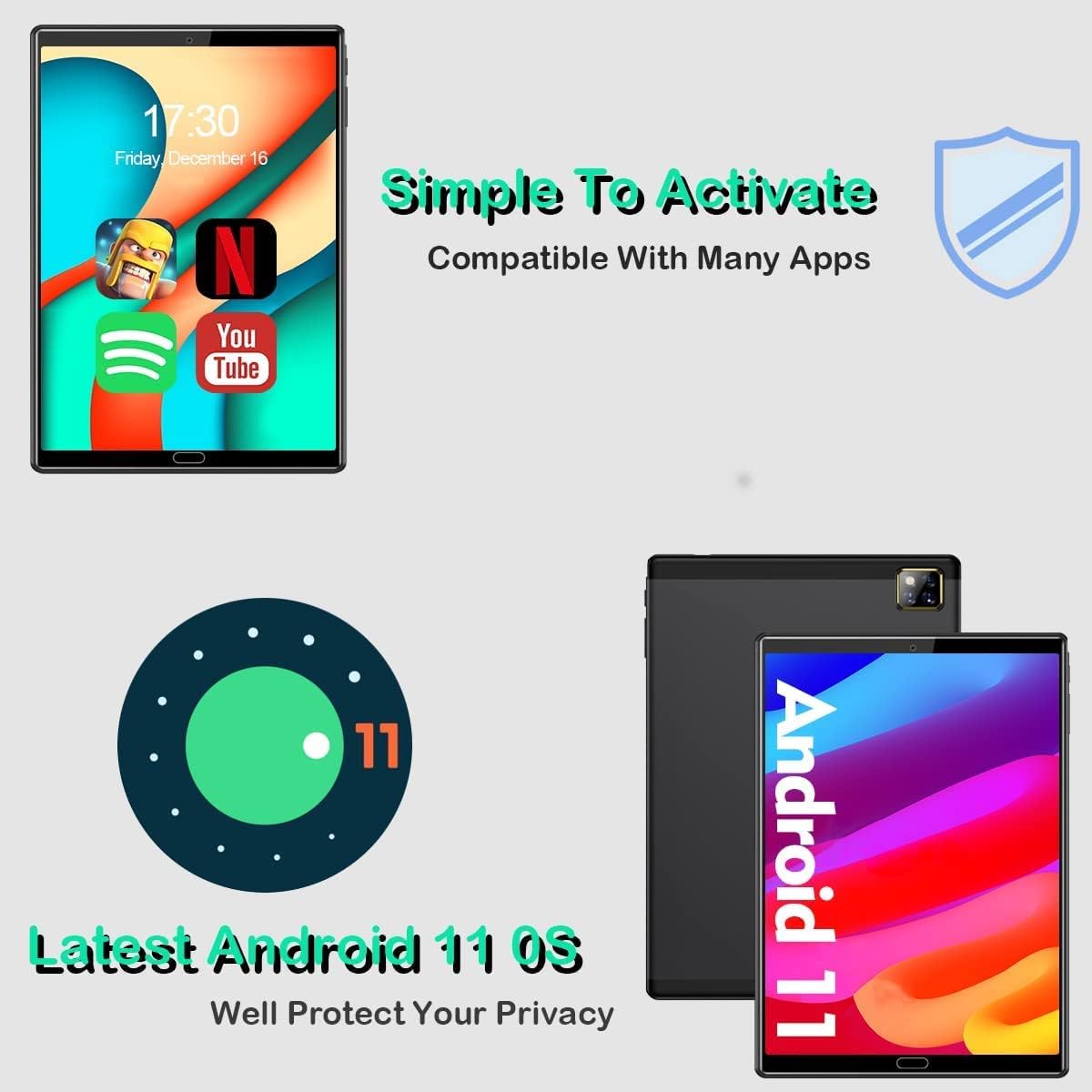
Image 7.1: Visual representation of the ZONKO K113B's internal components, emphasizing 4GB RAM, 64GB ROM (expandable to 128GB), and an ARM Cortex Quad-core 1.6GHz processor.
| Feature | Specification |
|---|---|
| Model Name | K113B |
| Operating System | Android 11 |
| Screen Size | 10 Inches |
| Screen Resolution | 1280 x 800 Pixels (IPS HD) |
| Processor | Allwinner Quad-core 1.6 GHz |
| RAM | 4GB DDR3 SDRAM |
| Internal Storage | 64GB |
| Expandable Storage | Up to 128GB via Micro SD card (not included) |
| Rear Camera | 13 MP |
| Front Camera | 5 MP |
| Battery | 6000mAh Lithium Polymer |
| Average Battery Life | 6 Hours (usage dependent) |
| Connectivity | Dual WiFi (2.4G & 5G), Bluetooth 5.0, GPS |
| Ports | USB-C 2.0, 3.5mm Headphone Jack |
| Dimensions (LxWxH) | 10.1 x 6.3 x 0.3 inches |
| Item Weight | 1.98 pounds |
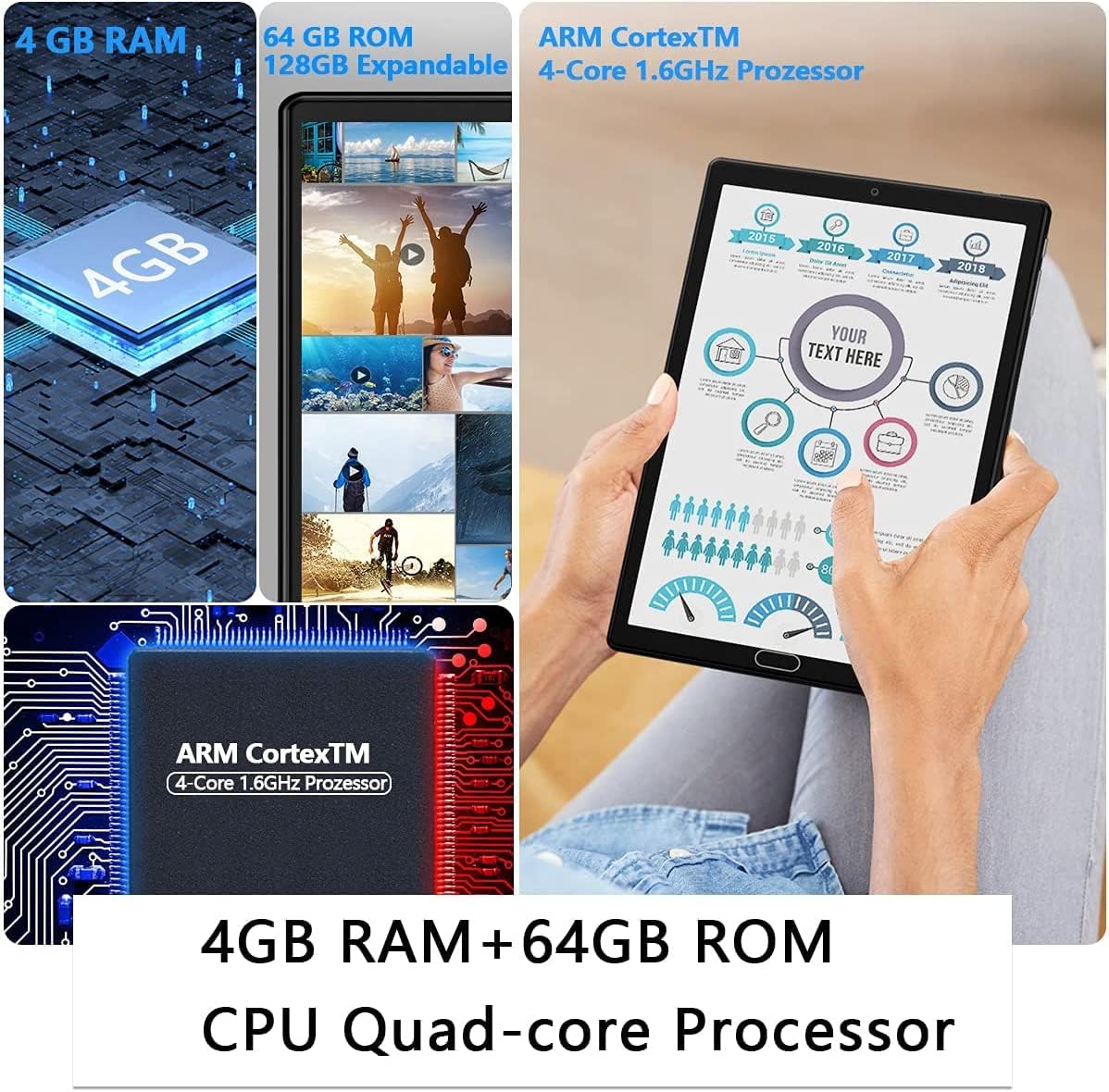
Image 7.2: The ZONKO K113B tablet showcasing key features such as IPS display, GPS navigation, 6000mAh battery, and Bluetooth 5.0 connectivity.
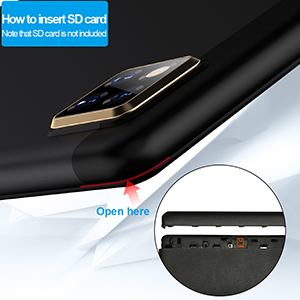
Image 7.3: The ZONKO K113B tablet displaying a high-definition image, highlighting its 1280x800 HD IPS screen for clear visuals.
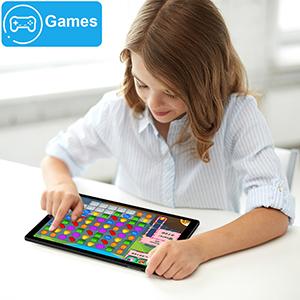
Image 7.4: An infographic detailing the 6000mAh battery life of the ZONKO K113B tablet, showing estimated durations for video playback (6H), calls (9H), music (12H), and standby (408H).
8. Warranty and Support
8.1 Product Warranty
The ZONKO K113B tablet comes with a 365-day warranty from the date of purchase, covering manufacturing defects. This warranty does not cover damage caused by misuse, accidents, unauthorized repairs, or normal wear and tear.
8.2 Technical Support
ZONKO offers lifetime technical support for your K113B tablet. If you encounter any issues not covered in this manual or require further assistance, please refer to the contact information provided with your purchase or visit the official ZONKO website for support options.


