1. Introduction
The YISEELE Wi-Fi Home Security Alarm System is designed to provide comprehensive protection for your home. This 16-piece wireless kit offers advanced features such as dual-band Wi-Fi connectivity, app control, voice assistant compatibility, and real-time alerts, ensuring your peace of mind.

Figure 1.1: Overview of the YISEELE Home Security Alarm System components.
2. System Components
The YISEELE Alarm System (Model YX-800) includes the following components:
- 1 x Alarm Base Station: The central hub supporting 2.4GHz and 5GHz Wi-Fi.
- 10 x Door/Window Sensors: For securing entry points.
- 2 x Remote Controls: For arming, disarming, and SOS functions (with batteries included).
- 1 x PIR Detector: Anti-pet motion sensor (immune to pets under 20KG).
- 1 x Wired Siren: 120DB siren for audible alerts.

Figure 2.1: Contents as displayed on the product packaging.
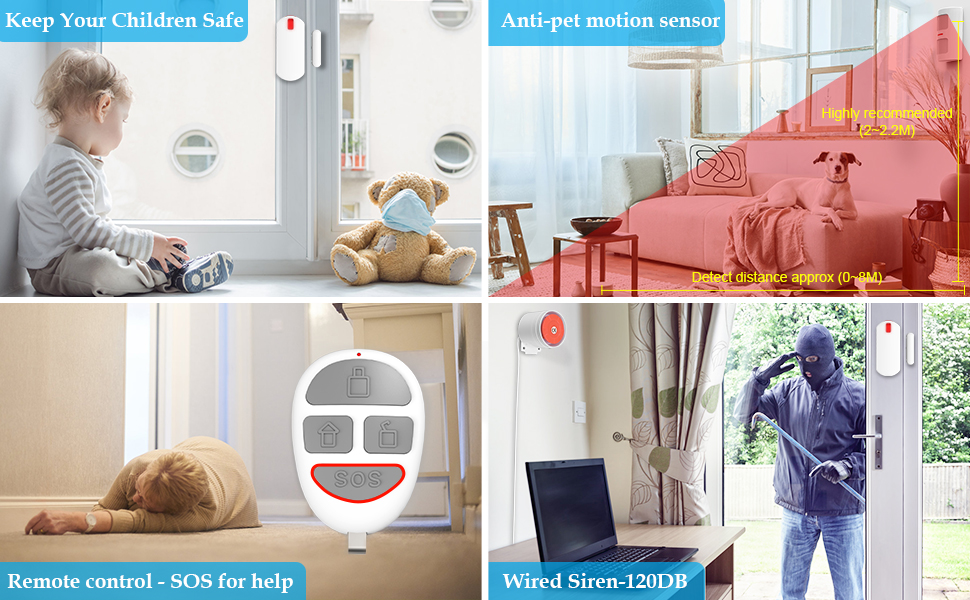
Figure 2.2: Visual representation of key system components and their functions.
3. Setup and Installation
The YISEELE Alarm System is designed for DIY installation. All accessories are factory-matched for ease of setup.
3.1. App Download and Account Registration
- Download the 'Tuya Smart' app from your mobile phone's app store (iOS App Store or Google Play Store). You can also scan the QR code provided on the product packaging.
- Register for a new account or log in if you already have one.

Figure 3.1: Scan this QR code to download the Tuya Smart APP.
3.2. Connecting to Wi-Fi (Dual-Band Support)
The alarm system supports both 2.4GHz and 5GHz Wi-Fi networks. Ensure your phone's Bluetooth is enabled for easier network discovery.
- Set the Wi-Fi indicator on the alarm base station to blinking mode (refer to the specific method in the included quick start guide, typically by pressing and holding the reset button until a beep is heard).
- Open the 'Tuya Smart' app. A dialog box prompting to add a device may appear. Select "Add" or navigate to add a new device.
- Select 2.4G/5G Wi-Fi, enter your Wi-Fi password, click "Next", and wait for the connection to succeed.
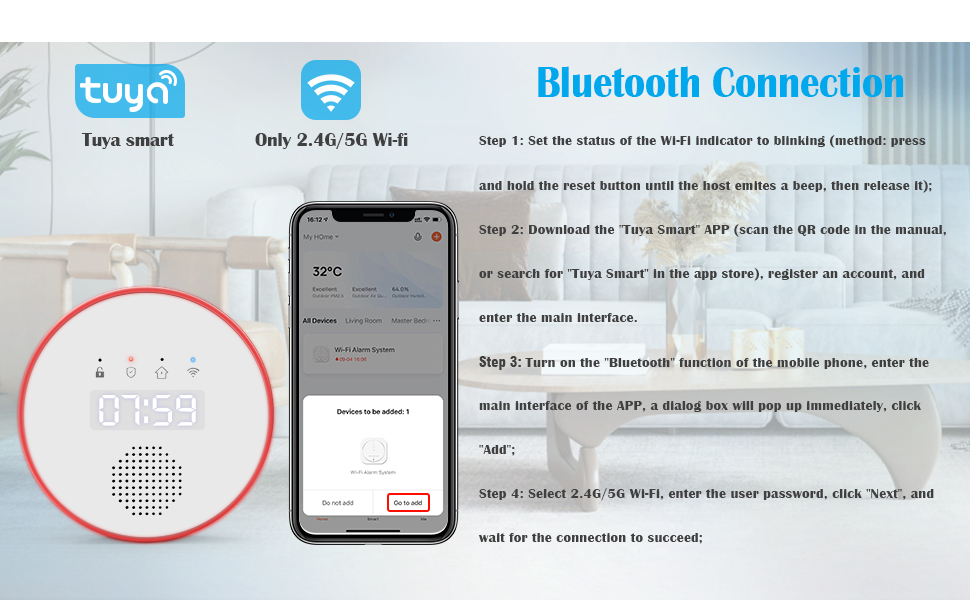
Figure 3.2: Bluetooth connection and Wi-Fi setup steps via the Tuya Smart app.

Figure 3.3: The system supports both 2.4GHz and 5GHz Wi-Fi for flexible connectivity.
3.3. Sensor Placement
Place door/window sensors on desired entry points. Ensure the small triangles on the two parts of the sensor align when the door/window is closed. For motion sensors, place them in corners to cover the entire room, typically detecting activity within 12 feet with a 90-degree field of view. The PIR sensor is pet-immune for animals up to 50 lbs.
4. Operating Modes
The YISEELE Alarm System offers four primary operating modes:
- Disarmed Mode: No accessories are monitored, except those configured for 24-hour monitoring.
- Away Mode: All accessories are monitored to protect the entire home.
- Home Mode: Accessories whose attributes are set to "home" are not monitored, allowing free movement within designated areas while securing perimeter points.
- SOS Mode: Triggers an immediate alarm in case of emergency.

Figure 4.1: Understanding the different alarm system modes.
4.1. Controlling the System
You can control the system using the included remote controls or through the Tuya Smart app on your smartphone.

Figure 4.2: Remotely control your security system via the app.
5. Smart Features
5.1. Voice Control (Alexa & Google Assistant)
The system is compatible with Amazon Alexa and Google Assistant, allowing for hands-free control of Away, Disarm, and Home modes.
- Example Commands:
"Alexa, arm my home in away mode."
"Google, arm my home in away mode."
"Disarm my security system." (Note: Disarming via voice may require a PIN code for security.)

Figure 5.1: Control your system with voice commands using Alexa or Google Assistant.
5.2. Real-time Notifications
Receive instant alerts and notifications on your smartphone when the wireless house alarms are triggered or when sensors detect activity (e.g., a door/window opening).

Figure 5.2: Receive instant alerts on your smartphone.

Figure 5.3: The system alerts you immediately upon detecting an intruder.
5.3. Timed Arming and Disarming
Set schedules for the system to automatically arm or disarm at specific times, such as when you leave for work or go to bed.
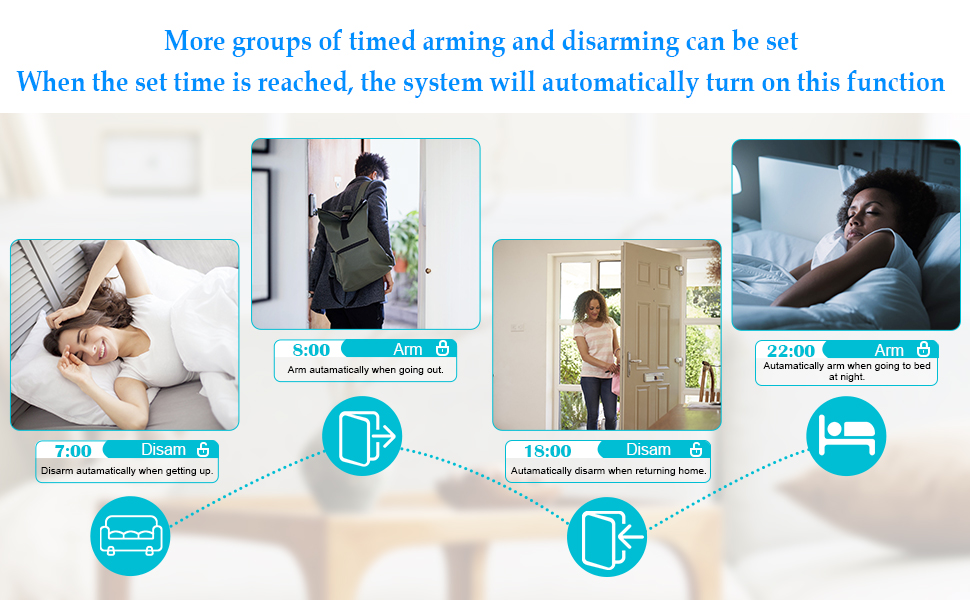
Figure 5.4: Configure automatic arming and disarming schedules.
5.4. Alarm Base Indicator Light
The alarm base provides visual cues:
- Blue LED: Night Light Mode.
- Red LED: Alarm Mode (indicates an intruder).
- Orange LED: Low Battery Reminder.
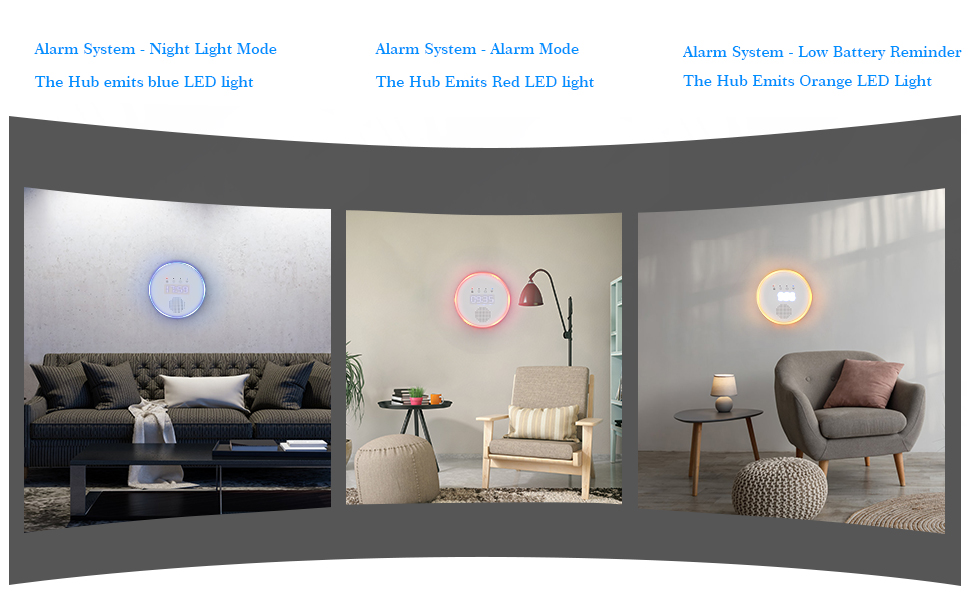
Figure 5.5: Visual indicators of the alarm base station.
6. Maintenance and Care
- Battery Replacement: Sensors and remote controls are battery-powered. Monitor battery levels via the app and replace batteries promptly when indicated by the low battery reminder on the hub or app notifications. The system requires 1 'A' battery (type specified in specifications).
- Cleaning: Gently wipe the alarm base and sensors with a dry, soft cloth. Avoid using liquid cleaners or abrasive materials.
- Firmware Updates: Periodically check the Tuya Smart app for any available firmware updates for the alarm system to ensure optimal performance and security.
7. Troubleshooting
7.1. Common Issues and Solutions
- Sensors Not Triggering / False Alarms:
Ensure the small triangles on the door/window sensors are perfectly aligned when the door/window is closed. Misalignment can cause false alarms or prevent detection. If installing on steel doors, a non-metallic shim may be required to prevent interference.
For PIR sensors, ensure they are placed in a corner for optimal coverage and that pets are within the specified weight limit (under 50 lbs) to avoid false triggers. - App Notifications Not Received:
Verify your smartphone's notification settings for the Tuya Smart app are enabled.
Ensure your alarm base station has a stable Wi-Fi connection.
Check if the app is running in the background or if power-saving settings are restricting its functionality. - Voice Commands Not Working (Alexa/Google Assistant):
Ensure your voice assistant device is properly linked to your Tuya Smart account.
Use precise phrasing for commands (e.g., "Set my security system to Home mode"). Disarming may require a PIN code spoken aloud.
Check the internet connection for both your voice assistant device and the alarm system. - Alarm Base Not Responding / No Power:
Check the power adapter and cable connection. The power cord is relatively short, so ensure it reaches the outlet without strain.
If there was a power outage, the system should automatically reconnect once power is restored and Wi-Fi is available. - Sensor Out of Range:
If a sensor is too far from the alarm base, it may not communicate effectively. Try relocating the sensor or the alarm base to improve signal strength. The signal range is designed to cover most houses.
8. Technical Specifications
| Feature | Specification |
|---|---|
| Model Number | YX-800 |
| Control Method | App |
| Noise Level | 120 dB (Siren) |
| Mounting Type | Protruding |
| Maximum PIR Range | 4 Meters (12 feet) |
| PIR Field of View | 90 degrees |
| Sensor Technology | Contact Sensor, Motion Sensor |
| Product Dimensions | 10.63 x 8.66 x 3.15 inches |
| Item Weight | 1.83 pounds |
| Batteries Required | 1 'A' battery (for hub, others pre-installed) |
| Power Source | Battery Powered (for sensors), USB powered (for hub) |
| Compatible Devices | Smartphone (via Tuya Smart App), Alexa, Google Assistant |
9. Support and Warranty
YISEELE is committed to customer safety and satisfaction. For any questions, technical assistance, or support needs, please refer to the contact information provided with your product packaging or within the Tuya Smart application.
While specific warranty details are not provided in this manual, YISEELE strives to offer reliable products and attentive customer support. Please retain your proof of purchase for any warranty claims.
For additional resources and product information, you may visit the official YISEELE store on Amazon: YISEELE Amazon Store


