
Cudy WR3000
Contents
Cudy AX3000 WiFi 6 Router
User Manual - Model WR3000
Your guide to setting up, operating, and maintaining your Cudy AX3000 WiFi 6 Router.
1. Product Overview
The Cudy AX3000 WiFi 6 Router (Model WR3000) is designed to provide high-speed, reliable wireless connectivity for your home or office. Featuring AX3000 dual-band Wi-Fi, it offers significantly faster wireless connections compared to previous generations, supporting a total networking speed of approximately 3000Mbps.

Figure 1: Front view of the Cudy AX3000 WiFi 6 Router (WR3000).
Equipped with a 1.3GHz Dual Core Cortex-A53 processor, the WR3000 ensures efficient data processing and robust performance for various network demands, including AR/VR gaming and extensive wireless coverage. It is engineered to connect over 100 devices simultaneously, maintaining optimal performance even in traffic-dense environments.

Figure 2: Illustration of the 1.3GHz Dual Core Cortex-A53 processor, highlighting its role in fast data transmission.
Key features include Smart Beamforming Technology for focused signal strength, DL/UL OFDMA & MU-MIMO for enhanced network capacity, and support for various VPN protocols (PPTP, L2TP, WireGuard, OpenVPN) for secure remote access. The router also supports the latest WPA3 security standard and can be easily managed via the Cudy Cloud App.
2. Setup Guide
Follow these steps to set up your Cudy AX3000 WiFi 6 Router:
- Unpack the Router: Carefully remove the WR3000 router, power adapter, and Ethernet cable from the packaging.
- Connect to Power: Connect the power adapter to the router's power port and plug it into a power outlet. The power LED indicator on the router should light up.
- Connect to Modem: Connect one end of the provided Ethernet cable to the WAN port (usually labeled 'WAN' or 'Internet') on the WR3000 router. Connect the other end to your modem's Ethernet port.
- Connect Your Device:
- Wired Connection: Connect an Ethernet cable from one of the LAN ports (LAN1, LAN2, or LAN3) on the router to your computer's Ethernet port.
- Wireless Connection: On your Wi-Fi enabled device (smartphone, tablet, laptop), search for the default Wi-Fi network name (SSID) printed on the label at the bottom of the router. Connect to this network using the default Wi-Fi password (also on the label).
- Access Router Interface: Open a web browser on your connected device and enter the default IP address (e.g.,
192.168.10.1) into the address bar. Follow the on-screen instructions to complete the initial setup, including setting up your new Wi-Fi network name and password. - Cudy Cloud App Setup: For easier management, download the Cudy Cloud App from your device's app store. The app provides a streamlined setup process and allows you to manage your network settings from your smartphone.
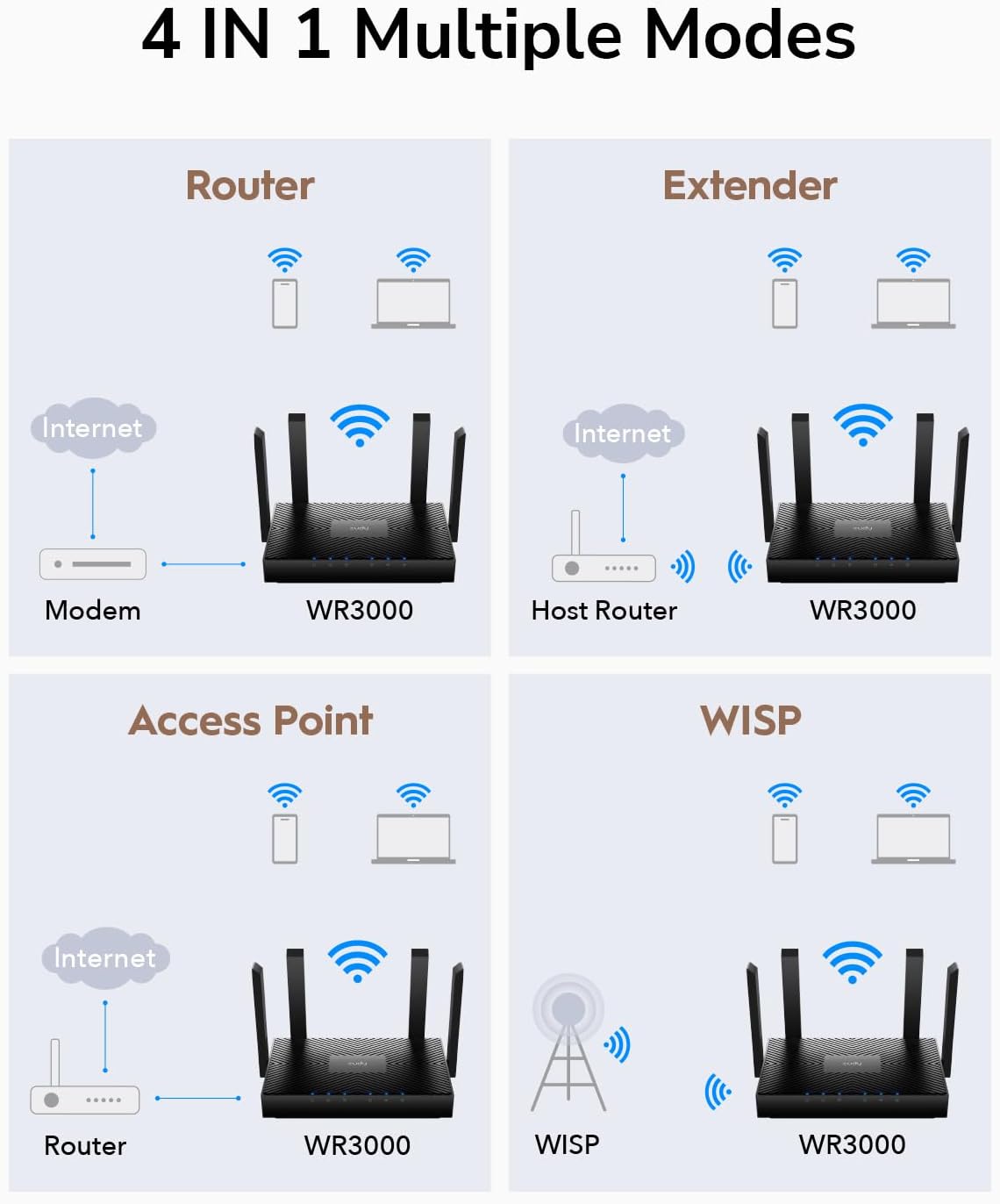
Figure 3: Rear view of the WR3000 router, showing the WAN port, three LAN ports, WPS button, Reset button, and Power port.
3. Operating Instructions
3.1 Wi-Fi 6 Performance
The WR3000 leverages Wi-Fi 6 (802.11ax) technology to deliver superior wireless performance. With AX3000 dual-band capabilities, it supports 160MHz bandwidth and 1024-QAM, resulting in significantly faster speeds and improved efficiency, especially in environments with many connected devices.

Figure 4: Visual representation of AX3000 dual-band Wi-Fi speed, showing 2.5X faster performance than 802.11ac.
3.2 Advanced Technologies
- DL/UL OFDMA & MU-MIMO: These technologies enhance network capacity and efficiency by allowing the router to communicate with multiple devices simultaneously, reducing latency and improving overall network performance.
- Smart Beamforming Technology: This feature intelligently detects the location of your connected devices and focuses the Wi-Fi signal directly towards them, providing a stronger and more stable connection.
- High Device Capacity: The WR3000 is designed to handle connections for over 100 devices, ensuring that all your smart home devices, streaming gadgets, and personal electronics can operate smoothly without performance degradation.

Figure 5: Illustration of DL/UL OFDMA & MU-MIMO technology, demonstrating simultaneous data transmission for lower latency in gaming.

Figure 6: The WR3000's capability to connect a large number of devices, supporting high-speed downloading, 4K streaming, and smart home devices.
3.3 Multiple Operating Modes
The Cudy WR3000 supports four operational modes to suit various networking needs:
- Router Mode: The standard mode where the device acts as your primary internet gateway, connecting to your modem and distributing Wi-Fi.
- Extender Mode: Extends the range of an existing Wi-Fi network.
- Access Point Mode: Converts a wired network connection into a wireless one.
- WISP Mode: Connects wirelessly to an ISP access point and shares the internet connection with local devices.

Figure 7: Diagram illustrating the four operational modes: Router, Extender, Access Point, and WISP.
3.4 Security and VPN
The WR3000 incorporates the latest WPA3 security protocols to encrypt your wireless network, providing enhanced protection against unauthorized access. It also supports multiple VPN protocols, including PPTP, L2TP, WireGuard, and OpenVPN, enabling secure remote access and privacy for your network traffic (requires firmware newer than 1.16.1).

Figure 8: Visual representation of WPA3 security, indicating advanced wireless encryption.
3.5 Cudy Cloud App
Manage your home network effortlessly with the Cudy Cloud App, available for both iOS and Android devices. The app provides an intuitive interface for setting up, monitoring, and controlling your router's functions.
4. Maintenance
- Firmware Updates: Regularly check for and install the latest firmware updates for your router. Firmware updates often include performance improvements, bug fixes, and security enhancements. You can usually find these on the Cudy official website or through the Cudy Cloud App.
- Optimal Placement: For the best Wi-Fi coverage, place your router in a central location within your home. Avoid placing it near large metal objects, thick walls, or other electronic devices that may cause interference. Cudy recommends ensuring no more than two wooden or brick walls, or one concrete wall, between the router and each room.
- Cleaning: Keep the router clean and free from dust buildup, especially around ventilation areas, to prevent overheating and ensure optimal performance. Use a soft, dry cloth for cleaning.
- Regular Reboots: Periodically restarting your router can help clear its memory and resolve minor network issues, improving overall stability.
5. Troubleshooting
- No Internet Connection:
- Check if the Ethernet cable from your modem is securely connected to the router's WAN port.
- Ensure your modem is working correctly. Try restarting both your modem and router.
- Verify your internet service provider (ISP) settings in the router's web interface.
- Weak Wi-Fi Signal or Slow Speeds:
- Relocate the router to a more central position, away from obstructions and interference sources.
- Ensure your devices are Wi-Fi 6 compatible to fully utilize the router's capabilities.
- Check for overlapping Wi-Fi channels with neighboring networks and adjust your router's channel settings if necessary.
- Cannot Access Router Web Interface:
- Ensure your device is connected to the router (either via Ethernet or Wi-Fi).
- Verify that you are entering the correct IP address (e.g.,
192.168.10.1) in your browser. - Try clearing your browser's cache or using a different browser.
- Forgotten Wi-Fi Password or Router Login Password:
- You can reset the router to factory default settings by pressing and holding the 'Reset' button on the back of the router for about 5-10 seconds while it is powered on. Warning: This will erase all your custom settings.
For more detailed troubleshooting or specific issues, refer to the Cudy official support resources or the Cudy Cloud App.
6. Specifications
| Feature | Description |
|---|---|
| Model Name | WR3000 |
| Wi-Fi Standard | 802.11ax (Wi-Fi 6) |
| Frequency Band Class | Dual-Band (2.4 GHz & 5 GHz) |
| Max. Wireless Speed | AX3000 (approx. 3000Mbps total) |
| Processor | 1.3GHz Dual Core Cortex-A53 |
| Ethernet Ports | 1x Gigabit WAN, 3x Gigabit LAN |
| Security Protocols | WPA3 |
| VPN Support | PPTP, L2TP, WireGuard, OpenVPN |
| Dimensions (L x W x H) | 7.87 x 6.69 x 1.38 inches |
| Item Weight | 14.1 ounces |
| Included Components | WR3000 Router, Power Adapter, Ethernet Cable, Installation Guide |
7. What's in the Box
- Cudy AX3000 WiFi 6 Router (WR3000)
- Power Adapter
- Ethernet Cable
- Installation Guide
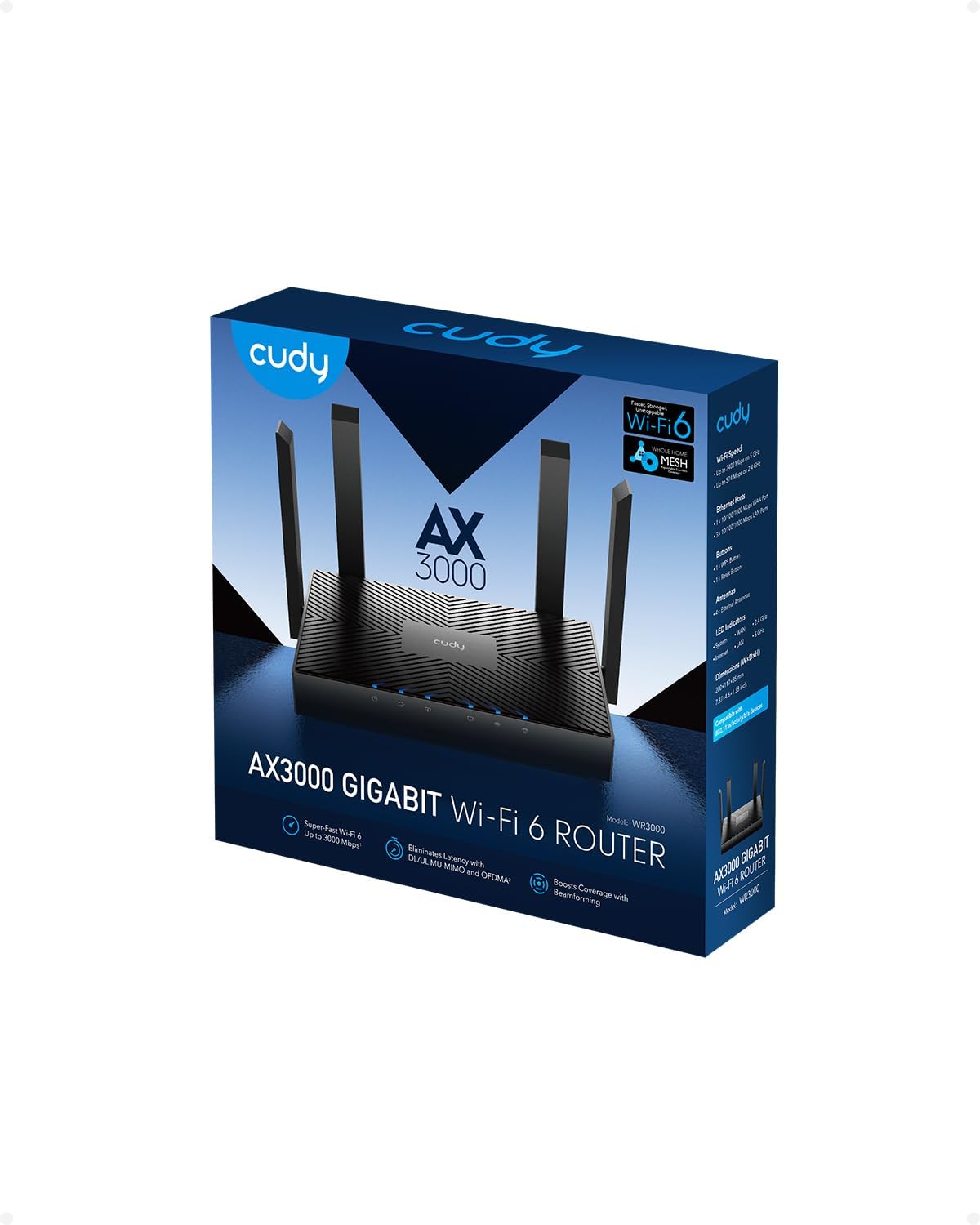
Figure 9: The retail packaging for the Cudy AX3000 WiFi 6 Router, showing the included components.
8. Warranty and Support
Cudy products are backed by a manufacturer's warranty. Please refer to the warranty card included with your product or visit the official Cudy website for detailed warranty information.
8.1 Technical Support
For technical assistance, troubleshooting, or further inquiries, please utilize the following resources:
- Cudy Cloud App: The Cudy Cloud App provides an easy way to manage your router and access support resources directly from your mobile device.
- Official Cudy Website: Visit www.cudy.com for FAQs, firmware downloads, and contact information for customer support.
- Online Resources: Cudy provides official videos and guides to assist with setup and common issues.
Protection plans are also available for extended coverage. Please check with your retailer for details on available protection plans.
Documents and downloads
Ask a question about this manual
Ask about setup, troubleshooting, compatibility, parts, safety, or missing instructions. Manuals+ will review the question and use this page’s manual context to help answer it.