
Luqeeg Luqeeg6xqg82p79v
Contents
Luqeeg Portable 4G LTE USB Adapter User Manual
Model: Luqeeg6xqg82p79v
1. Introduction
Thank you for choosing the Luqeeg Portable 4G LTE USB Adapter. This device is designed to provide high-speed 3G/4G internet access, allowing you to stay connected wherever you are. It functions as a mobile hotspot, enabling multiple devices such as mobile phones, laptops, desktops, and tablets to access the internet simultaneously. This manual provides essential information on setting up, operating, maintaining, and troubleshooting your device.
2. Product Overview
2.1 Components
The Luqeeg Portable 4G LTE USB Adapter is a compact and lightweight device. It typically includes the main router unit, a removable battery, and a USB charging cable.
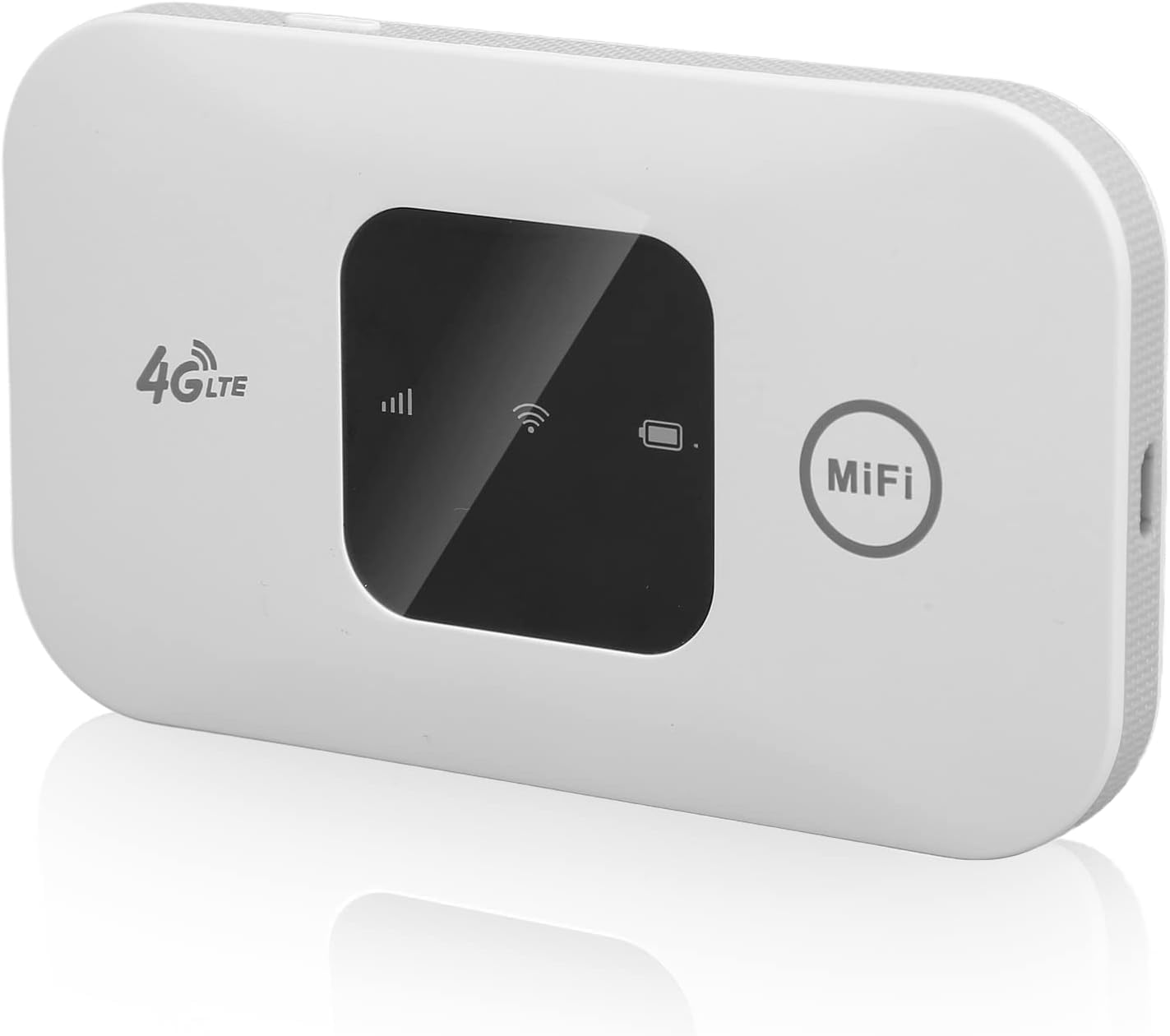
Figure 2.1: Front view of the Luqeeg Portable 4G LTE USB Adapter, displaying the 4G LTE indicator, signal strength, Wi-Fi status, battery level, and MiFi logo.

Figure 2.2: The Luqeeg Portable 4G LTE USB Adapter, its removable battery, and the USB charging cable.
2.2 Key Features
- High-Speed Connectivity: Supports 3G/4G high-speed internet access with 4G LTE Frequency Bands B1, B3, B5, B7, B8, B20, B38, B40 and 3G UMTS WCDMA B1. Offers download speeds up to 150Mbps and upload speeds up to 50Mbps.
- Multi-User Support: Allows up to 10 devices to connect simultaneously, including mobile phones, laptops, computers, smart TVs, and tablets.
- Long Battery Life: Equipped with a 2100mAh large capacity battery, providing up to 72 hours of standby time.
- Portable Design: Lightweight, thin, and compact, making it ideal for travel, business trips, outdoor activities, and home use.
- Wide Compatibility: Supports various operating systems including Windows 7, 8, 10, and Linux.
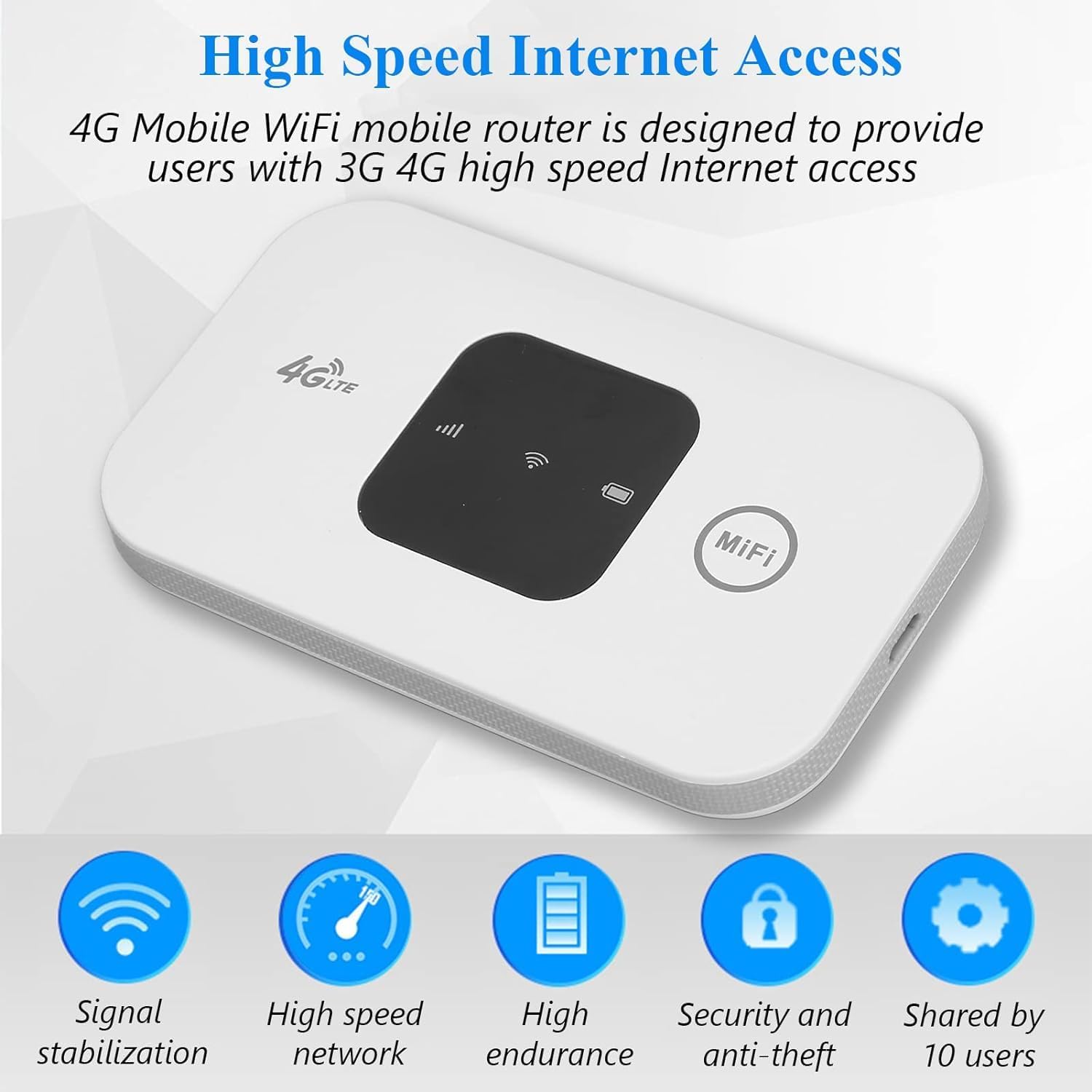
Figure 2.3: High-speed internet access and key features of the device.
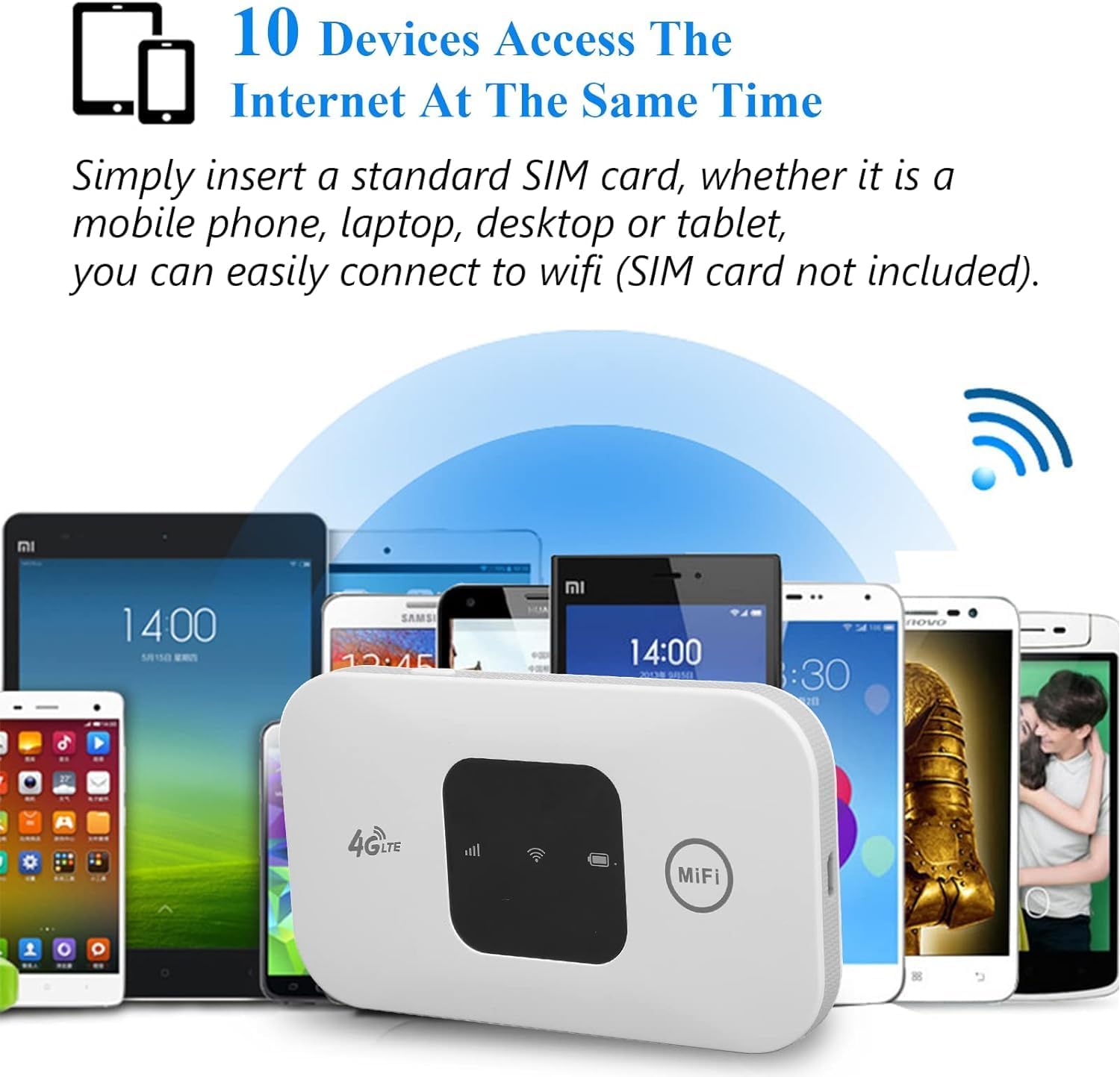
Figure 2.4: The router providing internet access to multiple devices concurrently.

Figure 2.5: Wide compatibility with various devices.

Figure 2.6: Diverse usage scenarios for the portable router.
3. Setup
3.1 Inserting the SIM Card and Battery
Before using the device, you must insert a standard SIM card (not included) and the provided battery.
- Carefully open the back cover of the device.
- Locate the SIM card slot. Insert your standard SIM card into the slot, ensuring the correct orientation as indicated by the diagram near the slot. Make sure the SIM card is fully seated.
- Insert the 2100mAh battery into its compartment, aligning the contacts correctly.
- Replace the back cover, ensuring it clicks securely into place.
3.2 Powering On
To power on the device, press and hold the power button (usually located on the side or front) for a few seconds until the display lights up. The device will initiate and search for a network signal.
4. Operating Instructions
4.1 Connecting Devices
Once the router is powered on and has established a network connection (indicated by the signal strength icon on the display), you can connect your devices via Wi-Fi.
- On your mobile phone, laptop, tablet, or other Wi-Fi enabled device, open the Wi-Fi settings.
- Scan for available Wi-Fi networks.
- Locate the network name (SSID) of your Luqeeg Portable 4G LTE USB Adapter. This information is typically found on a sticker inside the battery compartment or on the device packaging.
- Select the network and enter the Wi-Fi password (also found on the sticker or packaging) when prompted.
- Your device should now be connected to the internet through the portable router.
4.2 Wi-Fi Network Details
The default Wi-Fi network name (SSID) and password (Wi-Fi Key) are unique to your device and can be found on a label inside the battery compartment or on the product packaging. It is recommended to keep these details secure.
5. Maintenance
5.1 Battery Care
- Charge the battery fully before first use.
- Avoid exposing the battery to extreme temperatures (hot or cold).
- If the device will not be used for an extended period, store it with a partial charge (around 50%) and recharge it every few months to prevent deep discharge.
- Use only the provided or approved charging cable and adapter.
5.2 Cleaning
- Wipe the device with a soft, dry cloth.
- Do not use liquid cleaners, aerosols, or harsh chemicals.
- Ensure the device is powered off and disconnected from any power source before cleaning.
6. Troubleshooting
If you encounter issues with your Luqeeg Portable 4G LTE USB Adapter, refer to the table below for common problems and their solutions.
| Problem | Possible Solution |
|---|---|
| No network signal or weak signal. | Ensure your SIM card is correctly inserted and active. Move to an area with better network coverage. Restart the device. Verify your SIM card plan supports 4G/3G data. |
| SIM card not recognized. | Ensure the SIM card is a standard size and inserted correctly. Check if the SIM card requires PIN deactivation (some carriers require this to be done on a phone first). Try another known working SIM card if available. |
| Cannot connect to Wi-Fi. | Ensure the router is powered on and the Wi-Fi indicator is active. Double-check the Wi-Fi password. Try restarting both the router and the connecting device. |
| Slow internet speed. | Check network signal strength. Reduce the number of connected devices. Move closer to the router. Ensure your data plan is not throttled or exceeded. |
| Battery drains quickly. | Ensure the battery is fully charged. Reduce usage in areas with poor signal, as the device consumes more power searching for a network. Close unnecessary applications on connected devices. |
| Device not turning on. | Ensure the battery is charged. Connect the device to a power source using the USB cable and try turning it on while charging. Check if the battery is properly inserted. |
7. Specifications
Below are the technical specifications for the Luqeeg Portable 4G LTE USB Adapter.
| Feature | Detail |
|---|---|
| Brand | Luqeeg |
| Model Name | Luqeeg6xqg82p79v |
| Connectivity Technology | Wi-Fi, USB |
| Wireless Communication Standard | 802.11bgn |
| Frequency Band Class | Single-Band |
| Frequency | 2.4 GHz |
| Compatible Devices | Laptop, Tablet, Smart Television |
| Special Feature | WPS |
| Color | White |
| Item Weight | 5 ounces |
| Package Dimensions | 4.41 x 2.87 x 1.46 inches |
| Manufacturer | Luqeeg |
| Country of Origin | China |
| Date First Available | January 1, 2023 |
8. Warranty and Support
This Luqeeg product is covered by a standard manufacturer's warranty against defects in materials and workmanship from the date of purchase. Please retain your proof of purchase for warranty claims.
For technical support, warranty inquiries, or further assistance, please contact Luqeeg customer service through the retailer's platform where you purchased the product or refer to the contact information provided with your product packaging.
Ask a question about this manual
Ask about setup, troubleshooting, compatibility, parts, safety, or missing instructions. Manuals+ will review the question and use this page’s manual context to help answer it.