
Grandstream GRP2650
Grandstream GRP2650 IP Phone User Manual
Model: GRP2650
1. Introduction
This user manual provides detailed instructions for the installation, configuration, and operation of the Grandstream GRP2650 IP Phone. The GRP2650 is a professional 14-line IP phone designed for mass deployment, featuring a 5-inch color display, Wi-Fi 5 support, and dual-port Gigabit Ethernet with integrated Power over Ethernet (PoE).
Please read this manual thoroughly before using your new IP phone to ensure proper setup and optimal performance.
2. Package Contents
Before you begin, verify that your package contains the following items:
- Grandstream GRP2650 IP Phone unit
- Handset with coiled cord
- Ethernet cable
- Phone stand
- Quick Installation Guide
- Power adapter (if not using PoE)
3. Physical Overview
Familiarize yourself with the various components and ports of your GRP2650 IP Phone.
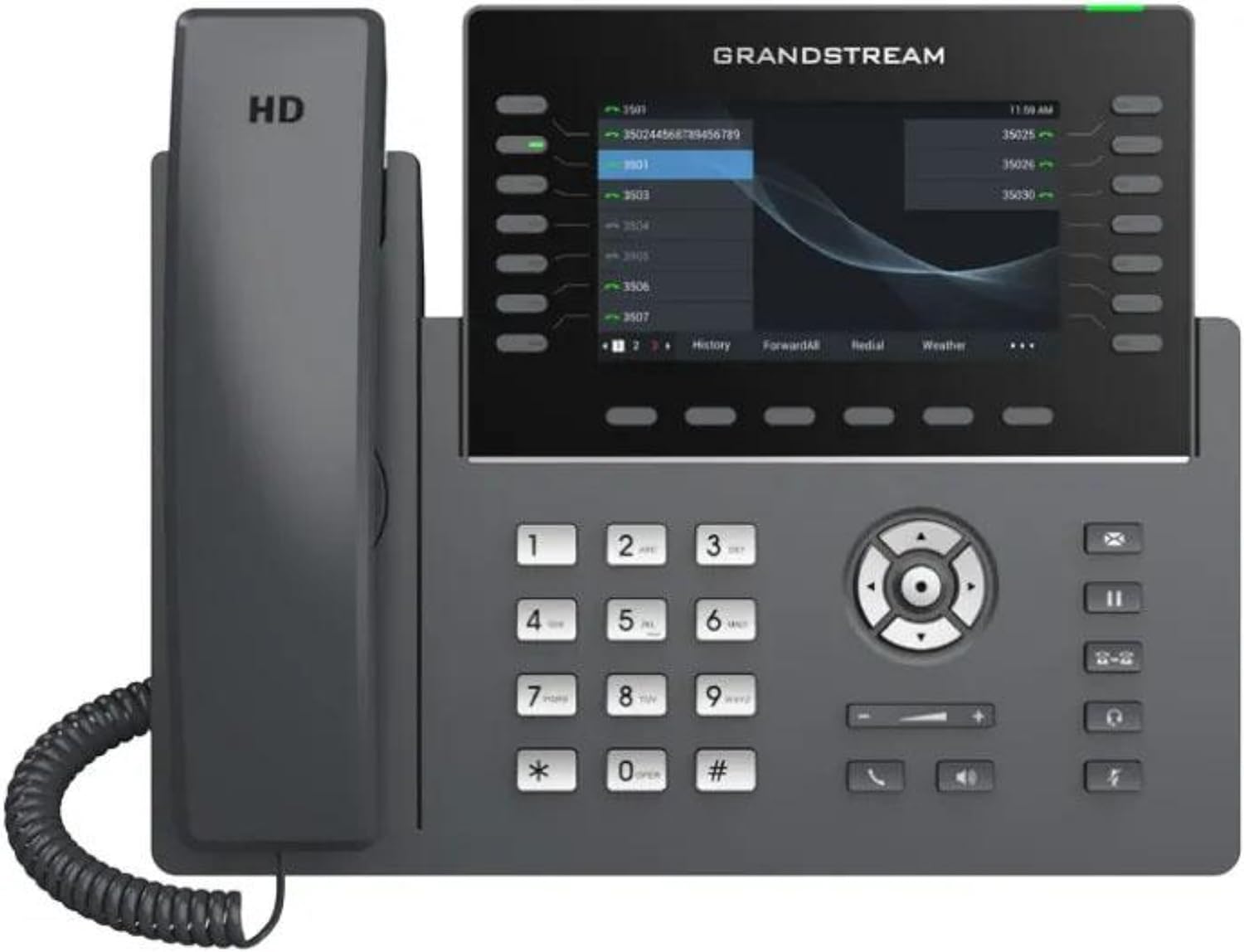
Figure 3.1: Front view of the Grandstream GRP2650 IP Phone, showing the handset, main unit with color display, and keypad.

Figure 3.2: Rear view of the Grandstream GRP2650 IP Phone, highlighting the various connection ports including USB, Ethernet (LAN/PC), headset, and power input.

Figure 3.3: Side view of the Grandstream GRP2650 IP Phone, illustrating the phone stand attached for desktop use.
4. Setup and Installation
4.1 Assembling the Phone
- Attach the Phone Stand: Insert the two tabs on the phone stand into the corresponding slots on the back of the phone. Slide down to secure.
- Connect the Handset: Plug one end of the coiled phone cord into the handset port on the side of the phone unit and the other end into the handset.
- Connect the Ethernet Cable: Plug one end of the Ethernet cable into the LAN port on the back of the phone and the other end into an available Ethernet port on your network switch or router.
- Connect Power (if not using PoE): If your network does not provide Power over Ethernet (PoE), connect the power adapter (not included in all packages) to the DC12V port on the back of the phone and then to a power outlet.
4.2 Initial Configuration
Upon first boot, the phone will attempt to obtain an IP address via DHCP. Once an IP address is acquired, it will be displayed on the screen. You can access the phone's web configuration interface by entering this IP address into a web browser on a computer connected to the same network.
The default username and password for the web interface are typically admin and admin, respectively. It is highly recommended to change these default credentials for security purposes.
5. Operating Instructions
5.1 Making Calls
- Dialing a Number: Pick up the handset or press the Speaker button. Enter the phone number using the keypad and press the Dial/Send button or wait a few seconds for automatic dialing.
- Using Speed Dial: If configured, press the assigned speed dial key.
5.2 Answering Calls
When the phone rings, pick up the handset, press the Speaker button, or press the flashing Line button to answer the call.
5.3 Call Features
- Hold: During an active call, press the Hold button. Press it again to resume the call.
- Transfer: During an active call, press the Transfer button. Dial the number to transfer to, and then press Transfer again (for blind transfer) or wait for the party to answer and then press Transfer (for attended transfer).
- Conference: During an active call, press the Conference button. Dial the number of the third party and press Conference again to establish the three-way call.
- Mute: Press the Mute button to mute your microphone. Press it again to unmute.
5.4 Using Wi-Fi
The GRP2650 supports Wi-Fi 5 connectivity. To configure Wi-Fi, navigate to the phone's menu (usually via the Menu button or screen icon), then select Settings > Network > Wi-Fi Settings. Scan for available networks, select your desired network, and enter the password if required.
6. Maintenance
6.1 Cleaning the Phone
To clean the phone, use a soft, dry cloth. For stubborn marks, a slightly damp cloth with mild, non-abrasive cleaner can be used. Avoid using harsh chemicals or abrasive materials, as these can damage the phone's surface and display.
6.2 Firmware Updates
Grandstream periodically releases firmware updates to improve performance and add new features. It is recommended to keep your phone's firmware up to date. Firmware updates can typically be performed via the phone's web configuration interface under Maintenance > Upgrade.
Always back up your phone's configuration before performing a firmware upgrade.
7. Troubleshooting
| Problem | Possible Cause | Solution |
|---|---|---|
| Phone does not power on. | No power connection or faulty power source. | Ensure Ethernet cable is properly connected to a PoE-enabled port, or that the power adapter is securely plugged in and the outlet is functional. |
| No dial tone. | Network connectivity issue or SIP registration failure. | Check network cable connection. Verify SIP account registration status on the phone's display or web interface. Contact your VoIP service provider if necessary. |
| Cannot make or receive calls. | Incorrect SIP account settings or network firewall issues. | Review SIP account configuration in the web interface. Ensure necessary ports are open on your network firewall. |
| Poor audio quality. | Network congestion or faulty cables/handset. | Check network bandwidth. Replace Ethernet or handset cables. Try a different handset or headset. |
8. Specifications
| Feature | Detail |
|---|---|
| Model | GRP2650 |
| Lines | 14 |
| SIP Accounts | 6 |
| Display | 5-inch (1280x720) color LCD |
| Wi-Fi | Integrated Dual-band Wi-Fi 5 (802.11ac) |
| Ethernet Ports | Dual-switched auto-sensing 10/100/1000 Mbps Gigabit Ethernet ports with integrated PoE |
| Bluetooth | Integrated Bluetooth for syncing headsets and mobile devices |
| USB Port | Yes, for media and storage applications |
| Dimensions (L x W x H) | 19.69 x 19.69 x 11.02 inches (approximate, from product data) |
| Item Weight | 1.1 pounds (approximate, from product data) |
| Power Source | PoE (802.3af) or 12V DC power adapter (not included) |
9. Warranty and Support
For warranty information and technical support, please refer to the official Grandstream website or contact your authorized Grandstream reseller. Keep your purchase receipt as proof of purchase for warranty claims.
Grandstream Official Website: www.grandstream.com
Related documentsGRP2650


Ask a question about this manual
Ask about setup, troubleshooting, compatibility, parts, safety, or missing instructions. Manuals+ will review the question and use this page’s manual context to help answer it.