
1. Introduction
This manual provides detailed instructions for the setup, operation, and maintenance of your TOUCAN 360 Video Conference Room Camera System. This system is designed to facilitate high-quality video conferencing with its 360-degree camera, omnidirectional microphone, and integrated speakers. Please read this manual thoroughly before using the device to ensure optimal performance and longevity.

Image 1.1: The TOUCAN 360 Video Conference Room Camera System.
2. What's in the Box
Verify that all components are present in the package:
- TOUCAN 360 Video Conference Room Camera System (Main Unit)
- Camera Cover
- USB Cables (2m)
- Power Adapter (2m)

Image 2.1: Diagram showing the TOUCAN 360 system, camera cover, USB cables, and power adapter.
3. Product Overview
The TOUCAN 360 system integrates multiple cameras, microphones, and speakers into a single, compact unit for comprehensive meeting coverage.
3.1 Key Features
- 360-Degree Panoramic Camera: Captures the entire room, ensuring all participants are visible.
- Omnidirectional Microphone: Picks up audio from all directions, enhancing clarity.
- Built-in Speakers: Provides clear audio playback for remote participants.
- AI Voice Tracking: Automatically focuses the camera on the active speaker.
- Multiple Display Modes: Offers Split, Grid, Focus, and Panorama views for flexible presentation.
- Easy Touch Panel: Intuitive controls for zoom, view mode, volume, and mute.
- Plug-and-Play Connectivity: No software installation required for most operating systems.

Image 3.1: The camera unit provides a 360-degree panoramic view of the meeting space.

Image 3.2: The easy-to-use touch panel for controlling camera functions.
4. Setup
Follow these steps to set up your TOUCAN 360 Video Conference Room Camera System:
- Placement: Place the TOUCAN 360 system in the center of your conference table or meeting area to ensure optimal 360-degree coverage.
- Power Connection: Connect the power adapter to the system and plug it into a power outlet.
- USB Connection: Connect the provided USB cable from the TOUCAN 360 system to an available USB port on your computer or laptop.
- System Recognition: The system is plug-and-play. Your computer should automatically detect the device as a camera, microphone, and speaker. No additional software installation is typically required.
- Software Selection: Open your preferred video conferencing application (e.g., Zoom, Microsoft Teams, Skype, Google Meet, FaceTime). In the application's audio and video settings, select "TOUCAN 360" as your camera, microphone, and speaker device.

Image 4.1: Visual guide for connecting the TOUCAN 360 system to a computer.
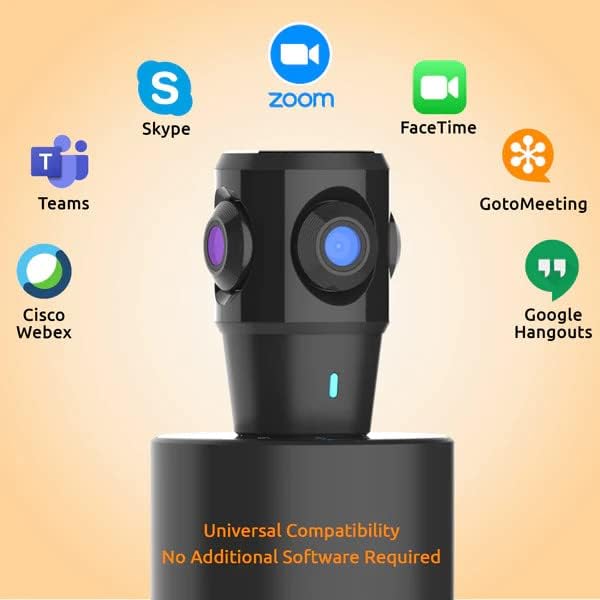
Image 4.2: The TOUCAN 360 system is compatible with major video conferencing platforms.
5. Operating Instructions
5.1 Power On/Off
Press the Power On/Off button on the touch panel to turn the device on or off. A blue indicator light will illuminate when the device is active.
5.2 Display Modes
The TOUCAN 360 offers four distinct display modes to suit different meeting scenarios. Press the View Mode button on the touch panel to cycle through these options:
- Split Mode: Divides the screen into two sections, often showing two active speakers or a panoramic view alongside a speaker.
- Grid Mode: Displays multiple participants in a grid layout, providing an overview of the room.
- Focus Mode: Utilizes AI Voice Tracking to automatically highlight and zoom in on the current speaker.
- Panorama Mode: Presents a continuous 360-degree view of the entire room.

Image 5.1: The four available display modes for the TOUCAN 360 system.

Image 5.2: Example of the 360 Panorama Display Mode in a meeting setting.
5.3 AI Voice Tracking
The system's AI Voice Tracking feature automatically detects who is speaking and adjusts the camera view to focus on them. This ensures that remote participants can clearly see the active speaker without manual intervention.

Image 5.3: AI Voice Tracking automatically highlights the speaker.
5.4 Volume and Mute Controls
Use the Volume Up (+) and Volume Down (-) buttons on the touch panel to adjust the speaker volume. Press the Mute button to mute or unmute the microphone.
5.5 Zoom Controls
The Zoom-in and Zoom-out buttons allow you to digitally adjust the camera's field of view within the selected display mode.
5.6 Bluetooth Connectivity
The Bluetooth function is primarily for audio connectivity, allowing the device to act as a speakerphone for mobile devices. To pair, press the Bluetooth button on the touch panel and connect from your device's Bluetooth settings.
6. Maintenance
6.1 Cleaning
To clean the device, use a soft, dry cloth. Do not use liquid cleaners or aerosols, as they may damage the device. Gently wipe the camera lenses to ensure clear video quality.
6.2 Storage
When not in use, especially for transport or long-term storage, the camera lens unit can be detached from the base. Use the provided rubber cap to cover the base opening and the rubber lens cap to protect the lens unit from dust and debris.

Image 6.1: The detachable camera unit and its protective cover.
7. Troubleshooting
- No Video/Audio Output:
- Ensure the USB cable is securely connected to both the TOUCAN 360 and your computer.
- Verify the power adapter is connected and the device is powered on.
- Check your video conferencing application's settings to confirm "TOUCAN 360" is selected as the camera, microphone, and speaker.
- Try connecting to a different USB port on your computer.
- Restart your computer and the TOUCAN 360 system.
- Microphone Not Working in Specific Applications (e.g., Microsoft Teams):
- Ensure the microphone is not muted on the device's touch panel or within the application.
- Check the privacy settings in your operating system to ensure applications have permission to access the microphone.
- Verify that "TOUCAN 360" is explicitly selected as the microphone input in the application's audio settings.
- Image Quality Issues:
- Ensure the camera lenses are clean and free from dust or smudges.
- Check lighting conditions in the room; adequate lighting improves video quality.
- Bluetooth Connection Issues:
- Ensure the TOUCAN 360 is in Bluetooth pairing mode (indicator light blinking).
- Verify Bluetooth is enabled on your mobile device and try re-pairing.
- Note that Bluetooth is primarily for audio and does not support video transmission for this device.
8. Specifications
| Feature | Detail |
|---|---|
| Brand | TOUCAN |
| Model Name | toucan 360 |
| Item Model Number | TCSC360KUAZ |
| Connectivity Technology | USB |
| Connectivity Protocol | Wi-Fi (for internal functions, not direct user connection) |
| Wireless Communication Technology | Wi-Fi (for internal functions, not direct user connection) |
| Number of Channels | 4 (camera lenses) |
| Mounting Type | Tabletop (Freestanding) |
| Form Factor | Compact |
| Wattage | 10 watts |
| Batteries Required? | No |
| Flash Memory Type | Micro SD (internal, not user accessible) |
| Video Capture Format | MPEG-4 |
| International Protection Rating | IP54 |
| Item Weight | 2.81 pounds |
| Package Dimensions | 12.56 x 5.12 x 3.82 inches |
| Special Features | Lightweight, Low Light performance |
| Compatible Devices | Desktop, Laptop |
9. Warranty Information
TOUCAN products are covered by a limited warranty. For specific details regarding your product's warranty period and terms, please refer to the warranty card included in your product packaging or visit the official TOUCAN website.
10. Customer Support
If you encounter any issues or have questions not covered in this manual, please contact TOUCAN customer support. You can find contact information on the official TOUCAN website or through your purchase platform.


