
Introduction
The Datalogic QuickScan QD2590 is a high-performance, handheld 2D barcode imager designed for various point-of-sale (POS) and general-purpose applications. This device offers fast and reliable scanning of 1D and 2D barcodes, ensuring efficient data capture. Its durable design and flexible connectivity options (USB, RS-232) make it suitable for diverse environments. This manual provides essential information for setting up, operating, maintaining, and troubleshooting your QD2590 scanner.
Setup
1. Unpacking the Scanner
Carefully remove all components from the packaging. Verify that all items listed in the "What's in the Box" section are present.
- QuickScan QD2590 Portable 1D/2D Barcode Reader (Black)
2. Connecting the Scanner
The QD2590 scanner supports USB and RS-232 connectivity. Connect the appropriate cable to the scanner's interface port and then to your host device (computer, POS system).
For USB Connection: Plug the USB cable into an available USB port on your computer. The scanner will typically be recognized automatically, and necessary drivers will be installed by the operating system.
For RS-232 Connection: Connect the RS-232 cable to a serial port on your host device. Ensure proper configuration of the serial port settings on your host system to match the scanner's default settings (e.g., baud rate, data bits, parity, stop bits).
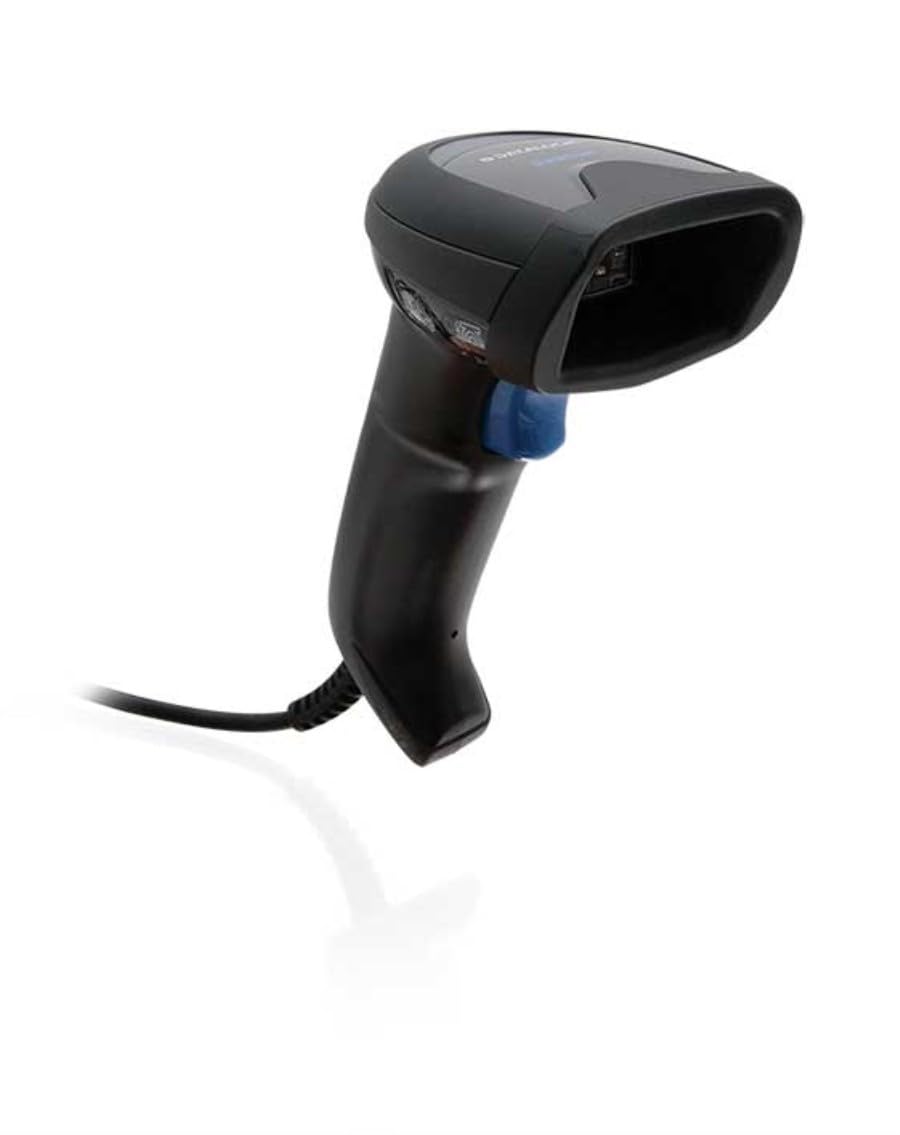
Image: The Datalogic QuickScan QD2590 scanner showing its wired connection.
Operating the Scanner
1. Basic Scanning Procedure
- Ensure the scanner is properly connected and powered on.
- Point the scanner's window at the barcode you wish to scan.
- Press and hold the trigger button. A red aiming beam will appear.
- Center the aiming beam over the entire barcode.
- Once the barcode is successfully read, the scanner will emit an audible beep and/or the LED indicator will change color (typically green).
- Release the trigger button. The scanned data will be transmitted to your host device.
2. Scanning Feedback
- Good Read Indicator: A successful scan is typically indicated by a green LED and a configurable beep sound.
- Aiming Beam: The red aiming beam helps position the scanner correctly over the barcode.

Image: Front view of the Datalogic QuickScan QD2590, highlighting the scanning area.
Maintenance
1. Cleaning the Scanner
To ensure optimal performance, keep the scanner's window clean. Use a soft, lint-free cloth dampened with water or a mild, non-abrasive cleaner. Do not use harsh chemicals, solvents, or abrasive materials, as these can damage the scanning window or casing.
2. Storage
When not in use, store the scanner in a clean, dry environment, away from extreme temperatures, direct sunlight, and corrosive materials. Avoid dropping or subjecting the scanner to excessive impact.
Troubleshooting
| Problem | Possible Cause | Solution |
|---|---|---|
| Scanner does not power on. | Cable not connected properly; host device not powered on. | Check cable connections. Ensure host device is powered on. |
| Scanner does not read barcodes. | Barcode damaged or poorly printed; incorrect symbology enabled; scanning window dirty; scanner not configured correctly. | Try scanning a different barcode. Clean the scanning window. Refer to the full product manual for symbology enablement and advanced configuration. |
| Scanned data is incorrect or incomplete. | Incorrect data formatting; partial scan. | Ensure the aiming beam covers the entire barcode. Check host application settings for data formatting. |
| No audible beep on good read. | Beeper disabled in configuration. | Refer to the full product manual to enable the beeper. |
For more detailed troubleshooting and advanced configuration, please refer to the complete Datalogic QuickScan QD2590 product manual available on the Datalogic website.
Technical Specifications
| Feature | Detail |
|---|---|
| Model Number | W126053080 |
| Scanner Type | Handheld 2D Imager |
| Scan Element Type | 2D Imager - Red LED Sensor |
| Sensor Resolution | 1280 x 800 pixels |
| Scan Speed | 60 frames per second (fps) |
| Minimum Bar Symbol Width | 3 mil |
| Connectivity Technology | Wired (USB, RS-232) |
| Power Source | DC 5V (via cable) |
| Dimensions (W x D x H) | 6.8 cm x 12.6 cm x 14.8 cm |
| Weight | 145 g |
| Color | Black |
| Compatible Devices | Smartphone, laptop, desktop, tablet |
| Real View Angle | 40 Degrees |
Warranty and Support
Warranty Information
The Datalogic QuickScan QD2590 barcode scanner comes with a 2-year manufacturer's warranty. This warranty covers defects in materials and workmanship under normal use. Please retain your proof of purchase for warranty claims.
Customer Support
For technical assistance, product inquiries, or warranty service, please contact Datalogic customer support. Visit the official Datalogic website for contact details, FAQs, and additional resources.
Datalogic Official Website: www.datalogic.com


