
AUSDOM Magkey11
Contents
AUSDOM Magkey11 iPad Keyboard Case User Manual
Model: Magkey11 | Brand: AUSDOM
1. Introduction and Overview
The AUSDOM Magkey11 Keyboard Case transforms your iPad into a versatile laptop-like device, enhancing productivity and user experience. It features a magnetic floating cantilever design, a precision multi-touch trackpad, and a backlit keyboard, providing a comfortable and efficient workspace. This manual provides detailed instructions for setup, operation, maintenance, and troubleshooting.

Image: The AUSDOM Magkey11 Keyboard Case with an iPad attached, showcasing its floating cantilever design and backlit keyboard.
Key Features:
- Magnetic Floating Cantilever Design: Securely attaches your iPad and allows for smooth angle adjustments.
- Multi-Touch Trackpad: Enables precise navigation and full multi-touch gesture support for enhanced productivity.
- iPadOS Shortcut Keys: A full row of dedicated keys for quick access to iPadOS functions.
- Instant Bluetooth Connection: Automatic reconnection after initial pairing for seamless use.
- Rechargeable Battery: Built-in 650mAh battery provides extended working time.
- Backlit Keyboard: White backlight with 3 brightness levels for comfortable typing in various lighting conditions.
Video: An overview of the AUSDOM Magkey Bluetooth Keyboard Case for iPad Pro, highlighting its design and features.
2. Setup
2.1 Compatibility
The AUSDOM Magkey11 Keyboard Case is compatible with the following iPad models:
- 2025 M3 iPad Air 11-inch (Models: A3266, A3267, A3270)
- 2024 M2 iPad Air 11-inch (Models: A2902, A2903, A2904)
- 2022 iPad Air 5th Generation (Models: A2588, A2589, A2591)
- 2020 iPad Air 4th Generation (Models: A2072, A2316, A2324, A2325)
- 2022 iPad Pro 11-inch 4th Generation (Models: A2435, A2759, A2761, A2762)
- 2021 iPad Pro 11-inch 3rd Generation (Models: A2377, A2301, A2459, A2460)
- 2020 iPad Pro 11-inch 2nd Generation (Models: A2228, A2068, A2231)
- 2018 iPad Pro 11-inch 1st Generation (Models: A1980, A2013, A1934, A1979)
Note: This keyboard case is NOT compatible with the latest iPad Pro 11-inch (2024/M4).

Image: A visual guide to compatible iPad models and where to find the model number on the back cover of your iPad.
2.2 Initial Charging
Before first use, fully charge the keyboard case using the included USB-C charging cable. Connect the USB-C cable to the charging port on the keyboard case and a compatible USB power adapter. A full charge provides over 60 days of working time with the backlight off.

Image: Close-up view of the USB-C charging port on the AUSDOM Magkey11 keyboard case.
2.3 Bluetooth Connection
- Ensure your iPad's Bluetooth is turned on. Go to Settings > Bluetooth.
- Open the AUSDOM Magkey11 keyboard case. The keyboard will automatically enter pairing mode.
- On your iPad, look for "AUSDOM Keyboard" or a similar device name in the Bluetooth devices list and tap to connect.
- Once connected, the Bluetooth indicator light on the keyboard will turn off, and your iPad will show the keyboard as "Connected."
After the first successful connection, the keyboard will automatically reconnect to your iPad whenever you open the case, provided Bluetooth is enabled on your iPad.

Image: Visual representation of the instant connection feature when the keyboard case is opened.
Video: A step-by-step guide on how to connect the iPad with the AUSDOM Magkey Keyboard via Bluetooth.
3. Operating Instructions
3.1 Magnetic Floating Cantilever Stand
The floating cantilever design allows you to attach your iPad magnetically and adjust it to your preferred viewing angle. Simply place your iPad onto the magnetic panel, and it will securely snap into place. The stand offers a 130° viewing angle for comfortable use.

Image: Detailed views of the floating cantilever stand design, showing the magnetic attachment and adjustable angle.
3.2 Multi-Touch Trackpad
The built-in precision trackpad supports multi-touch gestures, allowing for efficient navigation and interaction with your iPad. You can edit documents, build presentations, and browse the web with ease. Refer to iPadOS settings for a full list of supported gestures.

Image: The keyboard and multi-touch trackpad in use, demonstrating a laptop-like setup.
Trackpad Function On/Off:
To toggle the trackpad function, use the dedicated key on the keyboard. Consult the keyboard layout for the specific key combination, usually Fn + a function key.
Video: Instructions on how to turn the trackpad function on or off.
Enabling "Tap to Click":
For a smoother trackpad experience, you can enable "Tap to Click" in your iPad's settings:
- Go to Settings > General > Trackpad.
- Toggle the "Tap to Click" option to the ON position.
Video: A guide on how to enable "tap to click" functionality in iPad settings for the trackpad.
3.3 iPadOS Shortcut Keys
The keyboard features a full row of iPadOS shortcut keys, allowing you to quickly control audio, return to the home screen, and access other common functions without touching the iPad screen.
Video: Demonstrates how to easily use the shortcut keys function on the keyboard.
3.4 Backlight Control
The keyboard features a white backlight with three adjustable brightness levels. Use the dedicated backlight control keys (usually Fn + light icon key) to cycle through brightness settings or turn the backlight off.
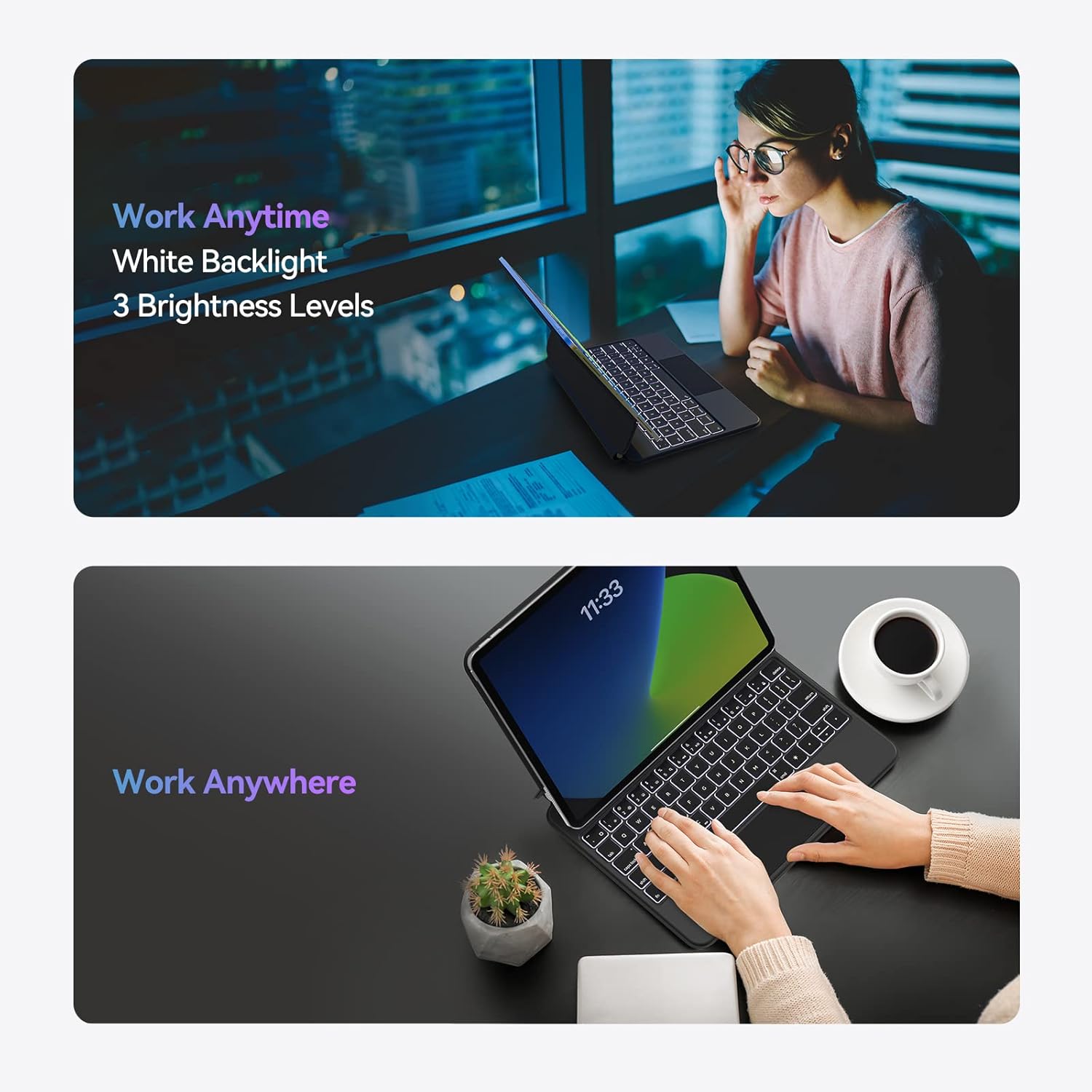
Image: Shows the keyboard backlight in use, illustrating its utility for working anytime and anywhere.
4. Maintenance
4.1 Cleaning
To clean the keyboard case, gently wipe the surfaces with a soft, damp cloth. Avoid using harsh chemicals or abrasive materials, as these may damage the finish. For the keyboard keys, use a soft brush or compressed air to remove dust and debris.
4.2 Battery Care
To maximize battery lifespan, avoid fully discharging the battery frequently. Recharge the keyboard case when the battery indicator suggests low power. If storing the device for an extended period, charge it to approximately 50% before storage.
5. Troubleshooting
5.1 Keyboard Not Connecting via Bluetooth
- Check Bluetooth on iPad: Ensure Bluetooth is enabled in your iPad's settings.
- Re-pair Device: Go to iPad Settings > Bluetooth, tap the "i" icon next to the AUSDOM keyboard (if listed), and select "Forget This Device." Then, repeat the Bluetooth connection steps (Section 2.3).
- Recharge Keyboard: A low battery can prevent connection. Ensure the keyboard case is sufficiently charged.
- Restart Devices: Try restarting both your iPad and the keyboard case (by closing and reopening the case).
5.2 Trackpad Not Responding
- Check Trackpad Function: Ensure the trackpad function is enabled (refer to Section 3.2).
- Clean Trackpad: Ensure the trackpad surface is clean and free of debris.
- Restart Connection: Disconnect and reconnect the Bluetooth connection.
5.3 Keys Not Responding
- Check Bluetooth Connection: Ensure the keyboard is properly connected to your iPad via Bluetooth.
- Recharge Keyboard: A low battery can affect key functionality.
- Clean Keys: Remove any debris that might be stuck under the keys.
6. Specifications
| Feature | Detail |
|---|---|
| Model Number | Magkey11 |
| Product Dimensions | 9.92 x 7.56 x 0.68 inches |
| Item Weight | 1.28 pounds |
| Manufacturer | AUSDOM |
| Connectivity Technology | Bluetooth |
| Keyboard Description | Bluetooth |
| Special Features | Ergonomic, Backlit, Trackpad, Rechargeable |
| Color | Black (iPad Air 11 2024 M2/iPad Pro 11 3rd-1st /Air 5/4 variant) |
| Number of Keys | 64 |
| Keyboard Backlighting | Single Color (White) |
| Battery Type | 1 Lithium Polymer battery (included) |
| Country of Origin | China |
7. Warranty and Support
AUSDOM is committed to providing high-quality products and excellent customer service. While specific warranty duration details are not provided, AUSDOM aims to offer a "Lifetime" commitment to product quality and provides "24/7 Support" for its customers.
For technical assistance, troubleshooting, or warranty inquiries, please contact AUSDOM customer support through their official channels. Refer to the product packaging or the AUSDOM website for the most up-to-date contact information.
What's in the Box:
- 1 x AUSDOM Magkey11 Keyboard Case
- 1 x USB-C Charging Cable
- 1 x User Manual (this document)
Documents and downloads
Ask a question about this manual
Ask about setup, troubleshooting, compatibility, parts, safety, or missing instructions. Manuals+ will review the question and use this page’s manual context to help answer it.