
1. Introduction
This manual provides detailed instructions for the Philips Wireless Presenter SPT9404. This device is designed to enhance presentations by providing remote control over slides and a built-in laser pointer. Please read this manual thoroughly before using the product to ensure proper operation and to maximize its lifespan.
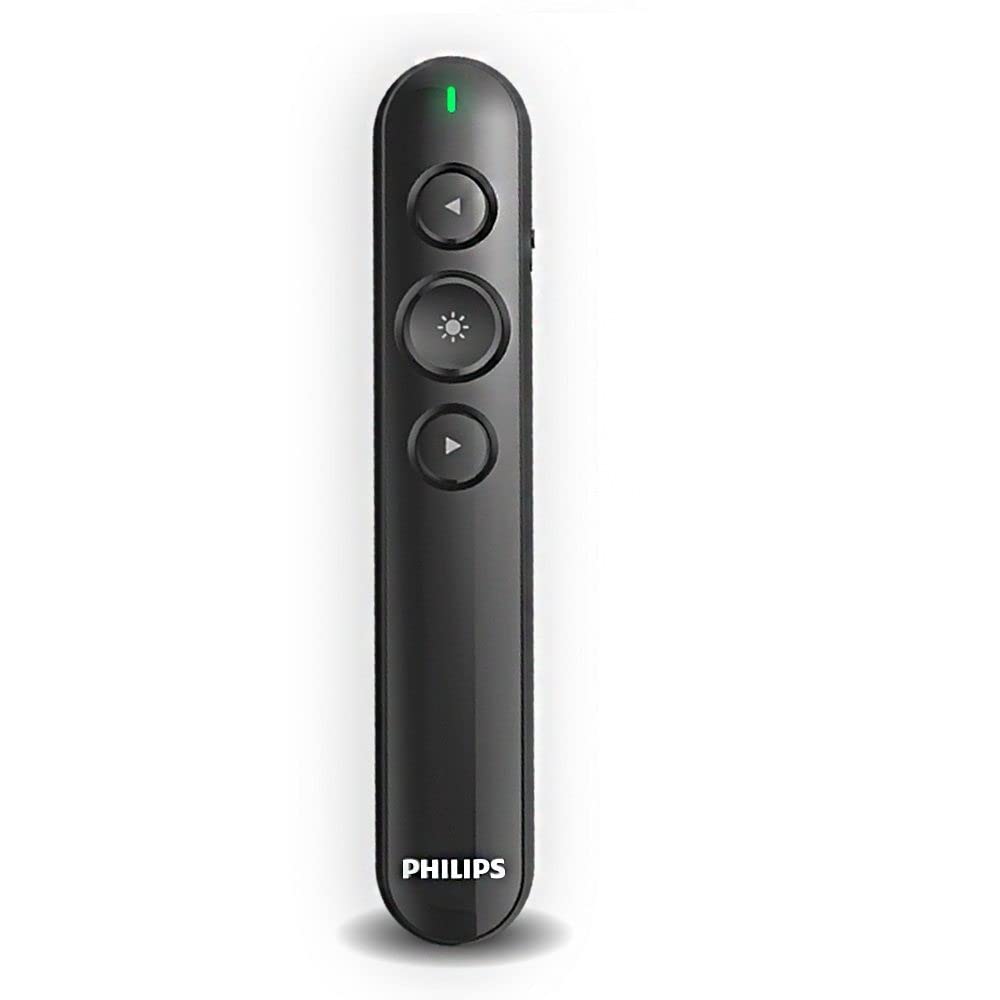
Figure 1: Overview of the Philips Wireless Presenter SPT9404. This image displays the sleek, black design of the presenter with its primary control buttons visible on the top surface.
2. Package Contents
Verify that all items are present in the package:
- Philips Wireless Presenter (SPT9404)
- USB Receiver
- User Manual

Figure 2: Product packaging for the Philips Wireless Presenter SPT9404. The image shows the retail box, which typically contains the presenter, USB receiver, and documentation.
3. Setup
3.1. Installing the USB Receiver
- Locate an available USB port on your computer.
- Insert the USB receiver into the USB port. The computer will automatically detect and install the necessary drivers.
3.2. Powering On the Presenter
- Locate the power switch on the side of the presenter.
- Slide the switch to the 'ON' position. An indicator light may illuminate briefly.

Figure 3: Multiple views of the Philips Wireless Presenter SPT9404. This composite image shows the front, side (highlighting the ON/OFF switch), and back of the device, illustrating its ergonomic design and key physical features.
4. Operating Instructions
4.1. Button Functions
The presenter features three primary buttons for controlling your presentation:
- Up Arrow Button: Press to move to the previous slide.
- Down Arrow Button: Press to move to the next slide.
- Laser Pointer Button (Sun/Star icon): Press and hold to activate the red laser pointer. Release to turn off.

Figure 4: Close-up view of the control buttons on the Philips Wireless Presenter SPT9404. This image clearly shows the 'Previous Slide', 'Laser Pointer', and 'Next Slide' buttons.
4.2. Using the Laser Pointer
To highlight specific areas on your presentation screen, press and hold the button marked with the sun/star icon. The red laser beam will project from the front of the presenter. Release the button to deactivate the laser.
5. Maintenance
5.1. Cleaning
Wipe the presenter with a soft, dry cloth. Do not use abrasive cleaners or solvents, as these may damage the surface.
5.2. Storage
When not in use, store the presenter and USB receiver in a dry, cool place, away from direct sunlight and extreme temperatures. It is recommended to turn off the presenter to conserve battery life.
5.3. Battery Replacement
If the presenter's performance degrades or the indicator light does not illuminate, the battery may need replacement. Refer to the battery compartment instructions for proper battery type and installation.
6. Troubleshooting
6.1. Presenter Not Responding
- Ensure the USB receiver is securely plugged into a working USB port on your computer.
- Verify that the presenter's power switch is in the 'ON' position.
- Check the battery level and replace if necessary.
- Try plugging the USB receiver into a different USB port.
- Restart your computer.
6.2. Laser Pointer Not Working
- Ensure the presenter is powered on.
- Press and hold the laser pointer button firmly.
- Check the battery level. A low battery can affect laser intensity.
7. Specifications
| Model | SPT9404 |
| Brand | Philips |
| Wireless Technology | 2.4GHz RF |
| Laser Type | Red Laser |
| Dimensions (Approx.) | 145mm x 26mm x 15mm (Length x Width x Height) |

Figure 5: Dimensions of the Philips Wireless Presenter SPT9404. This image illustrates the compact size of the presenter, showing its length, width, and thickness for portability.
8. Warranty and Support
Philips products are manufactured to the highest standards and undergo rigorous quality checks. This product is covered by a limited warranty. For detailed warranty information, please refer to the warranty card included in your package or visit the official Philips support website.
For technical support, troubleshooting assistance, or service inquiries, please contact Philips customer support through their official channels. Keep your purchase receipt as proof of purchase for warranty claims.


