
Introduction
Thank you for choosing the Media-Tech MT-8900 Wireless Keyboard and Mouse Combo. This 2.4GHz cordless set provides a seamless and efficient experience for your computing needs. The keyboard features 21 hot multimedia keys and an ultra-slim design, while the 5D optical mouse offers precise control with adjustable DPI settings and convenient navigation buttons.
This manual will guide you through the setup, operation, and maintenance of your new wireless combo.
Package Contents
- Wireless Keyboard
- Wireless Optical Mouse
- USB Nano Receiver
- User Manual (this document)
Setup Guide
1. Battery Installation
The keyboard and mouse require batteries (not included). Please use good quality batteries for optimal performance.
- For the Keyboard: Locate the battery compartment on the underside of the keyboard. Open the cover and insert the required batteries, ensuring correct polarity (+/-). Close the cover securely.
- For the Mouse: Locate the battery compartment on the underside of the mouse. Open the cover and insert the required batteries, ensuring correct polarity (+/-). Close the cover securely.
2. Connecting the USB Nano Receiver
The USB Nano Receiver is typically stored inside the mouse's battery compartment for convenience during transport.
- Remove the USB Nano Receiver from its storage slot in the mouse.
- Plug the USB Nano Receiver into an available USB port on your computer (desktop, laptop, or tablet).
- Your operating system should automatically detect and install the necessary drivers. This process may take a few moments.
- Once the drivers are installed, the keyboard and mouse should be ready for use.

Image: The Media-Tech MT-8900 wireless keyboard and mouse combo, showing both devices.
Operating Instructions
Keyboard Features

Image: Close-up view of the Media-Tech MT-8900 wireless keyboard.
- 2.4GHz Wireless Connectivity: Provides a stable and reliable connection up to 10 meters (33 feet).
- 21 Hot Multimedia Keys: Dedicated keys for quick access to media controls (play, pause, volume, etc.), internet browser, email, and other common functions. These keys are located along the top edge of the keyboard.
- Ultra Slim Keytop Design: Offers a comfortable and quiet typing experience.
- Power Saving Mode: The keyboard will automatically enter sleep mode after a period of inactivity to conserve battery life. Press any key to wake it up.
Mouse Features
- 5D Optical Mouse: Equipped with an optical sensor for precise tracking.
- Adjustable DPI (800/1600 DPI): Use the DPI button (usually located near the scroll wheel) to switch between different sensitivity levels. 800 DPI is suitable for general use, while 1600 DPI offers faster cursor movement for tasks requiring higher precision.
- Forward/Backward Buttons: Located on the side of the mouse, these buttons allow for easy navigation in web browsers and file explorers. Designed for right-hand use.
- Power Saving Mode: The mouse will automatically enter sleep mode after a period of inactivity. Click any button or move the mouse to wake it up.
Maintenance and Care
- Cleaning: Use a soft, dry cloth to clean the surfaces of the keyboard and mouse. For stubborn dirt, a slightly damp cloth can be used, but ensure no liquid enters the devices. Avoid using harsh chemicals or abrasive cleaners.
- Battery Replacement: Replace batteries when performance degrades or the low battery indicator (if present) illuminates. Dispose of old batteries responsibly according to local regulations.
- Storage: When not in use for extended periods, remove the batteries to prevent leakage. Store the devices in a cool, dry place.
- Avoid Extreme Conditions: Do not expose the devices to extreme temperatures, direct sunlight, high humidity, or dusty environments.
Troubleshooting
| Problem | Possible Cause | Solution |
|---|---|---|
| Keyboard/Mouse not responding | Low or dead batteries | Replace batteries in both the keyboard and mouse. |
| Keyboard/Mouse not responding | USB Nano Receiver not properly connected | Ensure the USB Nano Receiver is securely plugged into a working USB port. Try a different USB port. |
| Keyboard/Mouse not responding | Interference or out of range | Move the keyboard and mouse closer to the USB Nano Receiver. Avoid placing the receiver near other wireless devices or large metal objects. |
| Mouse cursor erratic or jumpy | Dirty optical sensor or unsuitable surface | Clean the optical sensor on the underside of the mouse. Use the mouse on a clean, non-reflective, opaque surface or a mouse pad. |
| Keyboard keys not working | Keyboard not paired (rare, but possible) | If the keyboard is not recognized, try re-pairing it. For the MT-8900, some users report success by holding 'Esc' and '+' keys on the keyboard, then plugging in the dongle. The battery light should flash, indicating pairing mode. |
Specifications
| Feature | Detail |
|---|---|
| Connectivity | 2.4GHz Wireless (with USB receiver) |
| Keyboard Type | Cordless multimedia keyboard with 21 hot multimedia keys, ultra-slim keytop design |
| Mouse Type | 5D Optical Cordless Mouse |
| Mouse DPI | 800/1600 DPI (adjustable) |
| Mouse Hand Orientation | Right Hand Use |
| Compatible Operating Systems | Windows, macOS, Linux |
| Package Dimensions | 56.5 x 19.3 x 4.4 cm |
| Item Weight | 800 g |
| Special Features | Ultra Slim design, Forward/backward buttons on mouse |

Image: Side profile of the Media-Tech MT-8900 wireless keyboard, highlighting its ultra-slim design.
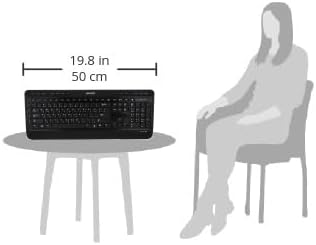
Image: Illustrative diagram showing the approximate size of the keyboard (19.8 inches / 50 cm) in relation to a seated person.