
1. Overview
The NIIMBOT B1 is a portable thermal label printer designed for various labeling needs, from home organization to commercial applications. It connects wirelessly via Bluetooth to compatible devices and uses thermal printing technology, eliminating the need for ink cartridges.

Image 1.1: The NIIMBOT B1 portable and inkless label printer, compatible with PC, Android, and iOS devices.
Key features include support for label widths from 20 to 50 mm, a powerful mobile application for customization, automatic label recognition, and a long-lasting built-in battery.

Image 1.2: Overview of the NIIMBOT B1's powerful app, premium label quality, automatic label recognition, and long-endurance battery.
2. Package Contents
Upon unboxing your NIIMBOT B1 label printer, please verify that all the following items are included:
- 1 x NIIMBOT B1 Label Printer
- 1 x Type-C USB Cable
- 1 x User Manual
- 1 x Roll of Label Tape (50x30mm, pre-installed in the machine)

Image 2.1: Visual representation of the NIIMBOT B1 label printer and its included accessories.
3. Setup Guide
3.1 Initial Charging
Before first use, fully charge the NIIMBOT B1 printer using the provided Type-C USB cable and a compatible USB power adapter (not included). The charging indicator light will provide status.
3.2 App Download and Installation
The NIIMBOT B1 printer operates via a dedicated mobile application. Please follow these steps:
- Scan the QR code in the manual or search for "NIIMBOT" in your device's app store (Google Play Store for Android, Apple App Store for iOS).
- Download and install the NIIMBOT application.
3.3 Bluetooth Connection
To connect your printer to your mobile device:
- Ensure Bluetooth is enabled on your smartphone or tablet.
- Turn on the NIIMBOT B1 printer by pressing and holding the power button.
- Open the NIIMBOT app. The app will automatically search for nearby NIIMBOT printers.
- Select your B1 printer from the list of available devices to establish a connection.
3.4 Loading Labels
The NIIMBOT B1 supports various label sizes from 20mm to 50mm in width. To load a new roll of labels:
- Open the printer's cover.
- Insert the label roll with the printing surface facing upwards.
- Ensure the first label feeds smoothly through the printer's slot.
- Close the cover. The printer will automatically detect the label size and type.

Image 3.1: Step-by-step guide for downloading the NIIMBOT app, connecting via Bluetooth, editing labels, and printing.
4. Operating Instructions
4.1 Using the NIIMBOT App
The NIIMBOT app provides extensive features for creating and customizing labels:
- Text Editing: Enter and format text with various fonts, sizes, and styles.
- Barcode/QR Code Generation: Create barcodes and QR codes for inventory, pricing, or information sharing.
- Image/Logo Integration: Add images or logos to your labels.
- Templates: Utilize pre-designed templates for common label types or create your own.
- Batch Printing: Print multiple labels efficiently.

Image 4.1: The NIIMBOT app interface showcasing options for text, logo, QR code, barcode, picture, time, and Excel data integration.
4.2 Printing Labels
After designing your label in the app:
- Review the label preview to ensure accuracy.
- Select the number of copies you wish to print.
- Tap the "Print" button in the app.
- The printer will feed and print the labels. Tear off the printed labels carefully.
4.3 Applications
The NIIMBOT B1 is versatile and can be used for a wide range of labeling tasks:
- Home Organization: Labeling spice jars, storage boxes, cables, and switches.
- Retail & Business: Price tags, product labels, shipping labels, asset management, and inventory.
- Personalization: Gift tags, name labels, and custom messages.
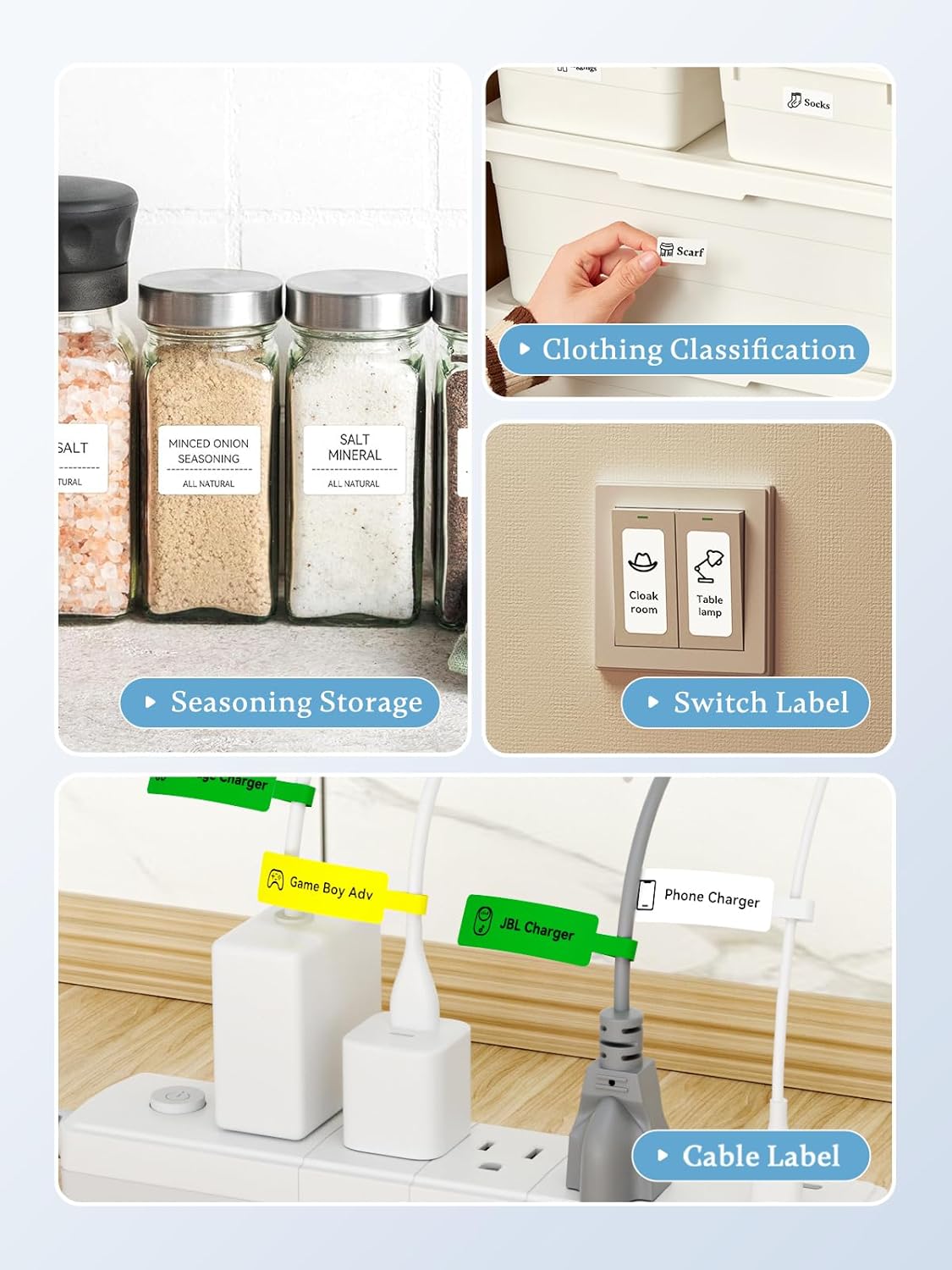
Image 4.2: Examples of NIIMBOT B1 label applications, including seasoning storage, clothing classification, switch labels, and cable labels.

Image 4.3: The NIIMBOT B1 label printer used for various organizational tasks such as clothing tags, food labels, price tags, and file sorting.
5. Maintenance
5.1 Cleaning the Print Head
To ensure optimal print quality, periodically clean the print head:
- Turn off the printer and disconnect it from any power source.
- Open the label compartment.
- Gently wipe the print head with a cotton swab lightly dampened with isopropyl alcohol.
- Allow the print head to dry completely before closing the cover and resuming operation.
5.2 General Care and Storage
- Keep the printer away from direct sunlight, high temperatures, and dusty environments.
- Avoid dropping or subjecting the printer to strong impacts.
- Use only genuine NIIMBOT label rolls for best performance and to prevent damage.
- When storing for extended periods, ensure the battery is partially charged (around 50%) to prolong its lifespan.
6. Troubleshooting
If you encounter issues with your NIIMBOT B1 printer, refer to the following common problems and solutions:
| Problem | Possible Cause | Solution |
|---|---|---|
| Printer does not turn on | Low battery; Power button not pressed correctly | Charge the printer; Press and hold the power button for 3 seconds |
| Cannot connect via Bluetooth | Bluetooth off; Printer out of range; App issue | Ensure Bluetooth is on; Move printer closer; Restart app/printer |
| Poor print quality | Dirty print head; Incorrect label type; Low battery | Clean print head (Section 5.1); Use genuine NIIMBOT labels; Charge printer |
| Labels not feeding correctly | Label roll improperly loaded; Label jam | Re-load label roll (Section 3.4); Clear any jammed labels carefully |
| App crashes or freezes | Software glitch; Outdated app version | Restart the app; Check for app updates in your app store |
7. Specifications
Detailed technical specifications for the NIIMBOT B1 Thermal Label Printer:
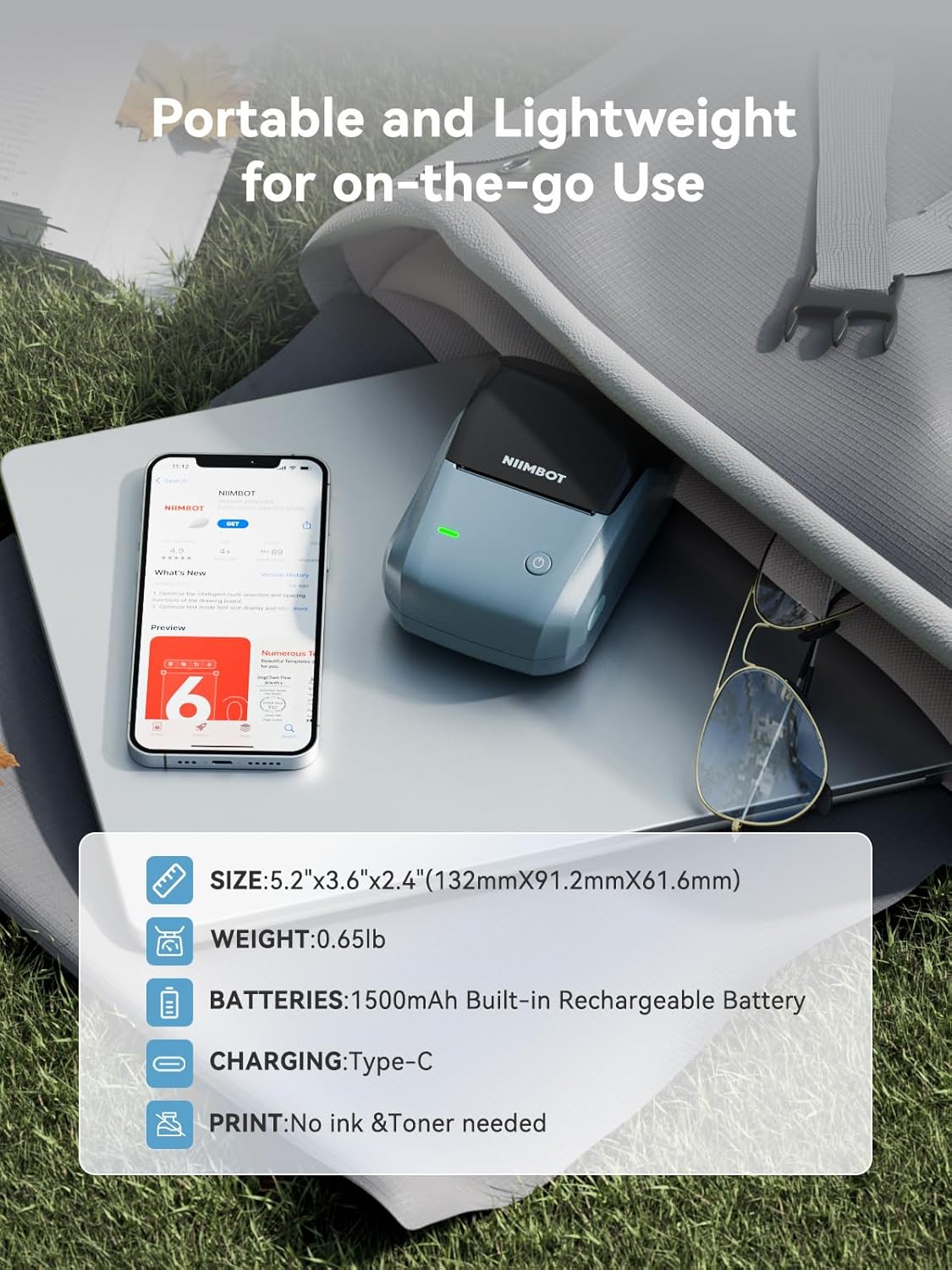
Image 7.1: The NIIMBOT B1's compact size, light weight, 1500mAh built-in rechargeable battery, Type-C charging, and inkless printing.

Image 7.2: The NIIMBOT B1 supports various label styles and widths from 20mm to 50mm.
| Feature | Specification |
|---|---|
| Brand | NIIMBOT |
| Model Name | B1 |
| Connectivity Technology | Bluetooth |
| Print Technology | Thermal |
| Printer Output | Monochrome |
| Special Feature | Portable |
| Color | Blue |
| Product Weight | 300 Grams |
| Product Dimensions (L x W x H) | 13.2 x 9.1 x 6.1 cm |
| Maximum Media Size | 50 x 30 mm (supports 20-50mm width labels) |
| Maximum Monochrome Print Speed | 50 pages per minute (Note: This typically refers to standard paper, actual label print speed may vary) |
| Maximum Black & White Print Resolution | 203 dpi |
| Compatible Devices | Computers, Smartphones |
| Operating System | Android, iOS |
| Hardware Interface | USB Type C |
| Battery Type | 1 Lithium-ion (included) |
| Battery Capacity | 1500mAh (Built-in) |
| Included Components | Labels |
| Part Number | 6975746630030 |
| ASIN | B0BR4R72H2 |
8. Warranty and Support
8.1 Warranty Information
The NIIMBOT B1 printer comes with a limited durability warranty. For specific terms, conditions, and duration of the warranty, please refer to the warranty card included in your package or contact NIIMBOT customer service.
8.2 Customer Support
If you require further assistance, have questions not covered in this manual, or need technical support, please contact NIIMBOT customer service through their official website or the contact information provided in your product documentation.


