Introduction
The Eyoyo EY-037 is an industrial-grade barcode scanner designed for demanding environments such as warehouses and production halls. It offers robust construction, versatile connectivity, and efficient scanning capabilities for various barcode types. This manual provides detailed instructions for setup, operation, and maintenance to ensure optimal performance of your device.

Figure 1: Eyoyo EY-037 Industrial Barcode Scanner
Product Overview
Package Contents
Upon unpacking, please verify that all the following items are included:
- Industrial Barcode Scanner x1
- Versatile Base x1
- Base Cable x1
- Charging Cable x1
- USB to Type-C Converter x1
- User Manual x1

Figure 2: Included items in the Eyoyo EY-037 package
Key Features
- Industrial Robustness: Designed to withstand harsh environments, including 100 drops from 3 meters and 7,000 tumbles from 1 meter, minimizing downtime and maintenance costs.
- 3-in-1 Connectivity: Supports Bluetooth, 2.4G wireless (via dongle), and USB wired connections. Compatible with Windows, Mac OS, iOS, Android, and Linux devices.
- IP65 Rated: Water and dustproof, suitable for indoor and outdoor use in dusty or wet conditions.
- Ergonomic Design: Features a comfortable grip and responsive trigger for extended use without fatigue. Includes a wrist strap buckle for easy carrying.
- Multiple Scanning Modes: Offers Manual Trigger, Continuous Scan, and Automatic Scan modes for flexible operation.
- Memory Mode: Stores up to 100,000 barcodes when out of wireless range, ensuring data is not lost.
- 2500mAh Battery: Provides extended operating time.

Figure 3: Industrial-grade robustness of the scanner
Setup and Connection
Charging the Scanner
The scanner can be charged using two methods:
- Using the Versatile Base: Place the scanner directly onto the charging base. Ensure the base is connected to a computer, POS system, or another USB power source.
- Direct USB Type-C Connection: Connect the scanner directly to a USB power source using the provided USB Type-C cable. A USB to Type-C converter is included for broader compatibility.

Figure 4: Charging options for the scanner
Connecting via 2.4G Wireless
For 2.4G wireless connection:
- Locate the 2.4G wireless dongle (often stored in the scanner's handle).
- Insert the dongle into an available USB port on your computer or device.
- The scanner will automatically connect to the dongle. You can then begin scanning.

Figure 5: 2.4G Wireless connection setup
Connecting via Bluetooth
To connect via Bluetooth:
- Press and hold the Bluetooth pairing button on the scanner. The blue LED indicator will flash, signifying that the scanner is in pairing mode.
- On your host device (smartphone, tablet, or computer), navigate to the Bluetooth settings.
- Search for available devices and select "NT Barcode Scanner" or a similar identifier.
- Once successfully paired, the blue LED on the scanner will become solid.
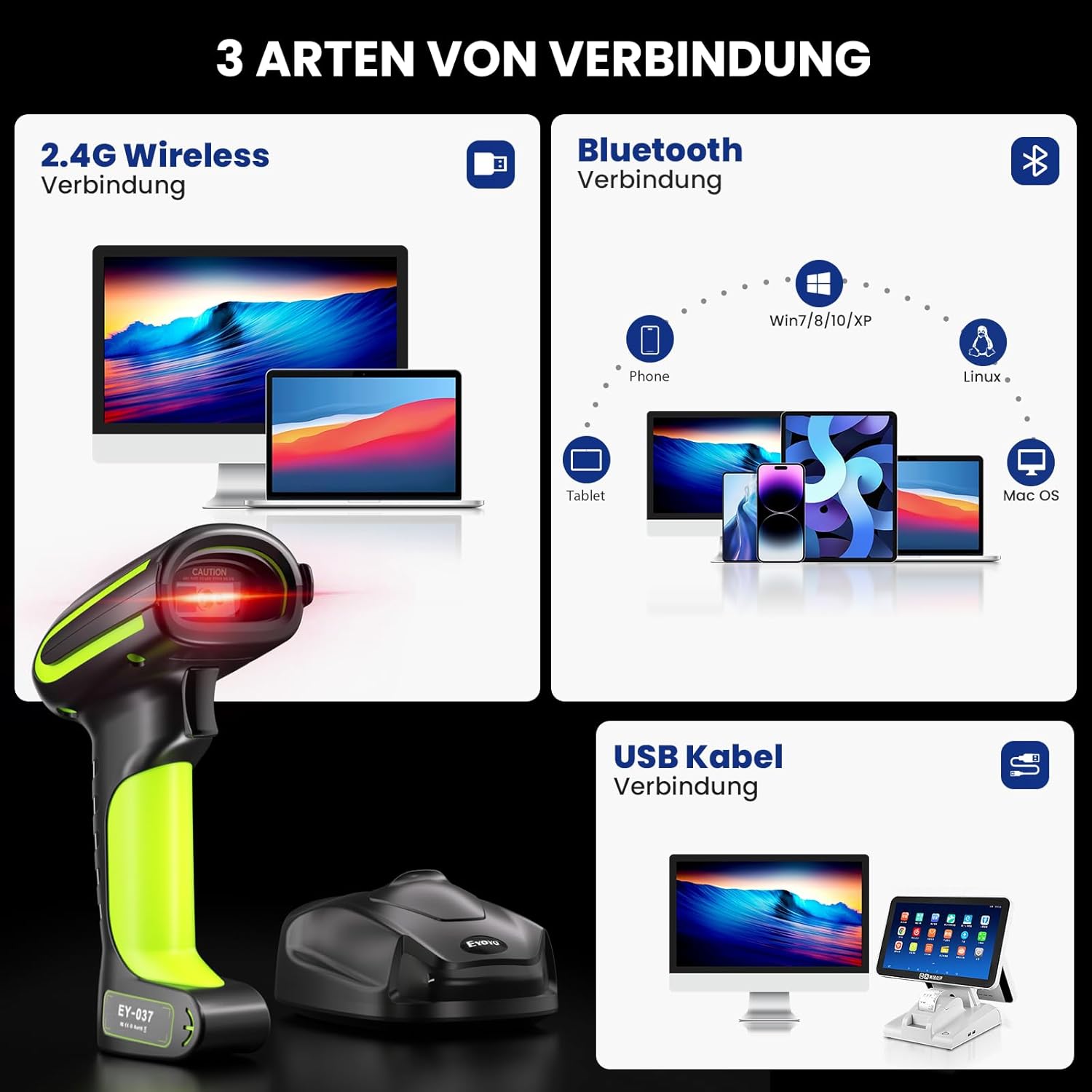
Figure 6: Bluetooth connection process
Connecting via USB Cable
For a direct wired connection:
- Connect the scanner directly to your computer or device using the provided USB cable.
- The scanner will function as a wired device, and scanned data will be transmitted directly.

Figure 7: Overview of 3-in-1 connection types
Operating Modes
Scanning Modes
The EY-037 offers three distinct scanning modes to suit various operational needs:
- Manual Trigger Mode: Press the trigger button to activate the scan beam and read each barcode individually.
- Continuous Scan Mode: The scanner continuously emits a scan beam, automatically reading barcodes as they are presented. This mode is ideal for hands-free operation when the scanner is placed on a stand (stand sold separately).
- Automatic Scan Mode: The scanner activates the scan beam only when it detects a barcode within its field of view, conserving power and reducing unnecessary beam emission.

Figure 8: Three available scanning modes
Data Upload Modes
Choose between two data upload methods:
- Instant Upload Mode: Scanned barcodes are immediately transmitted to the connected device. This is the default mode for real-time data entry.
- Storage Mode: When out of wireless range or if real-time transmission is not required, scanned barcodes are stored in the scanner's internal memory. The scanner can store up to 100,000 barcodes, which can be uploaded to your device later.

Figure 9: Instant upload and storage data modes
Advanced Features
Barcode Types Supported
The Eyoyo EY-037 scanner is capable of reading a wide range of barcode types, including 1D, 2D, and QR codes.
Scanning from Screens and Paper
The scanner's advanced imaging technology allows for accurate and rapid scanning of barcodes from both printed materials and digital screens, such as smartphones and tablets.

Figure 10: Scanning capability from various surfaces
Keyboard Language Support
The scanner supports 33 different keyboard languages, ensuring compatibility and ease of use in diverse international environments.

Figure 11: Multi-language keyboard support
Volume Adjustment
The scanner's beep volume can be adjusted to high, medium, low, or muted entirely to suit your working environment.

Figure 12: Volume adjustment options
Prefix/Suffix and Data Hiding
Customize your scanning output by adding specific prefixes or suffixes to the scanned data. The scanner also supports functions to hide or omit certain parts of the barcode data as needed.

Figure 13: Data customization options
Specifications
| Feature | Specification |
|---|---|
| Brand | Eyoyo |
| Model | EY-037 |
| Power Source | Corded Electric |
| Connectivity Technology | Bluetooth, USB, 2.4G Wireless |
| Number of Batteries | A Batteries required (included) |
| Product Dimensions (DxWxH) | 14.5 x 10.5 x 18.5 centimeters |
| Operating Voltage | 5 Volts |
| IP Rating | IP65 (Waterproof and Dustproof) |
| Battery Capacity | 2500mAh |
| Supported Barcodes | 1D, 2D, QR |
| Standby Time | >30 days |
Troubleshooting
If you encounter issues with your Eyoyo EY-037 barcode scanner, please refer to the following common troubleshooting steps:
- Scanner not connecting: Ensure the scanner is fully charged. Verify that the 2.4G dongle is properly inserted into your device, or that Bluetooth is enabled and successfully paired.
- No data transmission: Check the selected connection type (USB, 2.4G, or Bluetooth). Confirm the scanner is in "Instant Upload Mode" if immediate data transfer is desired. If in "Storage Mode," remember to manually upload the stored data.
- Unable to scan certain barcodes: Ensure the barcode type is supported by the scanner. Inspect the barcode for any damage, smudges, or poor print quality. Adjust the scanning distance and angle.
- Scanner beeps but no data appears: Confirm that the cursor is active in the target application (e.g., a text editor or spreadsheet) on your connected device.
- Short battery life: Ensure the scanner is fully charged before each use. If applicable, reduce scan frequency or adjust power-saving settings.
Warranty and Support
Warranty Information
The Eyoyo EY-037 Industrial Barcode Scanner comes with a 1-year warranty from the date of purchase. Please retain your proof of purchase for warranty claims.
Figure 14: 1-Year Warranty
Frequently Asked Questions (FAQs)
- What makes Eyoyo products unique?
- Eyoyo values feedback from every customer to maintain its leading position in barcode scanning technology.
- Why do we love what we do?
- Eyoyo Barcode Scanner is committed to manufacturing affordable, durable, fast, and easy-to-use scanners to help businesses increase productivity.
- What problems do we aim to solve?
- Quick and accurate inventory management, faster checkouts, and instant, precise product information are the benefits provided by Eyoyo barcode scanners.


