1. Introduction
This manual provides detailed instructions for the safe and effective use of your Strex SP66 Inspection Camera. Please read this manual thoroughly before operating the device and retain it for future reference. The Strex SP66 is designed for inspecting hard-to-reach areas, offering clear visuals with its 1080P HD camera and 4.3-inch LCD screen.
2. Product Overview
The Strex SP66 Inspection Camera is a versatile tool equipped with a flexible 10-meter cable and an 8mm camera lens. It features adjustable LED lighting for optimal visibility in dark environments and an IP67 waterproof rating for use in wet conditions. The integrated 4.3-inch LCD provides a clear 1080P HD display for real-time viewing and recording.
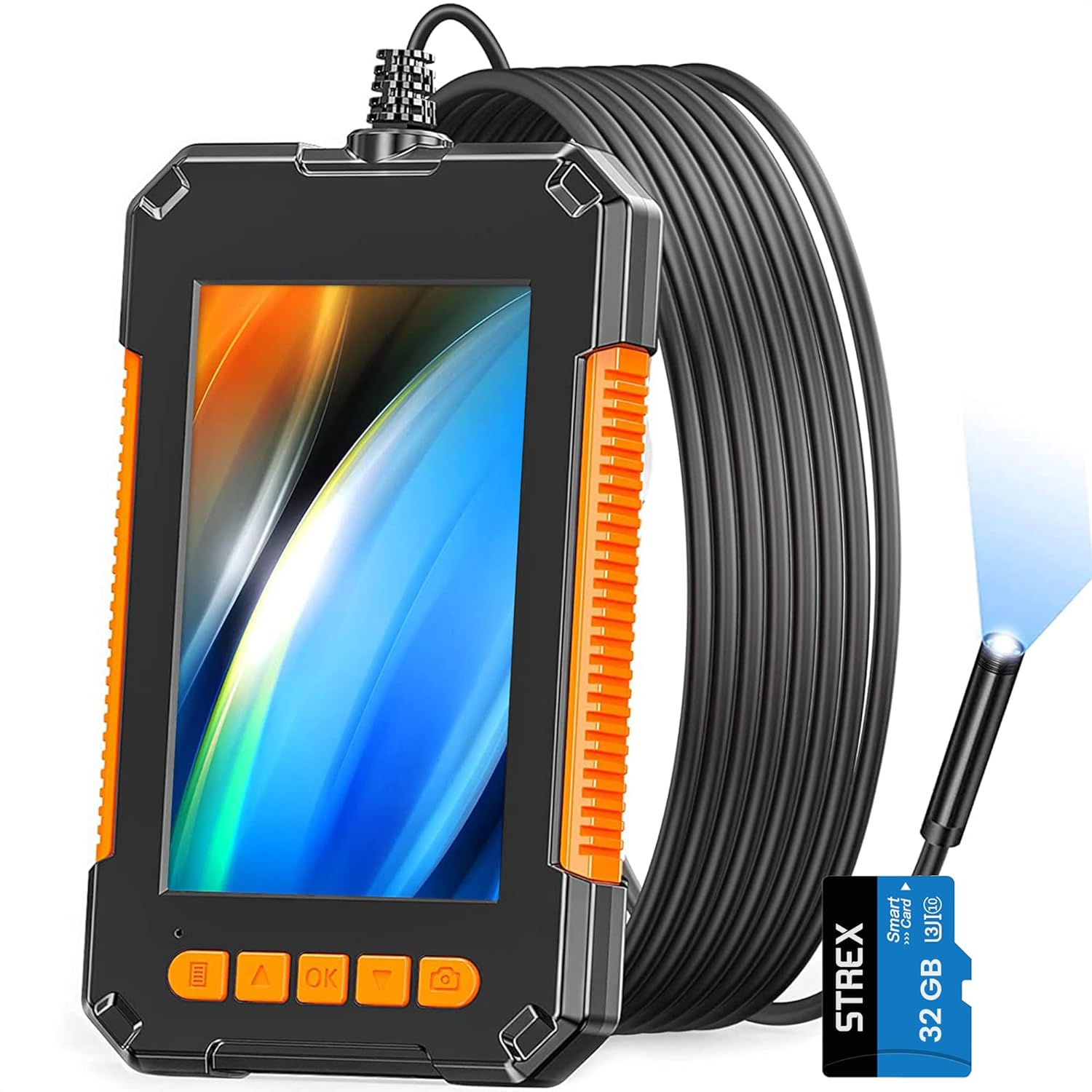
Figure 2.1: Strex SP66 Inspection Camera with its flexible cable and included SD card.

Figure 2.2: Overview of key features including the 8mm lens, 70-degree viewing angle, and IP67 rating.

Figure 2.3: The 4.3-inch HD LCD screen provides a clear 1080P display for detailed inspections.

Figure 2.4: The camera lens features 8 built-in adjustable LED lights and IP67 protection for clear images in various conditions.

Figure 2.5: The flexible yet rigid cable design allows it to hold its shape for easier navigation in tight spaces.

Figure 2.6: The inspection camera is suitable for a wide range of tasks, including plumbing, automotive, electrical, and industrial inspections.
3. Package Contents
Verify that all items listed below are included in your package. If any items are missing or damaged, please contact customer support.
- 1 x Strex SP66 Inspection Camera (with 10-meter cable)
- 1 x USB Charging Cable
- 1 x User Manual
- 3 x Attachments: Hook, Magnet, Side Mirror
- 1 x SD Card (32GB, if included with your model)
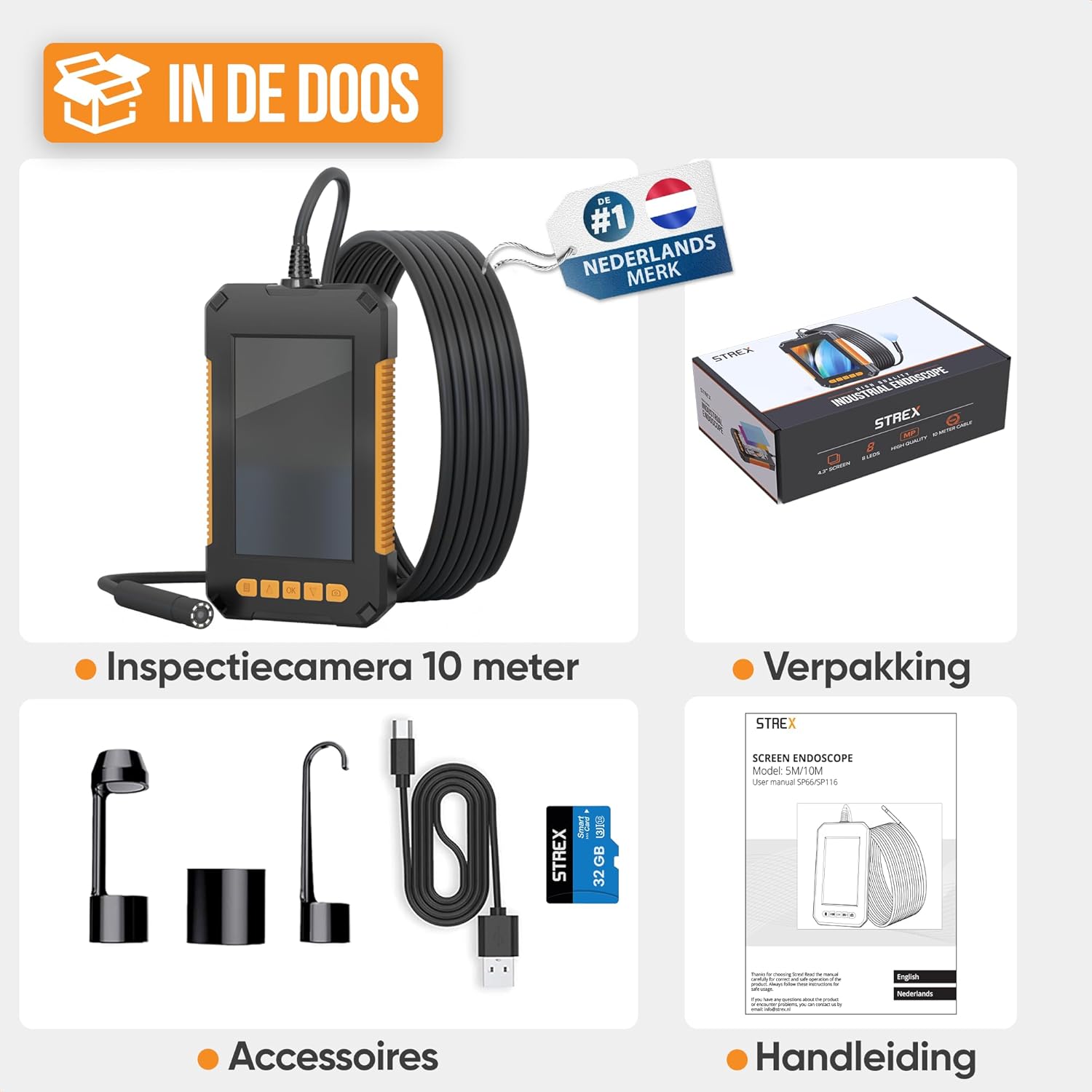
Figure 3.1: All components included in the Strex SP66 Inspection Camera package.
4. Setup
4.1 Charging the Device
Before first use, fully charge the inspection camera. Connect the provided USB charging cable to the camera's charging port and to a standard USB power adapter (not included) or a computer USB port. The built-in 2600 mAh battery provides up to 7 hours of continuous operation on a full charge.
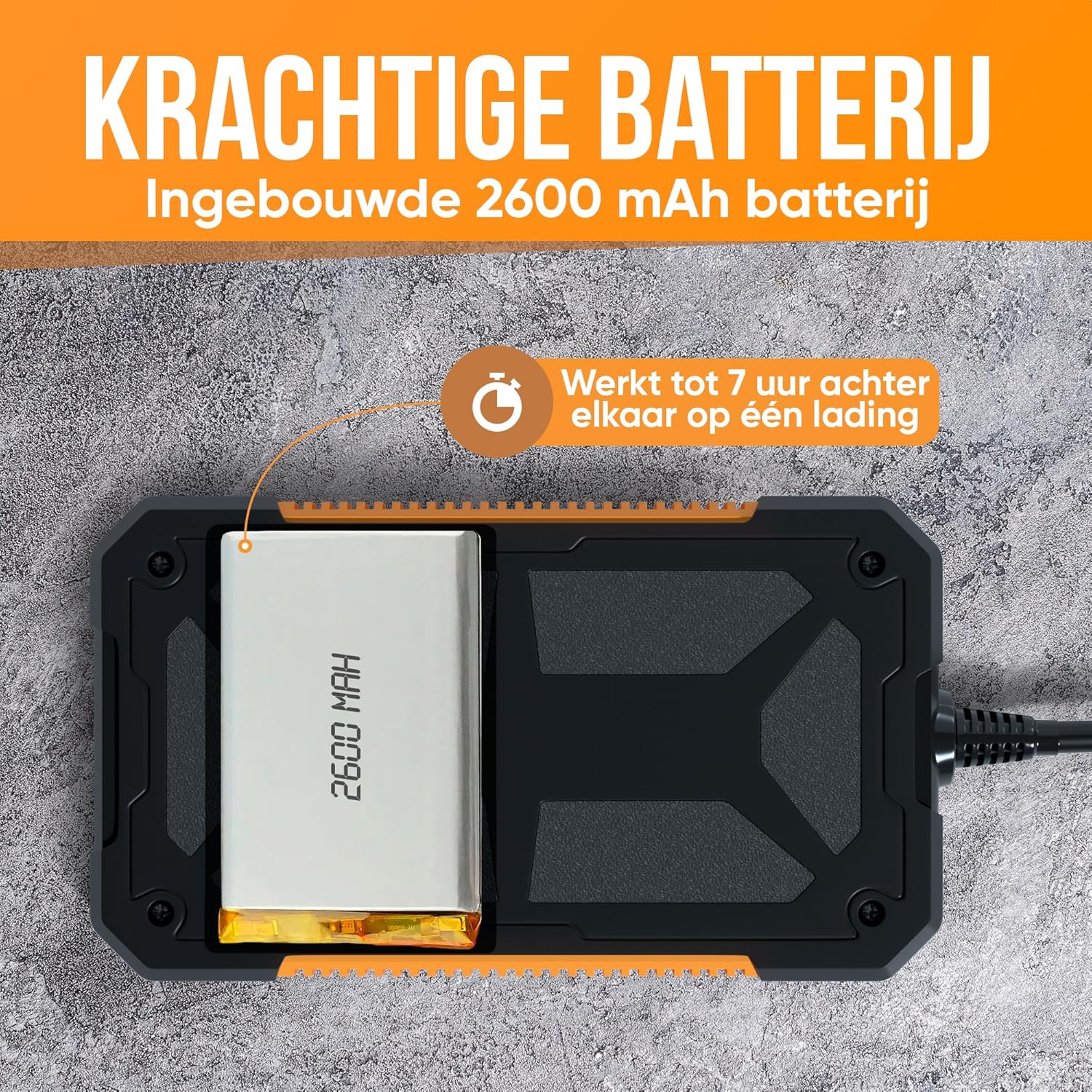
Figure 4.1: The camera is equipped with a 2600 mAh battery, offering extended usage time.
4.2 Inserting the SD Card
Locate the SD card slot on the side of the device. Gently insert the SD card (if not pre-installed) with the metal contacts facing down until it clicks into place. This card is essential for saving photos and videos.
4.3 Attaching Accessories
The camera comes with three useful attachments: a hook, a magnet, and a side mirror. To attach an accessory, carefully screw it onto the threaded end of the camera lens. Ensure it is securely fastened before use.

Figure 4.2: The included hook, magnet, and side mirror attachments for various inspection needs.
5. Operating Instructions
5.1 Powering On/Off
To power on the device, press and hold the power button (usually marked with a power symbol) for a few seconds until the screen illuminates. To power off, press and hold the power button again until the screen turns off.
5.2 Adjusting LED Lighting
The camera lens is equipped with adjustable LED lights. Use the designated button (often marked with a light bulb symbol or up/down arrows) to increase or decrease the brightness of the LEDs. Adjust the lighting to achieve optimal visibility in the inspection area.
5.3 Capturing Images and Videos
- Taking Photos: While viewing the live feed, press the photo button (often marked with a camera icon) to capture a still image. The image will be saved to the inserted SD card.
- Recording Videos: To start recording, press the video button (often marked with a video camera icon). Press it again to stop recording. Videos will be saved to the SD card in 1080p resolution.
5.4 Viewing Media
Access the gallery or playback mode on the device to review captured photos and videos. Use the navigation buttons to scroll through your media. You can also connect the device to a computer via the USB cable or remove the SD card and insert it into a card reader to transfer files.
6. Maintenance
- Cleaning: Wipe the camera lens and screen with a soft, dry cloth. For stubborn dirt, use a slightly damp cloth and ensure the device is powered off. Do not use abrasive cleaners or solvents.
- Storage: Store the device in a cool, dry place away from direct sunlight and extreme temperatures. Ensure the cable is neatly coiled to prevent damage.
- Battery Care: To prolong battery life, avoid fully discharging the battery frequently. If storing for an extended period, charge the battery to approximately 50% every few months.
7. Troubleshooting
| Problem | Possible Cause | Solution |
|---|---|---|
| Device does not power on. | Low battery; device malfunction. | Charge the device for at least 2 hours. If still unresponsive, contact support. |
| No image on screen. | Cable not properly connected; camera lens obstructed. | Ensure the camera cable is securely connected. Check the lens for obstructions. |
| Image is dark or unclear. | Insufficient LED brightness; dirty lens. | Adjust the LED brightness. Clean the camera lens. |
| Cannot save photos/videos. | No SD card inserted; SD card full or corrupted. | Insert a compatible SD card. Delete old files or format the SD card (backup data first). |
| Device freezes or becomes unresponsive. | Software glitch. | Press and hold the power button for 10-15 seconds to force a restart. |
8. Specifications
| Brand | Strex |
| Model | SP66 |
| Color | Orange |
| Camera Lens Diameter | 8 mm |
| Display Type | 4.3-inch LCD Screen |
| Video Resolution | 1080p |
| Supported Media | SD Card (JPEG, MP4) |
| Cable Length | 10 meters |
| Water Resistance | IP67 (camera lens and cable) |
| LED Lights | Adjustable, 8 LEDs |
| Battery Capacity | 2600 mAh |
| Operating Time | Up to 7 hours (on full charge) |
| Item Weight | 430 Grams |
| Product Dimensions (L x W x H) | 1.8 x 8.5 x 14.5 cm |
9. Warranty and Support
Information regarding specific warranty terms and customer support contact details is not available in the provided product data. Please refer to the product packaging or the manufacturer's official website for warranty information and support contacts.


