
1. Product Overview
The BIGASUO 410B Projector is designed for versatile use, offering high-definition projection with advanced connectivity options. This manual provides essential information for setting up, operating, and maintaining your projector.

2. Setup
2.1 Package Contents
Before beginning setup, please verify that all items are present in the package:
- BIGASUO 410B Projector
- Remote Control
- 2 AAA Batteries
- A/C Power Cable
- HDMI Cable
- User Manual (this document)
- Carrying Bag

2.2 Physical Connections
The projector offers multiple ports for connecting various devices:
- HDMI 1 & HDMI 2: For connecting TV sticks, satellite boxes, gaming consoles (e.g., PS5), laptops, or other HDMI-enabled devices.
- USB 1 & USB 2: For connecting USB drives, hard disks, or other USB storage devices.
- AV In: For connecting older devices using an AV cable.
- Audio Out: For connecting external speakers or headphones.
- Power Input: Connect the provided A/C power cable here.

2.3 Placement and Power
- Place the projector on a stable, flat surface, or mount it on a ceiling or tripod. Ensure adequate ventilation around the device.
- Connect the A/C power cable to the projector's power input and then to a power outlet.
- Press the power button on the projector or remote control to turn it on.
3. Operating Instructions
3.1 Basic Controls
The projector can be controlled using the on-device buttons located on the top panel or via the included remote control. The top panel features navigation buttons (Up, Down, Left, Right, OK), Source, ON/OFF, and Menu buttons. The remote control offers additional functions for convenience.
3.2 Input Source Selection
To select an input source:
- Press the 'Source' button on the projector or remote control.
- Use the navigation buttons to select your desired input (e.g., HDMI 1, USB 1, AV).
- Press 'OK' to confirm your selection.
3.3 WiFi Connection & Screen Mirroring
The projector supports dual-band 2.4G and 5G WiFi for wireless screen mirroring from iOS and Android devices. This allows for seamless display of content from your smartphone or tablet.
- Navigate to the WiFi settings on the projector.
- Select your home WiFi network and enter the password.
- Once connected, select the 'Screen Mirroring' option.
- On your mobile device, enable screen mirroring/casting and select the projector from the list of available devices.
Note: Due to copyright restrictions, streaming services like Netflix and Hulu cannot be mirrored directly. Please use an HDMI connection or a TV stick for these services.

3.4 Bluetooth Connectivity
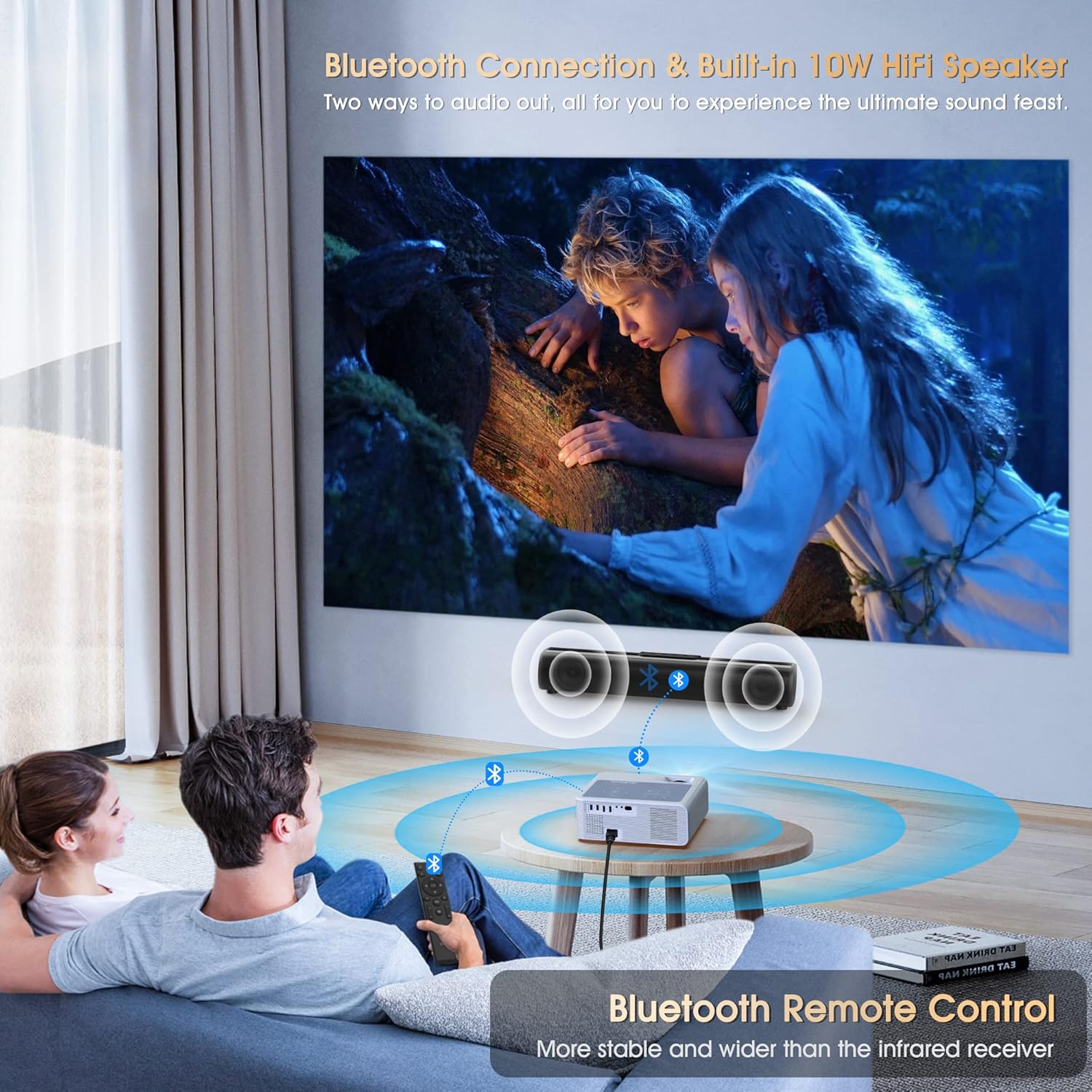
The projector features Bluetooth 5.0, allowing connection to external audio devices for an enhanced sound experience.
- Go to the Bluetooth settings menu on the projector.
- Enable Bluetooth on your external speaker or headphones and set it to pairing mode.
- Select your audio device from the list on the projector to connect.
Note: Bluetooth is primarily for connecting to external speakers/headphones, not for smartphone connections.
3.5 Picture Adjustment (Keystone & Zoom)
Achieve a perfectly rectangular image with the following adjustment features:
- 4P Digital Keystone Correction: Adjust each corner of the image independently to correct trapezoidal distortion.
- Vertical ±50° Keystone: Correct vertical image distortion.
- 60%-100% Zoom Function: Adjust the picture size without moving the projector.

3.6 Media Playback & Office Applications
The projector supports direct playback of presentations and media files via USB. This is ideal for small to medium-sized meetings or educational courses.

4. Specifications
| Feature | Specification |
|---|---|
| Brand | BIGASUO |
| Model Name | Outdoor Movie Projector 410B |
| Display Resolution Maximum | 4K Supported Projector Pixels |
| Brightness | 960 ANSI lumen |
| Contrast Ratio | 10000:1 |
| Connectivity Technology | WiFi (2.4G/5G), Bluetooth 5.0, HDMI, USB, AV, Audio |
| Display Type | LED PROJECTOR |
| Form Factor | Portable |
| Mounting Type | Ceiling, Wall, Table, Tripod Mount |
| Maximum Throw Distance | 400 Inches |
| Light Source Operating Life | 100000 Hours |
| Built-in Speakers | 2*5W HiFi Speakers |
| Item Dimensions L x W x H | 10.94"L x 9.45"W x 4.25"H |
| Item Weight | 2.5 Kilograms |
5. Maintenance
To ensure the longevity and optimal performance of your BIGASUO 410B Projector, follow these maintenance guidelines:
- Lens Cleaning: Use a soft, lint-free cloth specifically designed for optical lenses to gently wipe the projector lens. Avoid abrasive materials or harsh chemicals.
- Dust Removal: Regularly clean the projector's vents and exterior with a soft brush or compressed air to prevent dust buildup, which can affect cooling and performance.
- Storage: When not in use, store the projector in its carrying bag in a cool, dry place away from direct sunlight and extreme temperatures.
- Handling: Always handle the projector with care to avoid physical damage.
6. Troubleshooting
If you encounter issues with your projector, please refer to the following common solutions:
- No Power: Ensure the power cable is securely connected to both the projector and the power outlet. Try a different outlet.
- No Image: Verify that the correct input source is selected. Check all cable connections (HDMI, AV). Ensure the lens cap is removed.
- Blurry Image: Adjust the focus ring on the projector. Use the keystone correction and zoom functions to refine the image.
- No Sound: Check the volume settings on both the projector and the connected source device. If using external speakers, ensure they are properly connected and powered on. Verify Bluetooth connection if applicable.
- WiFi/Screen Mirroring Issues: Ensure both the projector and your device are connected to the same WiFi network. Restart both devices. Remember that copyrighted content from certain streaming apps cannot be mirrored directly.
- Remote Not Working: Check and replace the batteries. Ensure there are no obstructions between the remote and the projector's IR receiver.
For further assistance, please contact BIGASUO customer support.
7. Warranty and Support
The BIGASUO 410B Outdoor Indoor Projector includes 1 Year Technical Support. For warranty claims or technical assistance, please refer to the contact information provided in your product packaging or visit the official BIGASUO website.
