
Gateway GWNR51416-rd
Gateway 14.1" FHD High Performance Laptop User Manual
Model: GWNR51416-rd
1. Introduction
This user manual provides essential information for the safe and efficient operation of your Gateway 14.1" FHD High Performance Laptop. Please read this manual thoroughly before using the device and retain it for future reference.
The Gateway 14.1" Ultra Slim Notebook is designed for portability and performance, featuring an AMD Ryzen 5 3500U Processor, 8GB DDR4 RAM, and a 256GB Solid State Drive. Its 14.1" FHD display and Radeon Vega 8 graphics ensure a clear and fluid visual experience.
2. Product Overview
2.1. Package Contents
Ensure all items are present in the package:
- Gateway 14.1" FHD High Performance Laptop
- AC Adapter
- User Manual (this document)
2.2. Key Features
- Ultra Portable and Ultra-thin design (.78-inch)
- Windows 11-64bit Operating System
- AMD Ryzen 5 3500U Processor with Radeon Vega 8 Graphics (2.1GHz base, Up to 3.7GHz, 4-Cores)
- 14.1" LCD IPS FHD Display (1920 x 1080)
- Built-in Fingerprint Scanner (Windows Hello compatible)
- Built-in Stereo Speakers Tuned by THX Audio
- Wi-Fi and Bluetooth 4.2 connectivity
- 8GB DDR4 memory
- 256GB Solid State Drive
- Precision Touchpad
- HD Webcam and Built-in Microphone
- Ports: Micro SD Slot (Up to 512 GB) x 1, HDMI Output x 1, USB Type-C x 1, USB 3.0 x 2
2.3. Product Views

Front view of the Gateway laptop, open, displaying the AMD Ryzen 5 logo on the screen. This illustrates the primary visual interface and processor branding.
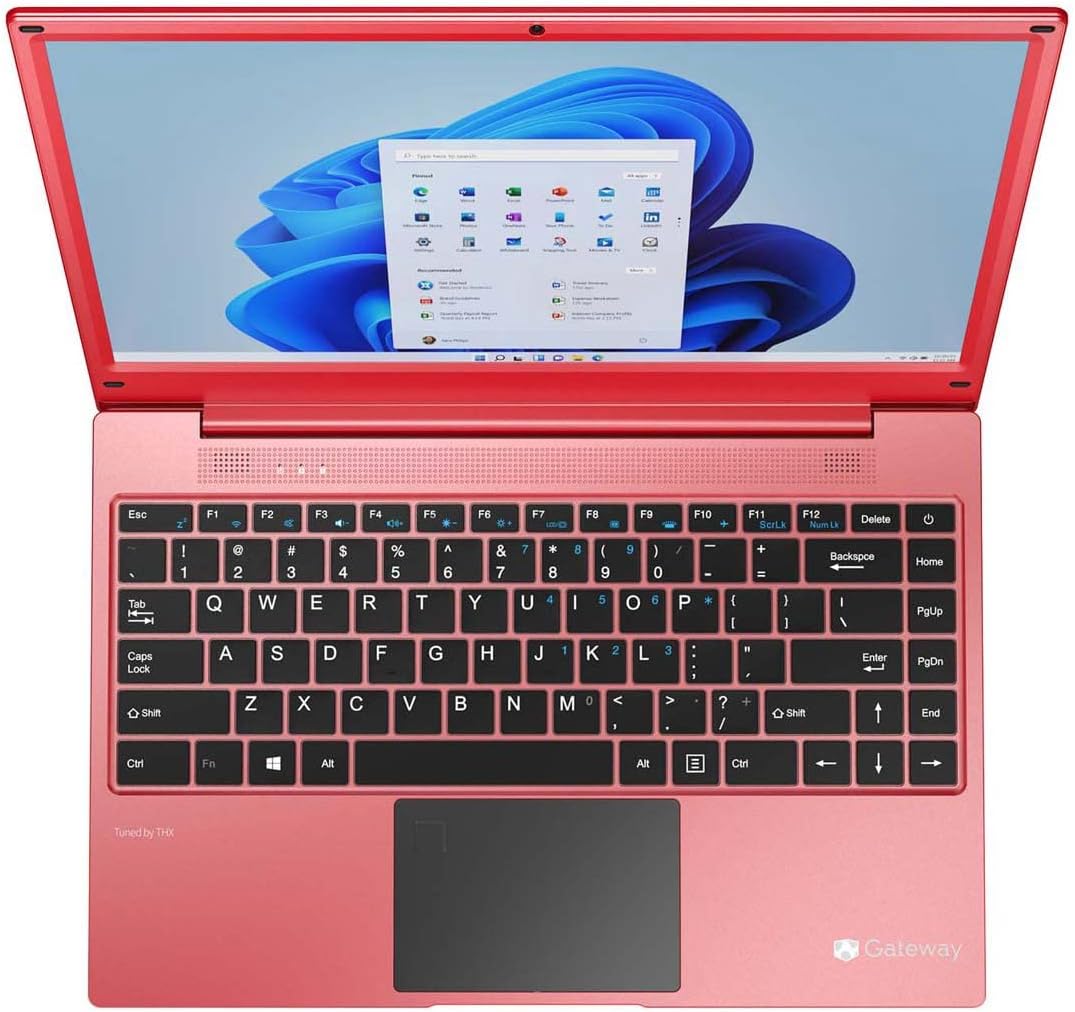
Top-down view of the Gateway laptop, open, showing the Windows 11 desktop interface. This provides a clear view of the keyboard layout and screen display.

Left side view of the Gateway laptop, highlighting the Charging Port, USB Port, HDMI Port, USB Type-C Port, and Fingerprint Scanner. This image helps identify the various connectivity options on the left side.

Right side view of the Gateway laptop, showing the USB Port, Headphone Port, and another USB Port. The image also includes approximate dimensions (14.1" screen, 8.75" depth, 13.1" width) for reference.

Left side profile view of the Gateway laptop, illustrating its slim design and the arrangement of ports on this side.
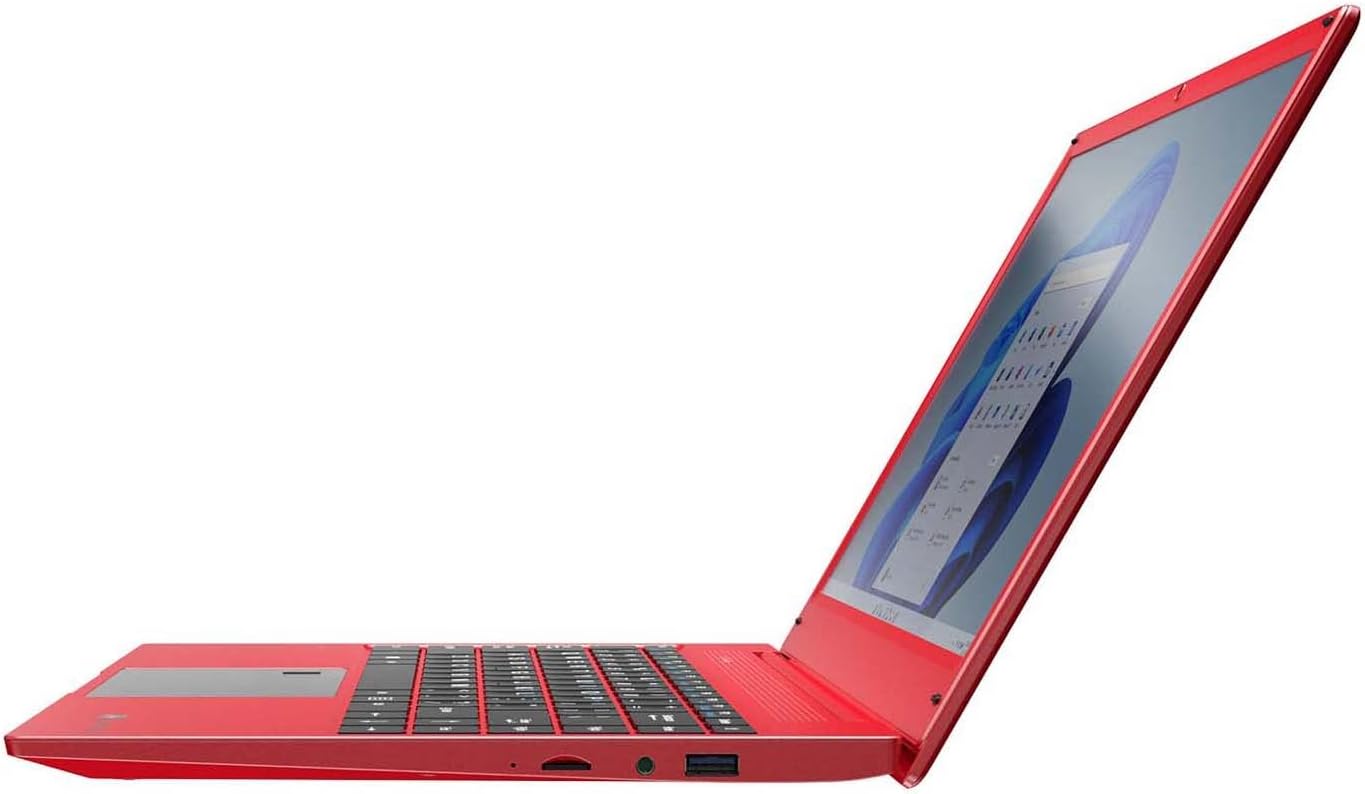
Right side profile view of the Gateway laptop, showcasing its thin profile and the ports located on the right side.
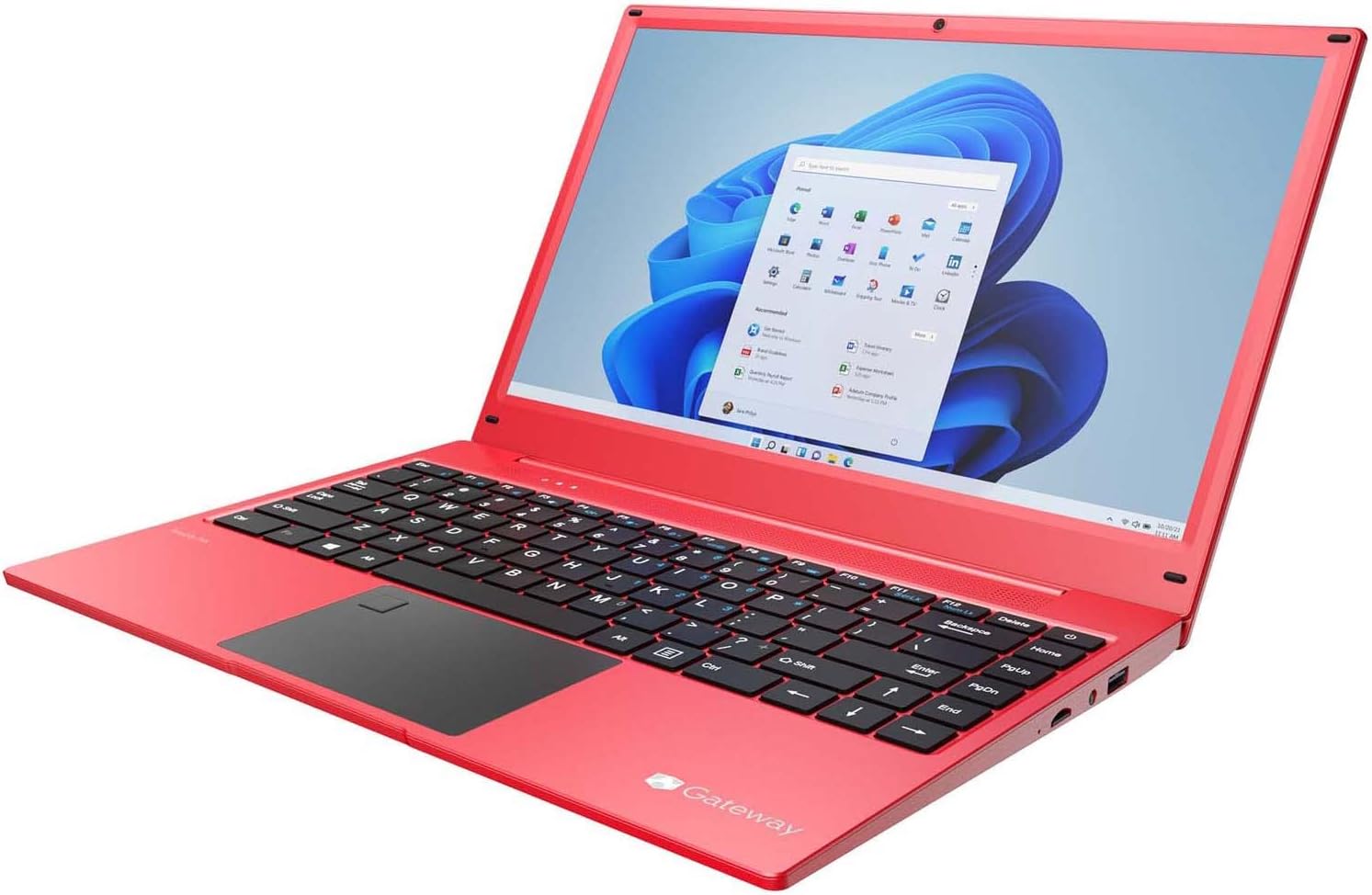
Angled view of the Gateway laptop, open, displaying the Windows 11 desktop. This perspective provides a comprehensive look at the laptop's design and screen.
3. Setup
3.1. Initial Power On
- Charge the Laptop: Before first use, connect the included AC adapter to the charging port on the left side of the laptop and plug it into a power outlet. Allow the battery to charge fully. The charging indicator light will typically change color or turn off when fully charged.
- Power On: Open the laptop lid. Press the power button, usually located on the top right of the keyboard or side.
- Windows Setup: Follow the on-screen instructions to complete the Windows 11 setup process. This includes selecting your region, language, connecting to a Wi-Fi network, accepting terms, and creating a user account.
3.2. Connecting Peripherals
Your laptop offers various ports for connecting external devices:
- USB Ports (USB 3.0 x 2, USB Type-C x 1): Connect USB devices such as external hard drives, mice, keyboards, or printers.
- HDMI Output: Connect to an external monitor, TV, or projector for a larger display.
- Micro SD Slot: Insert a Micro SD card for additional storage or data transfer.
- Headphone Port: Connect headphones or external speakers.
4. Operating Instructions
4.1. Using the Touchpad
The precision touchpad supports multi-touch gestures:
- Single Tap: Left-click.
- Two-Finger Tap: Right-click.
- Two-Finger Scroll: Drag two fingers up or down to scroll.
- Pinch-to-Zoom: Pinch two fingers together or spread them apart to zoom in or out.
4.2. Fingerprint Scanner (Windows Hello)
The built-in fingerprint scanner allows for secure and quick login:
- Navigate to Settings > Accounts > Sign-in options in Windows 11.
- Under "Windows Hello Fingerprint," click Set up.
- Follow the on-screen prompts to register your fingerprint. You may need to scan your finger multiple times from different angles.
4.3. Audio Settings (THX Audio)
Your laptop features stereo speakers tuned by THX Audio for enhanced sound quality. You can adjust audio settings via the Windows Sound settings or through any pre-installed THX audio control panel software.
- Volume Control: Use the function keys (Fn + Fx) or the volume icon in the Windows taskbar.
- Sound Settings: Right-click the speaker icon in the taskbar and select "Sound settings" to configure output devices, input devices, and sound effects.
4.4. Connecting to Wi-Fi and Bluetooth
- Wi-Fi: Click the Wi-Fi icon in the taskbar, select your desired network, enter the password if prompted, and click "Connect."
- Bluetooth: Go to Settings > Bluetooth & devices. Turn on Bluetooth, then click "Add device" to pair with Bluetooth headphones, speakers, or other peripherals.
5. Maintenance
5.1. Cleaning the Laptop
- Screen: Use a soft, lint-free cloth specifically designed for electronics. Dampen it slightly with water or a screen cleaner solution. Do not spray liquid directly onto the screen.
- Keyboard and Chassis: Use a soft, dry cloth. For stubborn dirt, a slightly damp cloth with mild soap solution can be used, ensuring no liquid enters the device. Use compressed air to remove dust from between keys.
- Ports: Use compressed air to gently clear dust from ports. Avoid inserting objects into ports.
5.2. Battery Care
- Avoid fully discharging the battery frequently.
- Do not expose the laptop to extreme temperatures.
- If storing the laptop for an extended period, charge the battery to about 50-60% before storage.
5.3. Software Updates
Regularly update your Windows operating system and device drivers to ensure optimal performance and security. You can check for updates via Settings > Windows Update.
6. Troubleshooting
6.1. Common Issues and Solutions
| Problem | Possible Solution |
|---|---|
| Laptop does not power on. | Ensure the AC adapter is securely connected and the power outlet is working. Try a different outlet. If the battery is completely drained, it may take a few minutes of charging before the laptop can power on. |
| Wi-Fi connection issues. | Check if Wi-Fi is enabled in Windows settings. Restart your router and modem. Ensure you are within range of the Wi-Fi signal. Try forgetting the network and reconnecting. |
| Slow performance. | Close unnecessary applications. Check Task Manager for high CPU/RAM usage. Ensure Windows and drivers are up to date. Run a disk cleanup. Consider uninstalling unused programs. |
| Screen is blank or flickering. | Restart the laptop. Check display cable connections if using an external monitor. Update graphics drivers. Adjust display resolution. |
| Fingerprint scanner not working. | Ensure your finger is clean and dry. Re-register your fingerprint in Windows Hello settings. Check for driver updates for the fingerprint sensor. |
If you encounter persistent issues not covered here, please refer to the support section or contact Gateway customer service.
7. Specifications
| Feature | Detail |
|---|---|
| Brand | Gateway |
| Model Name | GA14R5-R |
| Item Model Number | GWNR51416-rd |
| Screen Size | 14.1 inches |
| Screen Resolution | 1920 x 1080 pixels (FHD) |
| Processor | AMD Ryzen 5 3500U (3.7 GHz max boost, 4 cores) |
| RAM | 8 GB DDR4 |
| Hard Drive | 256 GB SSD (Solid State Drive) |
| Graphics Coprocessor | Radeon Vega 8 Graphics (Integrated) |
| Operating System | Windows 11 |
| Wireless Type | Wi-Fi, Bluetooth 4.2 |
| USB 3.0 Ports | 2 |
| USB Type-C Ports | 1 |
| HDMI Output | 1 |
| Micro SD Slot | 1 (Supports up to 512 GB) |
| Special Features | Fingerprint Scanner, Stereo Speakers Tuned by THX Audio |
| Color | Red |
| Item Weight | 4.97 pounds |
| Product Dimensions (LxWxH) | 14 x 1 x 13 inches |
8. Warranty and Support
8.1. Warranty Information
Specific warranty details for your Gateway laptop are typically provided with the product packaging or can be found on the official Gateway website. Please refer to the documentation included with your purchase for the most accurate and up-to-date warranty terms and conditions.
Generally, manufacturer warranties cover defects in materials and workmanship under normal use for a specified period from the date of purchase. Keep your proof of purchase for warranty claims.
8.2. Customer Support
For technical assistance, troubleshooting beyond this manual, or warranty service, please contact Gateway customer support.
- Official Website: Visit the official Gateway website for support resources, FAQs, driver downloads, and contact information.
- Online Support: Many issues can be resolved through online knowledge bases or support forums.
- Contact Number: Check the Gateway website or your product documentation for regional customer service phone numbers.
Related documentsGWNR51416-rd


Ask a question about this manual
Ask about setup, troubleshooting, compatibility, parts, safety, or missing instructions. Manuals+ will review the question and use this page’s manual context to help answer it.