Introduction
This manual provides essential information for the safe and efficient use of your Alcatel Go Flip 4 4056W flip phone. Please read these instructions carefully before using your device to ensure proper operation and to prevent damage.
The Alcatel Go Flip 4 4056W is a renewed device, fully functional and designed for ease of use, particularly suitable for T-Mobile network users.
1. Setup
1.1 Package Contents
Verify that your package contains the following items:
- Alcatel Go Flip 4 4056W Phone
- Power Adapter
- USB Cable
- SIM Tray Ejector
- Lithium Ion Battery (pre-installed or separate)
1.2 Battery Installation and Charging
Your phone comes with a rechargeable Lithium Ion battery. If the battery is not pre-installed, carefully open the back cover of the phone and insert the battery, aligning the contacts. Close the back cover securely.
Before first use, fully charge the phone. Connect the USB cable to the phone's charging port and the power adapter, then plug the adapter into a wall outlet. The charging indicator will show the charging status.

Image: Side view of the Alcatel Go Flip 4 4056W, showing the charging port.
1.3 SIM Card Installation
The Alcatel Go Flip 4 4056W requires a SIM card for cellular service. Use the provided SIM tray ejector tool to open the SIM card slot. Insert your T-Mobile compatible SIM card into the tray, ensuring it is correctly oriented. Gently push the tray back into the phone until it clicks into place.

Image: Multiple views of the Alcatel Go Flip 4 4056W, illustrating the phone's form factor and potential SIM tray location.
1.4 Powering On/Off
To power on the phone, press and hold the Power/End Call button until the screen illuminates. To power off, press and hold the same button, then select "Power off" from the options.
2. Operating Your Phone
2.1 Phone Layout and Basic Navigation
The Alcatel Go Flip 4 features a classic flip design with an internal main display and an external secondary display. Navigation is primarily done using the physical buttons.

Image: The Alcatel Go Flip 4 4056W in an open position, displaying the internal screen and the physical keypad.
- Main Display: Located inside the flip, used for most operations.
- External Display: Shows time, date, and notifications when the phone is closed.
- Navigation Keys: Use the directional pad and the central OK button to move through menus and select options.
- Call/Send Key: Initiates calls and selects options.
- End/Power Key: Ends calls, returns to the home screen, and powers the phone on/off.
- Soft Keys: Context-sensitive keys located directly below the main display, their functions change based on the current screen.

Image: The Alcatel Go Flip 4 4056W in a closed position, displaying the external screen with time and date.
2.2 Making and Receiving Calls
- To Make a Call: Open the phone, dial the number using the keypad, and press the Call/Send key.
- To Answer a Call: Open the phone or press the Call/Send key when the phone rings.
- To End a Call: Press the End/Power key.
2.3 Sending and Receiving Text Messages
Navigate to the Messages application from the main menu. Select New Message, enter the recipient's number or select from contacts, and type your message using the keypad. Press the appropriate soft key to send.
2.4 Camera Usage
Your phone is equipped with both front and rear cameras. Access the Camera application from the main menu. Use the navigation keys to switch between front and rear cameras, adjust settings, and capture photos or videos.

Image: Rear view of the Alcatel Go Flip 4 4056W, highlighting the rear camera lens.
2.5 Connectivity (Wi-Fi and Cellular)
The phone supports 4G cellular technology via T-Mobile and Wi-Fi connectivity. To connect to Wi-Fi, go to Settings > Network & Internet > Wi-Fi, select your desired network, and enter the password if required.
3. Maintenance
3.1 Cleaning Your Phone
Use a soft, lint-free cloth to clean the phone's screen and body. Avoid using harsh chemicals or abrasive materials, which can damage the surfaces. Do not immerse the phone in water.
3.2 Battery Care
To prolong battery life, avoid exposing the phone to extreme temperatures. Charge the battery regularly, but avoid leaving it fully charged or fully discharged for extended periods. Use only the provided or approved charging accessories.
3.3 Software Updates
Periodically check for software updates in the phone's settings. Updates can improve performance, add new features, and enhance security. Ensure your phone is sufficiently charged and connected to Wi-Fi before performing an update.
4. Troubleshooting
If you encounter issues with your phone, try the following solutions before seeking professional assistance.
4.1 Common Issues and Solutions
| Issue | Solution |
|---|---|
| Phone does not turn on | Ensure the battery is charged. Connect the phone to the charger and wait a few minutes before attempting to power on again. |
| No network signal | Check if the SIM card is correctly inserted. Ensure you are within T-Mobile network coverage. Restart the phone. |
| Cannot make or receive calls | Verify network signal. Check if call barring is enabled in settings. Ensure your account is active with T-Mobile. |
| Battery not charging | Check the USB cable and power adapter for damage. Ensure the charging port is clean and free of debris. Try a different outlet. |
| Phone is slow or unresponsive | Close unnecessary applications. Restart the phone. Clear cache from applications if possible. |
4.2 Restarting the Device
A simple restart can resolve many minor software issues. Press and hold the End/Power key, then select Restart from the options.
4.3 Factory Reset
If issues persist, a factory reset may be necessary. Warning: This will erase all data on your phone. Back up any important information before proceeding. Navigate to Settings > System > Reset options > Erase all data (factory reset). Follow the on-screen prompts.
5. Specifications
| Feature | Detail |
|---|---|
| Model Number | 4056W |
| Brand | Alcatel |
| Operating System | ANDROID |
| Form Factor | Flip |
| Screen Size | 2.8 Inches (Main Display) |
| Resolution | 320 x 240 pixels |
| Memory Storage Capacity | 4 GB |
| RAM Memory Installed Size | 4 GB |
| Battery Type | Lithium Ion |
| Battery Capacity | 6 Milliampere Hour (mAh) |
| Wireless Carrier | T-Mobile (only) |
| Cellular Technology | 4G |
| Connectivity Technologies | Wi-Fi, Cellular |
| GPS | True |
| Human Interface Input | Buttons |
| Camera Features | Front, Rear |
| Color | Blue |
| Item Weight | 8.8 ounces |
| Package Dimensions | 7.2 x 3.82 x 1.81 inches |
6. Warranty and Support
6.1 Amazon Renewed Product Information
This Alcatel Go Flip 4 4056W is an Amazon Renewed product. Amazon Renewed products are pre-owned and refurbished to work and look like new. They come with the Amazon Renewed Guarantee, which provides a replacement or refund within 90 days of receipt if the product does not work as expected.
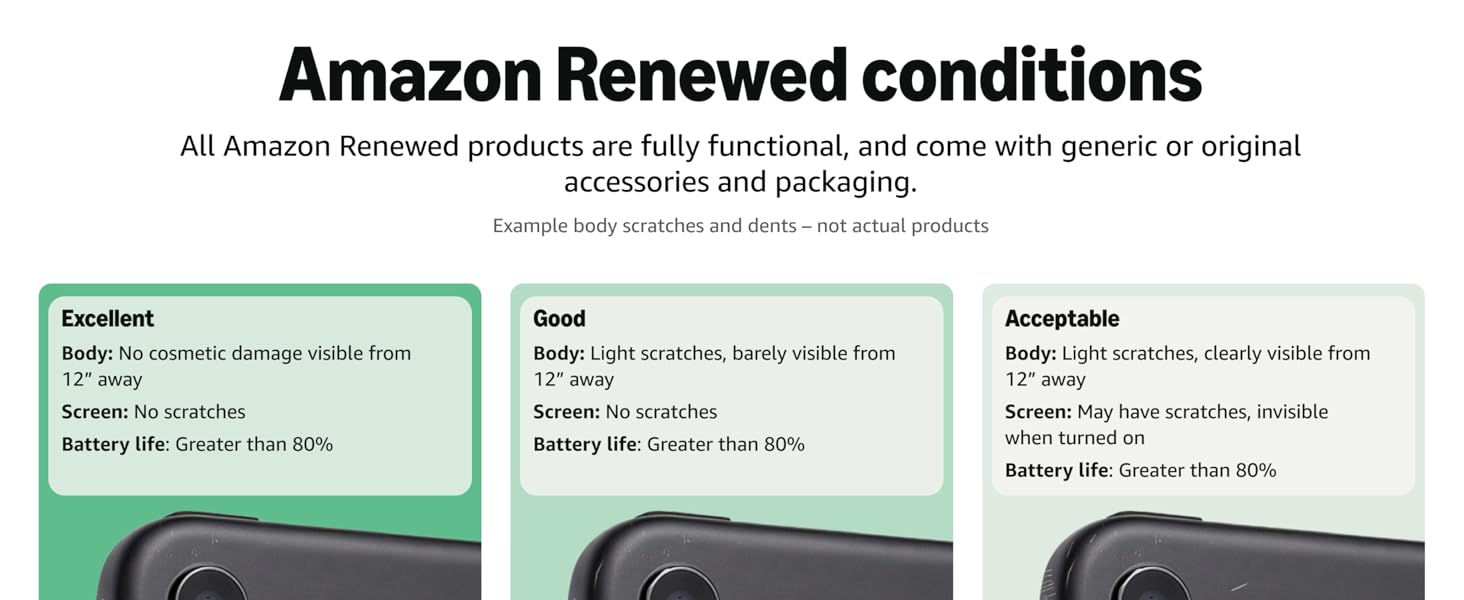
Image: Explanation of Amazon Renewed product conditions (Excellent, Good, Acceptable) regarding cosmetic damage, screen, and battery life.
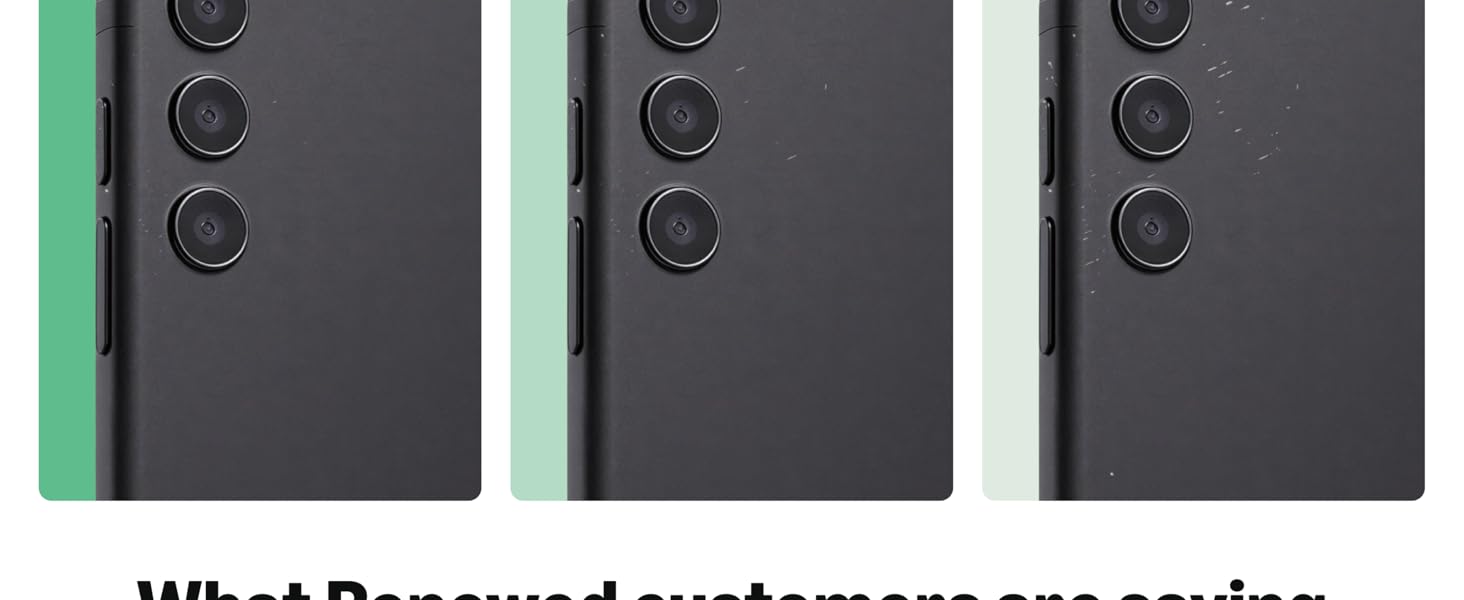
Image: Customer testimonials regarding their positive experiences with Amazon Renewed products.
6.2 Manufacturer Support
For technical support beyond the Amazon Renewed Guarantee period or for specific product inquiries, please refer to the official Alcatel support resources. You can typically find support information on the Alcatel website or through their customer service channels.
For T-Mobile specific service questions, please contact T-Mobile customer support directly.
7. Product Videos
No official product videos from the seller were provided in the product data for embedding in this manual.