
Introduction
This manual provides detailed instructions for the setup, operation, and maintenance of your Safire SF-MIFI-4G-UPS Portable 4G Wi-Fi Router. This device allows you to create a portable Wi-Fi hotspot using a 4G cellular connection and also features an RJ45 port for wired connectivity. It is designed for outdoor and travel use, compatible with gaming consoles, PCs, laptops, smartphones, and tablets. Please read this manual thoroughly before using the device to ensure optimal performance and safety.
Package Contents
Please check the package contents upon unboxing. If any items are missing or damaged, contact your retailer.
- Safire SF-MIFI-4G-UPS Portable 4G Wi-Fi Router
- Power Adapter
- (Potentially) User Manual or Warranty Card
Product Overview
The Safire SF-MIFI-4G-UPS is a versatile portable router designed for mobile internet access. It supports 4G connectivity, allowing you to share a cellular data connection via Wi-Fi (802.11n, single-band) or through its 10/100 RJ45 Ethernet port. It is suitable for various applications, including outdoor use and travel, and is compatible with devices such as gaming consoles, PCs, laptops, smartphones, and tablets.
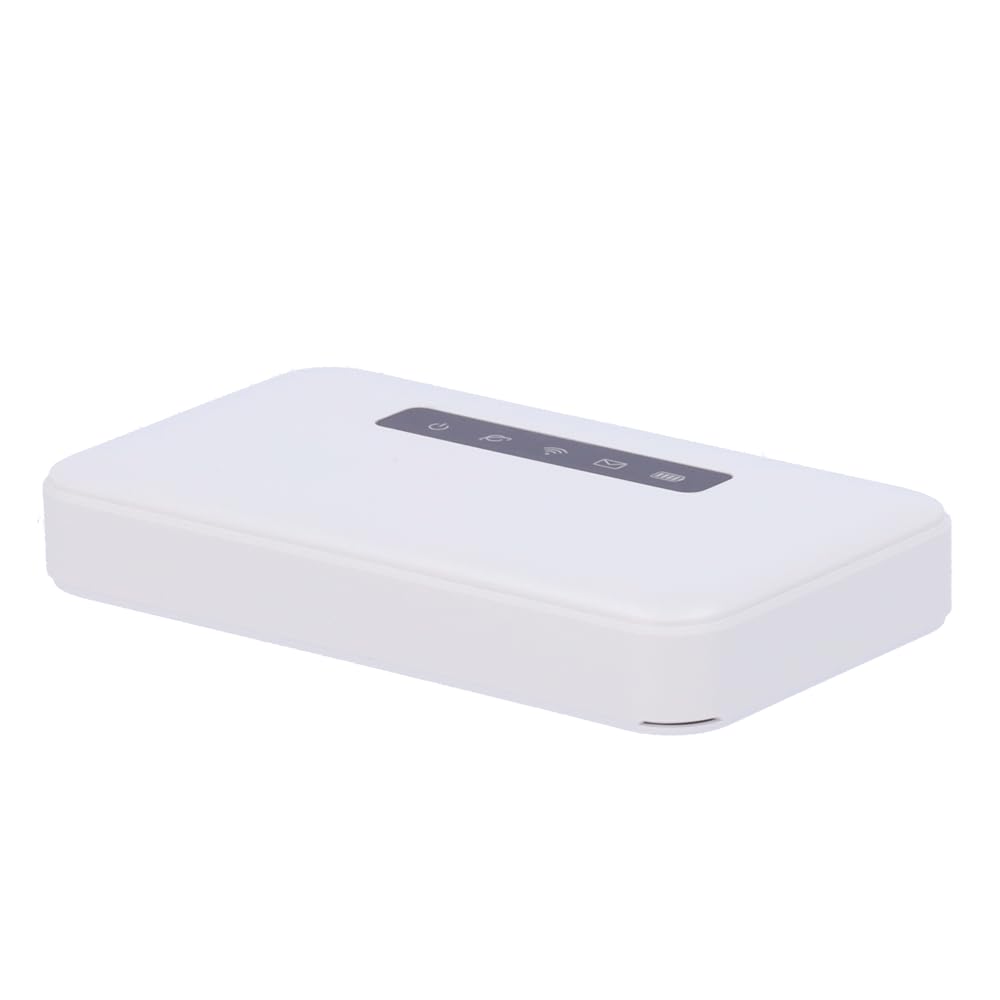
Image: Front view of the Safire SF-MIFI-4G-UPS Portable 4G Wi-Fi Router, showing its compact design and indicators.
Setup
Follow these steps to set up your Safire SF-MIFI-4G-UPS router:
- Insert SIM Card: Locate the SIM card slot (usually under a cover or battery). Insert your activated 4G SIM card into the slot, ensuring it is correctly oriented.
- Connect Power: Connect the provided power adapter to the router's power input and then plug it into a wall outlet.
- Power On: Press and hold the power button (location may vary, refer to device markings) until the indicator lights illuminate. Wait for the device to boot up and establish a 4G connection (indicated by a specific LED, typically blue or green).
- Connect Devices (Wi-Fi): On your Wi-Fi enabled device (smartphone, laptop, etc.), search for available Wi-Fi networks. Select the network name (SSID) broadcast by your Safire router (e.g., "Safire_XXXX"). Enter the default Wi-Fi password (usually found on a sticker inside the battery compartment or on the device itself).
- Connect Devices (Ethernet): For wired connections, connect an Ethernet cable from the router's RJ45 port to the Ethernet port on your computer or other network device.
Operating Instructions
Connecting to the Internet
- Wi-Fi Connection: Once powered on and connected to 4G, the router will broadcast its Wi-Fi network. Connect your devices using the SSID and password.
- Ethernet Connection: Devices connected via the RJ45 port will automatically obtain an IP address and access the internet once the router has an active 4G connection.
Accessing the Web Management Interface
To configure advanced settings, you can access the router's web management interface:
- Ensure your device is connected to the router via Wi-Fi or Ethernet.
- Open a web browser (e.g., Chrome, Firefox, Edge).
- In the address bar, type the default IP address of the router (commonly 192.168.0.1 or 192.168.1.1) and press Enter. Refer to the device's label for the exact IP address.
- Enter the default username and password (commonly admin/admin or admin/password). It is highly recommended to change the default password for security reasons.
- From the interface, you can modify Wi-Fi name (SSID), password, network mode, and other advanced settings.
Maintenance
Proper maintenance ensures the longevity and optimal performance of your router.
- Firmware Updates: Periodically check the manufacturer's website for firmware updates. Keeping your firmware up-to-date can improve performance, add new features, and enhance security.
- Cleaning: Use a soft, dry cloth to clean the exterior of the device. Do not use liquid cleaners or aerosols.
- Storage: When not in use for extended periods, store the router in a cool, dry place away from direct sunlight and extreme temperatures.
- Battery Care (if applicable): If the device has a removable battery, follow guidelines for battery charging and storage to maximize its lifespan. Avoid fully discharging the battery frequently.
Troubleshooting
If you encounter issues with your Safire SF-MIFI-4G-UPS router, refer to the following common problems and solutions:
| Problem | Possible Cause | Solution |
|---|---|---|
| No Internet Connection |
|
|
| Cannot Connect to Wi-Fi |
|
|
| Slow Internet Speed |
|
|
Specifications
| Feature | Detail |
|---|---|
| Brand | Safire |
| Model Name | SF-MIFI-4G-UPS |
| Special Feature | 4G Support |
| Frequency Band Class | Single-Band |
| Wireless Communication Standard | 802.11n |
| Compatible Devices | Gaming Console, Personal Computer, Laptop, Smartphone, Tablet |
| Recommended Uses | Outdoor/Travel |
| Connectivity Technology | Wi-Fi |
| Antenna Type | Fixed |
| Ethernet Port | 10/100 RJ45 |
Warranty and Support
Your Safire SF-MIFI-4G-UPS router is covered by a manufacturer's warranty. Please refer to the warranty card included in your package for specific terms and conditions, including the warranty period and coverage details. For technical support, product inquiries, or warranty claims, please contact Safire customer service through their official website or the contact information provided with your product.
Note: Keep your purchase receipt as proof of purchase for warranty purposes.