
Jonsbo MOD5
JONSBO MOD5 Open Type ATX Mid Tower Gaming Computer Case User Manual
Model: MOD5 | Brand: Jonsbo
1. Introduction
The JONSBO MOD5 is an innovative open-type ATX mid-tower gaming computer case designed for enthusiasts seeking high performance, extensive cooling options, and a unique aesthetic. Its robust aluminum construction and modular design provide ample space for advanced components, including custom liquid cooling setups. This manual provides essential information for the proper assembly, operation, and maintenance of your MOD5 chassis.

Figure 1: JONSBO MOD5 Open Type ATX Mid Tower Gaming Computer Case
2. Safety Information
Please read and understand all safety precautions before installing or operating the JONSBO MOD5 case. Failure to do so may result in personal injury or damage to the product or components.
- Always disconnect the power supply from the wall outlet before performing any installation, maintenance, or troubleshooting.
- Wear an anti-static wrist strap to prevent electrostatic discharge (ESD) when handling internal components.
- Be cautious of sharp edges during installation.
- Do not expose the case to water or excessive humidity.
- Ensure proper ventilation around the case to prevent overheating.
3. Package Contents
Verify that all items are present in your package:
- JONSBO MOD5 Open Type ATX Mid Tower Gaming Computer Case
- Accessory Box (containing screws, cable ties, standoffs, etc.)
- User Manual (this document)
4. Product Overview
The MOD5 features a distinctive open design with robust aluminum construction, providing excellent airflow and a unique visual appeal.
4.1 Key Features
- Open Type Design: Maximizes airflow and showcases internal components.
- Material: Constructed from durable 2+3mm aluminum-magnesium alloy.
- Motherboard Support: Compatible with EATX, ATX, MATX, and ITX motherboards.
- GPU Clearance: Supports graphics cards up to 400mm in length.
- Cooling Support: Extensive liquid cooling support (360x2 + 240x1 or 240x3 radiators) and air cooling (up to 180mm CPU cooler height).
- Drive Bays: Multiple bays for 2.5" SSDs and 3.5" HDDs.
- RGB Lighting: Integrated Flank Armor ARGB strips for customizable lighting effects.
4.2 Dimensions and Layout

Figure 2: Internal Component Layout and Cooling Support
The internal layout is designed for optimal component placement and airflow. Refer to Figure 2 for a visual guide on component locations and cooling support areas.
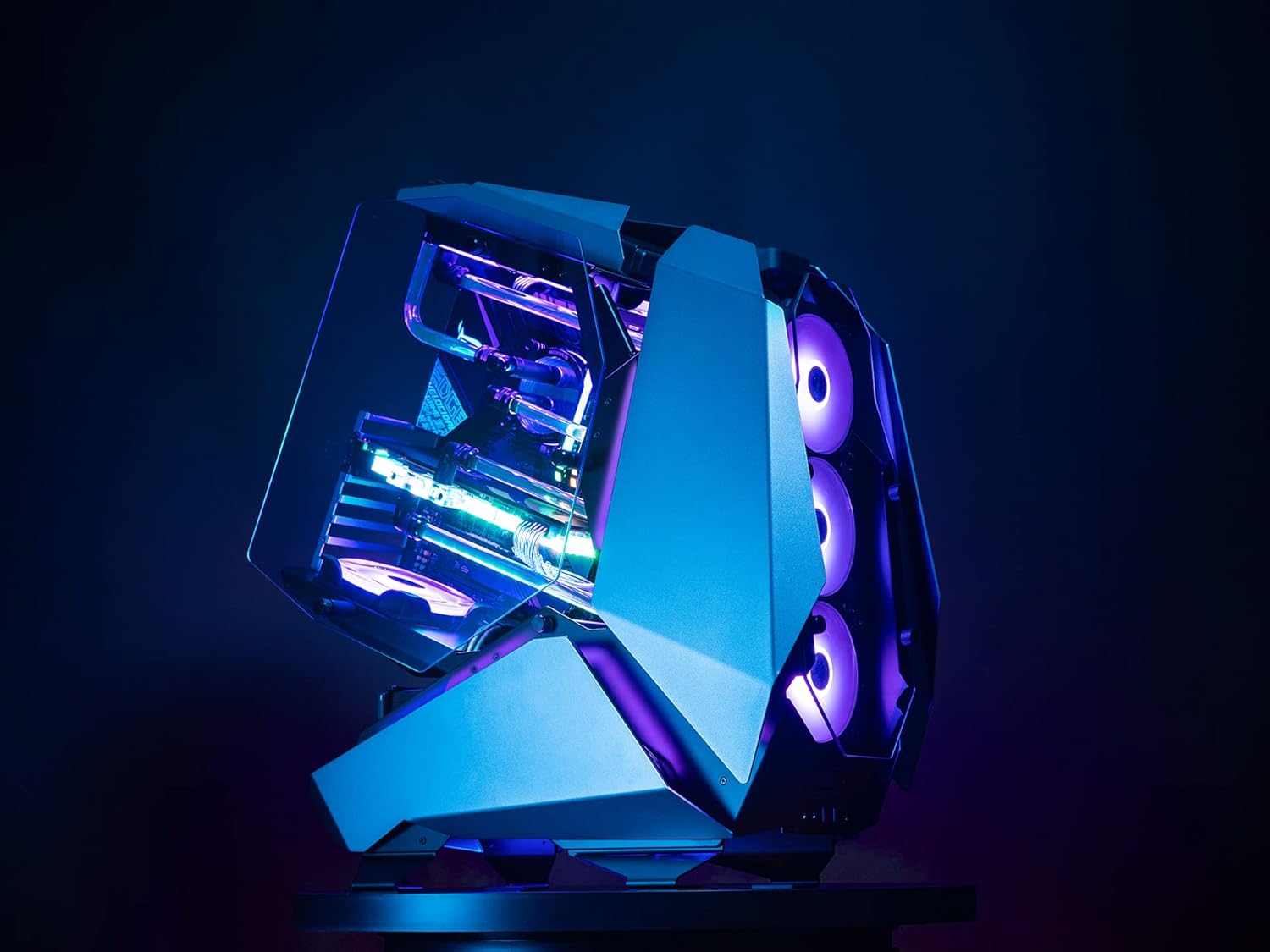
Figure 3: Side View of JONSBO MOD5 Case
5. Setup and Installation
Follow these steps for installing your PC components into the JONSBO MOD5 case. It is recommended to install components in the order listed for ease of assembly.
5.1 Preparing the Case
- Unpack the case and place it on a stable, flat surface.
- Remove any protective films from the tempered glass panels.
- Identify the accessory box and familiarize yourself with the included screws and mounting hardware.
5.2 Motherboard Installation
- Install the necessary motherboard standoffs into the motherboard tray according to your motherboard's form factor (ATX, MATX, ITX).
- Carefully place your motherboard onto the standoffs, aligning the screw holes.
- Secure the motherboard with the appropriate screws.
5.3 Power Supply Unit (PSU) Installation
- Locate the PSU mounting area (ATX PSII 220mm max length).
- Slide the PSU into position and secure it with screws from the rear of the case.
- Connect the necessary power cables to your motherboard and other components.
5.4 Storage Drive Installation
- Install 2.5" SSDs and 3.5" HDDs into the designated drive bays. The case supports 2.5" SSD/3.5" HDD x3 + 3.5" HDD x1 or 3.5" HDD x4.
- Secure drives with the provided screws.
- Connect SATA data and power cables to the drives.
5.5 Graphics Card (GPU) Installation
- Remove the necessary PCIe slot covers.
- Insert your graphics card into the PCIe slot on the motherboard. The case supports GPUs up to 400mm in length.
- Secure the GPU with the retention clip and screw.
- Connect any required PCIe power cables from the PSU to the GPU.
5.6 Cooling System Installation (Fans/Radiators)
The MOD5 offers extensive cooling support:
- Liquid Cooling: Supports 360x2 + 240x1 or 240x3 radiators.
- Air Cooling: CPU cooler height up to 180mm.
- Fan Support: Front/base supports 360 radiator or 3x 12cm fans. Top supports 240 radiators or 2x 12cm fans. Bottom supports 1x 12cm fan.
Install fans and radiators into their respective mounting points, securing them with appropriate screws. Connect fan power cables to the motherboard or a fan controller.
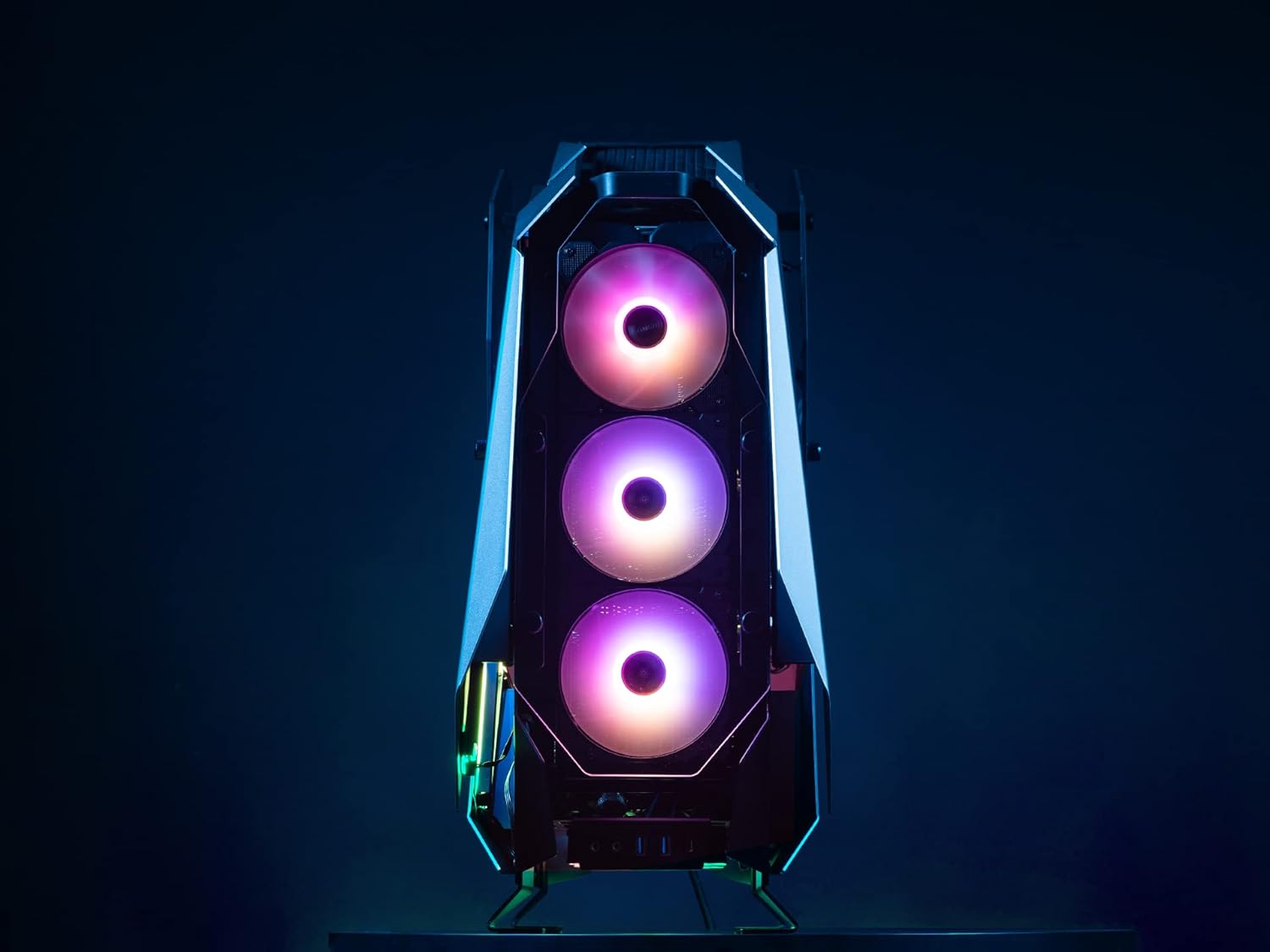
Figure 4: Front Fan Mounting Area
5.7 Cable Management
Utilize the cable routing cutouts and tie-down points to manage cables neatly. This improves airflow and aesthetics.
6. Operating Instructions
Once all components are installed and cables are connected, you can power on your system.
6.1 Powering On
- Ensure all external peripherals (monitor, keyboard, mouse) are connected.
- Connect the power cable to the PSU and a wall outlet.
- Flip the power switch on the PSU to the 'ON' position.
- Press the power button on the case to start your computer.
6.2 Front I/O Ports
The JONSBO MOD5 features convenient front I/O ports for easy access:
- 2x USB 2.0 Ports
- Audio Jacks (Headphone/Microphone)
- USB 3.0 Ports (Quantity not specified in product data, typically 1-2)
- USB Type-C Port (Quantity not specified in product data, typically 1)
Video 1: Jonsbo MOD5 Open Air Case Overview
6.3 RGB Lighting Control
The case includes Flank Armor ARGB strips. Control of these lights is typically managed via your motherboard's RGB software (e.g., ASUS Aura Sync, MSI Mystic Light, Gigabyte RGB Fusion) if connected to a compatible ARGB header, or via a dedicated RGB controller if one is included or purchased separately. Refer to your motherboard manual for specific RGB software instructions.
7. Maintenance
Regular maintenance helps ensure optimal performance and longevity of your JONSBO MOD5 case and its components.
- Dust Removal: Due to its open design, the case may accumulate dust more readily. Regularly use compressed air to clean dust from fans, radiators, and internal components.
- Surface Cleaning: Wipe down external surfaces with a soft, damp cloth. Avoid abrasive cleaners or solvents that could damage the finish.
- Cable Check: Periodically inspect internal cables to ensure they are securely connected and not obstructing airflow.
8. Troubleshooting
This section addresses common issues you might encounter.
8.1 System Not Powering On
- Ensure the PSU is switched 'ON' and properly connected to the wall outlet.
- Verify that the 24-pin ATX power cable and 8-pin CPU power cable are securely connected to the motherboard.
- Check that the front panel power button cable is correctly connected to the motherboard's front panel header.
8.2 Fans Not Spinning / RGB Not Lighting Up
- Confirm that all fan power cables are correctly connected to the motherboard fan headers or a fan controller.
- For RGB lighting, ensure the ARGB strips are connected to a compatible motherboard ARGB header or an RGB controller.
- Check your motherboard's BIOS/UEFI settings or RGB software for fan speed and lighting control.
8.3 Components Not Detected
- Reseat the component (e.g., RAM, GPU, storage drive) to ensure it is properly seated in its slot.
- Verify all necessary power and data cables are securely connected to the component and motherboard/PSU.
9. Specifications
| Feature | Specification |
|---|---|
| Model Name | MOD5 |
| Case Type | Mid Tower |
| Material | Aluminum |
| Color | Gray |
| Dimensions (LxWxH) | 25 x 10 x 23.6 inches (635 x 255 x 600 mm) |
| Item Weight | 31.9 pounds |
| Motherboard Compatibility | EATX, ATX, MATX, ITX |
| GPU Length (Max) | 400mm |
| CPU Cooler Height (Max) | 180mm |
| PSU Length (Max) | ATX PSII 220mm |
| Drive Bays | 2.5" SSD/3.5" HDD x3 + 3.5" HDD x1 or 3.5" HDD x4 |
| Liquid Cooling Support | 360x2 + 240x1 or 240x3 Radiators |
| Front I/O | 2x USB 2.0, Audio Jacks, USB 3.0, USB Type-C |
10. Warranty and Support
Jonsbo products are manufactured to high-quality standards. For warranty information, technical support, or service inquiries, please contact your local retailer or visit the official Jonsbo website. Keep your proof of purchase for warranty claims.
For additional resources, visit the Jonsbo Store on Amazon.
Related documentsMOD5


Ask a question about this manual
Ask about setup, troubleshooting, compatibility, parts, safety, or missing instructions. Manuals+ will review the question and use this page’s manual context to help answer it.