
Introduction
Thank you for choosing the BlueStork Wireless Rechargeable Keyboard and Mouse Combo. This manual provides essential information for setting up, operating, and maintaining your new peripheral set. Please read these instructions carefully before use to ensure optimal performance and longevity of your product.
Package Contents
- Wireless Keyboard (AZERTY FR Layout)
- Wireless Ergonomic Mouse
- USB Receiver
- USB Charging Cable
- User Manual
Setup
1. Charging the Devices
Both the keyboard and mouse are equipped with integrated rechargeable batteries. Before first use, it is recommended to fully charge both devices.
- Connect the supplied USB charging cable to the charging port on the keyboard and mouse.
- Plug the other end of the cable into a USB power source (e.g., computer USB port, USB wall adapter).
- The charging indicator light will illuminate. Once fully charged, the indicator may change color or turn off.
- A full charge provides approximately 90 hours of use.
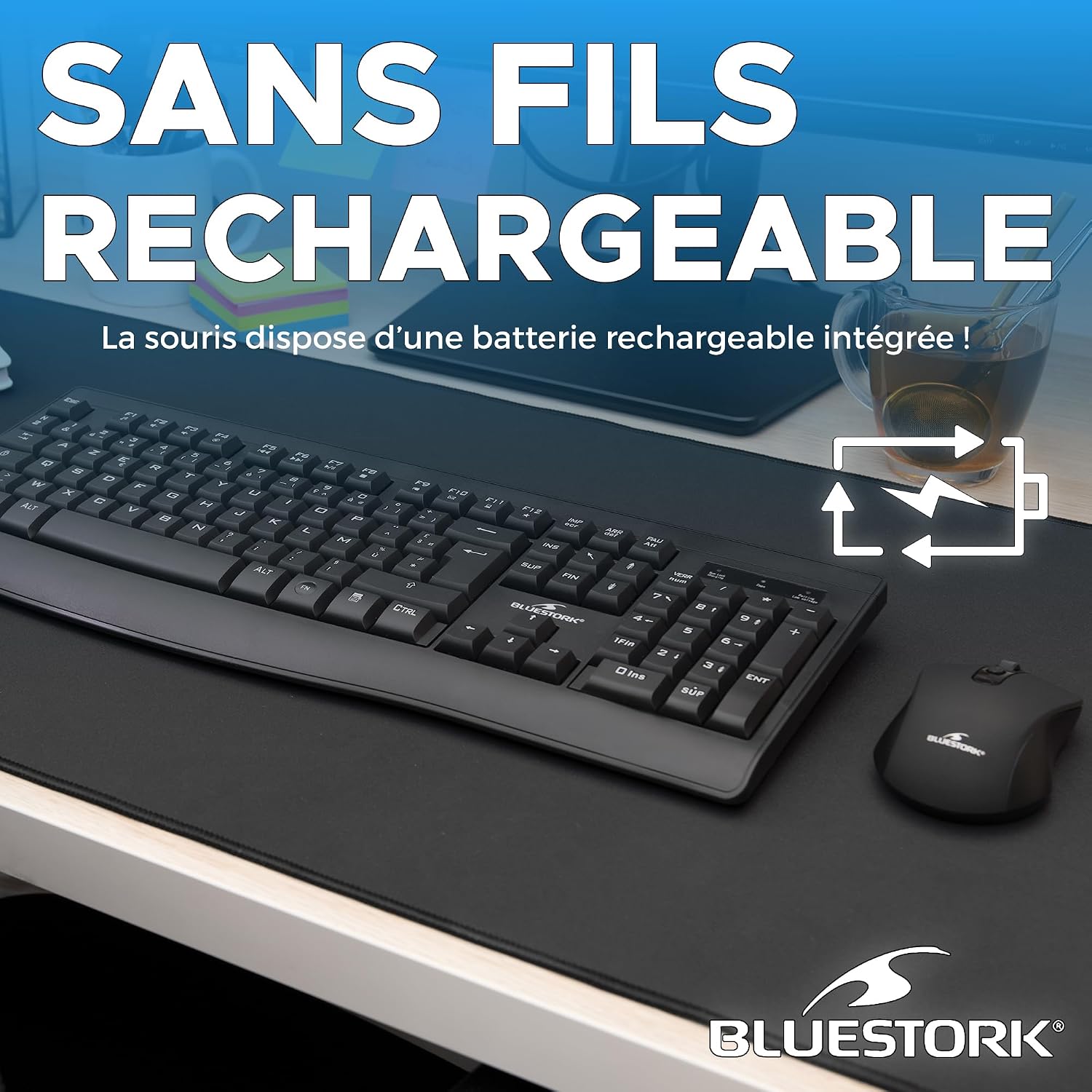
The BlueStork wireless mouse features an integrated rechargeable battery, eliminating the need for disposable batteries.
2. Connecting the USB Receiver
The keyboard and mouse connect wirelessly via a single 2.4 GHz USB receiver.
- Locate the USB receiver, usually stored in a compartment on the underside of the mouse.
- Plug the USB receiver into an available USB port on your computer.
- Your operating system should automatically detect and install the necessary drivers. This may take a few moments.
- Turn on the keyboard and mouse using their respective power switches (usually located on the underside).

The combo utilizes a stable 2.4 GHz wireless connection, providing a range of up to 10 meters for flexible placement and use.
Operating Instructions
Keyboard Functions
The keyboard features a standard AZERTY FR layout with 105 keys, including 12 multimedia shortcut keys for enhanced productivity.
- Multimedia Keys: Located at the top of the keyboard (F1-F12), these keys provide quick access to functions like volume control, media playback, web browser, email, and more. Press the 'Fn' key simultaneously with the desired F-key to activate its multimedia function.
- Ergonomic Design: The keyboard's ultra-slim profile and quiet keys are designed for comfortable typing, reducing wrist strain during prolonged use.
Mouse Functions
The ergonomic mouse offers precise control and comfortable handling.
- DPI Adjustment: The mouse features a DPI button, typically located behind the scroll wheel, allowing you to cycle through 3 DPI levels: 800, 1200, and 1600. Choose the sensitivity that best suits your task.
- Silent Clicks: The mouse is designed with silent click buttons to minimize noise, creating a quieter work environment.
- Ambidextrous Design: Its symmetrical design makes it suitable for both left-handed and right-handed users.

The mouse offers three adjustable DPI levels (800, 1200, 1600) for precise cursor control, easily changed with the dedicated DPI button.

The keyboard features silent keys, and the mouse offers silent clicks, ensuring a quiet working environment for you and those around you.

Both the keyboard and mouse are designed for comfort, featuring an ultra-slim profile to promote a natural hand posture and reduce wrist strain during extended use.
Maintenance
- Cleaning: Use a soft, dry cloth to clean the surfaces of the keyboard and mouse. For stubborn dirt, a slightly damp cloth with mild soap can be used, ensuring no liquid enters the device.
- Charging: Recharge the devices when the battery indicator shows low power. Avoid completely draining the battery frequently to prolong its lifespan.
- Storage: When not in use for extended periods, turn off both devices to conserve battery. Store them in a cool, dry place.
- Avoid Extreme Conditions: Do not expose the devices to extreme temperatures, direct sunlight, or high humidity.
Troubleshooting
- No Response from Keyboard/Mouse:
- Ensure both devices are turned on.
- Check battery levels and recharge if necessary.
- Ensure the USB receiver is securely plugged into a working USB port. Try a different USB port.
- Restart your computer.
- If the issue persists, try re-pairing the devices with the receiver (refer to manufacturer's website for specific re-pairing instructions if needed, as this model typically auto-pairs).
- Lag or Intermittent Connection:
- Move the devices closer to the USB receiver.
- Ensure there are no large metal objects or other wireless devices (e.g., Wi-Fi routers, cordless phones) interfering with the 2.4 GHz signal.
- Check battery levels.
- Mouse Cursor Jumps or is Inaccurate:
- Clean the optical sensor on the underside of the mouse.
- Use the mouse on a clean, non-reflective surface or a mouse pad.
- Adjust the DPI setting using the DPI button.
Specifications
| Feature | Detail |
|---|---|
| Brand | Bluestork |
| Model Number | PACK-WL-OFF-R-B/FR |
| Connectivity Technology | 2.4 GHz Wireless (USB Receiver) |
| Wireless Range | Up to 10 meters |
| Keyboard Layout | AZERTY FR (105 keys) |
| Keyboard Special Features | 12 Multimedia Shortcut Keys, Ergonomic Design, Silent Keys, Rechargeable |
| Mouse DPI Levels | 800 / 1200 / 1600 (Adjustable) |
| Mouse Special Features | Ergonomic Design, Ambidextrous, Silent Clicks, Optical Sensor, Rechargeable |
| Battery Life | Approx. 90 hours (per charge) |
| Compatible Operating Systems | Windows 10, Windows 11, and later versions |
| Compatible Devices | Personal Computer, Laptop, Game Console |
| Color | Black |
| Manufacturer | AXS |
Warranty and Support
Warranty Information
This BlueStork product is covered by a 2-year warranty from the date of purchase. This warranty covers manufacturing defects and material faults under normal use. It does not cover damage caused by misuse, accidents, unauthorized modifications, or normal wear and tear.
Please retain your proof of purchase for warranty claims.
Customer Support
If you encounter any issues or have questions regarding your BlueStork Wireless Rechargeable Keyboard and Mouse Combo that are not addressed in this manual, please refer to the manufacturer's official website or contact their customer support for assistance.


