
1. Product Overview
The Haozee Tuya WiFi Temperature Sensor (Model AT-WIFI-HT) is designed for real-time temperature monitoring in various environments. It features an external waterproof probe, a clear LCD display, and smart connectivity via WiFi, allowing integration with smart home systems like Amazon Alexa and Google Home. This device is suitable for monitoring temperatures in freezers, refrigerators, aquariums, incubators, and other critical areas.

Image 1.1: Haozee Tuya WiFi Temperature Sensor connected to a smartphone displaying temperature data.
Key Features:
- Smart WiFi Control: Monitor temperature remotely via the Tuya Smart Life app.
- External Waterproof Probe: Detects temperatures from -40°C to +120°C, suitable for various applications including water temperature measurement.
- LCD Backlit Display: A 3-inch backlit LCD screen ensures clear readability in low-light conditions.
- Voice Control Compatibility: Works with Amazon Alexa and Google Home for hands-free temperature inquiries.
- Intelligent Alerts: Set temperature alarm ranges via the app. The device provides audible alarms and visual alerts on the LCD when temperatures exceed predefined limits.
- Battery Backup: Equipped with a rechargeable 3.7V/600mAh battery, providing approximately 5-6 hours of operation during power outages.
2. Setup Guide
2.1 Package Contents
- Haozee Tuya WiFi Temperature Sensor (Main Unit)
- External Waterproof Temperature Probe
- USB Power Cable (DC5V1A)
- User Manual
- Magnetic Mount with self-adhesive metal discs (if included)
2.2 Powering On the Device
- Connect the provided USB power cable to the sensor's power input port.
- Plug the other end of the USB cable into a DC5V1A power adapter (not always included, use a compatible adapter).
- The device will power on, and the LCD display will illuminate.
- Ensure the internal rechargeable battery is charged for backup functionality.
2.3 Connecting the External Probe
Insert the external waterproof temperature probe into the designated port on the sensor unit. Ensure it is securely connected. The sensor will automatically begin detecting temperature from the external probe.

Image 2.1: Rear view of the sensor unit, highlighting the On/Off switch and pairing key.
2.4 App Installation and Pairing
- Download the Tuya Smart or Smart Life app from your smartphone's app store (iOS or Android).
- Register or log in to your account.
- Ensure your smartphone is connected to a 2.4GHz WiFi network. The sensor does not support 5GHz WiFi.
- On the sensor unit, press and hold the Pairing Key (refer to Image 2.1) until the WiFi indicator light starts blinking rapidly.
- In the app, tap the "Add Device" (+) icon.
- Select "Temperature Sensor" or "Sensor (Wi-Fi)" from the device list.
- Follow the on-screen instructions in the app to connect the sensor to your WiFi network. This typically involves confirming the WiFi network and entering the password.
- Once successfully paired, the device will appear in your app, and you can view real-time temperature data.

Image 2.2: The Tuya Smart Life app displaying temperature monitoring interface.
3. Operation
3.1 Real-time Monitoring
- On Device: The current temperature is displayed on the LCD screen.
- Via App: Open the Tuya Smart or Smart Life app to view real-time temperature data from anywhere with an internet connection. The app also provides historical data.
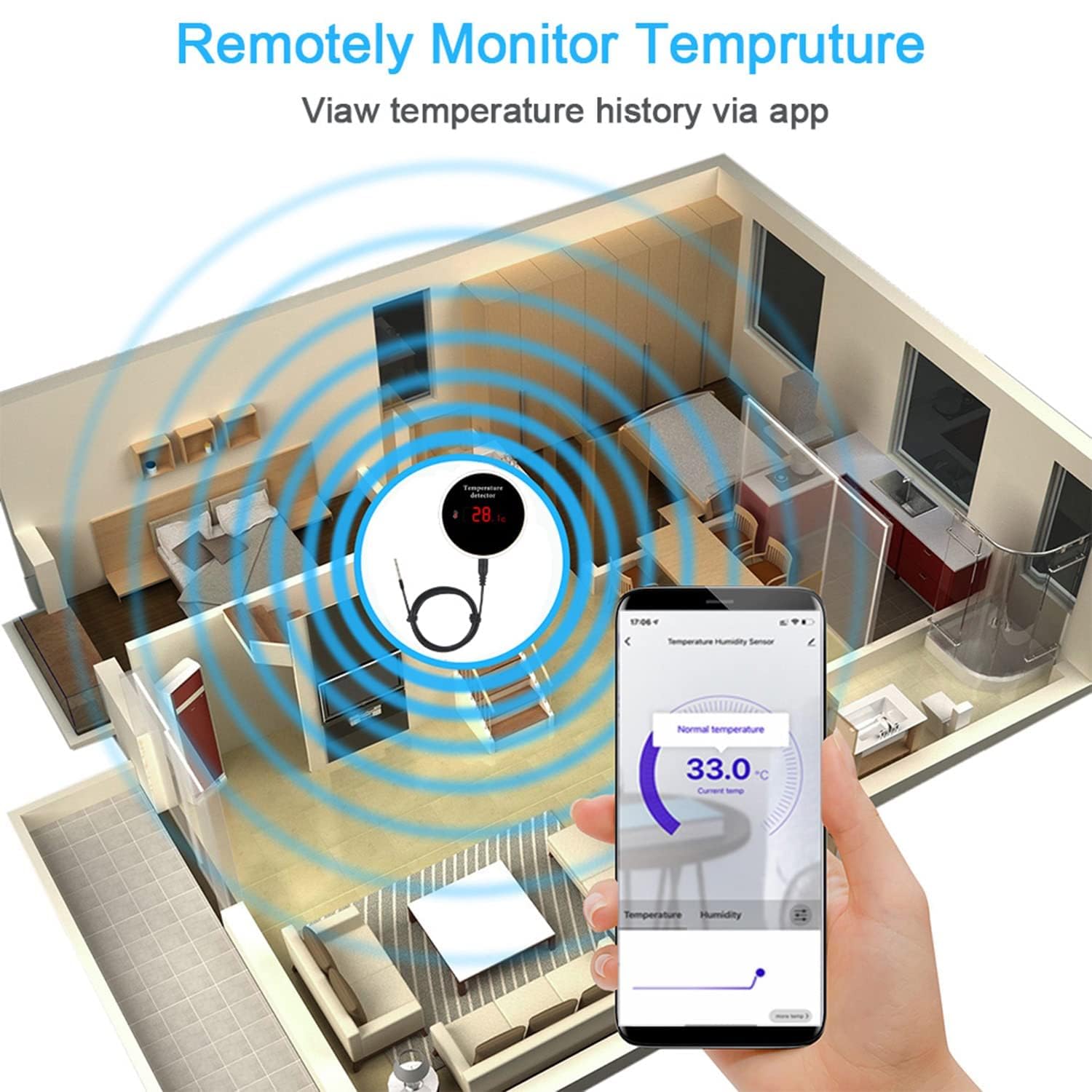
Image 3.1: Remote monitoring of temperature via the smartphone application.
3.2 Setting Up Alerts
- In the Tuya Smart or Smart Life app, navigate to the sensor's device page.
- Locate the "Alarm Settings" or "Temperature Range" option.
- Set your desired upper and lower temperature thresholds.
- When the temperature exceeds these limits, the sensor will emit an audible alarm for 30 seconds, and the temperature values on the LCD will flash. You will also receive notifications on your smartphone.
3.3 Voice Control Integration
The sensor can be integrated with Amazon Alexa and Google Home for voice commands.
- Ensure your sensor is successfully paired with the Tuya Smart or Smart Life app.
- Open the Amazon Alexa or Google Home app.
- Enable the "Tuya Smart" or "Smart Life" skill/service.
- Discover new devices.
- Once linked, you can ask for the current temperature using commands like:
- "Alexa, what is the temperature of [device name]?"
- "Hey Google, what's the temperature in the [device name]?"

Image 3.2: Voice control integration with Amazon Alexa and Google Home.
3.4 Intelligent Linkage (Automation)
Using the Tuya app, you can create automation scenarios (scenes) based on temperature readings. For example, you can set up a rule to turn on an air conditioner via a compatible smart IR remote when the temperature exceeds a certain threshold.

Image 3.3: Example of intelligent linkage for home automation.
4. Maintenance
4.1 Cleaning
Wipe the main unit with a soft, dry cloth. Do not use abrasive cleaners or immerse the main unit in water. The external probe is waterproof and can be cleaned with a damp cloth.
4.2 Battery Care
The device contains a rechargeable Lithium-ion battery. For optimal battery life, avoid fully discharging the battery frequently. Keep the device connected to power when possible, as the battery is primarily for backup during power interruptions.
4.3 Storage
When not in use for extended periods, store the device in a cool, dry place. It is recommended to charge the battery periodically to prevent deep discharge.
5. Troubleshooting
| Problem | Possible Cause | Solution |
|---|---|---|
| Device not powering on. | No power supply or faulty cable/adapter. | Ensure the USB cable is securely connected to a working DC5V1A power adapter and outlet. Check the On/Off switch on the back of the device. |
| Cannot connect to WiFi / Frequent disconnections. | Incorrect WiFi password, 5GHz network, weak signal, or router issues. |
|
| Inaccurate temperature readings. | Probe not properly connected or environmental factors. |
|
| Battery backup duration is short. | Battery is designed for short-term backup, not continuous operation. | The internal battery provides backup power for approximately 5-6 hours. For continuous operation, the device should remain connected to its DC5V1A power supply. |
| Voice control not working. | Incorrect setup with Alexa/Google Home or device name issues. |
|
6. Specifications
| Model Number | AT-WIFI-HT |
| Brand | Haozee |
| Working Voltage | 5V 1A |
| Power Consumption | 1.5W |
| Built-in Battery | 3.7V/600mAh Lithium-ion |
| Battery Life (Backup) | Approx. 5-6 hours |
| Detection Temperature Range | -40°C to +120°C (-40°F to +248°F) |
| Detection Humidity Range | 0% to 100% (Note: Product description mentions humidity detection, but reviews state it only measures temperature. Clarifying based on product description.) |
| Temperature Detection Accuracy | ±0.5°C |
| Humidity Detection Accuracy | ±5-10% (if applicable) |
| Connectivity | Wi-Fi (2.4GHz only) |
| Display Type | LCD Screen |
| Dimensions (Package) | 13 x 10.3 x 6.9 cm |
| Weight (Package) | 260 grams |
| Material | Plastic |
| Certifications | CE |
Note: While the product description mentions humidity detection, some user reviews indicate the device primarily measures temperature. Please refer to the manufacturer's latest specifications for definitive details on humidity measurement.
7. Warranty and Support
7.1 Warranty Information
Specific warranty details may vary by region and retailer. Please refer to your purchase documentation or contact the seller directly for information regarding warranty coverage.
7.2 Customer Support
For technical assistance, troubleshooting beyond this manual, or inquiries about your Haozee product, please contact the seller or manufacturer through the platform where you purchased the device. Provide your model number (AT-WIFI-HT) and purchase details for faster service.


