
ORICO ORICO-DPL12
ORICO 12-in-1 DisplayLink Docking Station User Manual
Model: ORICO-DPL12
1. Introduction
This manual provides detailed instructions for the setup, operation, and maintenance of your ORICO 12-in-1 DisplayLink Docking Station. This device expands the capabilities of your USB-C enabled laptop or computer, allowing for multiple display outputs, high-speed data transfer, and network connectivity.
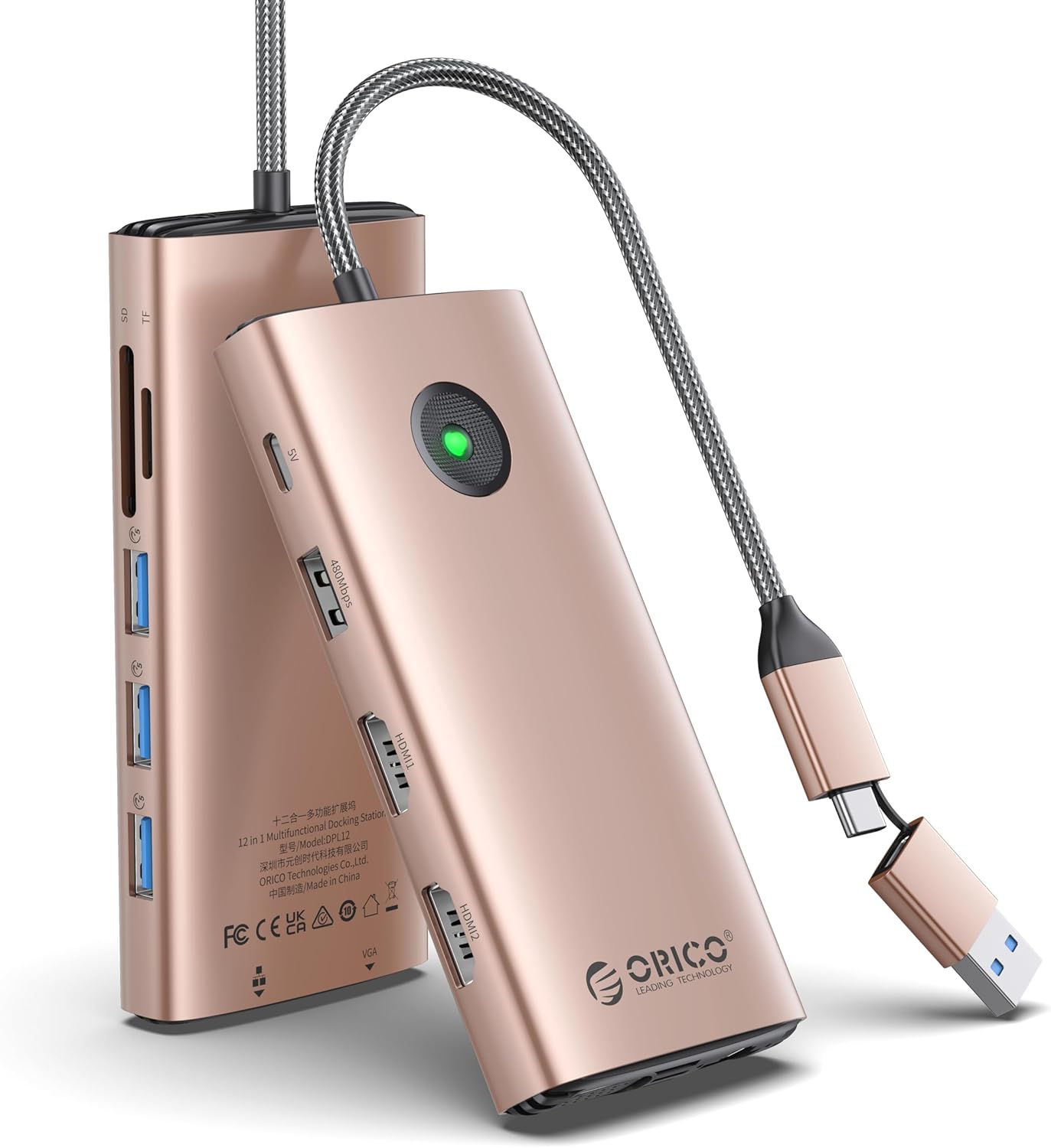
Image: The ORICO 12-in-1 DisplayLink Docking Station in Rose Gold, showcasing its compact design and integrated USB-C cable.
2. Key Features
The ORICO 12-in-1 DisplayLink Docking Station offers comprehensive connectivity solutions:
- DisplayLink Technology: Enables dual or triple display output for USB-C devices, including MacBook M1/M2/M3, Windows, and Linux systems. Requires DisplayLink driver installation.
- Video Outputs: Two HDMI 2K@60Hz ports and one VGA 1080P@60Hz port for multi-monitor setups.
- USB Data Ports: Three USB-A 3.0 ports (up to 5Gbps) and one USB-A 2.0 port (480Mbps) for peripherals and data transfer.
- Ethernet: Gigabit Ethernet (RJ45) port for stable wired network connection (1000Mbps).
- Card Readers: SD and TF card slots for convenient memory card access.
- Audio: 3.5mm audio jack for headphones or speakers.
- Power Input: USB-C 5V/3A port to power the docking station.
- 2-in-1 Cable Design: Integrated USB-C cable with a USB-A adapter for broad compatibility.

Image: Detailed view of the ORICO 12-in-1 docking station, highlighting each port and its function, including HDMI, VGA, USB-A, USB-C, Ethernet, SD/TF card slots, and audio jack.
3. Setup Instructions
3.1. Driver Installation (Essential for Display Functionality)
The ORICO DisplayLink Docking Station requires the DisplayLink driver to be installed on your computer for proper video output functionality, especially for multiple displays. This applies to Windows, macOS (including M1/M2/M3 chips), and Linux systems.
- Download Driver: Visit the official DisplayLink website (e.g., www.synaptics.com).
- Locate Driver: Navigate to "Products" > "DisplayLink Graphics" and select the appropriate driver for your operating system (Windows, macOS, or Linux).
- Install Driver: Download the driver, accept the terms, and follow the on-screen instructions to install it.
- System Permissions (macOS): For macOS users, you may need to grant specific permissions under "Privacy & Security" settings for DisplayLink to function correctly.
- Restart: After installation, restart your computer.

Image: A visual guide illustrating the four steps to download and install the DisplayLink driver from the Synaptics website, including setting up resolution and privacy settings.
3.2. Connecting the Docking Station
- Connect Power: Plug a 5V/3A USB-C power adapter (not included) into the USB-C 5V/3A port on the docking station. This provides power to the docking station itself. Note: This port supplies power to the docking station only, not for charging your laptop.
- Connect to Computer: Use the integrated USB-C cable to connect the docking station to your laptop's USB-C port. If your computer only has USB-A ports, use the included USB-A adapter.
- Connect Displays: Connect your monitors to the HDMI (2K@60Hz) and/or VGA (1080P@60Hz) ports on the docking station using appropriate cables.
- Connect Peripherals: Plug in your USB devices (keyboard, mouse, external drives) into the USB-A 3.0 or USB-A 2.0 ports.
- Connect Network: For a wired internet connection, connect an Ethernet cable to the RJ45 Gigabit Ethernet port.
- Connect Audio: If desired, connect headphones or speakers to the 3.5mm audio jack.

Image: The ORICO docking station connected to a laptop, with a power adapter plugged into the USB-C 5V/3A input port, indicating power supply for the docking station.

Image: A close-up of the docking station's integrated cable, showing both the USB-C connector and the detachable USB-A adapter, illustrating its versatile connectivity.
4. Operating Instructions
4.1. Display Configuration
After installing the DisplayLink driver and connecting your monitors, you can configure your display settings through your operating system.
- Windows: Right-click on the desktop, select "Display settings." Here you can detect displays, arrange them, and choose between "Extend these displays," "Duplicate these displays," or "Show only on 1/2/3."
- macOS: Go to "System Settings" (or "System Preferences") > "Displays." You can arrange displays, set resolutions, and choose between "Mirror Displays" or "Use as separate display" (Extend).
- Linux: Use your desktop environment's display settings utility (e.g., GNOME Displays, KDE System Settings).
The docking station supports various display configurations:
- Single Display Output: Connect one monitor to either HDMI 1, HDMI 2, or VGA.
- Dual Display Output: Connect two monitors using any combination of HDMI 1, HDMI 2, or VGA.
- Triple Display Output: Connect three monitors simultaneously using HDMI 1, HDMI 2, and VGA.

Image: A user working with a laptop connected to the ORICO docking station, driving three external monitors, demonstrating a triple display setup for enhanced productivity.

Image: Diagrams illustrating mirror and extend display modes for both macOS (Apple M1/M2 compatible) and Windows operating systems, showing how screens can be configured.
4.2. Data Transfer and Network
- USB 3.0 Ports: Use the three USB-A 3.0 ports for high-speed data transfer up to 5Gbps with compatible devices like external hard drives or flash drives.
- USB 2.0 Port: The USB-A 2.0 port is suitable for connecting peripherals such as keyboards, mice, or printers.
- SD/TF Card Slots: Insert your SD or TF (MicroSD) cards into the respective slots to access data.
- Gigabit Ethernet: The RJ45 port provides a stable and fast wired network connection up to 1000Mbps, ideal for reliable internet access.

Image: A visual representation of the 5Gbps data transfer speed capability of the USB 3.0 ports on the ORICO docking station, compared to USB 2.0's 480Mbps.

Image: A laptop connected to the ORICO docking station, showcasing the Gigabit Ethernet port with a network cable and headphones connected to the 3.5mm audio jack.
4.3. Audio Output
Connect your headphones or speakers to the 3.5mm audio jack on the docking station. You may need to select the docking station as the default audio output device in your computer's sound settings.
5. Maintenance
- Cleaning: Use a soft, dry cloth to clean the exterior of the docking station. Avoid liquid cleaners or abrasive materials.
- Storage: Store the docking station in a cool, dry place away from direct sunlight and extreme temperatures.
- Handling: Handle the device with care. Avoid dropping it or exposing it to excessive force.
- Cable Management: Ensure cables are not excessively bent or tangled to prevent damage.
6. Troubleshooting
| Problem | Possible Solution |
|---|---|
| Displays are not detected or not working. |
|
| USB devices are not recognized. |
|
| No internet connection via Ethernet. |
|
| Audio is not coming from headphones/speakers. |
|
| Docking station feels warm. | It is normal for the docking station to generate some heat during operation, especially when multiple ports are in use or when driving multiple displays. If it becomes excessively hot, disconnect it and contact support. |
7. Specifications
| Feature | Detail |
|---|---|
| Model Number | ORICO-DPL12 |
| Brand | ORICO |
| Product Dimensions | 6.14 x 2.2 x 1.25 inches |
| Item Weight | 8.4 ounces |
| Hardware Interface | Ethernet, HDMI, MicroSD, MiniSD, USB 2.0 Type A, USB 3.0 Type A, VGA |
| HDMI Output | 2x HDMI 2K@60Hz |
| VGA Output | 1x VGA 1080P@60Hz |
| USB-A 3.0 Ports | 3x (up to 5Gbps) |
| USB-A 2.0 Port | 1x (up to 480Mbps) |
| Ethernet Port | 1x Gigabit RJ45 (1000Mbps) |
| Card Slots | SD, TF (MicroSD) |
| Audio Jack | 1x 3.5mm |
| Power Input | USB-C 5V/3A (for docking station power) |
| Compatible Systems | Windows, macOS (M1/M2/M3), Linux |
| Compatible Devices | MacBook Air, iMac, MacBook, PC, Host devices with USB-C or USB-A |

Image: A table detailing the supported resolutions and refresh rates for single, dual, and triple video outputs via HDMI and VGA ports. Note: Actual output resolution depends on cables and displays used.

Image: An illustration showing the compact dimensions of the ORICO docking station (156mm length, 56mm width) and its lightweight nature, fitting easily into a pocket or bag.

Image: A graphic depicting the universal compatibility of the docking station with various operating systems (Windows, macOS, Linux) and devices (iMac, MacBook, PC, Host).
8. Warranty and Support
ORICO products typically come with a standard manufacturer's warranty. Please refer to the product packaging or the official ORICO website for specific warranty terms and conditions.
For technical support, troubleshooting assistance, or warranty claims, please contact ORICO customer service through their official website or the retailer where the product was purchased.
Related documentsORICO-DPL12


Ask a question about this manual
Ask about setup, troubleshooting, compatibility, parts, safety, or missing instructions. Manuals+ will review the question and use this page’s manual context to help answer it.