
1. Introduction
This manual provides detailed instructions for the installation, operation, and maintenance of your Fortdows 10.1-inch Car Stereo Radio. This unit is designed for Jeep Patriot and Compass models manufactured between 2010 and 2016, offering an integrated Android system with advanced features such as Wireless CarPlay, Android Auto, Bluetooth 5.0, GPS navigation, Wi-Fi connectivity, and a 1080P backup camera.
Key features include:
- 10.1-inch 1280*800 resolution touch screen for clear visuals.
- Built-in Wireless CarPlay and Android Auto for seamless smartphone integration.
- Integrated GPS for online and offline navigation.
- Wi-Fi and Mobile Hotspot support.
- Bluetooth 5.0 for hands-free calls and music streaming.
- 1080P rear-view camera with night vision and 170° wide-angle view.
- Steering wheel control compatibility.
- Built-in 15-band EQ for audio customization.
2. Setup and Installation
Before beginning installation, ensure your vehicle is turned off and the battery is disconnected. Refer to your vehicle's service manual for specific dashboard removal procedures. The package includes all necessary cables and a CAN-BUS decoder for integration with your vehicle's systems.
2.1 Package Contents
Verify that all components are present:
- Car Stereo Unit
- Power Cable
- Original USB Cable
- USB Cables (x2)
- RCA Cable Set
- GPS Antenna
- Backup Camera
- Reversing Line
- Crowbar (for panel removal)
- External Microphone
- CAN-BUS Decoder
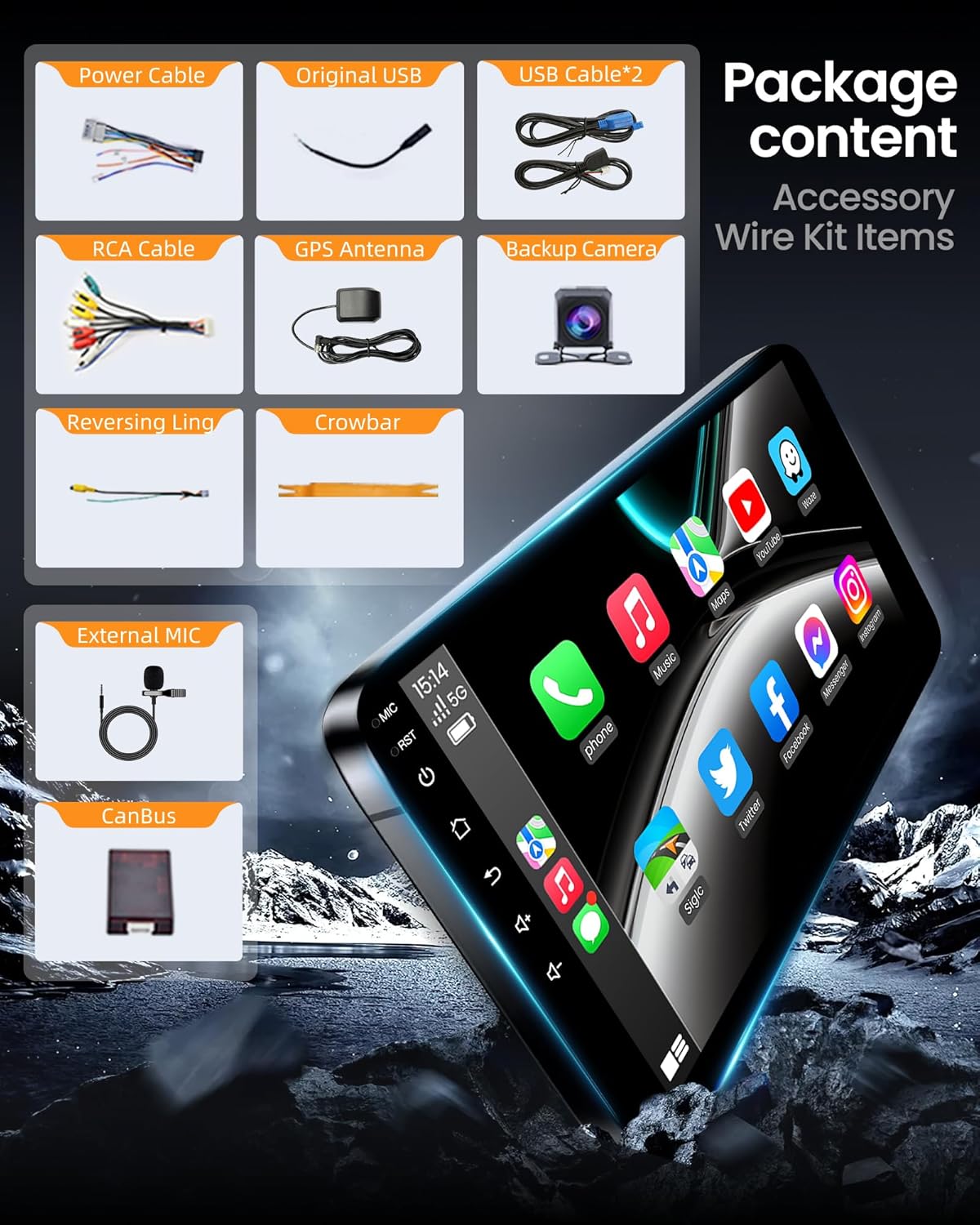
Image: Overview of the Fortdows car stereo package contents, including the main unit, wiring harnesses, GPS antenna, and backup camera.
2.2 Wiring and Connections
Connect the provided wiring harnesses to the corresponding ports on the car stereo unit. Ensure all connections are secure to prevent intermittent issues. The CAN-BUS decoder should be connected as per the included wiring diagram to enable steering wheel controls and other vehicle-specific functions.
Video: A demonstration of connecting the various cables and components to the Fortdows car stereo unit during installation.
Specific connections include:
- Power Cable: Connects to the main power harness of the vehicle.
- RCA Cables: For audio/video input/output, including subwoofer and amplifier connections.
- Microphone: Connect the external microphone for improved call quality.
- USB Cables: For connecting USB devices and for CarPlay/Android Auto functionality.
- 4G Antenna (if applicable): Connect for enhanced mobile network reception.
- GPS Antenna: Connect for accurate navigation and location services.
- Rear Camera Signal Wire: Connect for backup camera functionality.
- CANBUS: Connect the CANBUS decoder to the main harness for vehicle data communication.
3. Operating Instructions
3.1 Wi-Fi and Hotspot Connection
To access online features, connect the unit to a Wi-Fi network or a mobile hotspot. Navigate to the 'Settings' menu, select 'Wi-Fi', and turn it on. Choose your desired network and enter the password if prompted.
Video: Demonstration of connecting the car stereo to a Wi-Fi network and utilizing a mobile hotspot.

Image: Visual representation of the unit's 5G Wi-Fi capability, highlighting network speed and connectivity.
3.2 Bluetooth Connection
Enable Bluetooth on your smartphone and on the car stereo. In the stereo's Bluetooth settings, search for available devices and select your phone. Confirm the pairing code if prompted. Once connected, you can make hands-free calls and stream audio.

Image: Diagram showing Bluetooth 4.0 functionality for phone calls, music streaming, and phone book access.
3.3 Wireless CarPlay and Android Auto
Connect your compatible smartphone wirelessly via Bluetooth to activate CarPlay or Android Auto. This allows you to access navigation, messaging, music, and other apps directly from the stereo's touch screen or via voice commands.

Image: Display of the car stereo showcasing both Apple CarPlay and Android Auto interfaces, highlighting navigation, music, and phone call functions.

Image: Illustration detailing the dual-connectivity for CarPlay and Android Auto, including voice command capabilities for navigation and music.
3.4 GPS Navigation
The unit supports both online and offline maps. After connecting the GPS antenna, you can use pre-installed map applications or download others via Wi-Fi. Plan routes using coordinates, postal codes, or points of interest.

Image: The car stereo screen showing a GPS navigation map with route guidance and precise positioning.
3.5 FM Radio
Access the FM Radio application to listen to local broadcasts. You can manually tune to frequencies or use the scan function to find stations. The unit supports FM RDS (Radio Data System) for displaying station information.

Image: The car stereo displaying the FM RDS Radio interface, indicating current frequency and radio functions.
3.6 EQ Settings
Customize your audio experience using the built-in 15-band equalizer. Access the EQ settings through the 'Apps' menu to adjust sound frequencies, balance, and fader settings for optimal sound quality.

Image: The car stereo's interface for professional DSP sound settings, showing the equalizer and sound field adjustments.

Image: A visual representation of the EQ HiFi Music settings, emphasizing sound processing and quality enhancement.
3.7 Steering Wheel Controls
The unit supports your vehicle's original steering wheel controls, allowing you to manage audio playback, answer calls, and adjust volume without diverting attention from the road. Ensure the CAN-BUS decoder is correctly installed for this functionality.
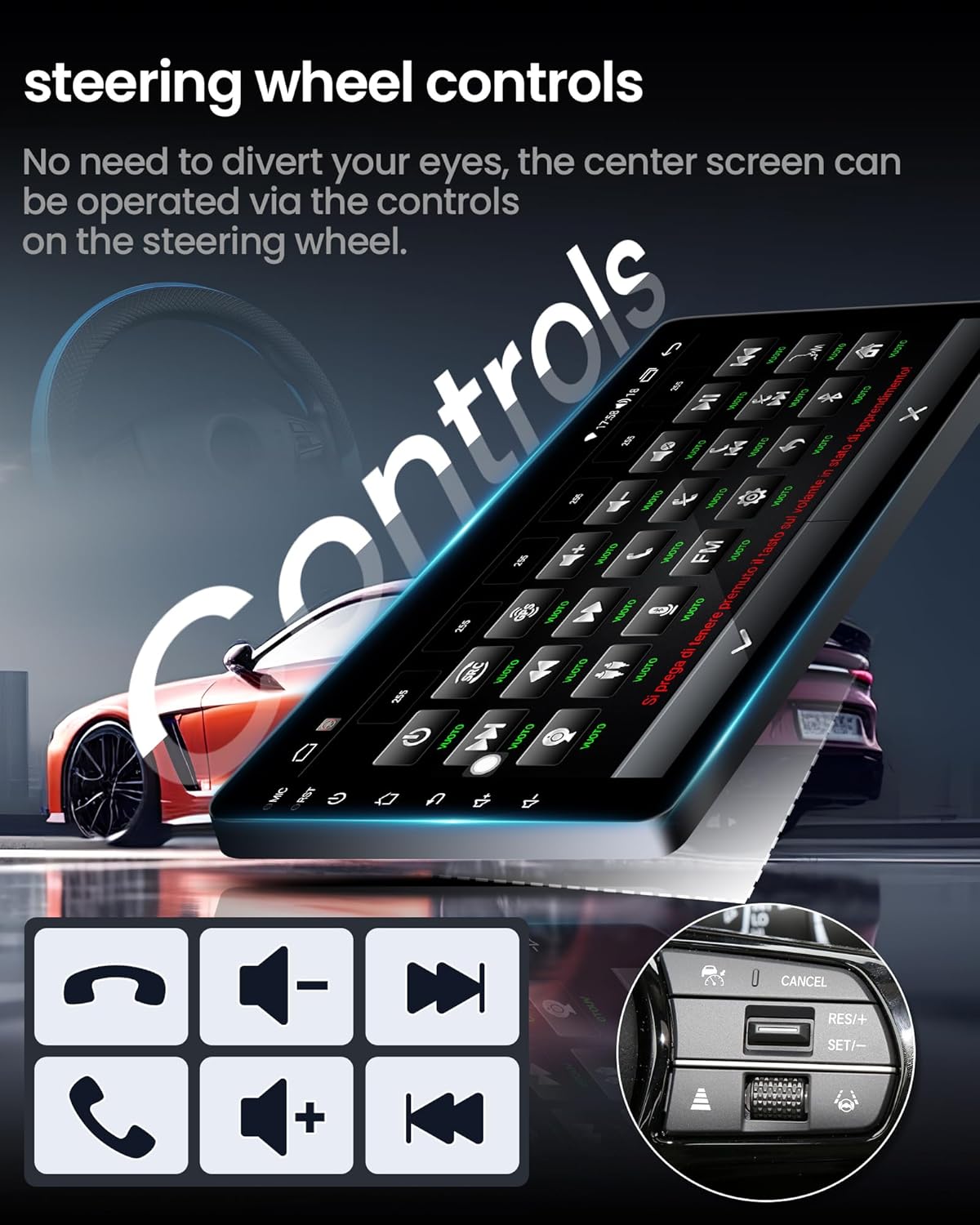
Image: The car stereo screen alongside an illustration of steering wheel controls, indicating functions like call management and volume adjustment.

Image: A graphic emphasizing the car stereo's support for original steering wheel controls, allowing for convenient operation.
3.8 Rear View Camera
When the vehicle is shifted into reverse, the car stereo automatically displays the feed from the 1080P rear-view camera. This camera features night vision and a 170° wide-angle view for enhanced safety.

Image: The car stereo screen showing the reverse display from the backup camera, complete with parking assistance lines.

Image: A graphic illustrating the 1080P rear view camera's features, such as high definition, night vision, and a wide 170-degree viewing angle.
3.9 Mirror Link
The Mirror Link function allows you to mirror your smartphone's screen (both Android and iOS) onto the car stereo display. This enables viewing content from your phone directly on the larger screen.
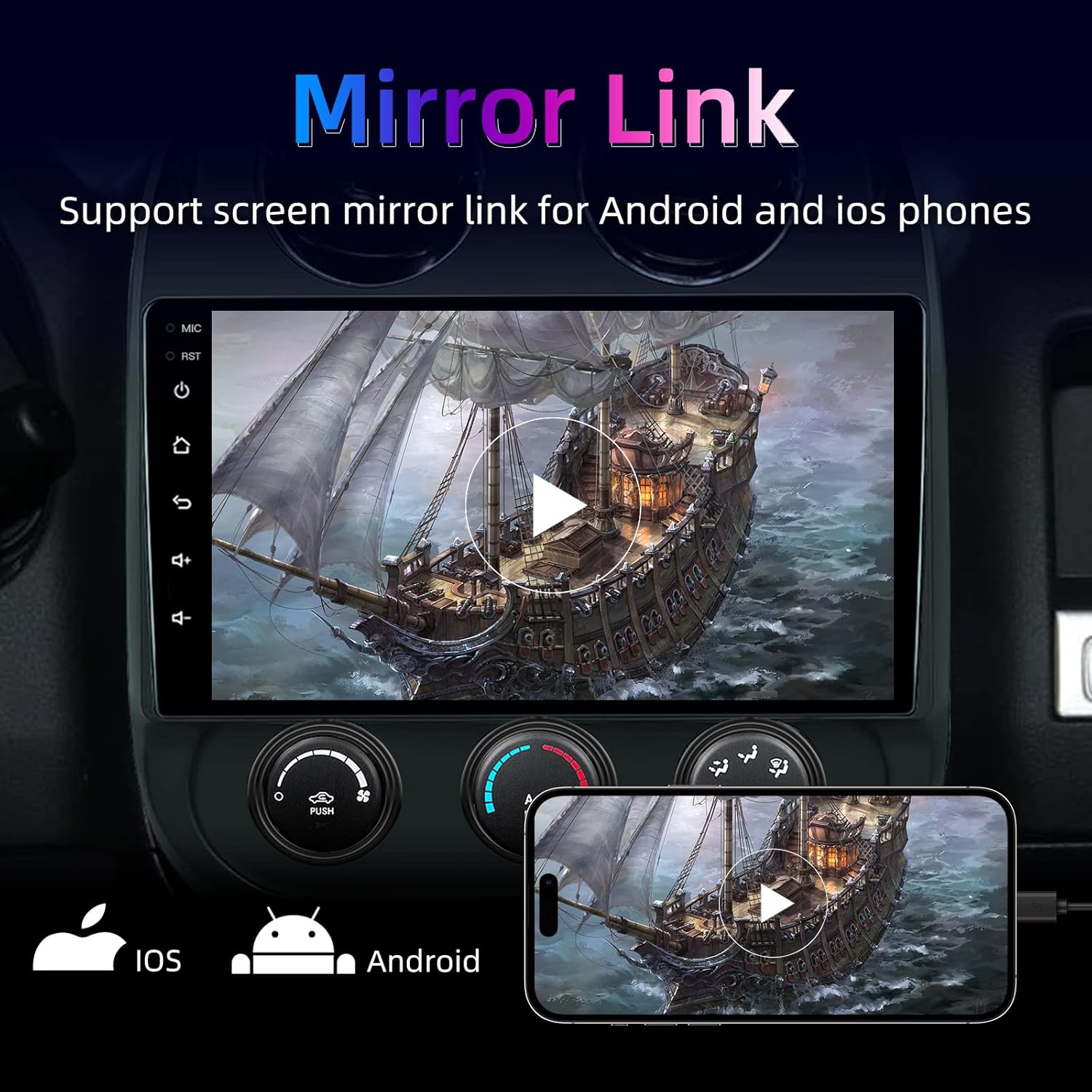
Image: The car stereo screen demonstrating the Mirror Link function, displaying content from a connected smartphone.
4. Maintenance
To ensure the longevity and optimal performance of your car stereo, follow these maintenance guidelines:
- Cleaning: Use a soft, dry cloth to clean the screen and exterior. Avoid abrasive cleaners or solvents.
- Software Updates: Periodically check for software updates to ensure the system runs efficiently and has the latest features. Updates can typically be found on the manufacturer's website or through the unit's settings if an internet connection is available.
- Environmental Conditions: Avoid exposing the unit to extreme temperatures, direct sunlight for prolonged periods, or excessive moisture.
5. Troubleshooting
If you encounter issues with your car stereo, refer to the following common problems and solutions:
- Unit does not power on: Check all power connections and fuses. Ensure the vehicle's battery is properly connected and charged.
- No sound: Verify speaker connections, volume levels, and EQ settings. Check if the mute function is activated.
- Bluetooth not connecting: Ensure Bluetooth is enabled on both the stereo and your phone. Try restarting both devices and re-pairing. Check if the device name is visible during scanning.
- GPS signal lost or inaccurate: Ensure the GPS antenna is properly installed and has a clear view of the sky. Check map application settings.
- Backup camera not displaying: Verify the rear camera signal wire connection. Ensure the camera is receiving power and is properly installed.
- Steering wheel controls not working: Confirm the CAN-BUS decoder is correctly connected and configured in the system settings.
- Touch screen unresponsive: Try restarting the unit. If the issue persists, a factory reset might be necessary (note: this will erase all user data).
6. Specifications
| Feature | Specification |
|---|---|
| Brand | Fortdows |
| Model | 10.1-inch 1GB+32GB |
| Screen Size | 10.1 Inches |
| Resolution | 1280 x 800 |
| RAM | 1GB |
| ROM | 32GB |
| Operating System | Android |
| Connectivity Technology | Bluetooth, USB, Wireless CarPlay, Android Auto, WiFi |
| Special Features | Touchscreen, GPS Navigation, Rear View Camera, Steering Wheel Controls, DSP Sound |
| Mounting Type | Dashboard Mount |
| Item Weight | 4.77 pounds |
| Package Dimensions | 13.62 x 12.36 x 7.64 inches |
7. Warranty and Support
Fortdows products typically come with a 1-Year Warranty and a 7-Day Return Policy for defects. For technical assistance or warranty claims, please contact customer support.
- Email Support: fortows.cam@gmail.com
- Website: www.fancygod.com

Image: Information regarding Fortdows' 1-year warranty, 7-day return policy, and customer support contact details.


