
1. Introduction
This manual provides comprehensive instructions for the installation, operation, and maintenance of your LEDVANCE WiFi Smart Outdoor Camera (Model 75830 Cam v3). This device is designed to enhance your home security by providing high-definition video surveillance with smart features.
The camera integrates with the SYLVANIA App and is compatible with Amazon Alexa and Google Home, allowing for convenient remote management and alerts.
2. Package Contents
Verify that all items are present in your package:
- LEDVANCE WiFi Smart Outdoor Camera (Model 75830 Cam v3)
- Power Adapter (DC 12V/1A)
- Screwdriver Tool
- Mounting Hardware (screws, anchors)
- Quick Start Guide (not included in this manual)
3. Product Overview

Figure 3.1: LEDVANCE WiFi Smart Outdoor Camera (Model 75830 Cam v3)
The LEDVANCE WiFi Smart Outdoor Camera is designed for outdoor use, featuring a weatherproof IP65 rating. It provides 1080p HD video resolution and is equipped with a 1/2.9" 2 Megapixel CMOS image sensor, capable of up to 25 frames per second. The lens is 3.0mm@F2.0 with a 130-degree viewing angle, offering a wide field of view.
Key features include:
- 1080p HD Video: Clear day and night video surveillance.
- Motion Detection: Customizable zone selection to minimize false alerts.
- Sound Detection: Alerts for unusual sounds.
- Night Vision: Effective up to 32.8 feet (10 meters) in low light conditions.
- Two-Way Audio: Communicate through the camera.
- Local Storage: MicroSD slot supports up to 128GB (MicroSD card not included).
- Optional Cloud Storage: Subscription-based cloud storage available.
- Privacy Mode: Temporarily disable recording and live view for privacy.
- Weatherproof (IP65): Designed to withstand outdoor elements.
- Smart Home Integration: Compatible with Amazon Alexa and Google Home.
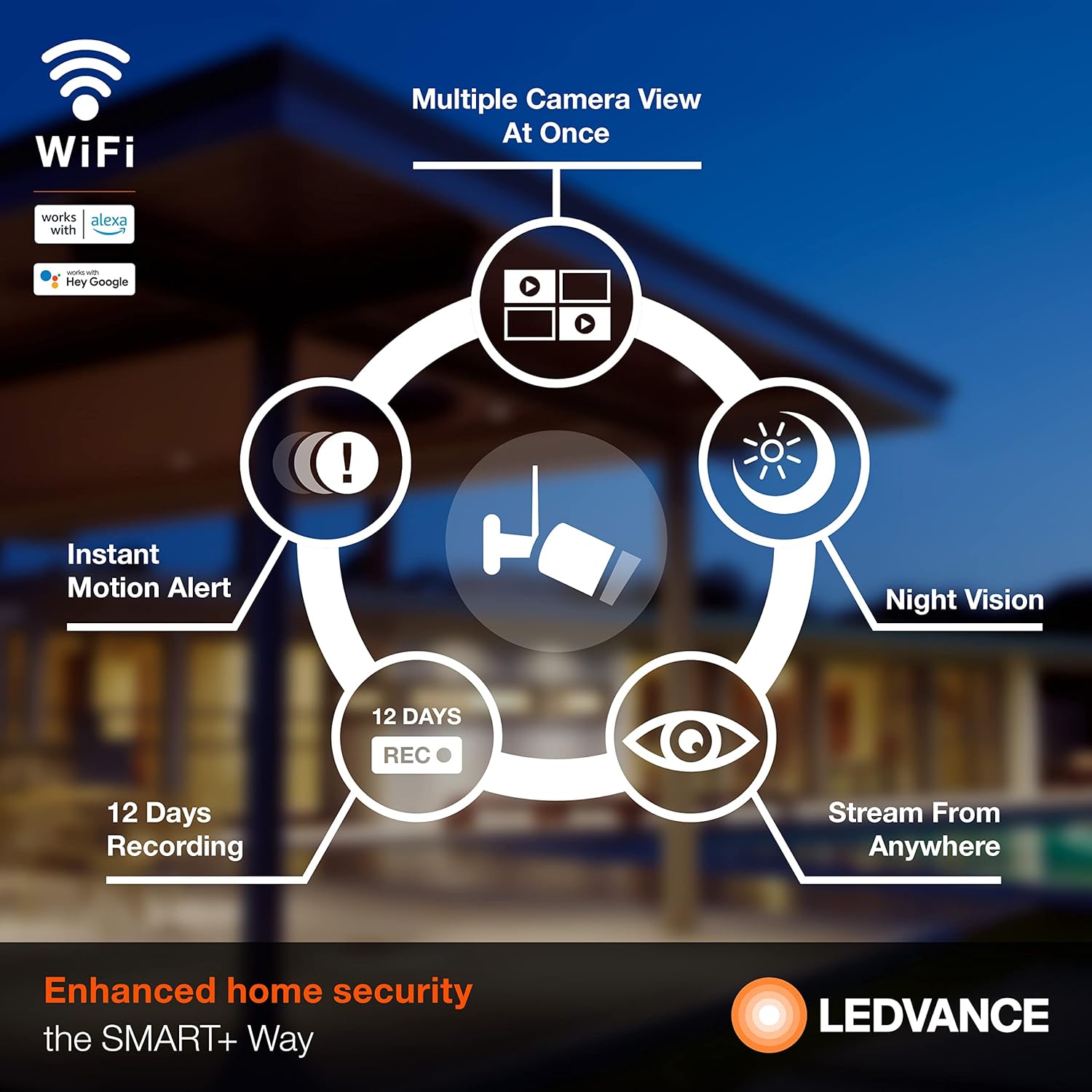
Figure 3.2: Overview of Camera Features
4. Setup
4.1 App Installation
To operate your camera, download the SYLVANIA App from your smartphone's app store (available for iOS and Android devices). Search for "SYLVANIA App" and follow the on-screen instructions to install.
4.2 Account Creation and Device Pairing
- Open the SYLVANIA App and create a new account or log in if you already have one.
- Follow the in-app instructions to add a new device. Select your LEDVANCE WiFi Smart Outdoor Camera from the list of available devices.
- Ensure your smartphone is connected to a 2.4GHz WiFi network. The camera requires a 2.4GHz network for connectivity.
- Power on the camera using the provided power adapter.
- Follow the app's prompts to connect the camera to your WiFi network. This typically involves scanning a QR code displayed on your phone with the camera or entering WiFi credentials.
- Once connected, the camera's status indicator will change, and you will receive a confirmation in the app.
4.3 Physical Installation
The camera is designed for wall mounting. Use the included screwdriver tool and mounting hardware for secure installation.
- Choose a suitable outdoor location that provides the desired viewing angle and is within range of your 2.4GHz WiFi network.
- Mark the drilling points using the camera's mounting base as a template.
- Drill pilot holes and insert the wall anchors if necessary.
- Secure the camera's mounting base to the wall using the provided screws.
- Adjust the camera angle as needed to cover the desired area.
- Connect the power adapter to the camera and plug it into a suitable outdoor power outlet. Ensure the power connection is protected from weather elements.
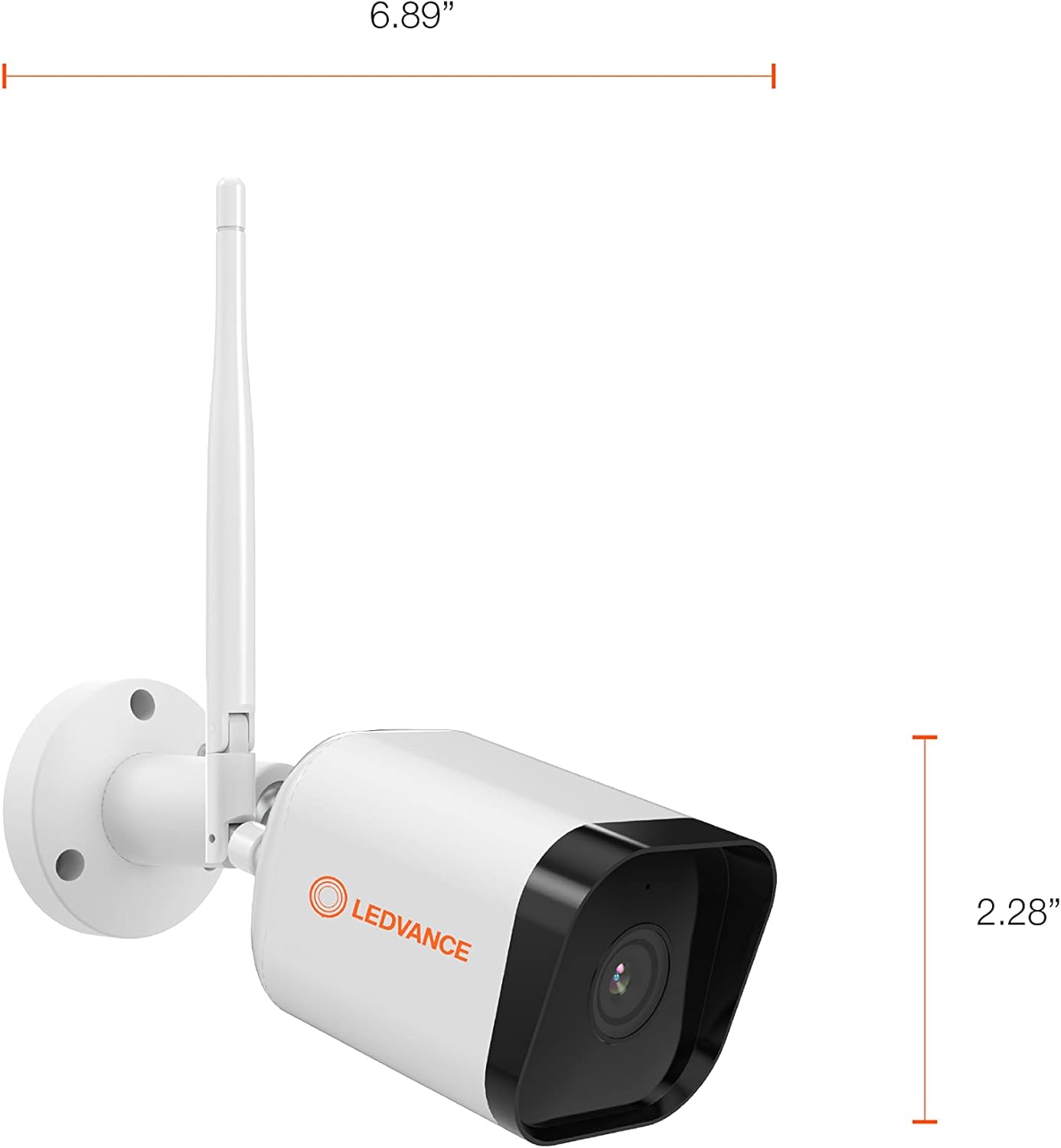
Figure 4.1: Camera Dimensions
5. Operating Instructions
5.1 Live View and Recording
Once the camera is set up and connected, open the SYLVANIA App to access the live video feed. You can view real-time footage from anywhere with internet access.
- Manual Recording: Within the app, you can manually initiate video recording or capture still images directly to your phone or tablet.
- Local Storage: If a MicroSD card (up to 128GB) is inserted, the camera will record events directly to the card.
- Cloud Storage: For continuous recording or extended storage, subscribe to the optional cloud storage service through the SYLVANIA App.

Figure 5.1: Managing Camera via SYLVANIA App
5.2 Motion and Sound Detection
The camera is equipped with advanced motion and sound detection capabilities:
- Motion Alerts: Receive instant notifications on your smartphone when motion is detected.
- Zone Selection: Customize specific areas within the camera's view for motion detection to reduce unwanted alerts.
- Sound Alerts: Get notified when the camera detects significant sounds.

Figure 5.2: Motion Detection in Action
5.3 Two-Way Audio
Utilize the built-in microphone and speaker to communicate with visitors or deter intruders directly through the SYLVANIA App.
5.4 Privacy Mode
Activate Privacy Mode through the SYLVANIA App to temporarily disable video recording and live streaming, ensuring your privacy when needed.
5.5 Smart Home Integration
Connect your LEDVANCE camera with Amazon Alexa or Google Home for voice control and integrated smart home routines. Refer to the respective app's instructions for linking your SYLVANIA account.
6. Maintenance
- Cleaning: Gently wipe the camera lens and body with a soft, damp cloth. Avoid abrasive cleaners or solvents.
- Firmware Updates: Regularly check the SYLVANIA App for available firmware updates to ensure optimal performance and security.
- MicroSD Card: If using a MicroSD card, periodically check its status in the app and consider formatting it every few months to maintain performance. Back up important recordings before formatting.
- Power Connection: Ensure the power adapter and cable remain securely connected and free from damage.
7. Troubleshooting
If you encounter issues with your LEDVANCE WiFi Smart Outdoor Camera, refer to the following common solutions:
- Camera Not Connecting to WiFi:
- Ensure your WiFi network is 2.4GHz. The camera does not support 5GHz networks.
- Verify the WiFi password is correct.
- Move the camera closer to your WiFi router to improve signal strength.
- Restart your router and the camera.
- No Live View or Recording:
- Check your internet connection.
- Ensure the camera is powered on and connected to WiFi.
- If using a MicroSD card, ensure it is properly inserted and not full. Format the card if necessary (back up data first).
- Check if Privacy Mode is accidentally activated in the SYLVANIA App.
- Motion/Sound Alerts Not Received:
- Verify that motion/sound detection is enabled in the SYLVANIA App settings.
- Check your phone's notification settings for the SYLVANIA App.
- Adjust motion detection sensitivity and zone settings.
- Poor Video Quality:
- Clean the camera lens.
- Ensure sufficient WiFi signal strength.
- Check your internet upload speed.
- Camera Not Responding:
- Perform a hard reset by unplugging the power adapter for 10 seconds and then plugging it back in.
- If issues persist, consult the SYLVANIA App's help section or contact customer support.
8. Specifications
| Feature | Specification |
|---|---|
| Model Number | 75830 Cam v3 |
| Indoor/Outdoor Usage | Outdoor |
| Connectivity Protocol | Wi-Fi (2.4GHz only) |
| Power Source | Corded Electric (DC 12V/1A) |
| Video Capture Resolution | 1080p HD |
| Frame Rate | 25 fps |
| Image Sensor | 1/2.9" 2 Megapixel CMOS |
| Lens | 3.0mm@F2.0 |
| Viewing Angle | 130 degrees |
| Night Vision Range | Up to 32.8 ft (10m) |
| Local Storage | MicroSD card (max. 128GB) |
| International Protection Rating | IP65 (Weatherproof) |
| Compatible Devices | Smartphone (via SYLVANIA App), Amazon Alexa, Google Home |
| Mounting Type | Wall Mount |
| Product Dimensions (L x W x H) | 6.89 x 2.91 x 2.28 inches |
| Item Weight | 1.16 pounds |
| Color | White |
| Special Features | 2-Way Audio, Motion Sensor, Night Vision |
9. Warranty and Support
The LEDVANCE WiFi Smart Outdoor Camera (Model 75830 Cam v3) is covered by a one-year warranty from the date of purchase. This warranty covers manufacturing defects and ensures the product functions as intended under normal use.
For warranty claims, technical support, or further assistance, please refer to the support section within the SYLVANIA App or visit the official LEDVANCE website for contact information.

Figure 9.1: LEDVANCE Quality Assurance


