
Product Overview
The VOYEE Wireless Pro Controller S03 is designed for enhanced gaming experiences across multiple platforms. It features advanced functionalities such as programmable buttons, motion control, adjustable vibration, and turbo functions, ensuring precise and responsive gameplay. This controller is compatible with Nintendo Switch, Switch Lite, Switch OLED, and PC (wired mode).

Figure 1: VOYEE Wireless Pro Controller S03
Setup and Connection
Connecting to Nintendo Switch/Lite/OLED (Wireless)
- Ensure your Nintendo Switch console is powered on and updated to the latest system version.
- From the HOME Menu, select Controllers, then Change Grip/Order.
- On the VOYEE Pro Controller, press and hold the Home button (house icon) for a few seconds until the LED indicators begin to flash rapidly. This indicates pairing mode.
- Once the controller is detected by the Switch, the LED indicators will stop flashing and remain solid, indicating a successful connection.
- The controller is now ready for use.
Connecting to PC (Wired Mode)
- Connect the VOYEE Pro Controller to your PC using the provided USB-C cable.
- The controller will be recognized as a gamepad. Ensure your PC's operating system (Windows) is updated and has the necessary drivers.
- For optimal performance, some games or platforms may require specific controller configurations.
Operating Instructions
Programmable Custom Buttons (M1/M2)
The controller features two mappable buttons, M1 and M2, located on the underside. These buttons can be programmed to replicate up to 16 key inputs, allowing for complex actions with a single press. This feature is designed to enhance gameplay efficiency and extend the lifespan of frequently used buttons.

Figure 2: Programmable M1/M2 Buttons
Rumble Control and Gyro Sensor
Experience immersive gameplay with the 4-level adjustable vibration feedback provided by enhanced dual motors. The integrated 6-axis gyro sensor allows for precise motion control, enabling quick and responsive actions in games that support this feature.
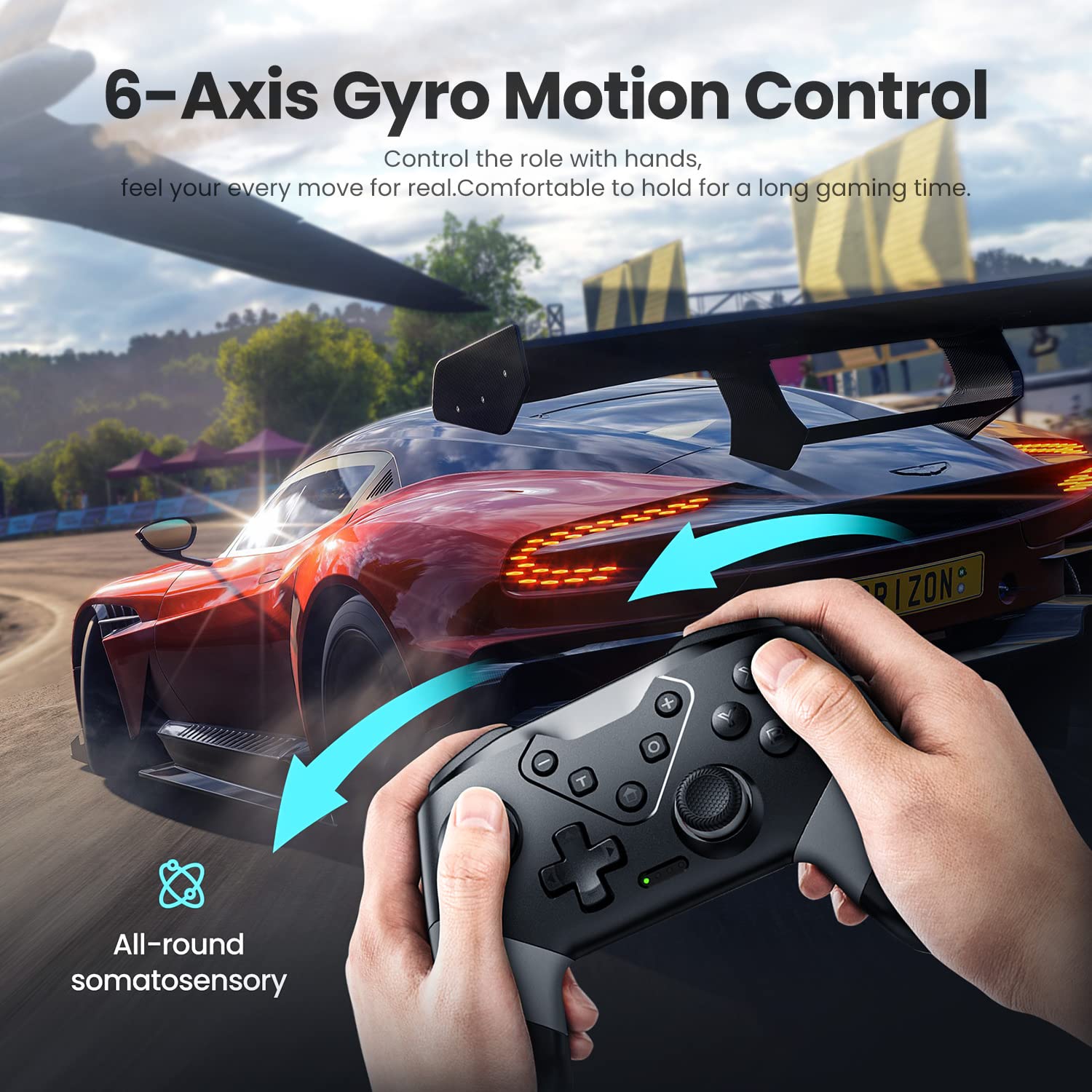
Figure 3: 6-Axis Gyro Motion Control

Figure 4: 3-Level Vibration
Turbo Speed Function
The controller supports three levels of turbo speed, allowing for continuous rapid input of a button. This feature is particularly useful in action and arcade games where quick, repeated presses are advantageous.
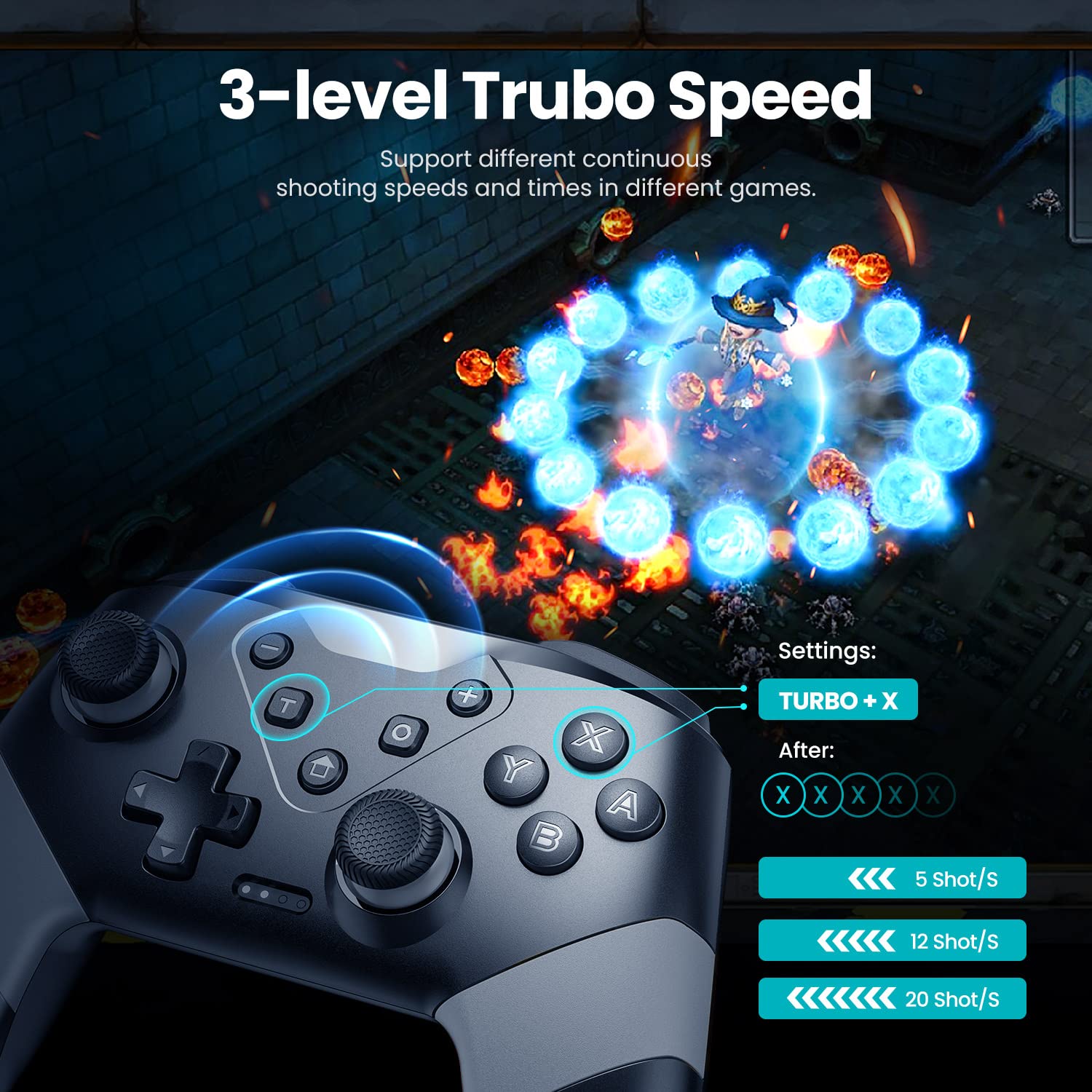
Figure 5: 3-Level Turbo Speed
Wake-up and Screenshot Functions
The controller supports a wake-up function for compatible devices. A dedicated screenshot button allows for instant capture of in-game moments.
Wireless Control Range
Enjoy flexible gameplay with a wireless control range of up to 33 feet (approximately 10 meters), providing freedom of movement during gaming sessions.
Maintenance
Charging the Controller
The VOYEE Pro Controller is equipped with a 600mAh Lithium Ion battery. To charge, connect the controller to a power source using the provided USB-C cable. A full charge typically takes 2-3 hours and provides approximately 10-13 hours of uninterrupted gaming.

Figure 6: Charging and Battery Life
Cleaning and Storage
- Use a soft, dry cloth to clean the controller. Avoid using harsh chemicals or abrasive materials.
- Store the controller in a cool, dry place away from direct sunlight and extreme temperatures.
- When not in use for extended periods, ensure the controller is fully charged before storage to maintain battery health.
Troubleshooting
| Issue | Possible Cause | Solution |
|---|---|---|
| Controller does not connect wirelessly to Switch. | Controller not in pairing mode, Switch not detecting. | Ensure controller is fully charged. Press and hold the Home button until LEDs flash rapidly. On Switch, go to Controllers > Change Grip/Order. If issues persist, restart both controller and Switch. |
| Controller does not connect to PC (wired). | Driver error, cable issue, or PC compatibility. | Ensure USB-C cable is securely connected. Check PC device manager for driver issues. Try a different USB port. Ensure PC operating system is updated. |
| Controller automatically powers off. | Idle for too long. | This is a power-saving feature. The controller is designed to power off after a period of inactivity to conserve battery. |
| Buttons are noisy/clacky. | Normal operational sound. | This is a characteristic of the controller's button mechanism and is not indicative of a defect. |
| Turbo function does not work on M1/M2 buttons. | Feature limitation. | The turbo function is designed for standard face buttons and not for the programmable M1/M2 buttons. |
Specifications
- Model Number: S03
- Product Dimensions: 5.9 x 2.59 x 4.17 inches
- Item Weight: 6.9 ounces
- Battery: 1 Lithium Ion battery (included), 600mAh
- Charging Time: 2-3 hours
- Runtime: 10-13 hours
- Connectivity: Wireless (Bluetooth), Wired (USB-C)
- Compatibility: Nintendo Switch, Switch Lite, Switch OLED, PC (Windows)
- Features: 6-Axis Gyro Motion Control, 4-Level Vibration, 2 Programmable Buttons (M1/M2), 3-Level Turbo Speed, Wake-up Function, Screenshot Button.
- Wireless Range: Up to 33 feet (10 meters)
- Manufacturer: Dongguan Chenhao Electronic Technology Co.,LTD. VOYEE
Warranty and Support
For specific warranty information and customer support, please refer to the documentation included with your product or contact VOYEE customer service directly. Details regarding warranty periods and support channels are typically provided at the point of purchase or on the manufacturer's official website.


