1. Introduction
Thank you for choosing the Govee H5075 Indoor Hygrometer Thermometer. This device provides accurate measurements of indoor temperature and humidity, helping you monitor your environment for optimal comfort and health. With Bluetooth connectivity, you can easily access data and receive alerts via the Govee Home app.
2. Product Overview
The Govee H5075 is a compact and reliable device designed for indoor environmental monitoring. It features a large LCD display for easy readability and connects to your smartphone via Bluetooth for advanced functionalities.
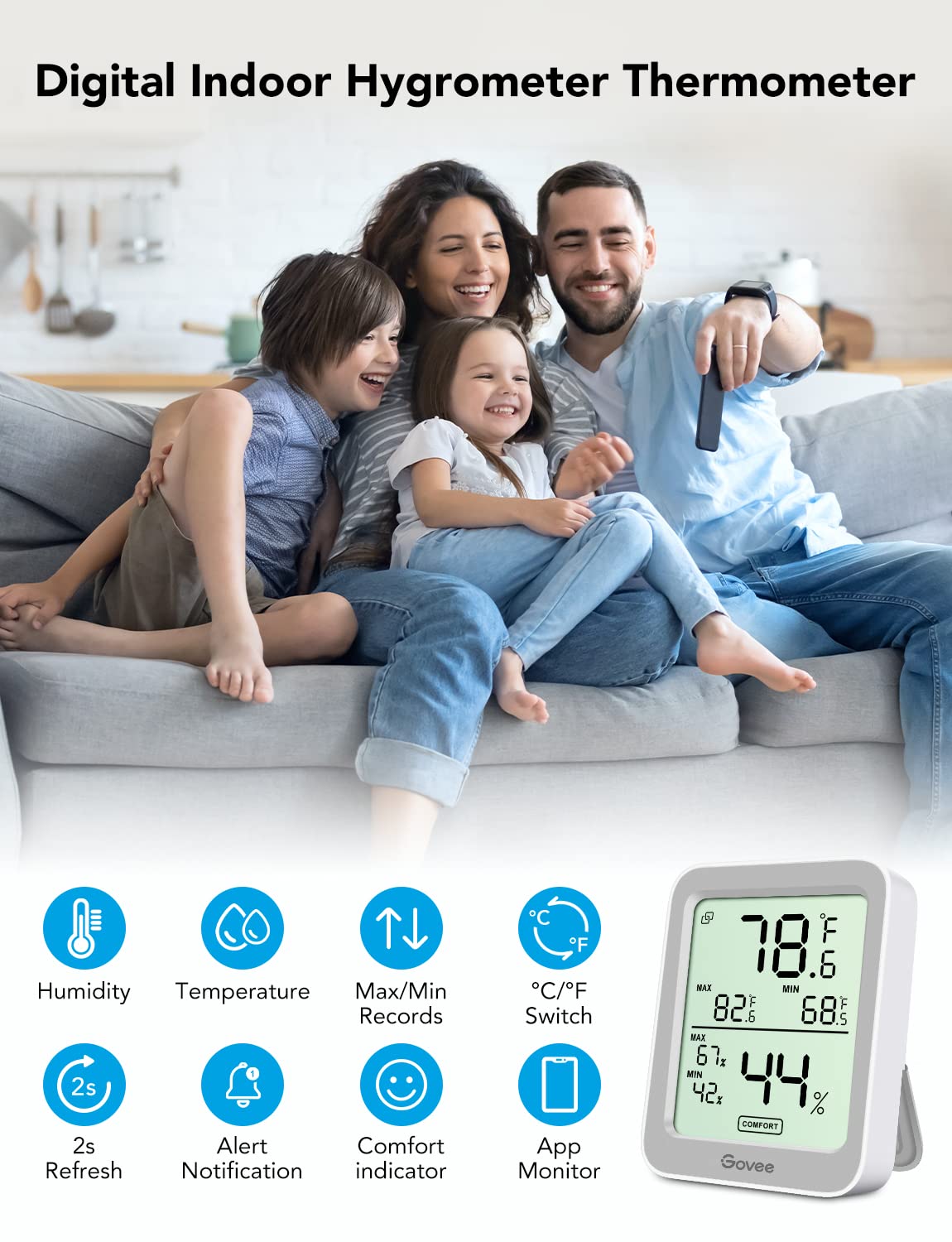
Image: The Govee H5075 device displaying temperature and humidity, shown in a home setting with a family interacting with the Govee Home app on a smartphone.
3. Features
- Easy Connectivity: Quick pairing with the Govee Home app via Bluetooth within a 196ft/60m range.
- Large LCD Display: A 3-inch screen shows current temperature, humidity, max/min records, and comfort indicators (dry/comfort/wet).
- High Accuracy: Swiss-made sensor provides temperature accuracy up to ±0.54°F and humidity accuracy of ±3%RH.
- Fast Refresh Rate: Updates readings every 2 seconds for real-time monitoring.
- Smart App Alerts: Receive notifications when temperature or humidity levels exceed preset ranges.
- Data Storage & Export: Stores 20 days of online data and allows export of up to 2 years of historical data in CSV format.
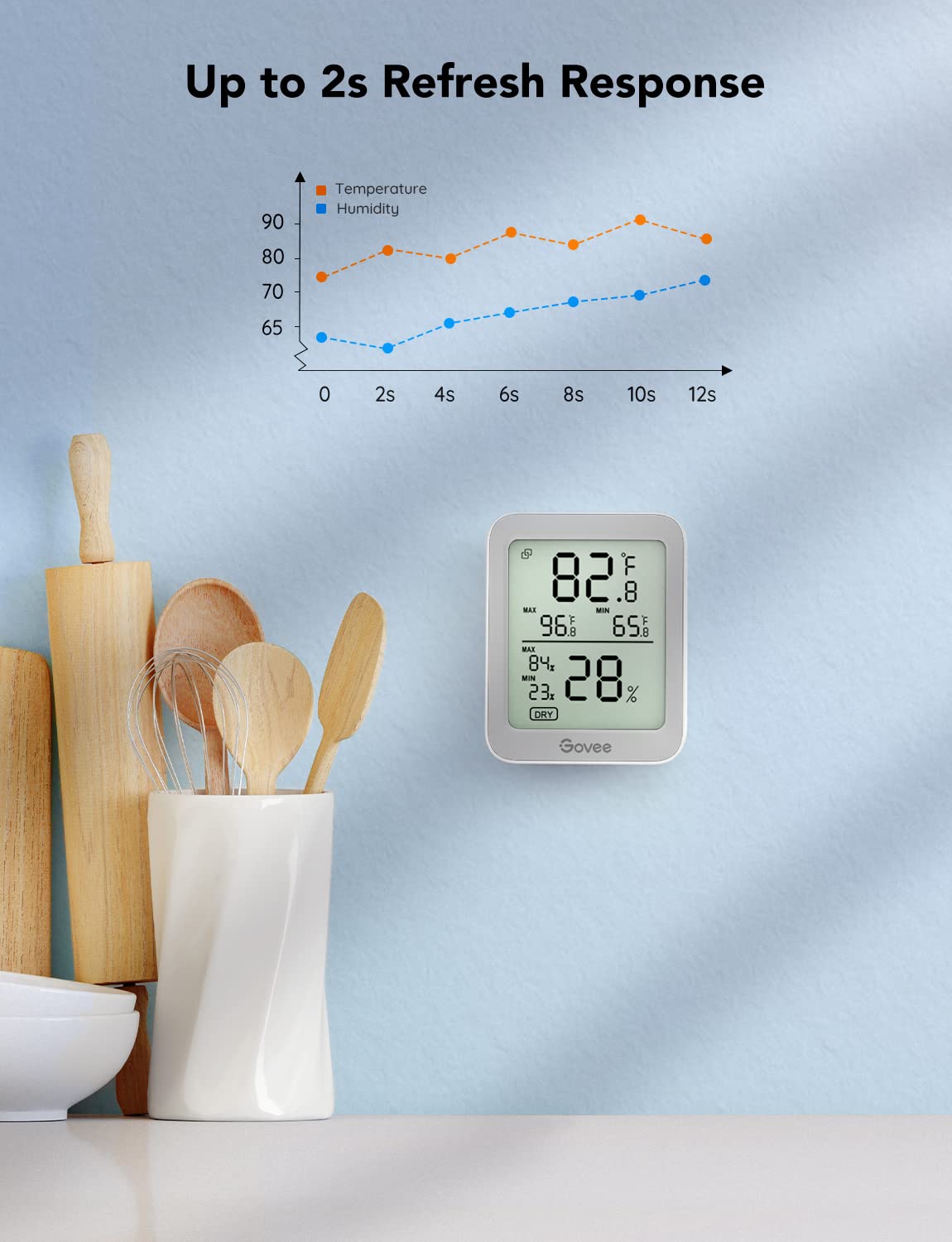
Image: The Govee H5075 device next to a graph illustrating its 2-second refresh response for temperature and humidity readings.
4. Setup
4.1 Battery Installation
- Locate the battery compartment on the back of the device.
- Open the battery compartment cover.
- Insert 2 AAA batteries, ensuring correct polarity (+/-). Note: Batteries are not included.
- Close the battery compartment cover securely.
4.2 App Download and Pairing
- Download the Govee Home app from the App Store (iOS devices) or Google Play (Android devices).
- Enable Bluetooth on your smartphone.
- Open the Govee Home app and create an account or log in.
- Tap the "+" icon in the top right corner of the app.
- Search for and select "H5075" from the device list.
- Follow the on-screen instructions to complete the pairing process. The device should pair successfully within one minute.
4.3 Device Placement
Place the hygrometer thermometer in the desired location. It can be placed on a flat surface using its integrated stand or mounted on a wall. Ensure it is not exposed to direct sunlight, drafts, or extreme temperatures, which could affect accuracy.

Image: The Govee H5075 device mounted on a wall in a bedroom, demonstrating a typical placement scenario.
5. Operating Instructions
5.1 Reading the Display
The large LCD screen provides the following information:
- Current Temperature: Displayed prominently in °F or °C.
- Current Humidity: Displayed as a percentage (%RH).
- Max/Min Records: Shows the highest and lowest temperature and humidity recorded since the last reset.
- Comfort Indicators: Icons (Dry, Comfort, Wet) indicate the current environmental comfort level based on humidity.

Image: A close-up of the Govee H5075 LCD display, highlighting current temperature, humidity, and comfort indicators (Dry, Comfort, Wet) with their respective humidity and temperature ranges.
5.2 Using the Govee Home App
Once paired, the Govee Home app allows you to:
- View real-time temperature and humidity readings from multiple devices.
- Access historical data and trend graphs.
- Set temperature and humidity alert ranges.
- Export data.

Image: A smartphone screen displaying the Govee Home app, showing real-time temperature and humidity data from multiple Govee H5075 devices in different rooms, illustrating remote monitoring capabilities.
5.3 Setting Smart Alerts
To set up notification alerts:
- In the Govee Home app, select your H5075 device.
- Navigate to the alert settings.
- Set your desired minimum and maximum temperature and humidity ranges.
- The app will send a notification to your smartphone if readings go outside these preset ranges.

Image: The Govee H5075 device next to a smartphone displaying a Govee Home app notification alert for temperature and humidity exceeding preset limits.
5.4 Data Export
You can export historical data from the Govee Home app:
- Select your H5075 device in the app.
- Go to the historical data section.
- Choose the desired date range (up to 2 years).
- Select the option to export data to CSV format.
6. Maintenance
- Cleaning: Wipe the device with a soft, dry cloth. Do not use abrasive cleaners or immerse in water.
- Battery Replacement: Replace batteries when the low battery indicator appears on the display or in the app. Ensure to use 2 new AAA batteries.
- Storage: If storing the device for an extended period, remove the batteries to prevent leakage.
7. Troubleshooting
- Device not turning on: Check battery installation and ensure batteries are new and correctly inserted.
- Cannot pair with app: Ensure Bluetooth is enabled on your phone, the device is within range (196ft/60m), and the Govee Home app is updated. Try restarting both the device (by reinserting batteries) and your phone.
- Inaccurate readings: Ensure the device is not placed near heat sources, direct sunlight, or strong drafts. Allow some time for the sensor to stabilize after placement or battery change.
- No app notifications: Check app notification settings on your phone and within the Govee Home app. Ensure the device is connected via Bluetooth.
8. Specifications
| Attribute | Detail |
|---|---|
| Model Number | H5075 |
| Brand | Govee |
| Power Source | 2 x AAA Batteries (not included) |
| Temperature Accuracy | ±0.54°F / ±0.3°C |
| Humidity Accuracy | ±3%RH |
| Refresh Rate | 2 seconds |
| Connectivity | Bluetooth (up to 196ft/60m) |
| Data Storage | 20 days online, 2 years exportable |
| Mounting Type | Wall Mount / Tabletop |
9. Warranty and Support
For warranty information or technical support, please refer to the Govee official website or contact Govee customer service directly. Keep your purchase receipt for warranty claims.
Govee Official Website: www.govee.com