
1. Introduction
This manual provides detailed instructions for the installation, operation, maintenance, and troubleshooting of your STEAMEMO 5 Port Gigabit PoE+ Cloud Managed Switch. Please read this manual thoroughly before using the device to ensure proper functionality and safety. Keep this manual for future reference.
2. Product Overview
2.1 Key Features
- 5 Gigabit Ports: Includes 4 PoE+ ports (10/100/1000 Mbps Base-TX RJ45) and 1 Uplink port (10/100/1000 Mbps Base-TX RJ45), plus 1 SFP slot.
- Power over Ethernet (PoE+): Supports IEEE802.3af/at standards, providing up to 30W per port with a total power budget of 52W for connected PoE devices.
- Cloud Management: Easy setup and remote management via a mobile application or web interface, offering visibility and troubleshooting tools.
- Ultra-Far Transmission: Extends PoE power and data transmission up to 250 meters with one-click activation.
- VLAN Mode: Supports VLAN settings for network segmentation and enhanced security.
- Quality of Service (QoS): Prioritizes network traffic and allows individual upload/download rate limits.
- Advanced Protection: Features 4KV lightning protection, short-circuit protection, over-current protection, and over-voltage protection.
- Durable Design: Sturdy metal casing and fanless design for efficient heat dissipation and quiet operation.
2.2 Package Contents
- STEAMEMO 5 Port Gigabit PoE+ Cloud Managed Switch
- Power Adapter
2.3 Physical Description
The switch features a compact metal casing with various ports and indicators on the front panel.

Front Panel Components:
- SFP Slot: For fiber optic connections (1000 Mbps).
- PWR LED: Power indicator.
- WEB/CLOUD Switch: Toggles between web and cloud management modes.
- Reset Button: Used to reset the device to factory defaults.
- LAN Ports (1-4): Gigabit Ethernet ports with PoE+ capability.
- Uplink Port: Gigabit Ethernet port for connecting to your router or main network.
- 4KV: Indicates 4KV lightning protection.

3. Setup
Follow these steps to set up your STEAMEMO PoE+ Cloud Managed Switch:
3.1 Step 1: Connect Power
- Connect the provided power adapter to the power input port on the rear panel of the switch.
- Plug the power adapter into a standard electrical outlet. The PWR LED on the front panel will illuminate, indicating the switch is powered on.
3.2 Step 2: Connect Network Devices
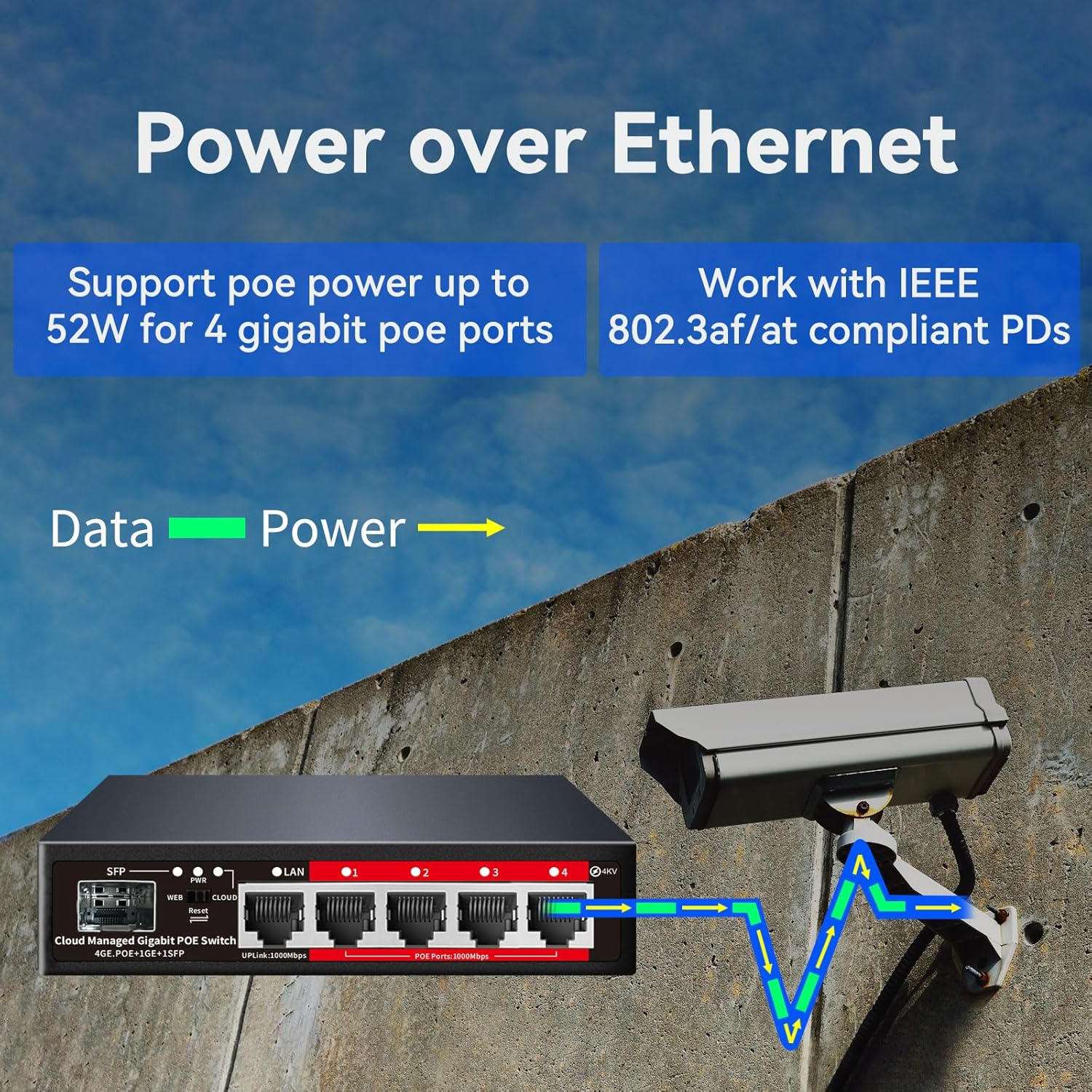
- Connect PoE Devices: Use standard Ethernet cables (Cat5e or higher) to connect your PoE-powered devices (e.g., IP cameras, Wi-Fi access points, IP phones) to ports 1-4. The switch will automatically detect and provide power to these devices.
- Connect Uplink: Connect the Uplink port to your router, modem, or main network switch using an Ethernet cable to provide internet access or connect to your local network.
- Connect SFP (Optional): If using fiber optic connections, insert a compatible SFP module into the SFP slot and connect your fiber cable.
3.3 Step 3: Cloud Management Setup
To utilize the cloud management features, the switch needs to be connected to the internet and activated.

- Ensure the switch is connected to the internet via the Uplink port.
- Download the STEAMEMO mobile application from the Google Play Store (Android App) or Apple App Store (iOS App).
- Follow the in-app instructions to register an account and add your switch. The switch must be powered on and connected to the internet for initial activation.
- Alternatively, access the web management interface by switching the WEB/CLOUD toggle to 'WEB' and following the instructions provided with the device for local web access.
4. Operating Instructions
4.1 Power over Ethernet (PoE) Functionality
The switch automatically detects and supplies power to IEEE 802.3af/at compliant devices connected to ports 1-4. No manual configuration is typically required for basic PoE operation.
4.2 Cloud Management and Monitoring
The mobile app and web interface provide comprehensive control and monitoring capabilities.

- Remote Access: Manage your switch and connected devices from anywhere using the mobile app.
- Port Status Monitoring: The app displays the working status of each port using color-coded indicators (Green for good, Orange for poor, Black for disconnected).
- Remote PoE Control: Remotely enable or disable PoE power to individual ports.
- Device Reboot: Remotely reboot connected devices or the switch itself.
4.3 Ultra-Far Transmission Mode
For deployments requiring extended cable lengths (up to 250 meters), activate the Ultra-Far mode via the cloud management interface. This mode is ideal for IP cameras or access points in large areas.
4.4 VLAN Configuration
The switch supports VLAN functionality for network segmentation.

- Access the VLAN settings through the mobile app or web interface.
- Configure Port VLANs or Tag VLANs as needed for your network architecture.
4.5 QoS Prioritization and Rate Limiting
Manage bandwidth usage and prioritize critical traffic.
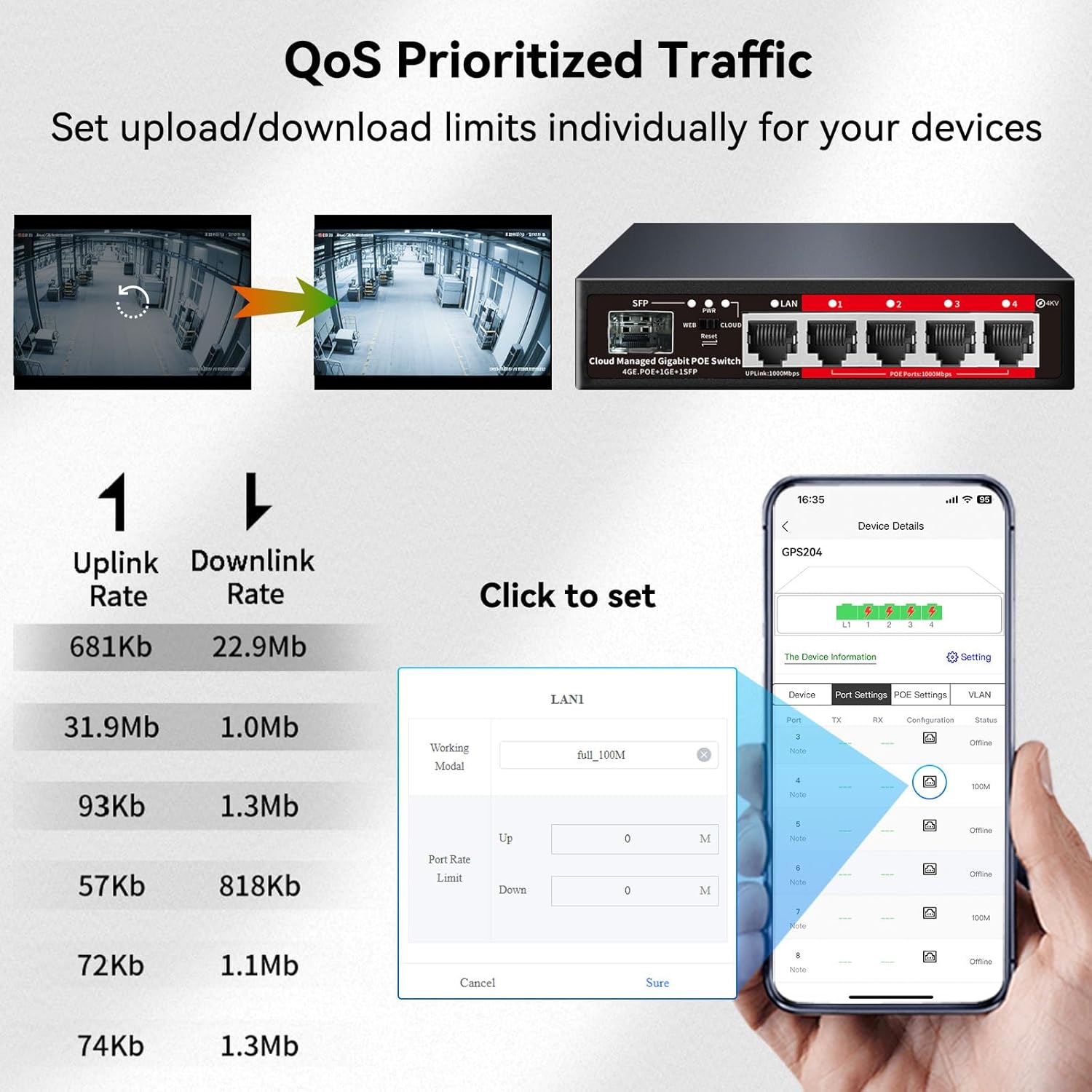
- Navigate to the QoS settings in the management interface.
- Set individual upload and download rate limits for each port to optimize network performance.
4.6 PoE Scheduler
Automate power delivery to PoE ports to save energy and manage device uptime.

- Access the PoE Scheduler feature in the cloud management platform.
- Configure specific time periods for PoE ports to be active or inactive.
- Set timing reboots for connected devices.
4.7 Port Status Indicators
The management interface provides visual cues for port status:

- Green: Indicates good data transmission and network performance.
- Orange: Indicates poor data transmission, potentially due to cable issues (e.g., exceeding 100m without Ultra-Far mode) or network congestion.
- Black: Indicates a disconnected port.
5. Maintenance
5.1 Cleaning
Regularly clean the exterior of the switch with a soft, dry cloth. Do not use liquid or aerosol cleaners. Ensure the device is powered off before cleaning.
5.2 Firmware Updates
Periodically check the STEAMEMO cloud management platform or official website for available firmware updates. Keeping your device's firmware up-to-date ensures optimal performance, security, and access to new features.
5.3 Resetting the Device
If the switch is not functioning correctly or you need to clear all configurations, use the Reset button on the front panel. Press and hold the Reset button for approximately 5-10 seconds until the LEDs flash, then release. The switch will reboot with factory default settings.
6. Troubleshooting
If you encounter issues with your STEAMEMO PoE+ Cloud Managed Switch, refer to the following common problems and solutions:
- No Power:
Ensure the power adapter is securely connected to both the switch and a working electrical outlet. Check the PWR LED status. - Device Not Connecting to Network:
Verify that Ethernet cables are properly connected to the correct ports. Check the port status indicators in the management app (Green for good connection). Ensure the Uplink port is connected to a functional network source. - PoE Device Not Powering On:
Confirm that the connected device is PoE-compatible (IEEE 802.3af/at). Check the total power budget (52W) and individual port power limits (30W) to ensure they are not exceeded. Try connecting the device to a different PoE port. - Slow Network Performance:
Check the quality of your Ethernet cables; Cat5e or Cat6 cables are recommended for Gigabit speeds. If using long cables, ensure Ultra-Far mode is enabled for distances over 100 meters. Monitor port status indicators for 'Orange' (poor transmission) status. - Remote Management Issues:
Ensure the switch has an active internet connection via the Uplink port. Verify that the WEB/CLOUD switch is set to 'CLOUD'. Check your mobile device's internet connectivity and app permissions. - Port Failure:
If a specific port consistently fails to function, try connecting a different device or cable to isolate the issue. If the port remains non-functional, it may indicate a hardware fault. Refer to the warranty information for support.
7. Specifications
| Feature | Specification |
|---|---|
| Model Number | 5 Gigabit Ports|52W 4xPoE+ |
| Ports | 4 x 10/100/1000 Mbps PoE+ RJ45, 1 x 10/100/1000 Mbps Uplink RJ45, 1 x SFP Slot |
| PoE Standard | IEEE 802.3af/at |
| Total PoE Power Budget | 52 Watts |
| Max Power Per PoE Port | 30 Watts |
| Data Transfer Rate | 1000 Mbps (Gigabit) |
| Voltage | 48 Volts |
| Case Material | Metal |
| Product Dimensions | 5 x 4.5 x 1.3 inches |
| Item Weight | 0.59 Kilograms (1.3 pounds) |
| Protection | 4KV Lightning, Short-Circuit, Over Current, Over Voltage |
8. Warranty and Support
For warranty information, please refer to the product packaging or the official STEAMEMO website. Typically, a 1-year warranty is provided. For technical support or further assistance, please visit the manufacturer's support page or contact their customer service department.

