
Lemorele TC65
Lemorele Aluminium USB C Laptop Docking Station Dual Monitor 11-in-1 Hub Adapter
Model: TC65 | Brand: Lemorele
Introduction
This user manual provides detailed instructions for the Lemorele 11-in-1 USB C Laptop Docking Station. This versatile hub is designed to expand the connectivity of your USB-C enabled laptop, offering dual monitor support, high-speed data transfer, power delivery, and network connectivity. Please read this manual thoroughly before using the device to ensure optimal performance and safety.
Key Features
- 11-in-1 Connectivity: Features dual HDMI 4K ports, 100W Power Delivery (PD 3.0), 2 USB 3.0 (5Gbps), 2 USB 2.0, 1 USB C 3.0 (5Gbps), RJ45 Gigabit Ethernet (1000Mbps), and SD/TF card slots.
- Dual 4K HD Resolution: Supports up to 3840x2160@30Hz via single HDMI. When dual HDMI ports are used simultaneously, the maximum output is 1920x1080@60Hz.
- Super Speed Data Transfer: USB 3.0 ports and USB C 3.0 port offer data transfer speeds up to 5Gbps. USB 2.0 ports provide 480Mbps. SD and TF card slots support 60MB/s reading speed.
- 100W Power Delivery: USB C charging port supports up to 100W power delivery to your host device, ensuring stable power supply.
- Gigabit Ethernet: Provides a stable and fast wired network connection up to 1000Mbps.
- Plug-and-Play Design: No drivers or software installation required.
- Durable Aluminum Construction: Enhances heat dissipation and ensures product longevity.

Figure 1: Overview of the Lemorele 11-in-1 USB C Docking Station showing its multiple ports and connectivity options.
Setup Guide
Follow these steps to set up your docking station:
- Connect to Host Device: Plug the USB-C cable from the docking station into the Thunderbolt 3 or USB-C port of your laptop. Ensure your laptop's USB-C port supports video output (DP Alt Mode) for display functions.
- Connect Power Adapter (Optional but Recommended): For stable operation and to charge your laptop, connect your laptop's original USB-C power adapter to the PD 100W USB-C port on the docking station.
- Connect External Displays: Use HDMI cables to connect your monitors to the HDMI ports on the docking station.
- Connect Peripherals: Plug in your USB devices (keyboard, mouse, external hard drives, USB drives) into the available USB 3.0 or USB 2.0 ports.
- Connect Network Cable: For a wired internet connection, connect an Ethernet cable from your router or modem to the RJ45 Gigabit Ethernet port on the docking station.
- Insert Memory Cards: If needed, insert SD or TF cards into their respective slots. Note that SD and TF cards cannot be used simultaneously.
Operating Instructions
Dual Monitor Setup (HDMI)
The docking station supports both Mirror Mode and Extend Mode for external displays. The display behavior varies slightly between Windows and macOS systems.
- Windows System: Supports both Mirror Mode (SST) and Extend Mode (MST). You can configure your display settings through your operating system's display preferences.
- macOS System: Due to macOS limitations, only Mirror Mode (SST) is fully supported for multiple external displays. Extend Mode will mirror the primary display across all external monitors.

Figure 2: Multiple Display Modes supported by the docking station, including Mirror and Extend options.

Figure 3: Windows operating system display configurations for Mirror and Extend modes.

Figure 4: macOS operating system display configurations, primarily supporting SST (Mirror Mode).
Data Transfer (USB & Card Readers)
Utilize the various USB ports and card readers for efficient data management:
- USB 3.0 Ports (5Gbps): Ideal for connecting high-speed devices like external hard drives, SSDs, and flash drives for rapid data transfer.
- USB 2.0 Ports (480Mbps): Suitable for connecting peripherals such as keyboards, mice, and printers.
- USB C 3.0 Port (5Gbps): For connecting USB-C devices requiring high-speed data transfer.
- SD/TF Card Slots: Insert your SD or TF memory cards to access photos, videos, and other files. Remember, simultaneous use of both card slots is not supported.
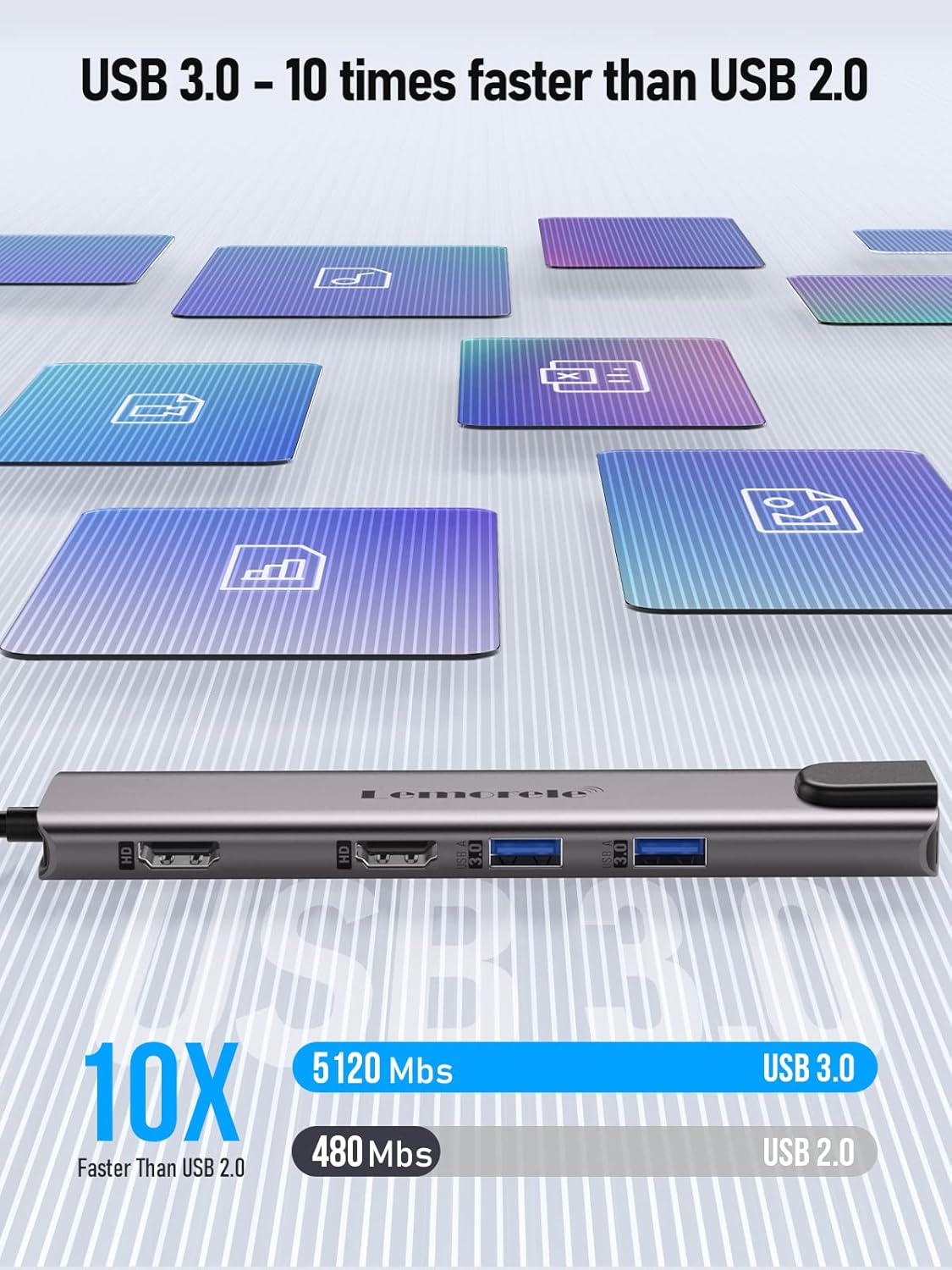
Figure 5: Illustrates the speed difference between USB 3.0 (5120 Mbps) and USB 2.0 (480 Mbps).

Figure 6: The docking station's SD and TF card slots support capacities up to 2TB.
Power Delivery (PD 100W)
The dedicated USB-C PD port allows you to charge your laptop while using the docking station. Connect your laptop's original power adapter to this port to provide up to 100W of power. This ensures your laptop remains charged during intensive tasks or extended use.

Figure 7: The 100W Power Delivery port enables fast charging for your connected laptop.
Gigabit Ethernet
For a stable and reliable internet connection, use the RJ45 Gigabit Ethernet port. This is particularly useful in environments with unstable Wi-Fi or for tasks requiring high bandwidth.

Figure 8: The RJ45 Gigabit Ethernet port provides a stable and fast wired network connection.
Compatibility
This USB C docking station is compatible with devices featuring a USB Type-C (Thunderbolt 3) port that supports video output (DP Alt Mode). It works with a wide range of devices and operating systems:
- Compatible Laptops: MacBook/MacBook Pro (2018-2020), MacBook Air (2018-2020), iPad Pro 2018, Dell XPS 13/15, Samsung Galaxy S9/S9+, and other devices with a full-featured USB-C port.
- Operating Systems: Windows, macOS, Linux.
- Peripherals: Monitors, TVs, Projectors, Keyboards, Mice, Printers, Hard Drives, U Disks, USB Cables.
Important Note: The HDMI/DP function requires your host device's USB-C port to support video output or DP Alt Mode. This type-C dock is NOT compatible with all USB-C port laptops, such as HP Pavilion, HP EliteBook, or Lenovo IdeaPad models that do not support DP Alt Mode.

Figure 9: The docking station is compatible with a wide range of USB-C devices and peripherals, including gaming consoles like Steam Deck, Nintendo Switch, and PS5.
Troubleshooting
- No Display Output:
- Ensure your laptop's USB-C port supports video output (DP Alt Mode).
- Check if the HDMI cables are securely connected to both the docking station and the monitors.
- Try restarting your laptop.
- Verify monitor input settings are correct (e.g., HDMI 1, HDMI 2).
- Flickering or Unstable Display:
- Reduce the display resolution or refresh rate.
- Ensure the docking station is receiving sufficient power, especially when using multiple high-resolution displays. Connect a power adapter to the PD port.
- Slow Data Transfer Speed:
- Ensure you are using USB 3.0 ports for high-speed devices. USB 2.0 ports are slower.
- Check the quality of your USB cables.
- Laptop Not Charging:
- Ensure your laptop's original power adapter is connected to the PD 100W USB-C port on the docking station.
- Verify that your laptop supports charging via its USB-C port.
- Ethernet Not Working:
- Check the Ethernet cable connection to both the docking station and your router/modem.
- Ensure your laptop's network settings are configured for a wired connection.
- Try restarting your router/modem and laptop.
- Docking Station Feels Warm:
- It is normal for the aluminum casing to feel warm during operation, especially under heavy load, as it is designed to dissipate heat. If it becomes excessively hot, disconnect it and allow it to cool.
Technical Specifications
| Feature | Specification |
|---|---|
| Model Number | TC65 |
| Product Dimensions | 6.26 x 1.5 x 0.47 inches |
| Item Weight | 2.89 ounces |
| HDMI Ports | 2 (Supports 4K@30Hz single, 1080P@60Hz dual) |
| USB 3.0 Ports | 2 (5Gbps data transfer) |
| USB 2.0 Ports | 2 (480Mbps data transfer) |
| USB C 3.0 Port | 1 (5Gbps data transfer) |
| Power Delivery (PD) Port | 1 (USB C, up to 100W) |
| Ethernet Port | RJ45 Gigabit (10/100/1000Mbps) |
| Card Reader Slots | SD and TF (60MB/s read speed, not simultaneous) |
| Material | Aluminum |
| Color | Sky Grey |
Care and Maintenance
To ensure the longevity and optimal performance of your Lemorele docking station, follow these care guidelines:
- Cleaning: Use a soft, dry cloth to clean the surface of the docking station. Avoid using liquid cleaners or abrasive materials.
- Storage: Store the device in a cool, dry place away from direct sunlight and extreme temperatures.
- Handling: Avoid dropping or subjecting the device to strong impacts. Do not attempt to disassemble or modify the docking station, as this will void the warranty and may cause damage.
- Heat Dissipation: The aluminum casing is designed for efficient heat dissipation. Ensure proper airflow around the device, especially during prolonged use or when connected to multiple peripherals.

Figure 10: The docking station features an exclusive convection heat dissipation design for improved thermal performance.
Warranty and Support
Lemorele products come with a standard warranty. For specific warranty terms and conditions, please refer to the product packaging or the official Lemorele website. If you encounter any issues or require technical assistance, please contact Lemorele customer support.
You can find more information and support resources by visiting the official Lemorele store: Lemorele Store on Amazon.
Related documentsTC65


Ask a question about this manual
Ask about setup, troubleshooting, compatibility, parts, safety, or missing instructions. Manuals+ will review the question and use this page’s manual context to help answer it.