
1. Introduction
This manual provides comprehensive instructions for the setup, operation, and maintenance of your TECWARE Phantom+ Elite 87 Key RGB Mechanical Gaming Keyboard. This keyboard offers versatile connectivity options, customizable RGB lighting, and a durable, user-friendly design.

Image: The TECWARE Phantom+ Elite 87 Key RGB Mechanical Gaming Keyboard, showcasing its compact layout and various features.
2. Package Contents
Ensure all items are present before proceeding with setup:
- TECWARE Phantom+ Elite 87 Key RGB Mechanical Gaming Keyboard
- Coiled USB-C Cable
- Keycap Puller Tool
- 4x Spare Switches (Wraith Red Switch)
- Wireless Dongle (2.4GHz)
- FN Function Guide Card
- Shroud V2 Cover
Video: An unboxing demonstration of the TECWARE Phantom+ Elite keyboard, showing all included accessories.
3. Setup
3.1 Connectivity Modes
The Phantom+ Elite keyboard supports three connectivity modes: 2.4GHz Wireless, Bluetooth 5.0, and USB-C Wired. A switch on the back of the keyboard allows you to select between these modes.
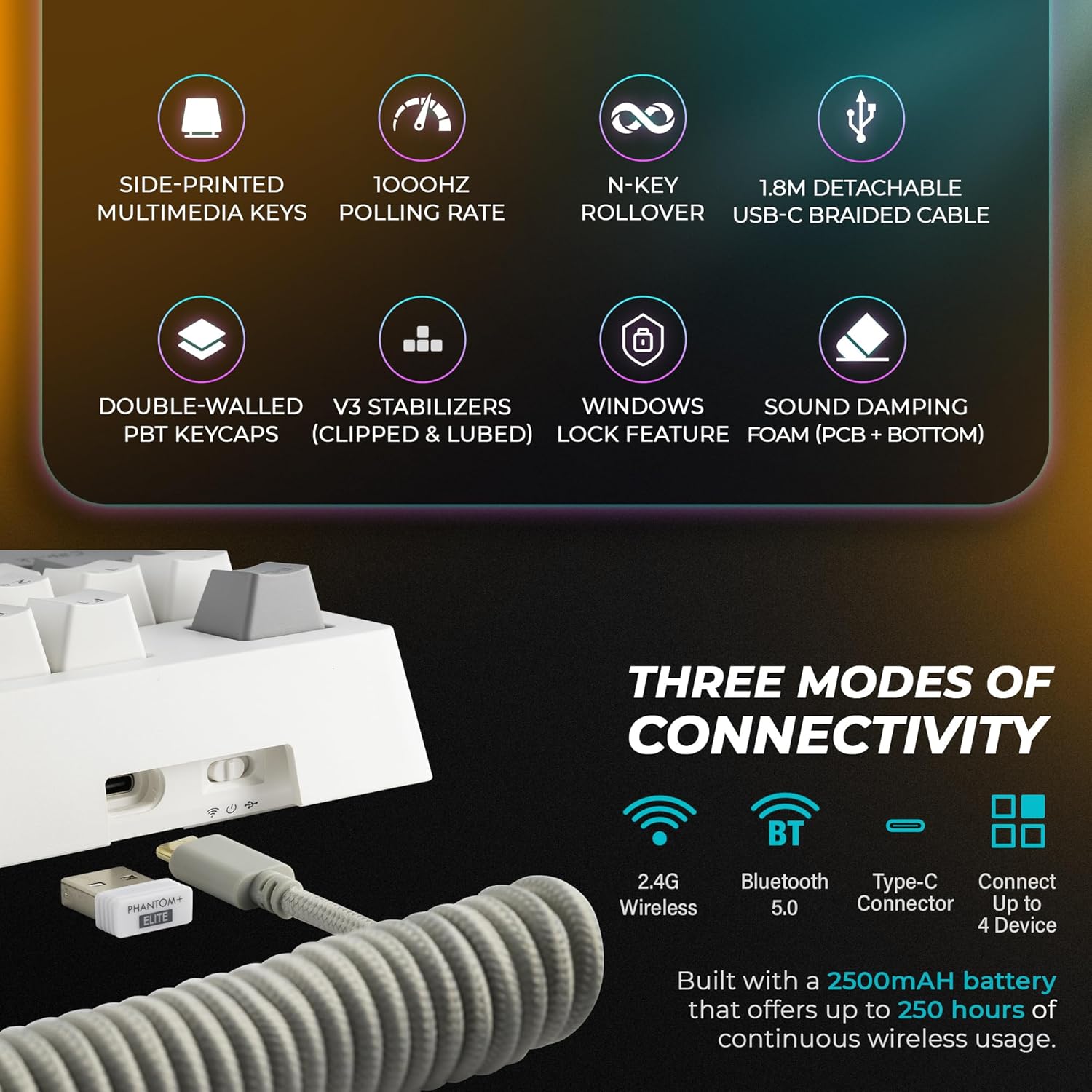
Image: Visual representation of the three connectivity options for the keyboard.
3.2 USB-C Wired Connection
- Connect the coiled USB-C cable to the keyboard's USB-C port.
- Connect the other end of the cable to an available USB port on your computer.
- Ensure the mode switch on the keyboard is set to 'Wired' (usually indicated by a cable icon).
- The keyboard will be recognized automatically by your operating system.
3.3 2.4GHz Wireless Connection
- Locate the 2.4GHz wireless dongle included in the package.
- Plug the wireless dongle into an available USB port on your computer.
- Set the mode switch on the keyboard to '2.4G' (usually indicated by a wireless icon).
- The keyboard should connect automatically. If not, press and hold the FN key + 4 for 3 seconds to initiate pairing.
3.4 Bluetooth 5.0 Connection
- Set the mode switch on the keyboard to 'BT' (usually indicated by a Bluetooth icon).
- On your computer or device, enable Bluetooth and search for new devices.
- To enter pairing mode, press and hold the FN key + 1, 2, or 3 for 3 seconds. The corresponding key's backlight will flash rapidly, indicating it's ready to pair.
- Select 'Phantom+ Elite' from the list of available Bluetooth devices on your computer.
- Once paired, the backlight will stop flashing and remain solid. You can pair up to three Bluetooth devices and switch between them using FN + 1, 2, or 3.
3.5 Battery Information
The keyboard features a built-in 2500mAh rechargeable battery, providing up to 250 hours of continuous wireless use. The keyboard can be charged via the USB-C cable while in wired mode or connected to a power source.
4. Operating Instructions
4.1 RGB Lighting Customization
The Phantom+ Elite keyboard offers 16.8 million colors and 18 preset lighting effects. You can control brightness, animation speed, and patterns directly on the keyboard or through the dedicated software.
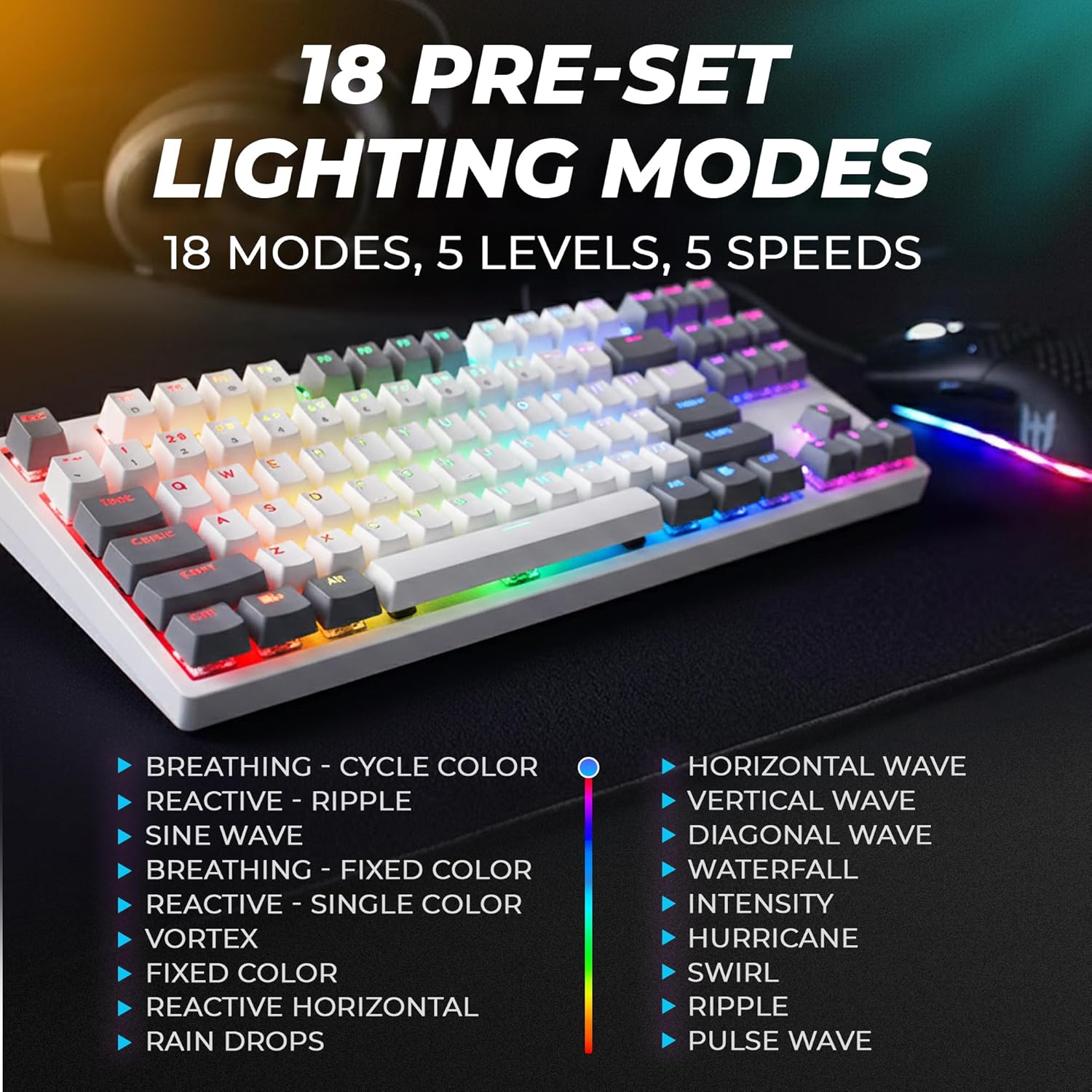
Image: A visual guide to the 18 pre-set RGB lighting modes available on the keyboard.
Onboard Controls:
- FN + Ins: Cycle through 18 preset lighting effects.
- FN + Del: Change lighting color (for modes that support it).
- FN + Arrow Up/Down: Adjust brightness.
- FN + Arrow Left/Right: Adjust animation speed.
- FN + Home: Spectrum Selection Mode (quick single-color selection).
4.2 Hot-Swappable Switches
The keyboard features universal 5-pin hot-swappable sockets, allowing you to easily change switches without soldering. It is compatible with most MX-style mechanical switches.
Video: A demonstration of the hot-swappable 5-pin sockets, showing how to remove and install switches.

Image: An exploded diagram illustrating the internal components and the hot-swappable switch mechanism.
4.3 Keycaps and Stabilizers
The keyboard comes with durable double-shot PBT keycaps and V3 stabilizers that are factory clipped and lubed for a consistent typing experience.

Image: Detailed view of the double-shot PBT keycaps, highlighting their construction and durability.

Image: Components such as V3 stabilizers, sound dampening foam, and the dual-layer fiberglass PCB.
4.4 Software Support
The TECWARE Phantom+ Elite keyboard is supported by dedicated software for advanced customization. This software allows you to:
- Customize per-key RGB lighting.
- Control 18 lighting effects.
- Record and assign macros.
- Create and save up to 3 user profiles.
- Adjust brightness and speed of lighting effects.
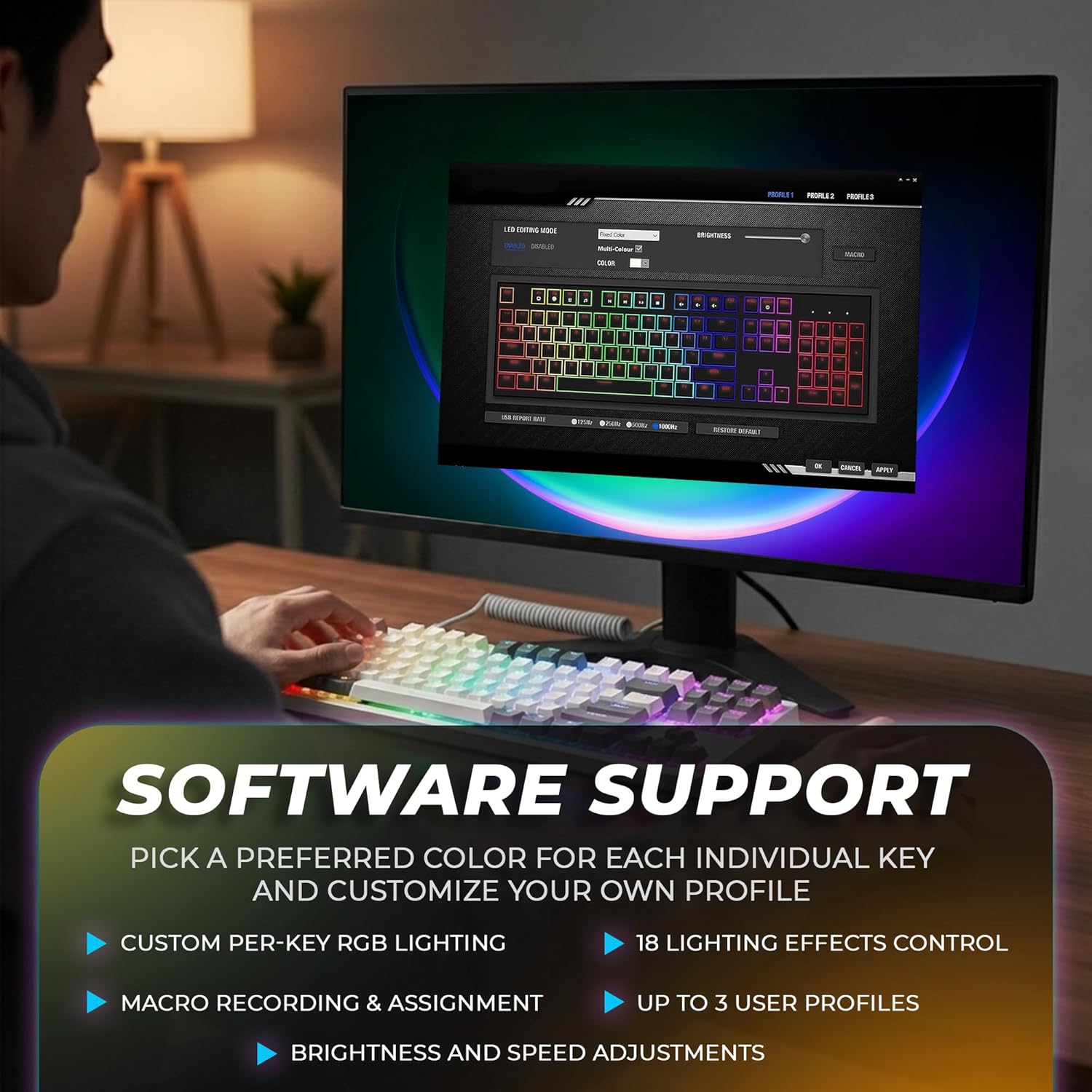
Image: The software interface for customizing RGB lighting and other keyboard settings.
4.5 FN Function Guide
The FN key combined with other keys provides access to various functions. Refer to the included FN Function Guide card for a complete list of shortcuts.

Image: Specifications for the pre-lubed Wraith switches, including actuation force and travel distance.
5. Maintenance
5.1 Cleaning
- Disconnect the keyboard from your computer before cleaning.
- Use a soft, dry cloth to wipe down the keyboard surface.
- For deeper cleaning, use the keycap puller tool to remove keycaps and clean dust or debris with compressed air or a small brush.
- Keycaps can be gently washed with mild soap and water, ensuring they are completely dry before reattaching.
5.2 Switch Replacement
Thanks to the hot-swappable design, individual switches can be replaced if they become faulty or if you wish to change the typing feel.
- Carefully remove the keycap using the provided keycap puller tool.
- Use a switch puller (not included, but often bundled with switches) to gently grip the top and bottom clips of the switch.
- Pull the switch straight up to remove it from the PCB.
- Align the pins of the new switch with the holes on the PCB. Ensure the pins are straight to avoid bending.
- Press the new switch firmly into place until it clicks.
- Reattach the keycap.
6. Troubleshooting
- Keyboard not responding: Ensure the keyboard is properly connected (wired, 2.4GHz dongle, or Bluetooth). Check the mode switch. For wireless modes, ensure the battery is charged.
- RGB lighting not working: Verify that the lighting is enabled via FN key combinations or software. Check brightness settings.
- Keys not registering: If specific keys are not working, try replacing the switch for that key using the hot-swap feature. Ensure the switch is fully seated.
- Wireless connectivity issues: For 2.4GHz, ensure the dongle is close to the keyboard and there are no obstructions. For Bluetooth, re-pair the device. Avoid interference from other wireless devices.
- Software not detecting keyboard: Ensure the keyboard is connected via USB-C and the software is up to date. Restart your computer and the software.
7. Specifications
| Feature | Detail |
|---|---|
| Product Dimensions | 14.69 x 5.98 x 1.65 inches |
| Item Weight | 3.23 pounds |
| Manufacturer | TECWARE |
| Item Model Number | TWKB-PE87PZT-WHWRD |
| Batteries | 1 Lithium Ion batteries required. (included) |
| Connectivity Technology | 2.4GHz wireless, Bluetooth 5.0, USB-C |
| Keyboard Description | Gaming |
| Recommended Uses For Product | Gaming |
| Special Feature | Backlit |
| Keyboard Backlighting Color Support | RGB |
| Style | Modern |
8. Warranty and Support
For warranty information and technical support, please refer to the official TECWARE website or contact their customer service directly. Keep your purchase receipt for warranty claims.
Online Resources:
- Visit the TECWARE Store on Amazon for product information and updates.


