
Introduction
This manual provides comprehensive instructions for the Keychron K1 Pro TKL Ultra-Slim QMK/VIA Custom Mechanical Keyboard. It covers setup, operation, maintenance, and troubleshooting to ensure optimal use of your device. The K1 Pro features a tenkeyless (TKL) layout, ultra-slim design, QMK/VIA programmability, Bluetooth wireless and USB wired connectivity, hot-swappable low-profile Gateron mechanical switches, and RGB backlighting with durable PBT keycaps.
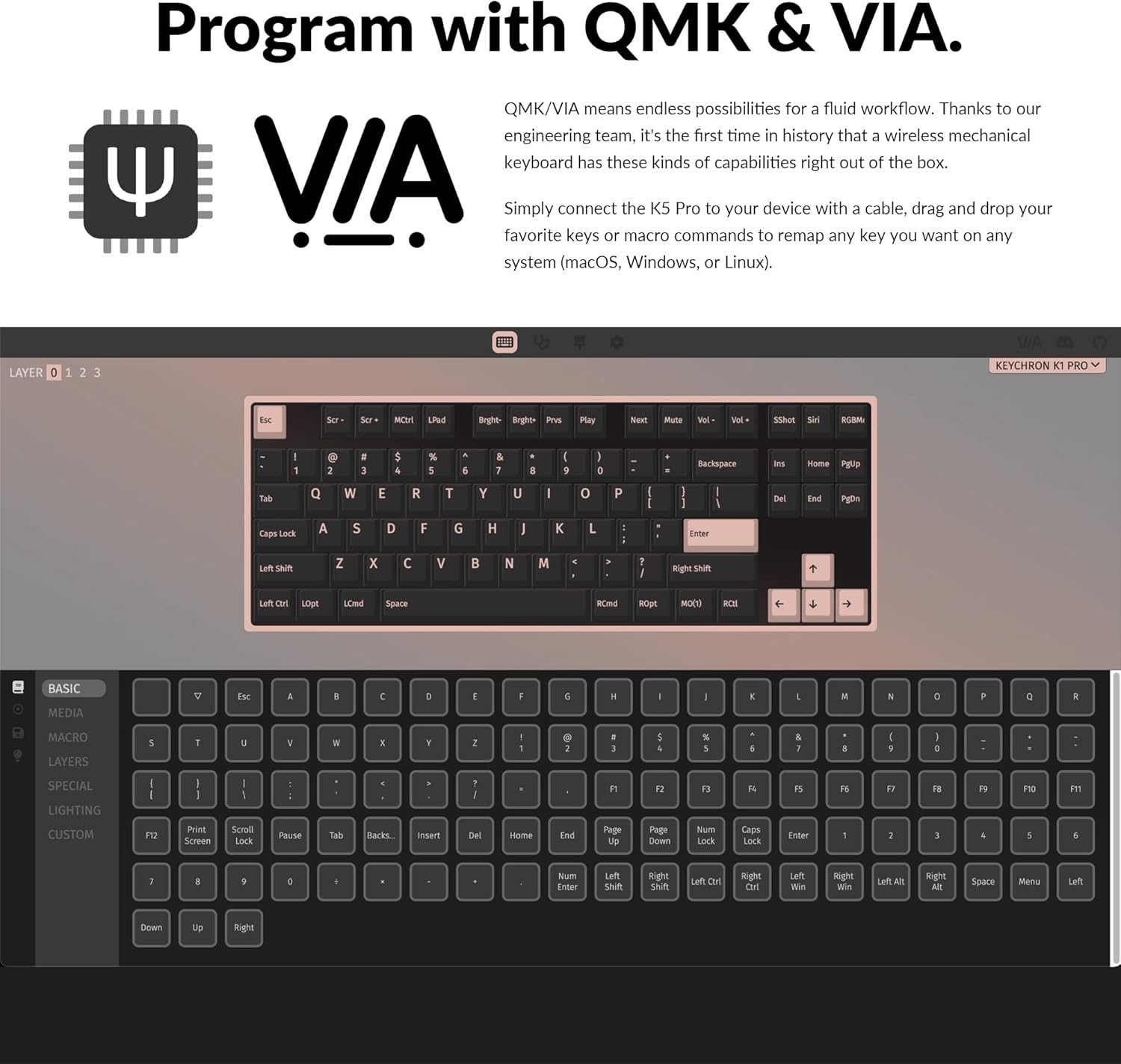
Image: The Keychron K1 Pro TKL mechanical keyboard, showcasing its compact tenkeyless layout and sleek design.
Setup
Included Components
The Keychron K1 Pro package includes:
- 1x Fully Assembled Keyboard (including case, PCB, keycaps, and Gateron low-profile switches)
- 1x Type-A to Type-C Cable
- 1x Switch Puller
- 1x Keycap Puller

Image: Side view of the Keychron K1 Pro, highlighting the physical switches for connectivity and operating system selection.
Initial Connection
To begin, connect the keyboard to your computer using the provided USB Type-C cable. This will power the keyboard and allow for wired operation.
Operating System Switch
Locate the operating system switch on the side of the keyboard. Slide it to the appropriate position for your system (Mac/iOS or Windows/Android) to ensure correct key mapping and functionality.
Bluetooth Pairing
The K1 Pro supports Bluetooth 5.1, allowing connection to up to 3 devices wirelessly. To pair:
- Ensure the keyboard is in Bluetooth mode using the side switch.
- Press and hold the Fn + 1 (or 2, 3) key combination for 4 seconds until the key starts flashing, indicating it is ready for pairing.
- On your device (laptop, phone, tablet), search for Bluetooth devices and select "Keychron K1 Pro" to connect.
- Repeat for additional devices using Fn + 2 or Fn + 3.
- Switch between paired devices by pressing Fn + 1, 2, or 3.
Operating Instructions
Connectivity Modes
The K1 Pro offers both wireless and wired connectivity:
- Bluetooth Wireless: Connects to up to 3 devices via Broadcom Bluetooth 5.1 for seamless multitasking.
- USB Type-C Wired: Provides a stable connection with a 1000 Hz polling rate, suitable for competitive gaming.
QMK & VIA Customization
The K1 Pro is fully programmable with QMK and VIA software, allowing you to remap keys, create macros, and customize layers. Connect the keyboard via USB-C, then use the VIA software (available for macOS, Windows, or Linux) to drag and drop commands to your desired keys.

Image: Screenshot of the QMK and VIA software interface, demonstrating how to customize key assignments and macros for the Keychron K1 Pro.
Hot-Swappable Switches
The K1 Pro features hot-swappable sockets, allowing you to change low-profile Gateron mechanical switches without soldering. This enables customization of your typing experience. Use the included switch puller to carefully remove and insert switches. Note: The K1 Pro is compatible only with Gateron low-profile mechanical switches.

Image: A close-up view of the hot-swappable low-profile Gateron mechanical switches on the Keychron K1 Pro, showing how they can be easily removed and replaced.
RGB Backlighting
The keyboard includes over 22 types of RGB backlight settings, along with a static white backlight option. You can fine-tune the RGB hue, saturation, brightness, and effect speed using onboard key combinations or the VIA software.

Image: The Keychron K1 Pro keyboard illuminated with vibrant RGB backlighting, showcasing various color effects.
Low-Profile Double-shot PBT Keycaps
The K1 Pro is equipped with durable low-profile double-shot PBT keycaps. These keycaps offer excellent oil resistance for long-term use and a comfortable typing experience.

Image: The Keychron K1 Pro keyboard on a desk, highlighting the texture and profile of its low-profile double-shot PBT keycaps.
Ergonomic Features
The K1 Pro is designed for comfort with three levels of adjustable typing angle, providing ergonomic wrist support. It also features redesigned stabilizers for large keys (space bar, left Shift, backspace, Enter) to ensure reliability and minimize wobble.

Image: A split image showing the redesigned stabilizers on large keys and the adjustable typing angles of the Keychron K1 Pro for ergonomic support.

Image: An illustration comparing the ultra-slim profile of the Keychron K1 Pro (17mm) with a conventional mechanical switch and a Gateron Low-Profile 2.0 Mechanical Switch, alongside a quarter for scale.
Maintenance
Cleaning
To maintain your keyboard's performance and appearance:
- Disconnect the keyboard from power before cleaning.
- Use a soft, lint-free cloth slightly dampened with water or a mild cleaning solution to wipe the keycaps and chassis.
- For dust and debris between keys, use compressed air or a small brush.
- Avoid harsh chemicals or abrasive materials that could damage the finish or keycap legends.
Troubleshooting
Connectivity Issues
- Bluetooth Disconnection: Ensure the keyboard is charged. Re-pair the device if connection is lost. Some operating systems may require manual reconnection after waking from sleep.
- Wired Connection Not Detected: Check the USB-C cable connection at both ends. Try a different USB port or cable.
Key Input Problems
- Keys Not Responding: Ensure the correct operating system mode is selected. If using hot-swappable switches, ensure switches are fully seated.
- Incorrect Key Output: Verify the keyboard layout in your operating system settings. If using VIA, check your custom keymaps for unintended reassignments.
Backlight Issues
- Backlight Not Working: Ensure the backlight is enabled and brightness is adjusted. Check keyboard battery level if in wireless mode.
- Dim LEDs: The brightness of the LEDs can vary. Ensure maximum brightness is set.
Physical Switches (Bluetooth/Cable, Win/Mac)
- Difficulty Reading Labels: The labels on the small physical switches for connectivity and OS selection can be very small. Use adequate lighting or a magnifier if needed to ensure correct selection.
Specifications
| Brand | Keychron |
| Model Number | K1PH3 |
| Keyboard Description | Mechanical |
| Connectivity Technology | USB-C, Bluetooth 5.1 |
| Compatible Devices | macOS, Windows, Linux |
| Special Feature | Backlit (RGB), Hot-swappable, QMK/VIA Programmable, Ultra-Slim |
| Keyboard Backlighting Color Support | RGB |
| Product Dimensions | 13.62 x 4.67 x 0.95 inches (34.59 x 11.86 x 2.41 cm) |
| Item Weight | 1.98 pounds (0.9 kg) |
| Batteries | 1 Lithium Polymer battery (included) |
| Date First Available | December 14, 2022 |
Warranty and Support
For warranty information, technical support, or further assistance, please refer to the official Keychron website or contact their customer service directly. Keep your purchase receipt for warranty claims.


