
Redragon M690 PRO
Redragon M690 PRO Wireless Gaming Mouse User Manual
Model: M690 PRO
1. Introduction
The Redragon M690 PRO is a versatile wireless gaming mouse designed for precision and comfort. It offers both 2.4GHz wireless and wired connectivity, adjustable DPI settings up to 8000, and programmable buttons for a customized user experience. This manual provides detailed instructions for setup, operation, maintenance, and troubleshooting.

Image 1.1: Redragon M690 PRO Wireless Gaming Mouse with its USB receiver.
2. Package Contents
Please verify that all items are present in your package:
- Redragon M690 PRO Wireless Gaming Mouse
- 2.4GHz USB Receiver
- USB-C Charging Cable
- User Manual (this document)
3. Setup
3.1. Wireless Connection
- Locate the 2.4GHz USB receiver. It is typically stored in a compartment on the underside of the mouse.
- Insert the USB receiver into an available USB port on your computer.
- Turn on the mouse using the power switch located on the underside. The mouse should automatically connect to the receiver.
- Your computer will typically install the necessary drivers automatically.
3.2. Wired Connection
To use the mouse in wired mode or to charge it, connect the supplied USB-C cable to the mouse's USB-C port and the other end to a USB port on your computer.
3.3. Charging the Mouse
Connect the mouse to your computer using the USB-C cable. The mouse will charge automatically. The LED indicator on the mouse will typically show charging status.
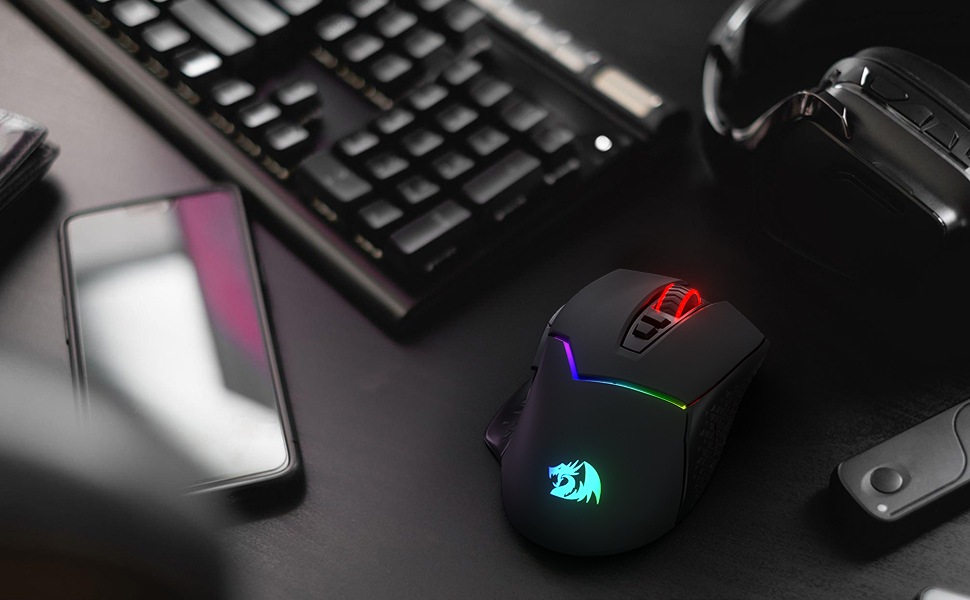
Image 3.1: Wireless connection setup for the Redragon M690 PRO mouse.
4. Operating Instructions
4.1. DPI Adjustment
The mouse features 5 onboard DPI levels (Dots Per Inch) that can be adjusted to suit your preference. These preset levels are 500, 1000, 2000, 3000, and 8000 DPI. Use the dedicated DPI buttons (usually located behind the scroll wheel) to cycle through these settings. Higher DPI values result in faster cursor movement.

Image 4.1: Adjustable DPI levels for precise control.
4.2. Programmable Buttons
The Redragon M690 PRO features 8 programmable buttons, including a rapid-fire key and two side macro buttons. These buttons can be customized using the Redragon software to assign specific functions, macros, or keybinds for gaming or productivity tasks. Refer to the software interface for detailed customization options.

Image 4.2: Software interface for customizing programmable buttons.
4.3. Polling Rate Adjustment
The polling rate determines how often the mouse reports its position to the computer. The M690 PRO allows adjustment of the polling rate from 100Hz to 1000Hz. A higher polling rate provides more responsive tracking but may consume more battery power. A button on the underside of the mouse allows you to cycle through these rates. The current polling rate is indicated by the number of times the mouse wheel blinks (e.g., 4 blinks for 1000Hz).
4.4. Eco Mode
To optimize battery life, the mouse includes an Eco Mode. This mode reduces power consumption, extending the time between charges. Activate or deactivate Eco Mode using the dedicated switch on the underside of the mouse.

Image 4.3: Eco Mode switch on the mouse's underside.
5. Maintenance
5.1. Cleaning
To clean your mouse, use a soft, slightly damp cloth. Avoid using harsh chemicals, abrasive cleaners, or excessive moisture, as these can damage the mouse's surface or internal components. Ensure the mouse is powered off before cleaning.
5.2. Battery Care
To prolong the life of the internal rechargeable battery, avoid exposing the mouse to extreme temperatures. If the mouse will not be used for an extended period, it is recommended to fully charge it before storage and periodically recharge it to prevent deep discharge.
6. Troubleshooting
6.1. Mouse Not Responding or Lagging
- Check Battery: Ensure the mouse has sufficient charge. Connect it via USB-C cable to charge.
- Receiver Placement: Ensure the 2.4GHz USB receiver is securely plugged into a USB port. For optimal performance, try using a USB port on the front of your computer or closer to the mouse to minimize interference.
- Interference: Other wireless devices (Wi-Fi routers, cordless phones) can cause interference. Try moving the mouse or receiver away from such devices.
- Re-pairing: If the connection is lost, try re-pairing the mouse with the receiver. Consult the Redragon support website for specific re-pairing instructions if needed.
6.2. Mouse Enters Sleep Mode Frequently
The mouse is designed to enter a low-power sleep mode after a period of inactivity to conserve battery. To wake the mouse, simply click any button (left or right click). If this occurs too frequently, ensure Eco Mode is not overly aggressive or check for updated software/firmware.
6.3. Software Not Detecting Mouse
- Ensure the mouse is connected to the computer, preferably via a wired connection when attempting software configuration.
- Download the latest version of the Redragon software from the official Redragon website.
- Restart your computer and try again.
7. Specifications
| Feature | Detail |
|---|---|
| Model Number | M690 PRO |
| Connectivity Technology | 2.4GHz Wireless, USB-C Wired |
| Movement Detection Technology | Optical (PAW3104 Pixart Sensor) |
| DPI Levels | 500/1000/2000/3000/8000 (Adjustable) |
| Programmable Buttons | 8 (including Rapid Fire and Side Macros) |
| Polling Rate | Up to 1000Hz (Adjustable) |
| Battery Life | Up to 87 hours (Eco-mode) |
| Product Dimensions | 5 x 2.9 x 0.04 inches |
| Item Weight | 5.3 ounces |
| Compatibility | Windows 7/8/10/XP/Vista/ME/2000/Mac10.x (Side buttons not available for Mac OS) |
8. Warranty and Support
8.1. Warranty Information
Redragon products typically come with a limited warranty. For detailed information regarding warranty terms, conditions, and duration, please refer to the official Redragon website or the warranty card included with your product.
8.2. Customer Support
For technical assistance, product inquiries, or to download the latest software and drivers, please visit the official Redragon support website:
You can also refer to the original User Guide PDF for additional details: Redragon M690 PRO User Guide (PDF)
Related documentsM690 PRO


Ask a question about this manual
Ask about setup, troubleshooting, compatibility, parts, safety, or missing instructions. Manuals+ will review the question and use this page’s manual context to help answer it.