
johgee SGW02
johgee Smart WiFi Water Timer 2-Zone Instruction Manual
Model: SGW02
1. Introduction and Overview
The johgee Smart WiFi Water Timer 2-Zone is designed to provide intelligent and efficient irrigation for your garden, lawn, or faucet. This device features two independent water outlets, allowing for customized watering schedules across different zones. With its Wi-Fi hub and Bluetooth connectivity, you can control your watering system remotely via a smartphone application and integrate with voice assistants like Alexa and Google Assistant.
Key features include:
- Smart Control: Program and manage watering schedules from anywhere using the dedicated application.
- Dual Outlets: Two independent valves, each programmable for up to 20 different watering plans.
- Voice Control: Compatible with Alexa and Google Assistant for convenient hands-free operation.
- Rain Delay: Automatically detects local weather and allows postponement of watering for 1 to 7 days.
- Multiple Modes: Supports Cyclic, Timed, and Manual watering modes to suit various needs.

Image: The johgee Smart WiFi Water Timer connected to a faucet, with a user interacting with the control app on a smartphone, demonstrating remote control capabilities.
2. Package Contents
Please verify that all items are present in your package:
- johgee Smart WiFi Water Timer (2-Zone)
- Wi-Fi Hub
- User Manual (this document)
- Various connectors and adapters (e.g., 3/4" fitting, 1/2" adapter, O-rings, quick connectors)

Image: A complete view of the product package contents, including the 2-zone water timer, the Wi-Fi hub, and various connection accessories.
3. Setup and Installation
3.1 App Installation
To control your smart water timer, download the compatible smart home application (e.g., Tuya Smart or Smart Life) from your device's app store (Google Play Store for Android or Apple App Store for iOS).
- Search for "Tuya Smart" or "Smart Life" in your app store.
- Download and install the application.
- Register a new account or log in if you already have one.
3.2 Wi-Fi Hub Connection
The Wi-Fi hub acts as a bridge between your water timer and your home Wi-Fi network (2.4GHz only).
- Plug the Wi-Fi hub into a standard power outlet indoors, preferably within 15 meters (49.2 feet) of where the water timer will be installed.
- Ensure the hub's indicator light is blinking, indicating it's ready for pairing. If not, refer to the hub's specific reset instructions.
- Open the app, tap "Add Device" or the "+" icon, and follow the on-screen instructions to add the Wi-Fi hub to your network.
3.3 Water Timer Pairing
Once the hub is connected, pair the water timer with the app:
- Ensure the water timer has fresh batteries installed (not included, typically AA or AAA).
- Within the app, navigate to the hub's interface and select to add a sub-device or sensor.
- Follow the app's instructions to put the water timer into pairing mode (this usually involves pressing and holding a button on the timer).
- Once paired, the timer will appear in your app, ready for configuration.
3.4 Physical Installation
Install the water timer to your outdoor faucet:
- Ensure the faucet is turned off.
- Screw the 360° rotating connector of the water timer onto your outdoor faucet. Tighten securely by hand to prevent leaks. Use the appropriate adapter (e.g., 1/2" adapter for EU-type faucets) if necessary.
- Connect your garden hoses to the two independent outlets (ZONE1 and ZONE2) at the bottom of the timer. Ensure a tight connection.
- Turn on your faucet fully. The timer is designed to handle the water pressure.
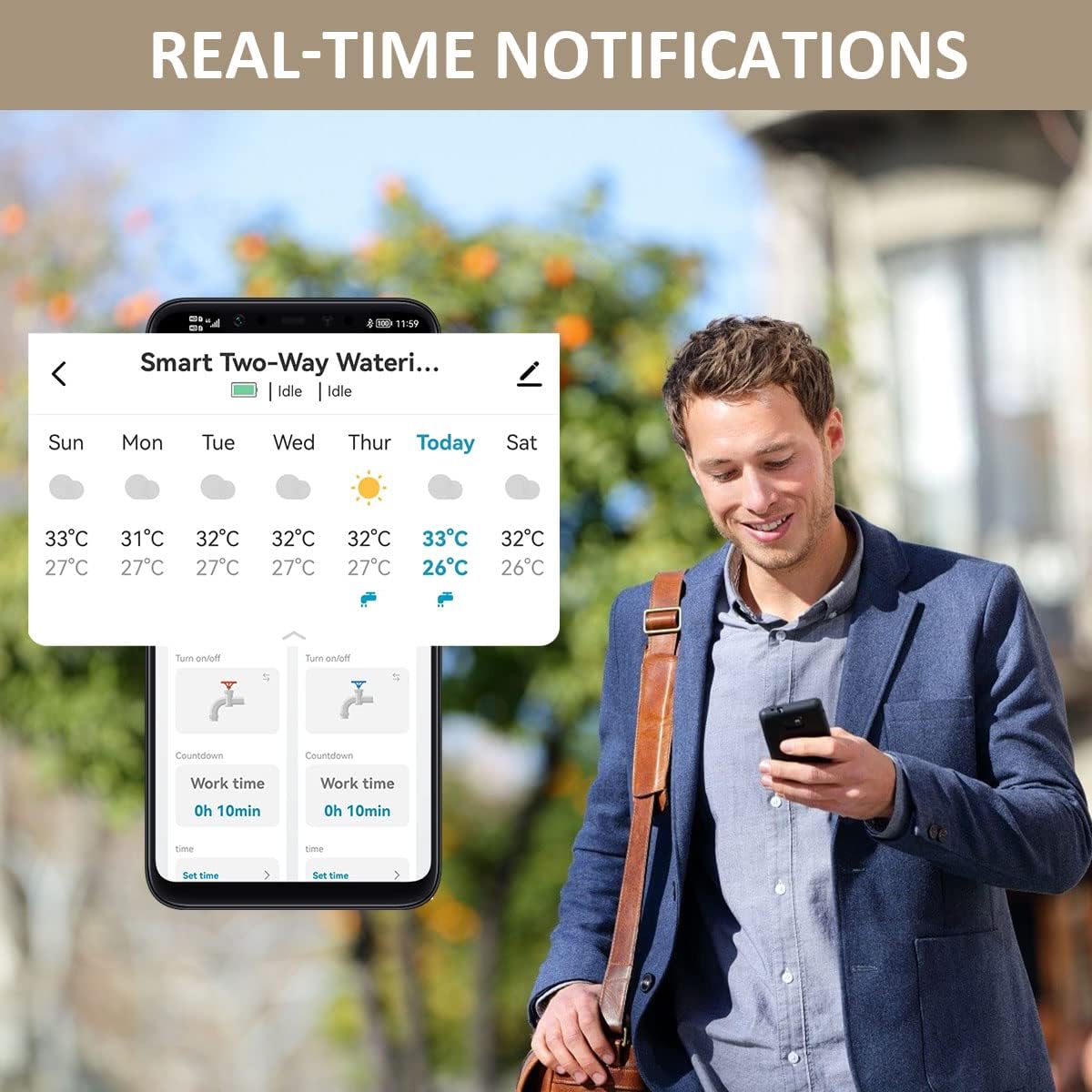
Image: A diagram illustrating the quick installation process for the water timer, showing connections for both USA-type (3/4" hose faucet) and EU-type (1/2" hose faucet) setups, including the 360° rotating connector and quick connectors for hoses.
4. Operating Instructions
4.1 Smart Control via App
The primary method of control is through the smartphone application. Each of the two zones can be programmed independently.
- Open the app and select your water timer device.
- You will see options to manage each zone (ZONE1, ZONE2) separately.
- Access settings for scheduling, manual control, and other features for each zone.

Image: A visual representation of the app interface highlighting the two independent outlets (Zone 1 and Zone 2) and the capability to set up to 40 individual watering plans.
4.2 Watering Modes
The timer supports various watering modes to fit your specific needs:
4.2.1 Timed/Schedule Irrigation Mode
Set specific start and end times for watering on selected days.
- In the app, select the desired zone.
- Choose "Timed Mode" or "Schedule Mode".
- Set the start time, end time, and days of the week for watering.
- You can set up to 20 different schedules per zone.

Image: The app screen displaying options for Timed/Schedule Irrigation Mode, allowing users to set specific start and end times for watering cycles, along with various scheduling options like weekly, odd day, even day, and every few days.
4.2.2 Cyclic Irrigation Mode
This mode allows for repeated watering cycles within a set period, useful for new plantings or specific soil types.
- Select the zone and choose "Cyclic Mode".
- Define the start and end times for the overall cycle.
- Set the irrigation duration (how long it waters) and the interval time (how long it pauses between watering).
- The timer will repeat this cycle within the defined start and end times.

Image: The app screen demonstrating the Cyclic Irrigation Mode setup, where users can define start and end times, irrigation duration, and interval times for repeated watering cycles within a day.
4.2.3 Manual Watering
For immediate watering needs, you can manually activate a zone.
- In the app, select the desired zone.
- Tap the "Manual" or "Turn On/Off" button.
- You may be prompted to set a duration for the manual watering.
- To stop manual watering, tap the button again or wait for the set duration to expire.
4.3 Rain Delay System
The rain delay feature helps conserve water by pausing schedules during rainy conditions.
- The timer can automatically detect local weather conditions (ensure location services are enabled for the app).
- You can manually activate a rain delay from the app. Select the rain delay option and choose the number of days (1 to 7) to postpone watering.
- All scheduled watering will be paused for the selected duration and will resume automatically afterward.

Image: The app screen showing the Rain Delay function, allowing users to select a delay period from 1 to 7 days to postpone watering due to rain or wet ground conditions.
4.4 Smart Voice Control
Integrate your johgee water timer with Amazon Alexa or Google Assistant for voice commands.
- Ensure your Wi-Fi hub and water timer are successfully paired with the app.
- Open your Alexa or Google Home app.
- Enable the "Tuya Smart" or "Smart Life" skill/action.
- Discover devices. Your water timer zones should appear.
- You can now use voice commands such as:
- "Alexa, turn on Zone 1."
- "Hey Google, turn off Zone 2."
- "Alexa, open the 2 zone Wifi water timer."

Image: A man in a kitchen setting interacting with a voice assistant, demonstrating how to control the water timer using simple voice commands like "Alexa, open the 2 zone Wifi water timer" and "Alexa, close the 2 zone Wifi water timer."
4.5 Real-time Notifications
Receive alerts and updates directly on your smartphone regarding your watering schedule and device status.
- Ensure notifications are enabled for the app in your phone's settings.
- The app will provide real-time weather updates and notifications about watering events or changes.

Image: A smartphone screen showing real-time notifications from the water timer app, including weather information and status updates for watering zones.
5. Maintenance
Proper maintenance ensures the longevity and optimal performance of your water timer.
- Cleaning: Periodically clean the exterior of the timer with a damp cloth. Do not use harsh chemicals or abrasive cleaners.
- Filter Screen: Check the inlet filter screen (located where it connects to the faucet) for debris and clean it as needed to prevent blockages.
- Battery Replacement: Replace batteries in the water timer when the low battery indicator appears in the app or on the device. Use high-quality alkaline batteries.
- Winterization: Before the first frost, disconnect the water timer from the faucet and hoses. Drain any remaining water from the timer and store it indoors in a dry, protected area to prevent freezing damage.
6. Troubleshooting
If you encounter issues with your johgee Smart WiFi Water Timer, refer to the following common problems and solutions:
| Problem | Possible Cause | Solution |
|---|---|---|
| Timer not connecting to Wi-Fi hub/app. | Incorrect Wi-Fi password; Hub too far from router; Timer too far from hub; Hub not powered; App issues. | Ensure 2.4GHz Wi-Fi is used. Verify Wi-Fi password. Move hub closer to router. Move timer closer to hub (max 15m). Check hub power. Restart app/phone. Re-pair devices. |
| Water not flowing from timer. | Faucet off; Low battery; Blocked filter; Incorrect schedule; Manual override. | Ensure faucet is fully open. Replace batteries. Clean inlet filter screen. Check app schedule. Disable any manual overrides. |
| Water leaking from connections. | Loose connection; Damaged O-ring/washer; Cracked fitting. | Tighten all connections securely by hand. Check and replace O-rings or washers if damaged. Inspect fittings for cracks; if cracked, the unit may need replacement. |
| Rain Delay not working. | Location services disabled; App not updated; Weather data not syncing. | Ensure location services are enabled for the app. Update the app to the latest version. Manually activate rain delay if automatic detection fails. |
| Voice control not responding. | Incorrect commands; Skill/action not enabled; Device not discovered; Internet connectivity issues. | Use precise commands. Ensure the "Tuya Smart" or "Smart Life" skill/action is enabled in your voice assistant app. Re-discover devices. Check internet connection. |
7. Specifications
| Feature | Detail |
|---|---|
| Brand | johgee |
| Model Number | SGW02 |
| Color | 2 Zone Wifi (Black/Orange) |
| Product Dimensions | 15D x 6W x 14.5H Centimetres |
| Item Weight | 0.53 Kilograms (530 g) |
| Number of Outlets | 2 (Independent) |
| Watering Programs | Up to 20 per valve |
| Connectivity | Wi-Fi (2.4GHz only), Bluetooth |
| Voice Assistant Compatibility | Amazon Alexa, Google Assistant |
| Rain Delay Duration | 1 to 7 days |
| Max Distance (Hub to Timer) | 15 Meters (49.2 ft) |
8. Warranty and Support
For warranty information and technical support, please refer to the documentation provided with your purchase or contact johgee customer service directly. Contact details can typically be found on the product packaging or the official johgee website.
Please retain your proof of purchase for any warranty claims.
Related documentsSGW02


Ask a question about this manual
Ask about setup, troubleshooting, compatibility, parts, safety, or missing instructions. Manuals+ will review the question and use this page’s manual context to help answer it.