
1. Introduction
This manual provides detailed instructions for the installation, operation, and maintenance of your Naifay Single Din Car Stereo with a 7-inch flip-out touchscreen. This unit supports Apple CarPlay, Android Auto, Bluetooth connectivity, FM radio, and various media inputs, enhancing your in-car entertainment and navigation experience.
2. Safety Information
- Professional Installation Recommended: Due to the complexity of car electrical systems, professional installation is highly recommended to prevent damage to the unit or your vehicle.
- Power Supply: Ensure your car's power supply is 16V or below. Incorrect voltage can damage the unit.
- Wiring: Always connect the yellow wire to the positive pole of the battery (12V+ constant), the black wire to the negative pole of the battery (ground), and the red wire to the ACC (car keyhole) for proper power supply. Ensure all positive and negative wires are correctly insulated to avoid short circuits.
- Driving Safety: Do not operate the unit in a way that distracts you from driving. Always prioritize road safety.
- Screen Operation: The screen is manually operated. Ensure it is securely positioned when in use and folded away when not needed to avoid obstruction or damage.
3. Package Contents
Verify that all items are present in the package:
- Naifay Single Din Car Stereo Unit
- Power Cable
- HD Camera (Backup Camera)
- Camera Cables
- Remote Control
- User Manual
- Disassembly Keys

Image: Package contents and wiring diagram for the Naifay Single Din Car Stereo.
4. Product Overview
4.1. Front Panel and Screen
The unit features a 7-inch LCD flip-out touchscreen for interactive control and display. The screen can be manually pulled out for use and folded back when not required. The front panel includes essential controls and a USB port.

Image: Front view of the Naifay Single Din Car Stereo with its 7-inch manual flip-out screen extended.
4.2. Rear Ports and Connections
The rear of the unit provides various ports for connectivity, including:
- Antenna Input (ANT)
- Audio Outputs (L-OUT, R-OUT)
- Video Outputs (V-OUT1, V-OUT2)
- CVBSIN (Video Input)
- CAMIN (Camera Input)
- Power Cable Connector
- USB Port
- AUX Input
- External Microphone Input

Image: Rear view of the Naifay Single Din Car Stereo, detailing the various input and output ports for audio, video, and power connections.
5. Setup
5.1. Installation Size Check
Before installation, confirm that the unit's dimensions (178mm L x 50mm H / 7in L x 1.97in H) match your car's dashboard opening. If the size is incompatible, a mounting kit may be required. Search for a compatible dash kit using your vehicle's year, make, and model.

Image: Diagram illustrating the dimensions of the Naifay Single Din Car Stereo, including the main unit and the extended 7-inch screen.
5.2. Wiring Instructions
Refer to the wiring diagram for correct connections. Improper wiring can prevent the unit from powering on or saving settings.
- Yellow Wire (B+): Connect to the positive pole of the car battery (12V+ constant).
- Black Wire (GND): Connect to the negative pole of the car battery (ground).
- Red Wire (ACC): Connect to the car's ignition power wire.
- Speaker Wires: Connect the corresponding speaker wires (Green/Green-Black, White/White-Black, Gray/Gray-Black, Purple/Purple-Black) to your car's speakers.
- Blue Wire (ANT): Connect to the auto antenna or amplifier remote turn-on.
- Brown Wire (KEY): For steering wheel controls.
- Orange Wire (ILL): For illumination (headlight control line).
- Pink Wire (REVERSE): Connect to the reversing light positive electrode for backup camera activation.

Image: Comprehensive wiring diagram for connecting the Naifay Single Din Car Stereo to the vehicle's electrical system and speakers.
5.3. Backup Camera Installation
The unit includes a 12-lamp high-definition reversing camera with night vision and a 170-degree wide-angle view. Connect the camera's video cable to the CAMIN input on the stereo and the power wire to the reversing light positive electrode. The unit will automatically display the reverse image when the vehicle is in reverse gear.

Image: Diagram illustrating the connection and functionality of the rear view camera, showing its wide-angle view and automatic activation.
6. Operating Instructions
6.1. Power On/Off and Screen Operation
Press the power button to turn the unit on or off. The 7-inch screen is manually operated; gently pull it out to extend and push it back to retract. The unit will continue to function even with the screen retracted.
Video: Demonstrates the manual flip-out screen mechanism of the Naifay Single Din Car Radio, showing how it extends and retracts.
6.2. Radio Function
Access the FM radio function from the main menu. The unit supports full digital electronic control for searching radio stations and automatically scans for available frequencies. It can store up to 18 stations in memory.

Image: The FM Radio interface, displaying frequency tuning and preset station options.
6.3. Bluetooth Connection
To connect your smartphone via Bluetooth, navigate to the Bluetooth menu on the car stereo. On your phone, search for available Bluetooth devices and select 'Carkit'. Enter the PIN '0000' if prompted. Once connected, you can make hands-free calls and stream music.

Image: The Bluetooth calling interface on the car stereo, showing a dial pad and call options.
6.4. Apple CarPlay & Android Auto
Connect your iPhone or Android phone to the stereo via a USB data cable. The unit will automatically launch Apple CarPlay or Android Auto, allowing access to navigation, music, calls, and messages through the touchscreen or voice commands.

Image: The car stereo displaying both Apple CarPlay and Android Auto interfaces, showing various app icons and navigation.
Video: Overview of the Naifay Flip Out Single Din Car Stereo, highlighting its Apple CarPlay and Android Auto compatibility and features.
6.5. Mirror Link Function
The Mirror Link function allows you to display your smartphone's screen content directly on the car stereo. Connect your phone via USB and select the Mirror Link option. This enables viewing of online GPS navigation, videos, and other apps from your phone.

Image: The Mirror Link feature in use, showing a smartphone's display mirrored onto the car stereo's screen for navigation.
6.6. USB/SD/AUX Input
The unit supports media playback from USB drives, SD cards, and auxiliary input devices. Insert your media into the respective ports to access music and video files.

Image: Close-up of the car stereo's inputs, highlighting support for USB, SD card, and AUX connections for media playback.
6.7. Steering Wheel Control
The unit supports steering wheel control. After connecting the brown KEY wire, you can configure the steering wheel buttons to control functions like volume, track skipping, and station changes directly from your steering wheel.
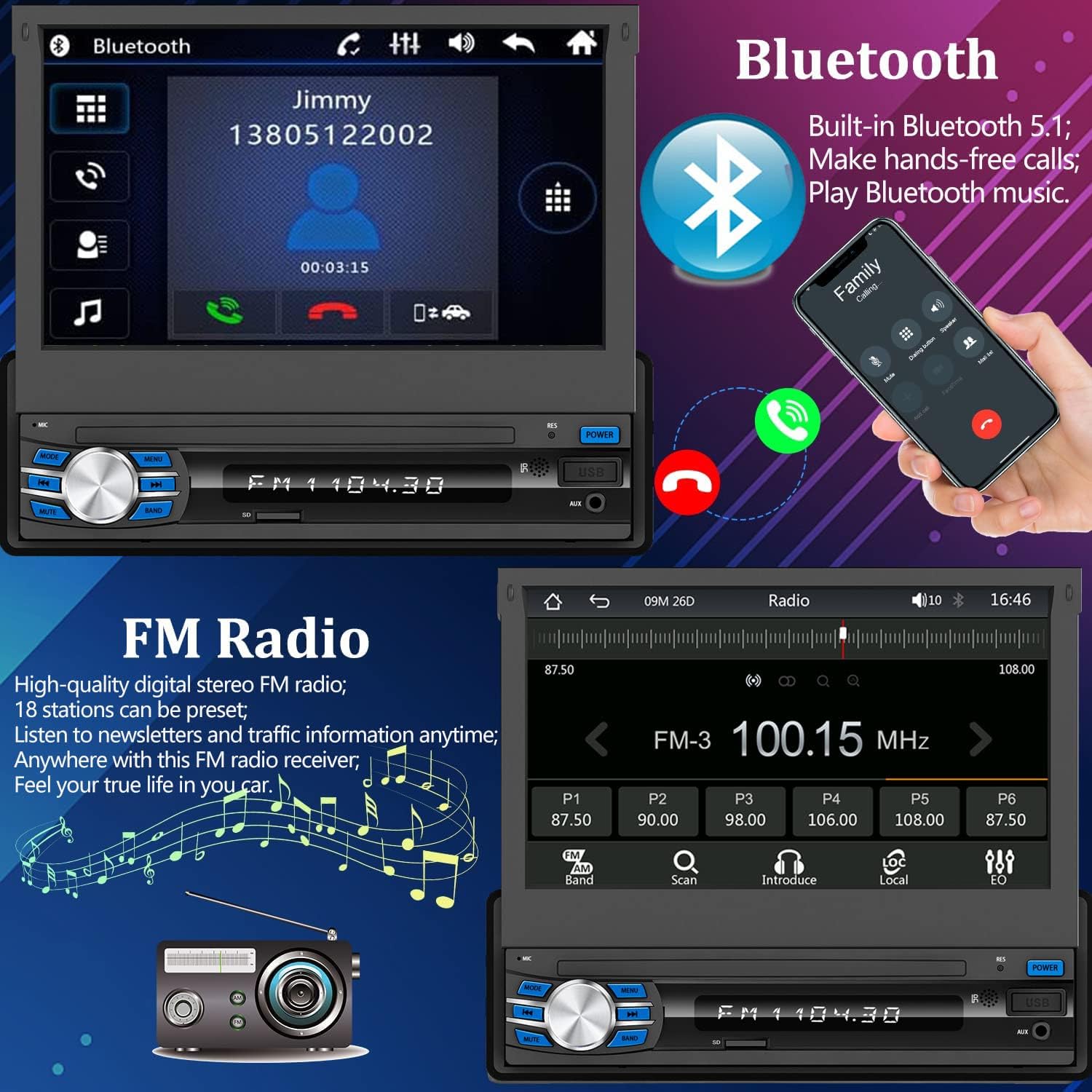
Image: The steering wheel control setup screen on the car stereo, showing options to learn and assign functions to vehicle steering wheel buttons.
6.8. Audio Settings (EQ)
Customize your audio experience using the built-in 10-band equalizer (EQ). Adjust frequency bands to suit your preferences for different music genres (e.g., Jazz, Classic, Rock, Pop, Soft).
Image: The audio equalizer interface, showing a 10-band graphic EQ for fine-tuning sound output.
7. Maintenance
- Cleaning the Screen: Use a soft, dry cloth to clean the touchscreen. Avoid abrasive cleaners or solvents.
- General Cleaning: Keep the unit free from dust and debris. Use a soft brush or compressed air for hard-to-reach areas.
- Avoid Liquids: Do not expose the unit to excessive moisture or liquids.
8. Troubleshooting
8.1. Unit Does Not Power On / Settings Not Saved
Possible Cause: Incorrect wiring of power cables.
Solution: Verify that the yellow (B+), black (GND), and red (ACC) wires are connected correctly as per the wiring diagram. Ensure the yellow wire has constant 12V power and the red wire has switched 12V power.
8.2. No Sound After Installation
Possible Cause: Wiring error or short-circuited speaker wires.
Solution: Check all speaker wire connections for proper polarity and ensure no wires are short-circuited to the car's metal frame. If an external amplifier is used, ensure it is powered on and correctly connected.
8.3. Cannot Connect via Bluetooth
Possible Cause: Incorrect pairing procedure or phone settings.
Solution: Ensure Bluetooth is enabled on your phone and the car stereo. Search for 'Carkit' on your phone and pair. No need to open Bluetooth settings on the car stereo, only operate on the mobile phone.
8.4. Cannot Search for FM Stations
Possible Cause: Antenna not properly connected or damaged.
Solution: Ensure the antenna plug is fully inserted. Check for any disconnections in the antenna line. If issues persist, try inserting a metal strip into the antenna port to test for reception.
9. Specifications
| Feature | Specification |
|---|---|
| Brand | Naifay |
| Model Number | D1 |
| Screen Type | 7-inch Flip Out Touchscreen |
| Connectivity Technology | Auxiliary, Bluetooth, USB |
| Controller Type | Android, iOS |
| Compatible Devices | Smartphone, Speaker |
| Audio Output Mode | Stereo |
| Surround Sound Channel Configuration | 4.0 |
| Number of Channels | 4 |
| Video Encoding | H.264, H.265/HEVC, MPEG-4, etc. |
| Supported Internet Services | Maps |
| Control Method | Remote |
| Audio Output Type | Speakers |
| Wireless Technology | Bluetooth |
| Supported Audio Formats | WAV, WMA |
| Item Dimensions (D x W x H) | 7.48"D x 2.44"W x 7.3"H |
10. Warranty and Support
The Naifay Single Din Car Stereo (Model D1) comes with a 1-year manufacturer's warranty. Replacement is available within 12 months of purchase.
For technical support, troubleshooting assistance, or warranty claims, please contact Naifay customer service. You can typically find contact information by clicking on "Sold by Naifay" on the product page and selecting "Ask a question." Naifay aims to provide quick replies within 24 hours and offers lifetime after-sales consultation and technical support.

Image: Naifay customer support details, including response times, return policy, replacement period, and lifetime technical support.