
1. Introduction
The KCEVE 8K KVM HDMI Switch is a high-performance device designed to streamline your workspace by allowing two computers or laptops to share a single monitor, keyboard, and mouse. This eliminates the need for multiple peripherals and monitors, saving space and enhancing productivity. It supports advanced video resolutions and offers stable USB 3.0 connectivity for various devices.

Figure 1.1: The KCEVE 8K KVM HDMI Switch, showcasing its compact design and multiple ports for connecting two computers, a monitor, and various USB peripherals.
2. Package Contents
Please verify that all items listed below are included in your package. If any items are missing or damaged, please contact customer support.
- 1x 8K HDMI 2.1 USB 3.0 KVM Switch
- 1x Wired Remote Controller (1.5m)
- 2x USB A to A Cable (1.5m)
- 1x User Manual

Figure 2.1: Contents of the KVM switch package, including the main unit, wired remote, USB cables, and user manual, along with product dimensions.
3. Product Features
- 8K Ultra HD Resolution: Supports resolutions up to 7680x4320@60Hz and 3840x2160@120Hz, ensuring a high-quality visual experience.
- USB 3.0 Connectivity: Features four USB 3.0 ports for fast and stable data transmission (up to 5.0Gbps), compatible with various USB devices including keyboards, mice, printers, and U-disks.
- Dual Switching Methods: Easily switch between connected computers using either the physical button on the KVM unit or the included wired remote control.
- Plug and Play: No drivers or software installation required for operation.
- Wide Compatibility: Compatible with Windows (10/8.1/8/7/XP/Vista), Mac OS, Linux, and Chrome OS.

Figure 3.1: The KVM switch supports maximum resolutions of 8K@60Hz, 4K@120Hz, and is backward compatible with HDMI 2.0 and 1.4 standards.

Figure 3.2: The KVM switch allows two computers to share one monitor and four USB 3.0 devices, demonstrating the 5Gbps data transfer rate of USB 3.0 compared to USB 2.0.
4. Setup Guide
Follow these steps to properly set up your KCEVE 8K KVM HDMI Switch:
- Power Off Devices: Ensure all computers and the monitor are turned off and unplugged from their power sources.
- Connect Computers to KVM:
- Connect the HDMI output of PC1 to the 'PC1 HDMI IN' port on the KVM switch.
- Connect one of the included USB 3.0 A to A cables from a USB 3.0 port on PC1 to the 'PC1 USB 3.0 IN' port on the KVM switch.
- Repeat the above steps for PC2, connecting its HDMI output to 'PC2 HDMI IN' and its USB 3.0 port to 'PC2 USB 3.0 IN'.
- Connect Monitor: Connect your monitor's HDMI input to the 'MONITOR HDMI OUT' port on the KVM switch.
- Connect Peripherals: Plug your keyboard, mouse, and any other USB 3.0 devices (e.g., printer, U-disk) into the USB 3.0 ports on the front of the KVM switch.
- Connect Wired Remote (Optional): If desired, plug the wired remote control into the 'SELECT' port on the KVM switch.
- Power On: Turn on your monitor first, then power on your computers.
Important Note:
- To achieve 8K@60Hz or 4K@120Hz resolution, ensure your computers, HDMI cables (HDMI 2.1 certified), and monitor all support these resolutions. High-quality HDMI 2.1 cables less than 3 meters (10 feet) are highly recommended to prevent flickering or black screens.
- The two USB 3.0 A to A cables connected to your computers also provide power to the KVM switch and connected USB devices. Ensure both are connected for stable operation.
- Standard 104-key wired USB keyboards are recommended. Mechanical keyboards and high-power consumption mice are not recommended as they may affect stability due to power requirements.
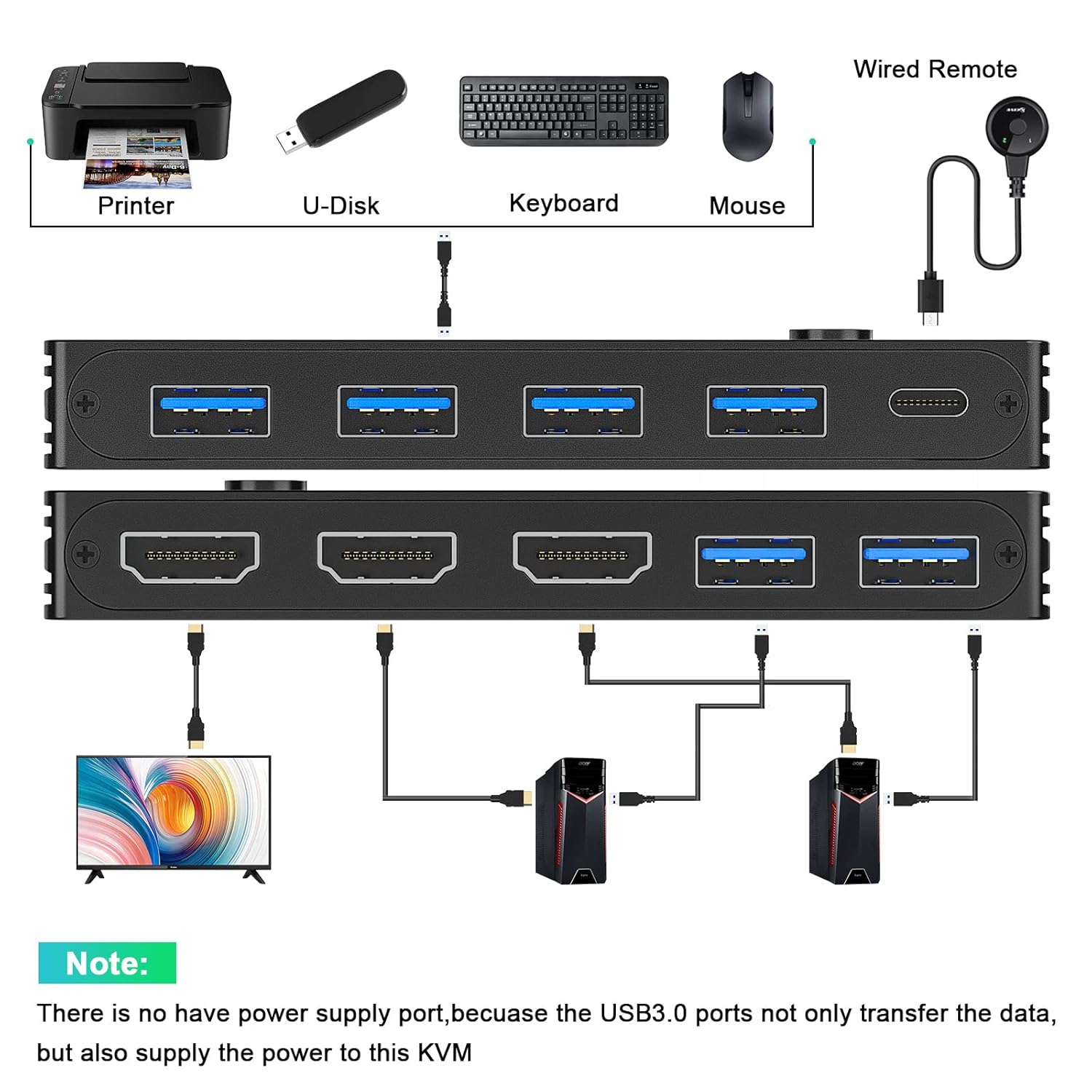
Figure 4.1: Detailed connection diagram showing how to link two computers, a monitor, and USB peripherals to the KVM switch.

Figure 4.2: A visual comparison demonstrating how the KVM switch helps consolidate two computer setups into one shared monitor and peripheral arrangement, saving desktop space.
5. Operating Instructions
The KCEVE 8K KVM HDMI Switch offers two convenient methods for switching between connected computers:
5.1. Button Control
Press the 'SELECT' button located on the top of the KVM switch to toggle between PC1 and PC2. An LED indicator will illuminate to show which computer is currently active (blue for PC1, green for PC2).
5.2. Wired Remote Control
Use the included wired remote control for switching. Simply press the button on the remote to switch between PC1 and PC2. This allows for flexible placement of the switch while keeping the control button within easy reach.
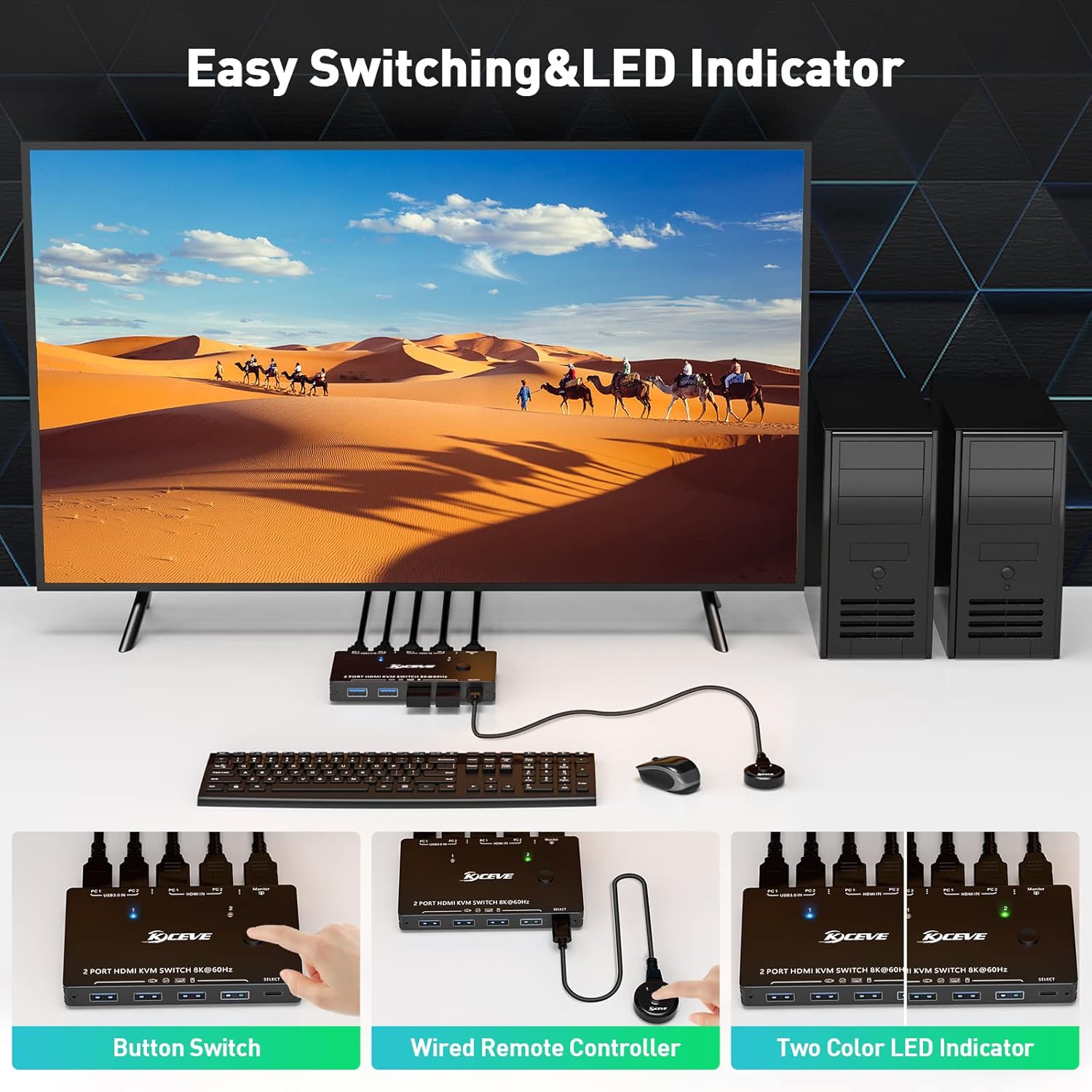
Figure 5.1: Illustration of the two switching methods: direct button press on the KVM unit and using the wired remote controller for convenience. The LED indicators show the active computer.
Note: This 8K KVM switch does not support keyboard hotkey control.
6. Specifications
| Feature | Description |
|---|---|
| Product Dimensions | 4.53 x 2.56 x 0.59 inches |
| Item Model Number | KC8201DZEU |
| Weight | 12.31 ounces (approx. 349 grams) |
| Operation Mode | Manual (Button / Wired Remote) |
| Connector Type | HDMI, USB |
| Connectivity Protocol | HDMI 2.1, USB 3.0 |
| Supported Resolutions | 7680x4320@60Hz, 5120x2880/1440@50/60Hz, 3840x2160@120Hz, 3440x1440@144Hz, 3840x1080@240Hz, 2560x1440@144Hz, etc. |
| USB Data Rate | Up to 5.0Gbps (USB 3.0) |
| Power Supply | Via USB 3.0 cables from connected computers |
7. Troubleshooting
If you encounter issues with your KCEVE 8K KVM HDMI Switch, please refer to the following common problems and solutions:
- No Display or Flickering Screen:
- Ensure all HDMI cables are HDMI 2.1 certified and are of high quality, preferably less than 3 meters (10 feet) in length.
- Verify that your monitor and computer graphics card support the desired resolution (e.g., 8K@60Hz or 4K@120Hz).
- Try restarting the monitor and then the computers.
- Keyboard/Mouse Not Responding or Disconnecting:
- Ensure both USB 3.0 A to A cables are securely connected from your computers to the KVM switch. These cables provide power to the KVM and USB peripherals.
- Avoid using mechanical keyboards or high-power consumption USB devices directly with the KVM if stability issues occur. Consider using a powered USB hub if you have many high-power devices.
- Try connecting the keyboard/mouse to different USB ports on the KVM.
- Switching Delay:
- A brief delay (typically 3-5 seconds) during switching is normal as the KVM re-establishes connections.
- No Automatic Switching:
- The KVM switch does not automatically switch to an active computer if the current one is turned off. Manual switching via the button or wired remote is required.
8. Maintenance
To ensure the longevity and optimal performance of your KCEVE 8K KVM HDMI Switch, follow these maintenance guidelines:
- Keep the device in a cool, dry place, away from direct sunlight, heat sources, and excessive moisture.
- Clean the exterior of the device with a soft, dry cloth. Do not use liquid cleaners or aerosols.
- Avoid placing heavy objects on top of the KVM switch.
- Do not disassemble the unit. Any unauthorized attempts to repair will void the warranty.
9. Warranty and Support
KCEVE provides a one-year guarantee for this product from the date of purchase. This warranty covers manufacturing defects and malfunctions under normal use.
The warranty does not cover:
- Damage caused by misuse, abuse, accident, or neglect.
- Damage from unauthorized modification or repair.
- Damage due to natural disasters or acts of God.
For technical support, warranty claims, or any questions regarding the use of your KCEVE 8K KVM HDMI Switch, please contact the seller service through your purchase platform. Please have your order number and product model (KC8201DZEU) ready when contacting support.