
1. Introduction
This manual provides detailed instructions for the setup, operation, maintenance, and troubleshooting of your edaiser Wireless Magic Keyboard Case. Please read this manual thoroughly before using the product to ensure proper functionality and to maximize your user experience.
2. Compatible Models
The edaiser Wireless Magic Keyboard Case is designed for specific Apple iPad models. Please verify your iPad's model number to ensure compatibility.
- iPad Air 13-inch (M2) 2024 (Models: A2898, A2899, A2900)
- iPad Pro 12.9-inch 6th Generation 2022 (Models: A2436, A2764, A2437, A2766)
- iPad Pro 12.9-inch 5th Generation 2021 (Models: A2378, A2379, A2461, A2462)
- iPad Pro 12.9-inch 4th Generation 2020 (Models: A2229, A2069, A2232, A2233)
- iPad Pro 12.9-inch 3rd Generation 2018 (Models: A1876, A2014, A1895, A1983)
To verify your iPad's model number, look for the small print on the back of your device. It typically starts with the letter 'A' followed by four digits.

This image illustrates the compatible iPad models for the edaiser Wireless Magic Keyboard Case, including iPad Air 13-inch (M2) 2024 and iPad Pro 12.9-inch (3rd, 4th, 5th, 6th Generation). It also provides instructions on locating your iPad's model number on the back of the device.
3. Package Contents
Please check the package for the following items:
- edaiser Wireless Magic Keyboard Case
- USB Cable (for charging)
- User Manual (this document)
4. Setup
4.1 Charging the Keyboard
Before initial use, fully charge the keyboard. Connect the provided USB cable to the keyboard's Type-C charging port and a power source (e.g., computer USB port, USB wall adapter). The charging indicator light will show the charging status.
4.2 Attaching Your iPad
The keyboard case features a strong magnetic attachment. Simply align your compatible iPad with the magnetic panel on the case. The iPad will snap securely into place.

This image demonstrates how the iPad magnetically attaches to the keyboard case for a secure fit. It also illustrates the automatic sleep and wake functionality, where closing the case puts the iPad to sleep and opening it wakes the device.
4.3 Bluetooth Pairing
- Ensure the keyboard is charged and powered on.
- On your iPad, go to Settings > Bluetooth.
- Turn on Bluetooth.
- The iPad will search for discoverable devices. Select "edaiser Keyboard" (or similar name) from the list.
- Follow any on-screen prompts to complete the pairing process. Once paired, the keyboard is ready for use.
5. Operating Instructions
5.1 Keyboard Functions
The keyboard features a standard QWERTY layout with 83 keys, including a row of shortcut keys for iPad functions.
- Backlight Control: Press the Light Bulb key to cycle through 7 backlight colors. Press the Brightness Up/Down keys to adjust between 3 brightness levels.
- Silent Key Design: The keys are designed for quiet operation.
- Auto Sleep/Wake: The case supports automatic sleep and wake functionality. Closing the case puts your iPad to sleep, and opening it wakes the device.

This image illustrates the 7 available backlight colors and 3 adjustable brightness levels for the keyboard, allowing users to customize their typing experience in various lighting conditions.
5.2 Multi-Touch Trackpad
The integrated multi-touch trackpad allows for precise navigation and gesture control. To enable/disable the trackpad, press Fn + T.
Common gestures include:
- Drag: Use one finger to move items.
- Zoom: Pinch with two fingers to zoom in or out.
- Open App Switcher: Swipe up with three fingers.
- Open Dock: Swipe down with three fingers.
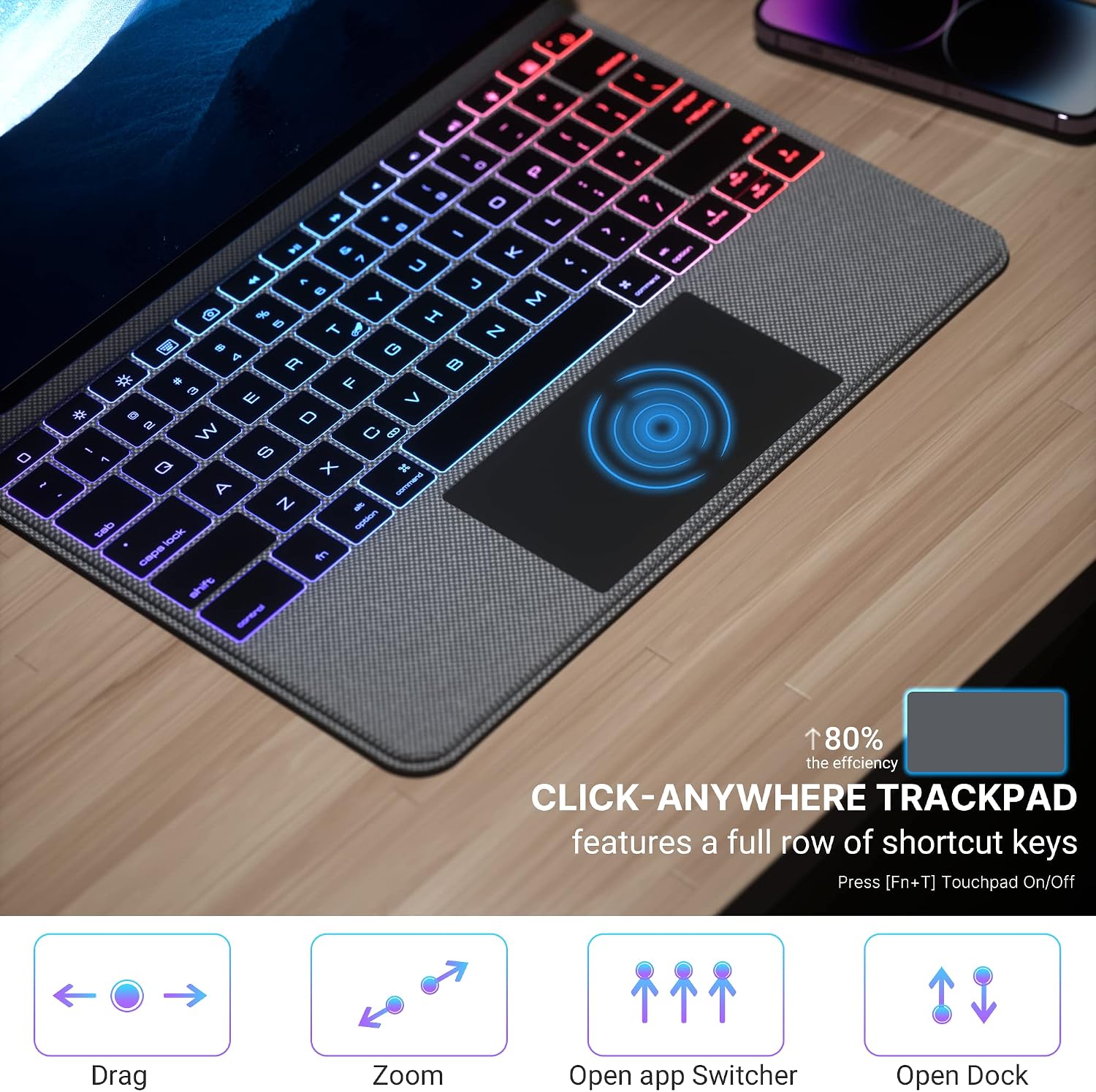
This image provides a visual guide to the multi-touch trackpad gestures, including dragging, zooming, opening the app switcher, and accessing the dock. It also notes that the trackpad features a full row of shortcut keys and can be turned on/off using Fn+T.
This video provides a brief demonstration of the edaiser P129 Magic Keyboard Case, showcasing its functionality and how it integrates with an iPad Pro 12.9 inch for typing and trackpad use.
6. Maintenance
6.1 Cleaning
To clean the keyboard case, gently wipe it with a soft, damp cloth. Avoid using harsh chemicals or abrasive cleaners, as these may damage the surface. Ensure the keyboard is powered off and disconnected from any power source before cleaning.
6.2 Storage
When not in use for extended periods, store the keyboard case in a cool, dry place. It is recommended to fully charge the keyboard before storing to maintain battery health.
7. Troubleshooting
If you encounter issues with your edaiser Wireless Magic Keyboard Case, please refer to the following common solutions:
| Problem | Solution |
|---|---|
| Keyboard not connecting via Bluetooth |
|
| Keys not responding or lagging |
|
| Trackpad not working or lagging |
|
| Backlight not working |
|
If the issue persists after trying these steps, please contact customer support.
8. Specifications

This diagram showcases the main features of the keyboard case, such as the integrated numeric trackpad, customizable 7-color RGB backlight with 3 brightness levels, silent key design for quiet typing, non-slip grip, 90-day standby time, Type-C charging port, power-saving auto-sleep/wake function, thin and light profile, and strong magnetic attachment.
| Feature | Detail |
|---|---|
| Brand | edaiser |
| Model Number | MKSP129-BK |
| Compatible Devices | Apple iPad Air 13-inch (M2) 2024, Apple iPad Pro 12.9-inch (3rd, 4th, 5th, 6th Gen) |
| Connectivity Technology | Wireless (Bluetooth), USB (for charging) |
| Keyboard Description | Integrated QWERTY Keyboard |
| Special Feature | Magnetic Attachment, RGB Backlight, Multi-Touch Trackpad, Auto Sleep/Wake |
| Product Dimensions (L x W x H) | 11.3" x 9.13" x 0.73" |
| Included Components | USB Cable |
| Power Source | Battery Powered |
| Number of Keys | 83 |
| Item Weight | 1.9 pounds |
9. Warranty and Support
For warranty information and customer support, please refer to the product packaging or contact edaiser customer service through the retailer where the product was purchased. Keep your proof of purchase for warranty claims.

