
1. Introduction
This manual provides essential information for setting up, operating, maintaining, and troubleshooting your Lenovo E41-55 AMD 14-inch HD laptop. Please read this guide thoroughly to ensure optimal performance and longevity of your device. The Lenovo E41-55 is designed for everyday computing tasks, featuring an AMD Athlon A3050U processor, 4GB DDR4 RAM, and a 256GB SSD, running on Windows 10 Home.
2. What's in the Box
Upon unboxing your Lenovo E41-55 laptop, verify that all the following items are included:
- Lenovo E41-55 Laptop with integrated battery
- AC Power Adapter
- User Manual (this document)
3. Product Overview
3.1. Laptop Features and Design
The Lenovo E41-55 is a thin and light laptop designed for portability and efficiency. It features a 14-inch HD anti-glare display, a full-sized keyboard, and a two-button touchpad.

Figure 3.1: Front view of the Lenovo E41-55 laptop.
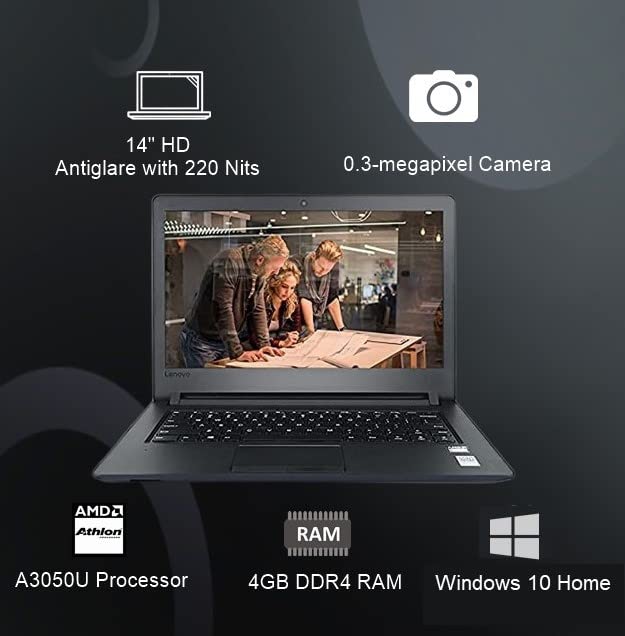
Figure 3.2: Key specifications of the Lenovo E41-55 laptop.
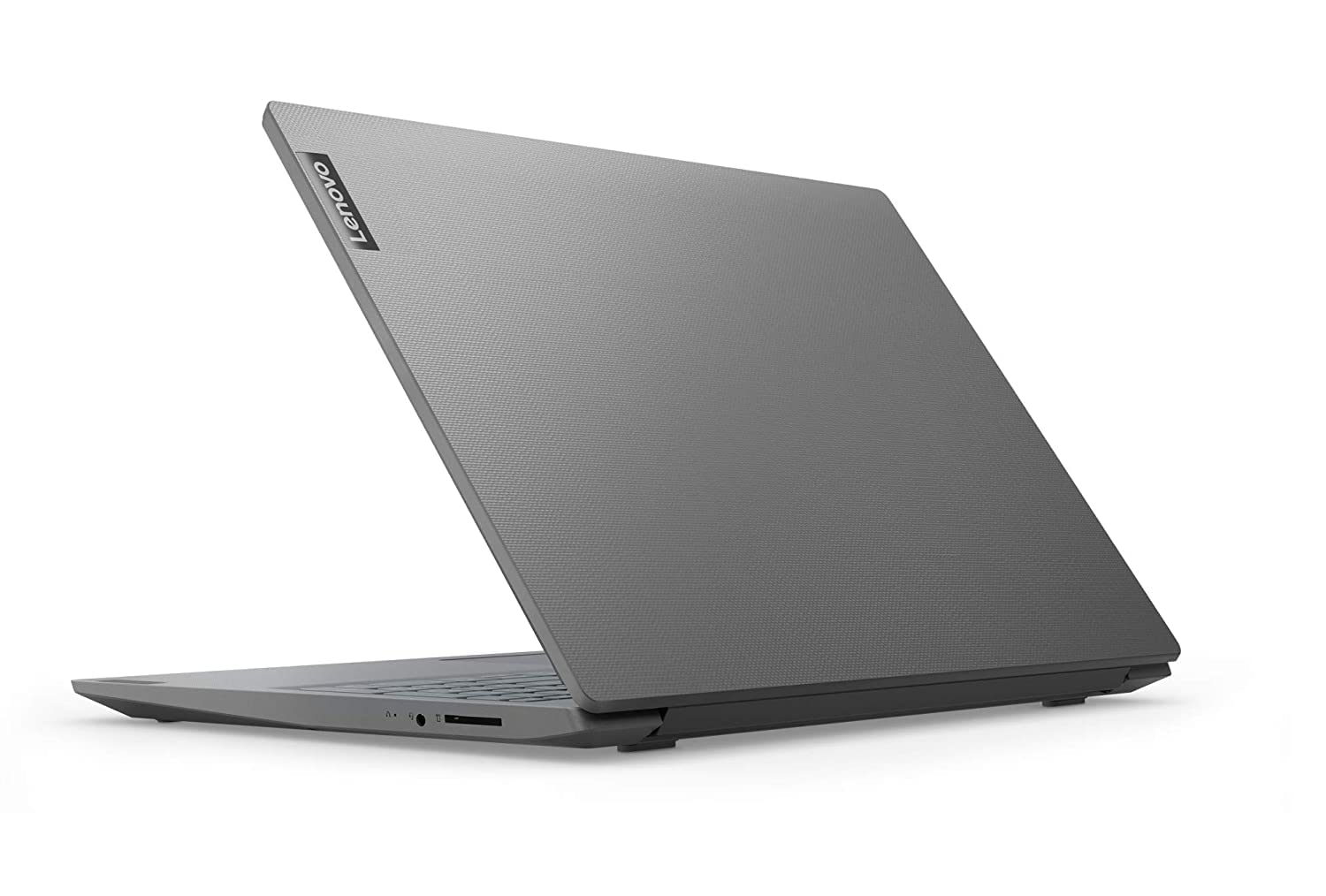
Figure 3.3: Battery and design features of the Lenovo E41-55 laptop.

Figure 3.4: Rear view of the Lenovo E41-55 laptop.
3.2. Ports and Connectors
The laptop is equipped with various ports for connectivity, including USB, HDMI, Ethernet, and an audio combo jack.

Figure 3.5: Port layout of the Lenovo E41-55 laptop.
- Left Side: Power connector, 1x Ethernet RJ-45, 1x HDMI, 1x USB 3.1 Gen 1 Type-A, 1x USB Type-C
- Right Side: 1x USB 2.0 Type-A, 1x 4-in-1 Card Reader, Audio combo jack, Kensington Nano Security Slot
3.3. Security Features
The Lenovo E41-55 incorporates security features to protect your data and device.

Figure 3.6: Security and input features.
- Kensington Nano Security Slot: For physical security against theft.
- TPM 2.0: Trusted Platform Module for hardware-based security.
3.4. Certifications
The laptop meets certain environmental and energy efficiency standards.

Figure 3.7: Environmental certifications.
- ENERGY STAR 8.0 Rated: Indicates energy efficiency.
- EPEAT Silver: Signifies reduced environmental impact.
4. Setup
4.1. Initial Power-On
- Connect Power: Plug the AC adapter into the laptop's power connector and then into a power outlet.
- Open Lid: Carefully open the laptop lid.
- Power On: Press the power button, usually located on the top right of the keyboard or on the side.
4.2. Windows 10 Home Setup
Follow the on-screen instructions to complete the initial Windows 10 Home setup. This typically involves:
- Selecting your region and keyboard layout.
- Connecting to a Wi-Fi network.
- Accepting the license agreement.
- Creating a user account or signing in with a Microsoft account.
5. Operating Instructions
5.1. Power Management
- Power On: Press the power button.
- Shut Down: Click the Start button, then Power > Shut down.
- Restart: Click the Start button, then Power > Restart.
- Sleep: Click the Start button, then Power > Sleep, or close the laptop lid.
5.2. Keyboard and Touchpad
- Keyboard: The laptop features a 6-row, spill-resistant, full-sized keyboard.
- Touchpad: Use the two-button touchpad for navigation. Tap to click, use two fingers to scroll, and pinch to zoom.
5.3. Connecting Peripherals
Utilize the available ports to connect external devices:
- USB Devices: Connect USB drives, mice, or keyboards to the USB 2.0, USB 3.1 Gen 1 Type-A, or USB Type-C ports.
- External Display: Use the HDMI port to connect an external monitor or projector.
- Network Cable: Connect an Ethernet cable to the RJ-45 port for a wired internet connection.
- Audio Devices: Plug headphones or external speakers into the audio combo jack.
5.4. Wi-Fi Connectivity
To connect to a wireless network:
- Click the Wi-Fi icon in the system tray (bottom right of the screen).
- Select your desired network from the list.
- Enter the network security key (password) if prompted.
- Click Connect.
6. Maintenance
6.1. Cleaning Your Laptop
- Screen: Use a soft, lint-free cloth lightly dampened with water or a screen cleaner. Do not spray liquid directly onto the screen.
- Keyboard and Casing: Use a soft, dry cloth. For stubborn dirt, a slightly damp cloth with mild soap solution can be used, ensuring no liquid enters openings.
- Vents: Use compressed air to clear dust from cooling vents periodically to prevent overheating.
6.2. Battery Care
- Avoid fully discharging the battery frequently.
- Store the laptop in a cool, dry place if not used for extended periods.
- Use only the original Lenovo AC adapter.
6.3. Software Updates
Regularly update your Windows operating system and drivers to ensure optimal performance and security. Windows Update can be accessed via Settings > Update & Security > Windows Update.
7. Troubleshooting
This section addresses common issues you might encounter with your Lenovo E41-55 laptop.
| Problem | Possible Cause | Solution |
|---|---|---|
| Laptop does not power on | No power, discharged battery, faulty adapter | Ensure AC adapter is securely connected and power outlet is working. Charge battery for at least 30 minutes before attempting to power on. |
| Wi-Fi not connecting | Incorrect password, Wi-Fi adapter off, router issue | Verify Wi-Fi password. Check if Wi-Fi is enabled in Windows settings. Restart your router and laptop. |
| Slow performance | Too many programs running, low disk space, outdated drivers | Close unnecessary applications. Free up disk space. Update Windows and device drivers. |
| Screen is blank | Sleep mode, external display connected, display driver issue | Press any key or move the mouse to wake from sleep. Disconnect external displays. Restart the laptop. |
8. Specifications
Detailed technical specifications for the Lenovo E41-55 laptop:
| Feature | Detail |
|---|---|
| Brand | Lenovo |
| Model Name | Lenovo E41-55 |
| Processor | AMD Athlon A3050U (2.3 GHz base, up to 3.2 GHz max, 2 Cores) |
| RAM | 4GB DDR4 2400 MHz (Max 32GB supported) |
| Storage | 256GB SSD |
| Operating System | Windows 10 Home (Preloaded with Lifetime Validity) |
| Display | 14-inch HD (1366 x 768) 220 Nits Antiglare |
| Graphics | Integrated AMD Radeon Graphics |
| Ports | 1x USB 2.0 Type-A, 1x USB 3.1 Gen 1 Type-A, 1x USB Type-C, 1x HDMI, 1x 4-in-1 Card Reader, 1x Ethernet RJ-45, 1x Audio combo jack |
| Connectivity | 802.11ac 2x2 Wi-Fi, Bluetooth 5.0 |
| Audio | Stereo speakers |
| Security | TPM 2.0, Kensington Nano Security Slot |
| Battery | Integrated Li-Polymer 45Wh, up to 11 hours battery life |
| Power Adapter | 45W AC adapter |
| Dimensions (LxWxH) | 7.7 x 31.5 x 49.1 cm (Product), 19.9 mm thin |
| Weight | 1.59 kg (Laptop), 2.26 kg (Item) |
| Colour | Grey |
| Certifications | ENERGY STAR 8.0, EPEAT Silver |
9. Warranty and Support
Your Lenovo E41-55 laptop comes with a 1 Year Onsite Warranty. For technical assistance, warranty claims, or further support, please contact Lenovo customer service. You can find contact information and support resources on the official Lenovo website.
For additional information and support, visit the Lenovo Store on Amazon.


