
1. Introduction
This manual provides essential information for the proper setup, operation, and maintenance of your LG 24CQ650N-6N All-in-One Thin Client. Please read this manual thoroughly before using the product to ensure safe and efficient operation. This device integrates a 23.8-inch Full HD display with an Intel Celeron N5105 Quad-core processor, designed for various computing environments.
2. Package Contents
Verify that all components are present in the package. If any items are missing or damaged, contact your vendor.
- LG 24CQ650N-6N All-in-One Thin Client Unit
- Detachable Stand Base and Neck
- Power Adapter and Power Cord
- Documentation (Quick Setup Guide, Warranty Card)
3. Setup
3.1 Unpacking and Placement
Carefully remove the thin client from its packaging. Place the unit on a stable, flat surface, ensuring adequate ventilation around the device. Avoid placing it near heat sources or in direct sunlight.
3.2 Assembling the Stand
Attach the stand neck to the display unit, then secure the stand base to the neck. Ensure all screws are tightened appropriately. The ergonomic stand allows for pivot, swivel, tilt, and height adjustments for optimal viewing comfort.

Image: The LG 24CQ650N-6N Thin Client demonstrating its ergonomic stand capabilities, including height, tilt, pivot, and swivel adjustments.
3.3 Connecting Power
Connect the power adapter to the thin client's power input port, then plug the power cord into a wall outlet. Use only the power adapter provided with the unit.
3.4 Connecting Peripherals
Connect your keyboard, mouse, and other necessary peripherals to the available USB ports. For network connectivity, use the Ethernet port or a compatible Wi-Fi adapter (if supported and purchased separately).

Image: Rear view of the LG 24CQ650N-6N Thin Client, highlighting the various input/output ports for connecting power, network, and peripherals.
3.5 Initial Power-On and OS Installation
Press the power button located on the device. Since this model is 'Non OS', you will need to install an operating system (e.g., Windows, Linux) or connect to a remote desktop environment. Follow the on-screen prompts or your organization's IT guidelines for OS installation or client configuration.
4. Operating Instructions
4.1 Power On/Off
To power on, press the power button. To power off, use the operating system's shutdown function. For a forced shutdown, press and hold the power button for several seconds.
4.2 Using the Pop-up Webcam
The thin client features a Full HD pop-up webcam. To use it, gently press the top center of the display unit where the webcam is located. The camera will extend upwards. To retract it, gently push it back down until it clicks into place. This design helps ensure privacy when the camera is not in use.

Image: Front view of the LG 24CQ650N-6N Thin Client with its integrated pop-up webcam extended from the top bezel.
4.3 Ergonomic Stand Adjustments
The stand allows for various adjustments:
- Height Adjustment: Gently push or pull the display up or down.
- Tilt: Tilt the screen forward or backward to find your preferred viewing angle.
- Swivel: Rotate the display horizontally on its base.
- Pivot: Rotate the display 90 degrees to switch between landscape and portrait orientation.
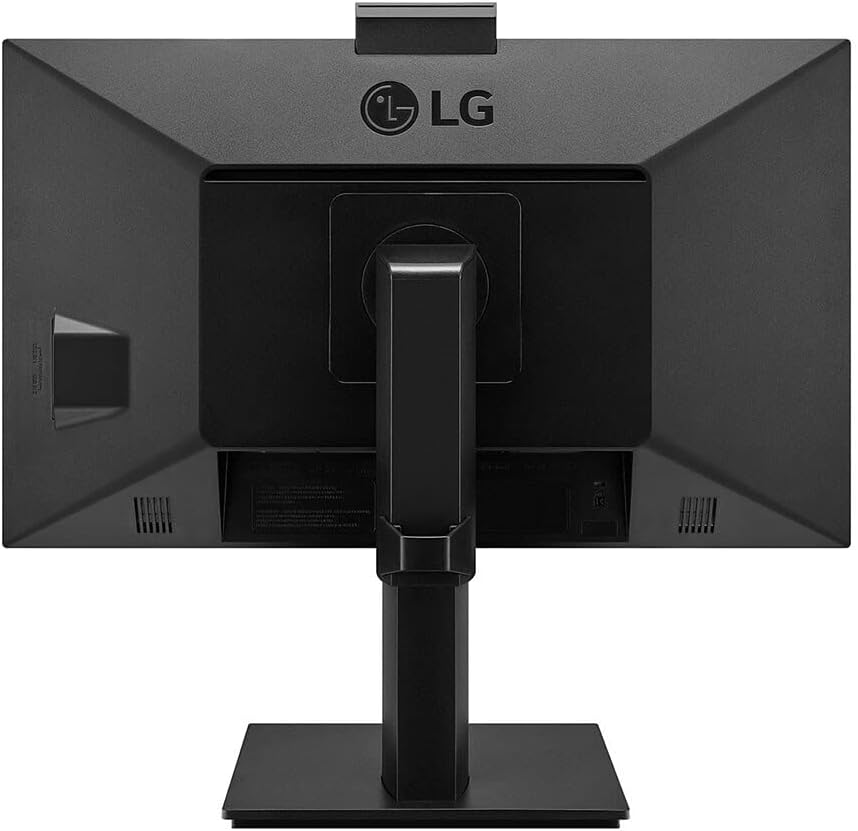
Image: Side view of the LG 24CQ650N-6N Thin Client illustrating the range of height adjustment for the display.
4.4 Multi-Display Setup
The thin client supports multi-display configurations. Connect additional monitors via the available video output ports (e.g., HDMI). Refer to your operating system's display settings to configure extended or duplicated displays.

Image: Two LG 24CQ650N-6N Thin Clients configured side-by-side, demonstrating a multi-display setup for increased productivity.

Image: Three LG 24CQ650N-6N Thin Clients arranged in a multi-display configuration, showcasing advanced workstation capabilities.
4.5 Built-in Speakers
The unit includes built-in speakers for audio output. Audio settings can be adjusted through your operating system.
4.6 Fanless Design
The fanless design ensures quiet operation, making it suitable for environments where noise reduction is important.
5. Maintenance
5.1 Cleaning the Device
To clean the screen, gently wipe it with a soft, lint-free cloth. For stubborn marks, use a screen-cleaning solution specifically designed for LCD/LED displays, applied to the cloth, not directly to the screen. For the exterior, use a soft, dry cloth. Avoid abrasive cleaners, solvents, or aerosol sprays.
5.2 Environmental Considerations
Operate the thin client within the recommended temperature and humidity ranges specified in the product specifications. Ensure proper airflow around the unit to prevent overheating.
5.3 Software Updates
Regularly update your operating system and any installed software to ensure optimal performance and security. Consult your IT administrator or OS documentation for specific update procedures.
6. Troubleshooting
If you encounter issues with your LG 24CQ650N-6N Thin Client, refer to the following common problems and solutions:
| Problem | Possible Cause | Solution |
|---|---|---|
| No power | Power cord not connected, power outlet issue | Check power cord connections. Test the outlet with another device. |
| No display | Device not powered on, display settings issue | Ensure the device is powered on. Check OS display settings if an external monitor is connected. |
| Webcam not working | Webcam not extended, driver issue, privacy settings | Ensure the pop-up webcam is fully extended. Check OS privacy settings and webcam drivers. |
| No audio from speakers | Volume muted, audio driver issue | Check volume levels in the OS. Verify audio output device settings and drivers. |
For further assistance, consult your IT department or LG customer support.
7. Specifications
The following table outlines the key technical specifications for the LG 24CQ650N-6N All-in-One Thin Client:
| Feature | Specification |
|---|---|
| Model Number | 24CQ650N-6N |
| Screen Size | 23.8 Inches |
| Resolution | FHD 1080p (1920 x 1080) |
| Processor | Intel Celeron N5105 (Quad-core) |
| Display Type | LCD |
| Refresh Rate | 60 Hz |
| Response Time | 5 Milliseconds |
| Aspect Ratio | 16:9 |
| Contrast Ratio | 1000:1 |
| Viewing Angle | 178 Degrees |
| Webcam | Full HD (Pop-up Type) |
| Connectivity | HDMI (1 Total), USB 3.0 (1 Total), Component Outputs (1 Total) |
| Additional Features | Built-In Speakers, Fanless Design, Ergonomic Stand (Pivot, Swivel, Tilt, Height Adjust) |
| Color | Black |
| Mounting Type | Wall Mount (VESA compatible) |
| Item Dimensions (D x W x H) | 7"D x 19"W x 25"H (approximate, with stand) |
| Power Consumption | 1.2 Watts (typical) |
8. Warranty and Support
8.1 Warranty Information
This product comes with a 1-Year Manufacturer's Warranty. For detailed terms and conditions, please refer to the warranty card included in your package or visit the official LG website. Extended protection plans may be available for purchase separately.
8.2 Customer Support
For technical assistance, troubleshooting not covered in this manual, or warranty claims, please contact LG Customer Service. You can find contact information and additional resources on the official LG website: www.lg.com/us/support