
Ricoh IM C3500
Contents
RICOH IM C3500 Color Laser Multifunction Copier User Manual
Model: IM C3500
Introduction
This manual provides essential information for the safe and efficient operation of your RICOH IM C3500 Color Laser Multifunction Copier. The IM C3500 is a versatile device designed for high-speed, precise, and reliable document handling, offering copy, print, and scan functionalities. Built on the RICOH Always Current Technology (ACT) platform, this device can receive updates to enhance its features and services.
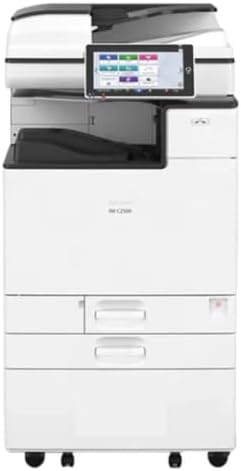
Figure 1: Front view of the RICOH IM C3500 Color Laser Multifunction Copier, showcasing its large touchscreen control panel and multiple paper trays.
Setup
1. Unpacking and Placement
Carefully remove the copier from its packaging. Ensure all packing materials are removed. The package includes the main unit and toner cartridges.
- Location: Place the copier on a stable, level surface capable of supporting its weight (Product Dimensions: 23"D x 37.9"W x 27"H). Ensure adequate ventilation around the unit.
- Clearance: Allow sufficient space around the copier for operation, maintenance, and air circulation.
2. Power Connection
- Connect the power cord securely to the power input on the rear of the copier.
- Plug the other end of the power cord into a grounded electrical outlet.
- Press the power button, typically located on the side or front panel, to turn on the device.
3. Network Connectivity (Wi-Fi)
The RICOH IM C3500 supports Wi-Fi connectivity for seamless integration into your network.
- On the copier's control panel, navigate to the "System Settings" or "Network Settings" menu.
- Select "Wi-Fi Setup" or "Wireless LAN Settings."
- Choose your desired Wi-Fi network from the list of available networks.
- Enter the network password (if required) using the on-screen keyboard.
- Confirm the settings to establish the connection.
Operating Instructions
The IM C3500 features an intuitive control panel for easy operation of its various functions.
1. Basic Copying
- Place your original document face-down on the scanner glass or face-up in the Automatic Document Feeder (ADF).
- On the control panel, select the "Copy" function.
- Adjust settings such as number of copies, color/black & white, and duplex (two-sided) copying as needed. The device supports auto-duplex.
- Press the "Start" button to begin copying.
2. Basic Printing
The copier supports printing at up to 35 pages per minute (ppm) in both color and monochrome, with a maximum print resolution of 1200x1200 dpi.
- Paper Loading: Load paper into the paper trays. The copier supports various sheet sizes including Letter, Legal (Bypass), and 12 x 18. Total paper capacity is up to 4,700 pages.
- From a Computer:
- Ensure the copier drivers are installed on your computer.
- Open the document you wish to print.
- Select "Print" from the application's menu.
- Choose the RICOH IM C3500 as your printer.
- Adjust print settings (e.g., paper size, color, duplex) and click "Print."
3. Basic Scanning
- Place your original document on the scanner glass or in the ADF.
- On the control panel, select the "Scan" function.
- Choose your scan destination (e.g., Scan to Email, Scan to Folder, Scan to USB).
- Configure scan settings such as resolution, file format, and color mode.
- Press the "Start" button to begin scanning.
Maintenance
1. Toner Cartridge Replacement
The copier will display a message on the control panel when a toner cartridge needs to be replaced.
- Open the front cover of the copier.
- Identify the empty toner cartridge.
- Carefully pull out the empty cartridge.
- Unpack the new toner cartridge (included components). Shake it gently before installation.
- Insert the new cartridge firmly until it clicks into place.
- Close the front cover.
2. Cleaning Procedures
- Exterior: Wipe the exterior surfaces with a soft, damp cloth. Do not use abrasive cleaners or solvents.
- Scanner Glass: Gently clean the scanner glass with a lint-free cloth and a non-abrasive glass cleaner to ensure clear scans.
- ADF Rollers: Periodically clean the ADF rollers to prevent paper feeding issues. Refer to the on-screen prompts or Ricoh's official support for detailed instructions.
Troubleshooting
This section addresses common issues you might encounter. For more complex problems, refer to the official Ricoh support resources.
- Paper Jams:
Follow the instructions displayed on the control panel to locate and clear jammed paper. Ensure all paper trays are properly loaded and not overfilled.
- Poor Print Quality:
Check toner levels. Perform a print head cleaning or calibration from the maintenance menu on the control panel. Ensure you are using genuine Ricoh toner cartridges.
- Connectivity Issues:
Verify that the copier is connected to the correct Wi-Fi network. Restart the copier and your network router. Ensure printer drivers are up-to-date on your computer.
- Device Not Responding:
Turn off the copier, wait for 10 seconds, and then turn it back on. Check all cable connections.
Specifications
| Feature | Detail |
|---|---|
| Model Number | IM C3500 |
| Printing Technology | Laser |
| Printer Output | Color |
| Max Print Speed (Color/Monochrome) | 35 ppm |
| Max Print Resolution | 1200x1200 dpi |
| Connectivity Technology | Wi-Fi |
| Special Feature | Auto-Duplex |
| Paper Capacity | Up to 4,700 pages |
| Supported Sheet Sizes | Letter, Legal (Bypass), 12 x 18, Various sizes |
| Product Dimensions (DxWxH) | 23\" x 37.9\" x 27\" |
| Included Components | Toner Cartridges |
Warranty and Support
For detailed warranty information, please refer to the warranty card included with your product or visit the official Ricoh website.
If you require technical assistance, have questions about your device, or need to order parts, please contact Ricoh Customer Support.
- Online Support: Visit the official Ricoh support website for FAQs, drivers, and manuals.
- Contact Information: Refer to your product documentation or the Ricoh website for regional contact numbers and service options.
Ask a question about this manual
Ask about setup, troubleshooting, compatibility, parts, safety, or missing instructions. Manuals+ will review the question and use this page’s manual context to help answer it.