
Introduction
This manual provides instructions for the installation, operation, and maintenance of the Bestycar USB Harness Adapter Set. This product is designed to provide additional USB connectivity for aftermarket Android car radio GPS head units equipped with a 16-pin power socket. It includes both a 4-pin and a 6-pin USB cable to expand the functionality of your car stereo system.
Product Overview
The Bestycar USB Harness Adapter Set consists of two distinct USB cables: one 4-pin USB cable and one 6-pin USB cable. These cables are specifically designed to connect to compatible aftermarket Android car radios that feature a 16-pin power socket. They enable various functions including phone charging, reading data from USB drives, and connecting external USB DVR devices, allowing for audio streaming and video playback.
Compatibility Note: This harness set is exclusively compatible with aftermarket Android radios that have a 16-pin power socket as depicted in the product images. It is not compatible with radios from brands such as Pioneer, Sony, or Kenwood.
What's in the Box
- 1 x 4-pin USB cable
- 1 x 6-pin USB cable
Setup
Follow these steps to properly connect the USB harness adapter to your aftermarket Android car radio:
- Identify the Power Socket: Locate the 16-pin power socket on the back of your aftermarket Android head unit. This is the primary connection point for the harness.
- Connect USB Cables: Identify the corresponding 4-pin and 6-pin USB input ports on your Android head unit. Carefully insert the 4-pin USB cable into its designated port and the 6-pin USB cable into its designated port. Ensure the connectors are fully seated and secure.
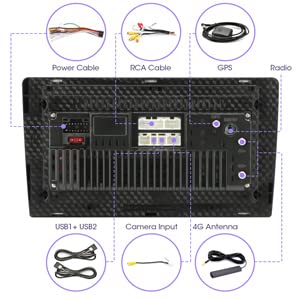
Image: Rear view of an Android head unit, highlighting the USB1 and USB2 ports where the harness cables connect.
The connection is typically plug-and-play, meaning no additional configuration is required for basic functionality once physically connected.

Image: The 4-pin USB cable, featuring a white connector designed for specific USB ports on the head unit.
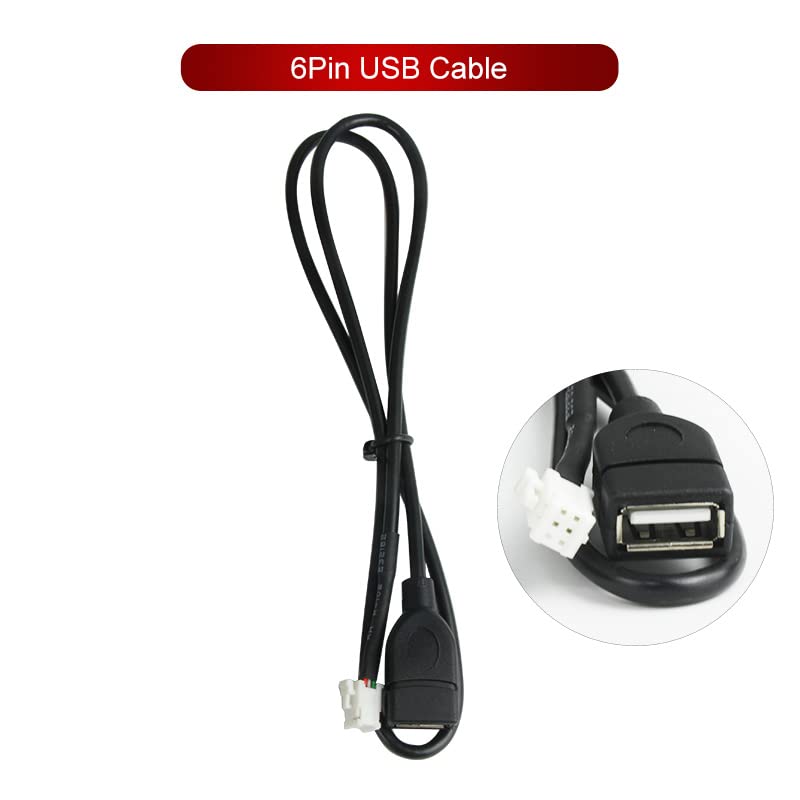
Image: The 6-pin USB cable, featuring a black connector designed for specific USB ports on the head unit.
Operating
Once the USB harness cables are connected to your Android head unit, you can utilize the extended USB ports for various purposes:
- Phone Charging: Connect your smartphone or other USB-powered devices to the USB ports for charging.
- Data Transfer: Insert a USB flash drive or external hard drive to access media files (audio, video, images) directly through your head unit.
- External USB DVR: Connect a compatible external USB Digital Video Recorder (DVR) to record driving footage, if supported by your head unit's software.
The functionality of these USB ports is managed by your Android head unit's operating system and applications.
Maintenance
To ensure the longevity and optimal performance of your USB harness adapter, consider the following maintenance guidelines:
- Keep Connectors Clean: Periodically inspect the USB ports and cable connectors for dust or debris. Use a soft, dry cloth or compressed air to clean them if necessary.
- Avoid Excessive Force: When connecting or disconnecting devices, always handle the cables and connectors gently to prevent damage to the pins or housing.
- Inspect Cables: Regularly check the cables for any signs of wear, fraying, or damage. Replace any damaged cables immediately to prevent potential electrical issues.
- Secure Installation: Ensure that the cables are routed and secured in a way that prevents them from being pinched, stretched, or exposed to excessive vibration.
Troubleshooting
If you encounter issues with your USB harness adapter, refer to the following troubleshooting tips:
| Problem | Possible Cause | Solution |
|---|---|---|
| USB ports are not working / No power or data. | Incorrect connection; Incompatible head unit; Damaged cable; Head unit settings. | 1. Ensure both 4-pin and 6-pin cables are fully and correctly inserted into their respective ports on the head unit. 2. Verify your head unit has a 16-pin power socket and is an aftermarket Android unit (not Pioneer, Sony, Kenwood). 3. Inspect cables for visible damage. Replace if necessary. 4. Check your head unit's system settings for USB port activation or configuration options. |
| Devices not recognized. | Incompatible device; Incorrect file format; Head unit software issue. | 1. Ensure the connected USB device (e.g., flash drive) is formatted correctly (e.g., FAT32) and contains supported file types. 2. Try a different USB device to rule out device-specific issues. 3. Consult your head unit's manual for supported USB device types and file formats. 4. If using an external DVR, ensure it is compatible with your head unit's software. |
Specifications
- Model Number: 6bac84bc-ece0-4551-9fc0-b624e02d7a04
- Connector Type: USB (4-pin and 6-pin)
- Compatibility: Aftermarket Android Radio with 16-pin Power Socket
- Material: Polycarbonate (PC)
- Package Dimensions: 5.16 x 4.13 x 0.91 inches
- Item Weight: 1.76 ounces
- Manufacturer: Bestycar
- Date First Available: October 14, 2022
Warranty
This Bestycar product is typically covered by a standard limited warranty against manufacturing defects. For specific warranty terms, duration, and claim procedures, please refer to the warranty information provided at the time of purchase or contact Bestycar customer support directly. Keep your proof of purchase for warranty claims.
Support
For further assistance, technical support, or inquiries regarding the Bestycar USB Harness Adapter, please contact Bestycar customer service. You can typically find contact information on the Bestycar official website or through the retailer where the product was purchased.
Online Resources: For additional information and product updates, visit the official Bestycar website.