
1. Introduction
Thank you for choosing the typecase Touch iPad Keyboard Case. This manual provides detailed instructions for setting up, operating, and maintaining your keyboard case to ensure optimal performance and longevity. Please read this manual thoroughly before use.
2. Compatibility
This keyboard case is designed for specific iPad models. Please verify your iPad model number to ensure compatibility.
- iPad 10th Generation (10.9-inch, 2022): Models A2696, A2757, A2777
- iPad A16 (11th Generation, 2025): Models A3354, A3355, A3356
To verify your iPad model:
- Method 1: Check the back of your iPad for the model number (e.g., A2696).
- Method 2: Go to iPad Settings > General > About > Model Number. Tap the model number to display the A-number.
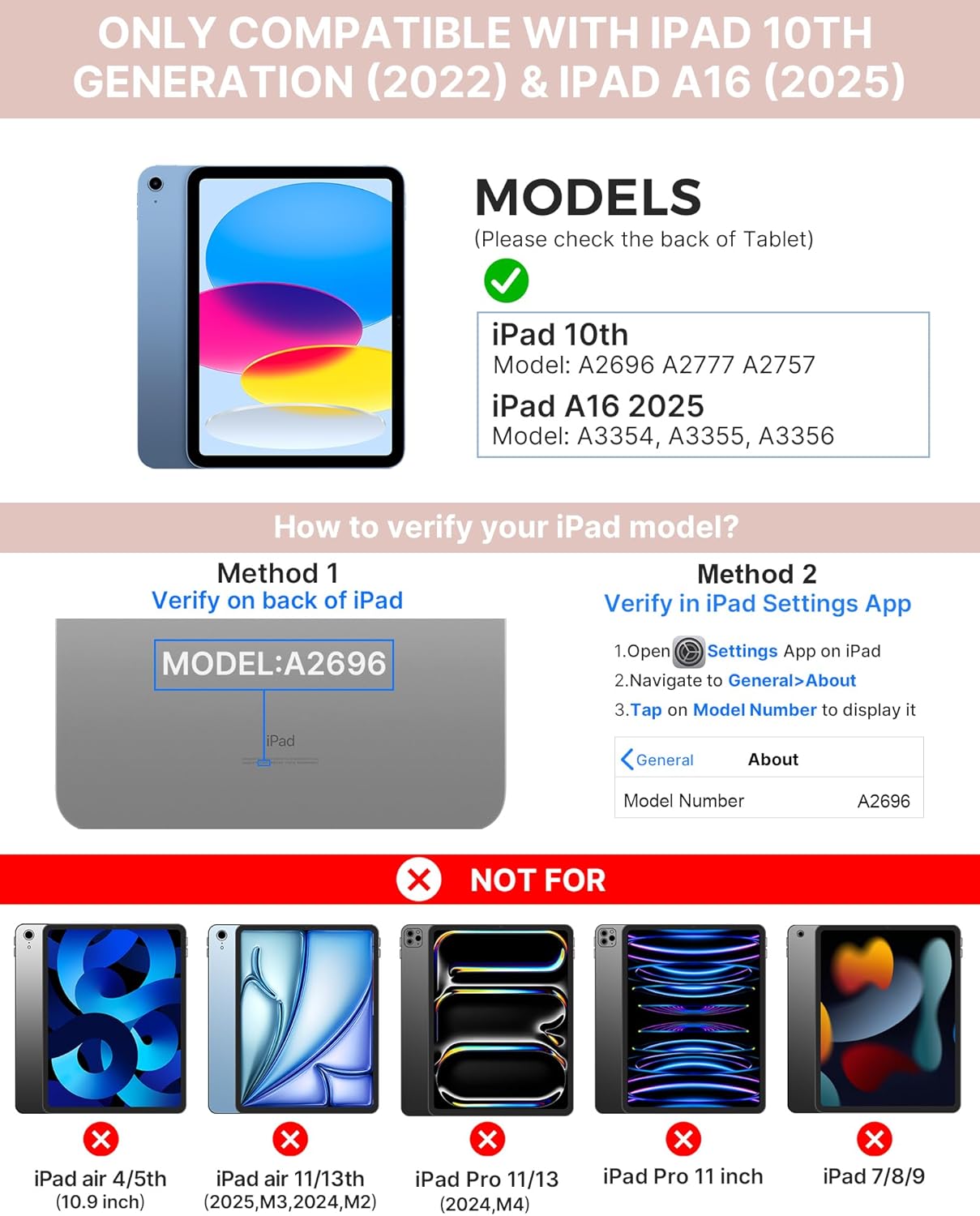
Image: Visual guide for identifying compatible iPad models and verifying the model number on the device or through settings.
3. Package Contents
The package includes:
- 1 x typecase Touch iPad Keyboard Case
- 1 x USB-C Charging Cable
- 1 x User Manual
4. Setup Instructions
4.1 Charging the Keyboard
Before initial use, fully charge the keyboard. Connect the provided USB-C charging cable to the keyboard's charging port and a power source. The charging indicator light will show the charging status.
- Standby: Up to 1 Year
- Daytime use (2 hours/day with backlight off): Up to 3 Months
- Nighttime use (2 hours/day with backlight on): Up to 2 Weeks

Image: Close-up of the keyboard's USB-C charging port and battery life specifications.
4.2 Pairing with iPad
- Ensure the keyboard is charged.
- Turn on the keyboard by pressing the power button. The Bluetooth indicator light will flash.
- On your iPad, go to Settings > Bluetooth.
- Turn on Bluetooth. Your iPad will search for available devices.
- Select "typecase Keyboard" from the list of devices.
- Follow any on-screen prompts to complete the pairing process. The Bluetooth indicator light on the keyboard will turn solid when successfully paired.
5. Operating Instructions
5.1 Installing Your iPad
Gently insert your iPad into the case, ensuring all edges are securely seated. The case provides full protection for your device.
5.2 Keyboard Functions
The keyboard features a standard 78-key layout with a dedicated row of iPadOS shortcut keys for enhanced productivity.

Image: Overhead view of the keyboard layout, highlighting the 78-key design and iPadOS shortcuts.
Backlit Keys
The keyboard features 11-color RGB LED backlighting with adjustable brightness levels. This allows for comfortable typing in various lighting conditions.
- Press the light bulb key to cycle through backlight colors.
- Press Fn + light bulb key to adjust backlight brightness.
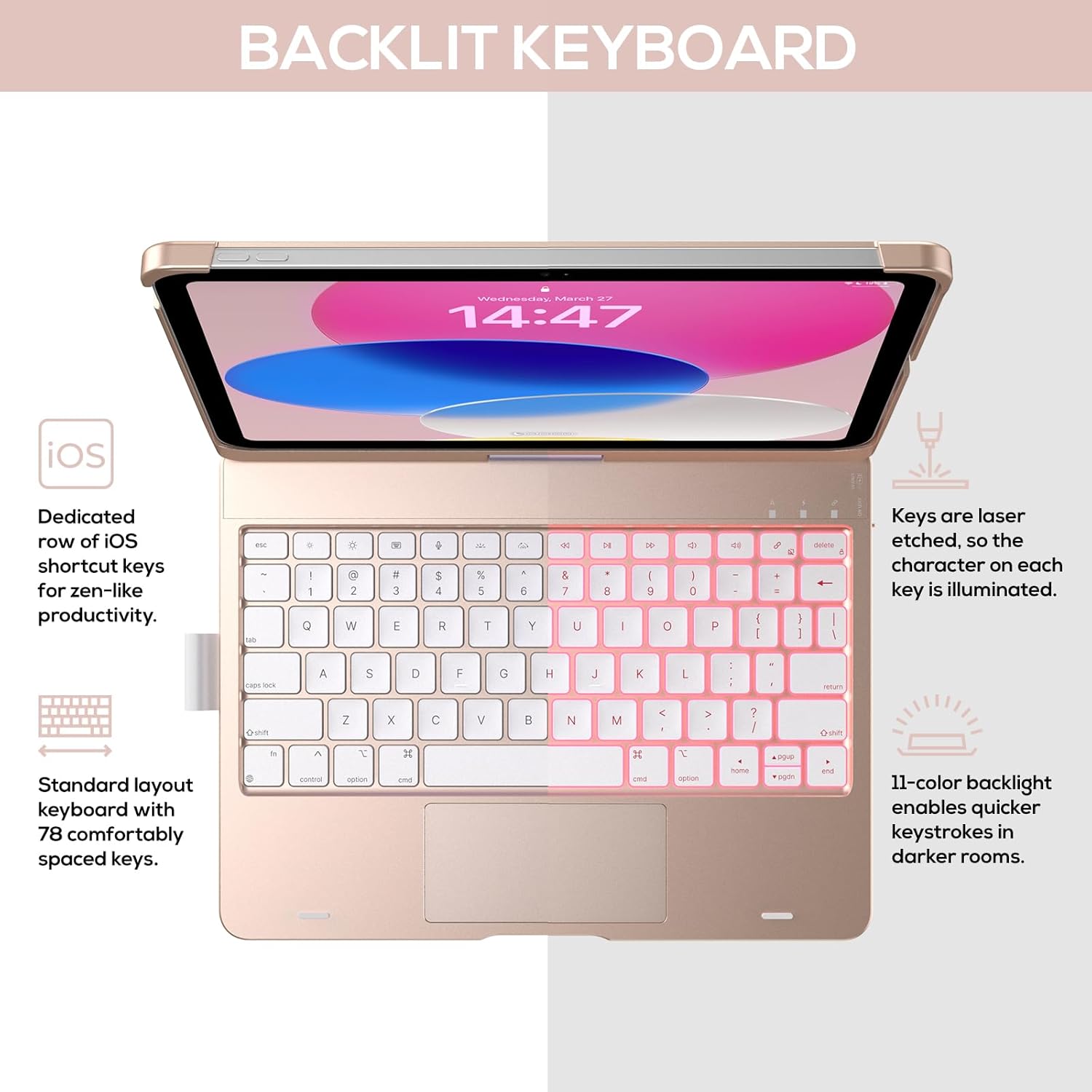
Image: The keyboard with illuminated keys, demonstrating the 11-color backlight and dedicated iOS shortcut keys.
5.3 Multi-Touch Trackpad
The integrated precision trackpad supports multi-gesture controls, enhancing productivity for tasks like document editing, web browsing, and presentation building.
- Single-finger tap: Click/Select
- Two-finger scroll: Scroll up/down or left/right
- Pinch to zoom: Zoom in/out
- Three-finger swipe up: Open App Switcher
- Three-finger swipe down: Return to Home Screen

Image: Diagram showing common multi-touch gestures for the trackpad, including managing files, web browsing, and app switching.
5.4 360° Rotatable Hinge and Use Modes
The patented 360° hinge allows for versatile use of your iPad in 7 unique modes, adapting to various tasks from typing to viewing.
- Laptop Mode: Traditional laptop setup for typing.
- Stand Mode: Ideal for viewing content.
- Tent Mode: Stable for touch interaction or presentations.
- Tablet Mode: Fold the keyboard behind the iPad for tablet use. Keys are protected in this mode.
- Corner Mode: Angled for comfortable drawing or writing.
- Share Mode: Rotate the screen to share content with others.
- Protect Mode: Close the case to fully protect the iPad.
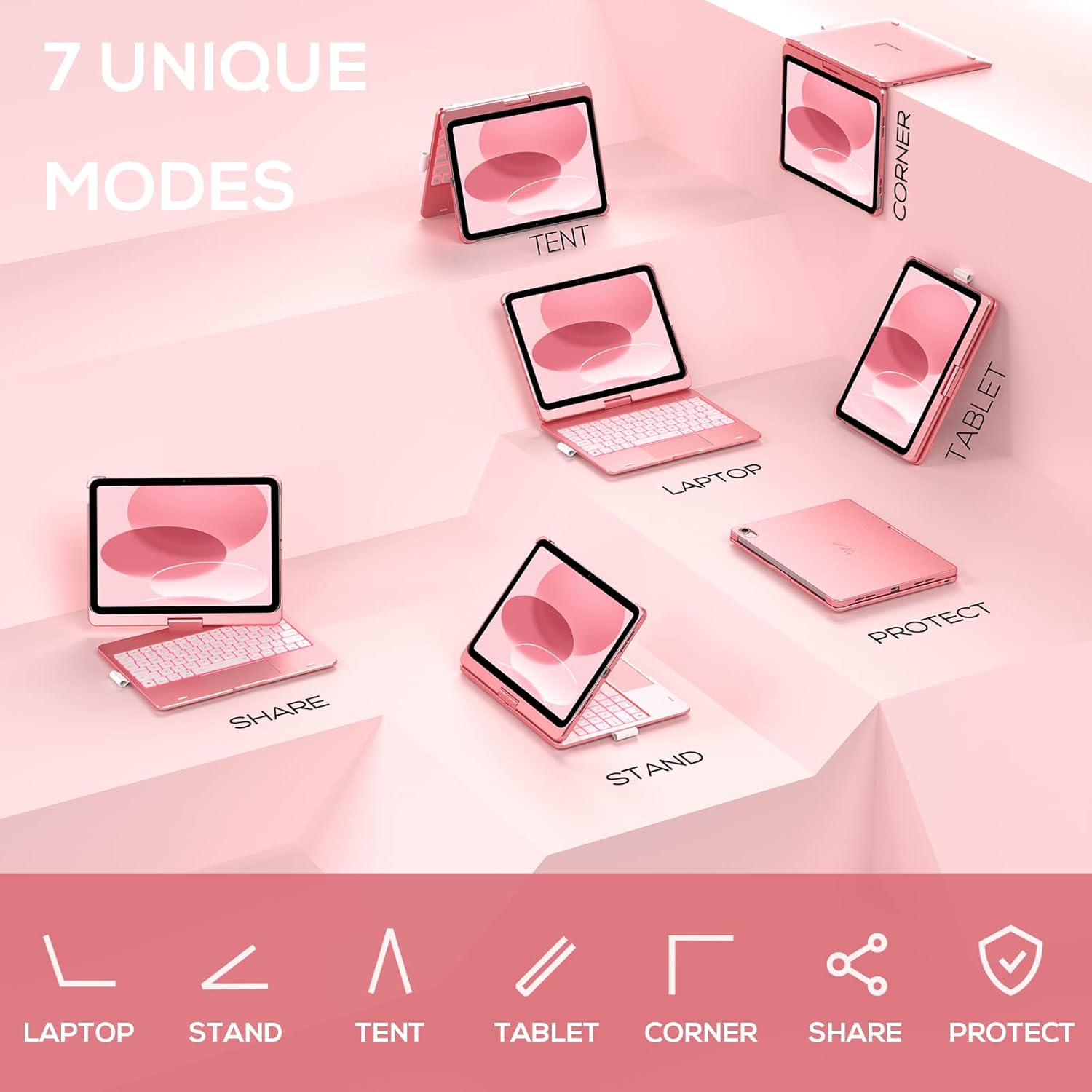
Image: A visual representation of the seven different configurations the keyboard case can be used in, including laptop, stand, and tablet modes.
5.5 Auto Sleep/Wake Function
The case features an auto sleep/wake function. Opening the case will wake your iPad, and closing it will put your iPad to sleep, helping to conserve battery life for both the iPad and the keyboard.

Image: A user's hand on the trackpad, illustrating the built-in trackpad and the auto sleep/wake feature that activates when the case is opened or closed.
5.6 Apple Pencil Holder
An integrated holder is provided for your Apple Pencil, ensuring it is securely stored and easily accessible.
6. Maintenance
6.1 Cleaning
To clean the keyboard case, use a soft, damp cloth. Avoid using harsh chemicals or abrasive materials, as these may damage the surface. Ensure the charging port is dry before charging.
6.2 Storage
When not in use for extended periods, store the keyboard case in a cool, dry place. It is recommended to fully charge the keyboard before long-term storage to maintain battery health.
7. Troubleshooting
7.1 Keyboard Not Connecting
- Ensure the keyboard is powered on and charged.
- Check that Bluetooth is enabled on your iPad.
- Forget the device in your iPad's Bluetooth settings and attempt to re-pair.
- Restart both your iPad and the keyboard.
7.2 Keys Not Responding
- Ensure the keyboard is properly connected via Bluetooth.
- Check the keyboard's battery level.
- Clean any debris from around the keys.
7.3 Trackpad Not Working
- Ensure the keyboard is connected.
- Check iPad settings for trackpad functionality (Settings > General > Trackpad).
- Restart the keyboard and iPad.
7.4 Backlight Not Working
- Ensure the keyboard is powered on.
- Press the backlight control keys (light bulb key, Fn + light bulb key) to activate or adjust.
- Check battery level; low battery may disable backlighting.
8. Specifications
| Model Number | KB201T-100 |
| Product Dimensions | 11 x 8.6 x 1.5 inches (11"L x 8.6"W x 1.5"H) |
| Item Weight | 1.43 pounds |
| Connectivity Technology | Bluetooth |
| Keyboard Description | Flexible, 78-key layout with iPadOS shortcuts |
| Special Features | 360° Rotatable, 11-Color Backlit, Ergonomic, Lightweight, Multi-Touch Trackpad, Auto Sleep/Wake, Apple Pencil Holder |
| Keyboard Backlighting | RGB (11 colors) |
| Battery Type | 1 Lithium Polymer battery (included) |
9. Warranty and Support
typecase is committed to product quality and customer satisfaction. This product comes with the following support:
- Replacement Service: Within 1 year of purchase.
- Refund Policy: Within 30 days of purchase.
For any issues or inquiries, please contact typecase customer support for quick feedback and assistance.

Image: Information on typecase's after-sales service, including replacement, refund, and customer support.


