Product Overview
The VINABTY AH59-02537A is a pre-programmed replacement remote control designed for various Samsung Blu-ray Home Theater systems. This remote provides full functionality without requiring any complex setup or programming, allowing for immediate use with compatible devices.
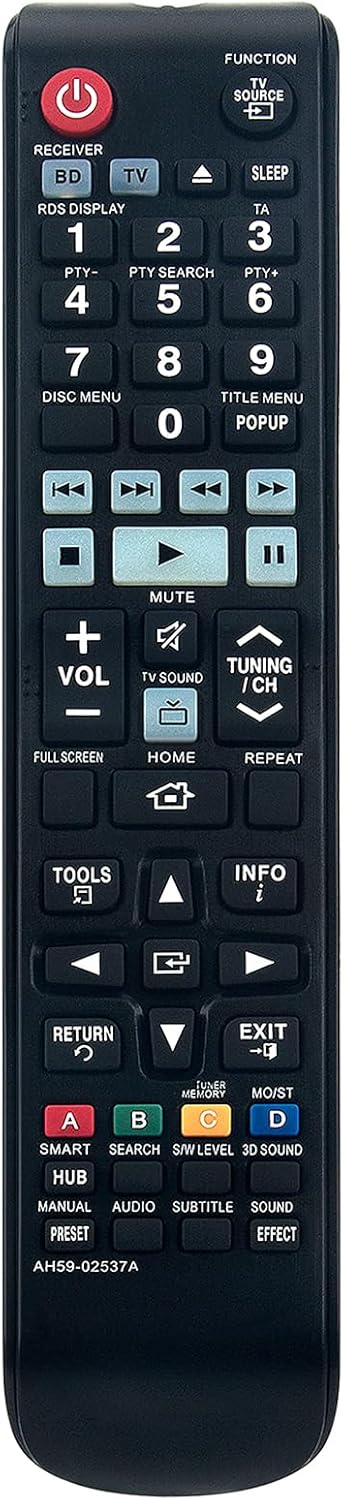
Image 1: Front view of the VINABTY AH59-02537A replacement remote control, showcasing its button layout and ergonomic design.
Compatible Models
This remote control is compatible with the following Samsung Blu-ray Home Theater systems:
- HT-F5200, HT-F5500, HT-F5530, HT-F5550
- HT-F6500, HT-F6530W, HT-F6550W
- HT-FS5200, HT-FS6200
- HT-F5500K, HT-F5550K
- HT-F5500W, HT-F5502K, HT-F5530HK, HT-F5530K, HT-F5550HK, HT-F5550W
- HT-F6500W, HT-F6530, HT-F6551W
- And other similar models (AH59-02538A, AH59-02538C series)
Setup
1. Battery Installation
To begin using your remote control, you must install two AAA batteries. Follow these steps:
- Locate the battery compartment cover on the back of the remote control.
- Slide the cover downwards or press the latch and lift to open the compartment.
- Insert two AAA batteries, ensuring the positive (+) and negative (-) terminals align correctly with the markings inside the compartment.
- Replace the battery compartment cover by sliding it back into place until it clicks securely.

Image 2: Back view of the remote control, illustrating the location of the battery compartment.
2. Initial Use
This replacement remote control is pre-programmed and does not require any additional setup or coding. Once batteries are installed, it is ready for immediate use with your compatible Samsung Blu-ray Home Theater system.
Operating Instructions
Button Functions
The remote control features a standard layout for Samsung Blu-ray Home Theater systems. Refer to the image below for a visual guide to the buttons and their primary functions:

Image 3: Angled view of the remote control, providing a clear perspective of the button arrangement.
- POWER (Red Button): Turns the home theater system on or off.
- FUNCTION / TV SOURCE: Switches between input sources.
- RECEIVER / BD / TV: Selects the device to control (Blu-ray Disc player, TV, or Receiver).
- VOL +/-: Adjusts the volume level.
- MUTE: Silences the audio output.
- TUNING / CH ^/v: Navigates through channels or tuning options.
- Playback Controls (Play, Pause, Stop, Fast Forward, Rewind, Skip): Controls media playback.
- Directional Pad (Up, Down, Left, Right) and ENTER: Navigates menus and confirms selections.
- HOME: Accesses the main menu of the home theater system.
- TOOLS: Opens a context-sensitive menu for current operations.
- INFO: Displays information about the current content or system status.
- RETURN: Goes back to the previous screen or menu.
- EXIT: Exits the current menu or function.
- SMART HUB: Accesses Samsung's Smart Hub features.
- A, B, C, D (Color Buttons): Used for specific functions within menus or applications, as indicated on-screen.
Basic Operation
To operate your Samsung Blu-ray Home Theater system:
- Point the remote control directly at the home theater system's sensor.
- Press the POWER button to turn the system on.
- Use the FUNCTION button to select the desired input source (e.g., Blu-ray, AUX, TV).
- Navigate menus using the Directional Pad and confirm selections with the ENTER button.
- Adjust volume with VOL +/- and control media playback with the dedicated playback buttons.
Maintenance
Proper maintenance ensures the longevity and optimal performance of your remote control.
- Cleaning: Wipe the remote control with a soft, dry cloth. Avoid using liquid cleaners or abrasive materials, as they may damage the surface or internal components.
- Battery Replacement: If the remote control becomes unresponsive or its range decreases, replace both AAA batteries with new ones. Do not mix old and new batteries, or different types of batteries.
- Storage: Store the remote control in a cool, dry place away from direct sunlight and extreme temperatures. If not in use for an extended period, remove the batteries to prevent leakage.
Troubleshooting
Common Issues and Solutions
- Remote control is not responding:
- Check if the batteries are correctly installed with the correct polarity.
- Replace the batteries with fresh AAA batteries.
- Ensure there are no obstructions between the remote control and the home theater system's sensor.
- Verify that you are within the effective operating range of the remote control.
- Specific buttons are not working:
- Ensure the remote is set to the correct device mode (e.g., BD for Blu-ray, TV for television) if applicable.
- Clean the remote control, as dirt or debris might be interfering with button contacts.
Specifications
- Model Number: AH59-02537A
- Power Source: 2 x AAA Batteries (not included)
- Product Dimensions: 7.9 x 2 x 0.7 inches
- Item Weight: 2.8 ounces
- Color: Black
- Special Feature: Ergonomic design
- Compatible Devices: Samsung Blu-ray Home Theater Systems
Warranty and Support
For information regarding warranty coverage or technical support, please refer to the purchase documentation or contact the seller directly. Specific warranty terms may vary depending on the retailer and region of purchase.
If you encounter issues not covered in this manual, please reach out to the product's customer support for further assistance.